
1. Introduction
This manual provides comprehensive instructions for the installation, operation, and maintenance of your Axis Communications AXIS Q6055 Network Camera. The AXIS Q6055 is an advanced indoor PTZ (Pan, Tilt, Zoom) dome camera designed for detailed surveillance in various indoor environments. Please read this manual thoroughly before using the product to ensure proper setup and optimal performance.
2. Safety Information
Observe the following safety precautions to prevent damage to the product or injury to yourself and others:
- Power Source: Use only the specified AC/DC power source (24 V AC/DC). Ensure the power supply is stable and meets the camera's requirements.
- Installation: Install the camera securely on a ceiling mount. Ensure the mounting surface can support the camera's weight (approximately 10.78 pounds).
- Environment: This camera is designed for indoor use. Avoid exposing it to extreme temperatures, humidity, or direct water contact.
- Cables: Route all cables carefully to prevent tripping hazards or damage.
- Servicing: Do not attempt to open or service the camera yourself. Refer all servicing to qualified personnel.
3. Package Contents
Verify that all items are present in the package before proceeding with installation:
- AXIS Q6055 Network Camera
- Installation Guide
- Mounting Bracket (for ceiling mount)
- Power Connector
- Network Cable (Ethernet)
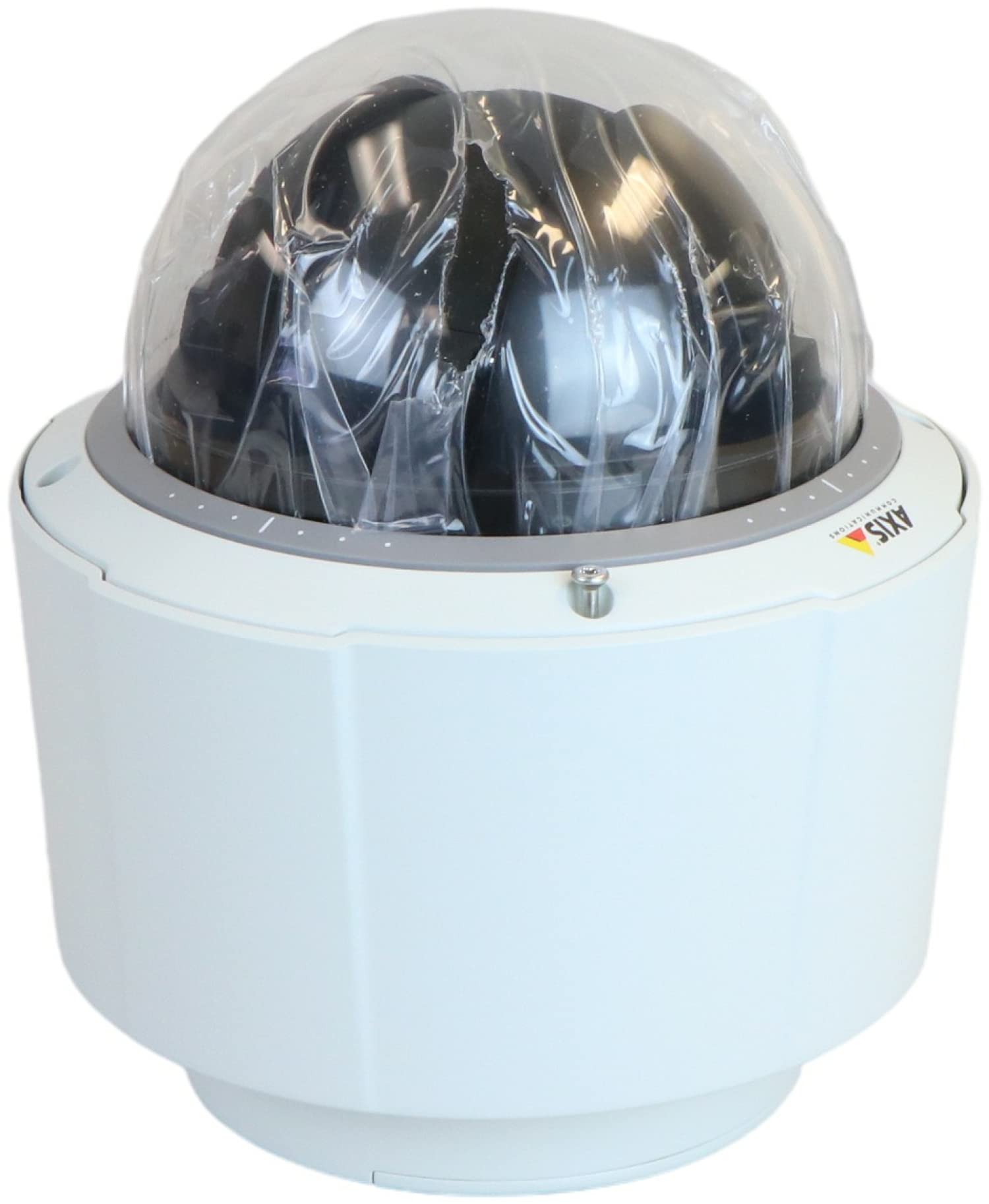
Figure 3.1: Main unit of the AXIS Q6055 Network Camera. This image shows the dome camera with its housing, illustrating its compact design suitable for indoor surveillance.
4. Setup
4.1 Physical Installation
- Select Mounting Location: Choose a suitable indoor ceiling location that provides the desired field of view and is structurally sound to support the camera.
- Mounting Bracket Installation: Secure the provided ceiling mount bracket to the chosen location using appropriate screws and anchors (not included). Ensure it is firmly attached.
- Cable Connections:
- Connect the Ethernet cable to the camera's network port.
- Connect the power cable to the camera's power input (24 V AC/DC).
- If using external I/O or audio, connect these cables as required.
- Attach Camera to Bracket: Carefully attach the AXIS Q6055 camera unit to the installed mounting bracket, ensuring it clicks securely into place.
4.2 Powering On and Network Connection
- Apply Power: Connect the power adapter to a power outlet. The camera will initiate its startup sequence.
- Network Access: The camera is designed for Wi-Fi connectivity. Ensure your network is configured for Wi-Fi access. For initial setup, a wired Ethernet connection is recommended to assign an IP address and configure wireless settings.
- Initial Configuration:
- Use the Axis IP Utility or a web browser to discover the camera on your network.
- Access the camera's web interface by entering its IP address in a browser.
- Follow the on-screen prompts to set a strong password for the administrator account.
- Configure network settings, including Wi-Fi if desired, and time/date settings.
5. Operating Instructions
5.1 Basic Controls (Pan, Tilt, Zoom)
The AXIS Q6055 features precise PTZ capabilities. Access the camera's live view through its web interface or a compatible video management software (VMS). Use the on-screen controls to:
- Pan: Rotate the camera horizontally to cover a wide area.
- Tilt: Adjust the camera vertically to view objects at different heights.
- Zoom: Utilize the 32x optical zoom for detailed surveillance at great distances. The focus type is automatic.
5.2 Recording and Playback
Configure recording settings via the camera's web interface. You can set up continuous recording, event-triggered recording (e.g., motion detection), or scheduled recording. Recorded footage can be stored on network-attached storage (NAS) or an SD card (if supported by the specific model variant).
Playback of recorded video is typically done through the VMS or the camera's web interface, allowing you to review specific events or time periods.
5.3 Video Analytics Features
The AXIS Q6055 includes built-in video analytics to enhance surveillance capabilities:
- Highlight Compensation: Improves image quality in scenes with strong light sources.
- Object Removed: Detects when an object has been removed from a predefined area.
- Enter/Exit Detection: Triggers an alert when an object enters or exits a specified zone.
- Autotracking: Automatically follows moving objects within the camera's field of view.
- Active Gatekeeper: Automatically zooms in on detected objects in a predefined area and tracks them.
5.4 Audio Features
The camera supports two-way audio and audio detection. Connect an external microphone and speaker (not included) to utilize these features. Audio detection can trigger recordings or alerts based on sound levels.
5.5 Guard Tour
Configure Guard Tour to automatically direct the camera to up to 256 preset positions. This allows for automated patrolling of specific areas, ensuring comprehensive coverage without constant manual intervention.
6. Maintenance
6.1 Cleaning
Regular cleaning helps maintain optimal image quality:
- Lens: Gently wipe the camera lens with a soft, clean, lint-free cloth. If necessary, use a mild lens cleaning solution. Avoid abrasive materials.
- Housing: Clean the camera housing with a soft, damp cloth. Do not use harsh chemicals or solvents.
6.2 Firmware Updates
Periodically check the Axis Communications website for firmware updates. Keeping your camera's firmware up-to-date ensures access to the latest features, security patches, and performance improvements. Follow the instructions provided by Axis for safe firmware upgrades.
7. Troubleshooting
This section addresses common issues you might encounter with your AXIS Q6055 Network Camera.
| Problem | Possible Cause | Solution |
|---|---|---|
| Camera not powering on. | No power supply; faulty power adapter/cable. | Check power connections. Ensure the power adapter is working and connected to a live outlet. Verify the power source is 24 V AC/DC. |
| Cannot access camera via network. | Incorrect IP address; network cable issue; Wi-Fi configuration error. | Verify the camera's IP address using Axis IP Utility. Check network cable connections. Ensure Wi-Fi settings are correct if using wireless. Restart camera and network router. |
| Poor image quality. | Dirty lens; low light conditions; incorrect settings. | Clean the camera lens. Ensure adequate lighting. Adjust image settings (e.g., exposure, white balance) in the web interface. The camera has night color technology for low light. |
| PTZ controls unresponsive. | Software glitch; network latency. | Restart the camera. Check network connection stability. Ensure your browser or VMS is up-to-date. |
If the problem persists after attempting these solutions, please contact Axis Communications support.
8. Specifications
Key technical specifications for the AXIS Q6055 Network Camera (Model: 0908-004):
| Feature | Detail |
|---|---|
| Model Number | 0908-004 |
| Form Factor | Dome |
| Indoor/Outdoor Usage | Indoor |
| Connectivity Technology | Wireless (Wi-Fi) |
| Power Source | AC/DC (24 V AC/DC) |
| Video Capture Resolution | 1080p (HDTV) |
| Zoom Type | Optical Zoom (32x) |
| Focus Type | Automatically |
| Low Light Technology | Night Color |
| Special Features | PTZ Technology, Highlight Compensation, Object Removed, Enter/Exit Detection, Autotracking, Active Gatekeeper, Two-way Audio, Audio Detection, Guard Tour |
| Mounting Type | Ceiling Mount |
| Item Weight | 10.78 pounds |
| International Protection Rating | IP54 |
| Flash Memory Installed Size | 512 MB |
| GTIN | 07331021052079 |
9. Support and Warranty
For technical support, product documentation, and warranty information, please visit the official Axis Communications website or contact their customer service. Specific warranty terms and conditions may vary by region and purchase date.
Note: No specific warranty details were provided in the product data. Please refer to the manufacturer's official resources for current warranty information.


