
APC SRT3000RMXLI-NC
APC Smart-UPS SRT 3000VA RM 230V Network Card User Manual
Model: SRT3000RMXLI-NC
1. Introduction
This manual provides essential information for the safe and efficient operation of your APC Smart-UPS SRT 3000VA Rackmount 230V with Network Card. This Uninterruptible Power Supply (UPS) is designed to provide high-density, double-conversion on-line power protection with scalable runtime, ensuring continuous and clean power to your critical electronic equipment. Please read this manual thoroughly before installation and use.
2. Setup and Installation
2.1 Unpacking and Inspection
Carefully unpack the UPS and inspect it for any shipping damage. Report any damage to the carrier and your dealer. Retain the packaging for future use.
2.2 Rack/Tower Convertible Configuration
The Smart-UPS SRT 3000VA is designed for flexible deployment, allowing it to be installed in either a rack-mount or tower configuration. Ensure proper mounting hardware is used for your chosen setup.

Figure 2.1: Front view of the APC Smart-UPS SRT 3000VA, highlighting its rack-mountable design and front panel LCD display.
2.3 Battery Connection
Before initial use, ensure the internal battery is properly connected. Refer to the specific instructions provided with your unit for battery connection procedures. The UPS will not provide backup power until the battery is connected.
2.4 Power and Equipment Connection
Connect the UPS to a grounded power outlet. Then, connect your critical equipment to the output receptacles on the rear of the UPS. Ensure that the total load does not exceed the UPS's maximum capacity (2.7 KWatts / 3.0 kVA).

Figure 2.2: The rear view of the UPS, illustrating the input power connection, output receptacles, and communication ports including the integrated network management card slot.
2.5 Network Card Setup
The integrated network card allows for remote management and monitoring of the UPS. Connect an Ethernet cable from your network to the network port on the UPS. Refer to the network management card's specific documentation for configuration details.
3. Operating Instructions
3.1 Front Panel Display (LCD)
The UPS features an intuitive LCD display that provides real-time information on operational status, system parameters, and alarms. Use the navigation buttons (ESC, OK, A, V) to browse through menus and settings.
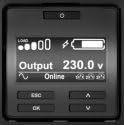
Figure 3.1: A close-up of the UPS LCD display, showing normal operation with an output of 230.0V and the system status as 'Online'.
3.2 Basic Operation
- Powering On: Press the power button on the front panel. The UPS will perform a self-test and then enter online mode.
- Powering Off: Press and hold the power button until the UPS shuts down. Ensure all connected equipment is safely powered off first.
- Checking Status: Use the 'A' and 'V' buttons to scroll through various status screens, including input/output voltage, load percentage, battery charge, and estimated runtime.
3.3 Modes of Operation
The Smart-UPS SRT operates in several modes:
- Online Mode: Normal operation where the UPS provides continuous, conditioned power to connected equipment.
- Battery Mode: Activated automatically during a utility power outage. The UPS supplies power from its internal batteries.
- Bypass Mode: Allows the UPS to pass utility power directly to the connected equipment, bypassing the UPS's power conditioning circuitry. This is typically used for maintenance.

Figure 3.2: The LCD display indicating a 'Utility Power Outage' and the remaining battery run time, demonstrating the UPS's response to power interruptions.
3.4 Battery Management
The UPS continuously monitors battery health and provides early-warning fault analysis. Ensure the UPS is connected to a stable power source to allow the batteries to charge fully. Regular battery self-tests can be initiated via the LCD menu or network management interface.
4. Maintenance
4.1 Battery Replacement
The UPS features hot-swappable batteries, allowing for replacement without powering down connected equipment. The battery failure notification system will alert you when a battery needs replacement. Always use genuine APC replacement battery cartridges (RBCs) to ensure optimal performance and safety.
4.2 Cleaning
Keep the UPS clean and free of dust. Use a dry cloth to wipe down the exterior. Do not use liquid cleaners or solvents. Ensure ventilation openings are clear of obstructions to prevent overheating.
4.3 Environmental Considerations
Operate the UPS within its specified temperature and humidity ranges. Avoid exposing the unit to excessive dust, moisture, or corrosive substances. Proper environmental conditions prolong the life of the UPS and its batteries.
5. Troubleshooting
This section provides solutions to common issues you might encounter with your UPS. For more complex problems, contact APC technical support.
5.1 Common Alarms and Indicators
- "Connect Battery" Alarm: This indicates the internal battery is not properly connected or detected. Verify the battery connection.

Figure 5.1: This image displays the LCD screen showing a 'Connect Battery' alarm, indicating that the internal battery is not properly connected or detected, and backup power is unavailable.
- Overload Alarm: The connected load exceeds the UPS's capacity. Disconnect non-essential equipment until the load is within limits.
- Battery Low/Weak: The battery charge is low, or the battery is nearing the end of its service life. Allow the battery to recharge or consider replacement.
- Fan Failure: Indicates a cooling fan issue. Ensure ventilation is not blocked. If the alarm persists, contact support.
5.2 General Troubleshooting Steps
- Check Power Connections: Ensure all power cables are securely plugged into the UPS and the wall outlet.
- Verify Load: Confirm that the total power draw of connected devices does not exceed the UPS's rated capacity.
- Restart UPS: In some cases, a simple restart of the UPS (after safely shutting down connected equipment) can resolve minor issues.
- Consult LCD Display: The LCD display provides detailed error messages and status indicators that can guide troubleshooting.
6. Specifications
| Feature | Specification |
|---|---|
| Model Number | SRT3000RMXLI-NC |
| Max Configurable Power | 2.7 KWatts / 3.0 kVA |
| Voltage | 230 Volts |
| Item Weight | 69 pounds |
| Product Dimensions (LxWxH) | 17.01 x 25 x 3.35 inches |
| Battery Type | Sealed Lead Acid |
| Color | Black |
| Material | Metal |
| Manufacturer | APC by Schneider Electric |
7. Warranty and Support
7.1 Warranty Information
This APC Smart-UPS product comes with a standard manufacturer's warranty. Please refer to the warranty card included with your product or visit the official APC website for detailed warranty terms and conditions specific to your region.
7.2 Technical Support
For technical assistance, product inquiries, or service requests, please contact APC customer support. Support contact information can typically be found on the official APC website or within the product packaging. Have your model number (SRT3000RMXLI-NC) and serial number ready when contacting support.
Related documentsSRT3000RMXLI-NC


Ask a question about this manual
Ask about setup, troubleshooting, compatibility, parts, safety, or missing instructions. Manuals+ will review the question and use this page’s manual context to help answer it.