
Digium D60
Digium D60 SIP Phone User Manual
Model: D60
1. Introduction
This manual provides comprehensive instructions for the setup, operation, and maintenance of your Digium D60 SIP Phone. The D60 is an entry-level HD phone designed for efficient communication in a professional environment. It features a 4.3-inch color display, two line keys, and dual 10/100 Mbps network ports, offering a balance of functionality and value.
Please read this manual thoroughly before using the device to ensure proper functionality and to avoid any potential issues.
2. Setup
2.1 Package Contents
Verify that all items are present in the package:
- Digium D60 SIP Phone Unit
- Handset
- Handset Cord
- Ethernet Cable
- Desk Stand
- Note: Power supply is not included and must be purchased separately or provided via Power over Ethernet (PoE).
2.2 Assembling the Phone
- Attach the Desk Stand: Align the tabs on the desk stand with the slots on the back of the phone unit. Push firmly until it clicks into place.
- Connect the Handset: Plug one end of the coiled handset cord into the handset and the other end into the handset jack on the phone unit (typically marked with a phone icon).
- Connect to Network/Power:
- For Power over Ethernet (PoE): Connect one end of the Ethernet cable to the LAN port on the phone (marked with a network icon) and the other end to a PoE-enabled network switch or injector.
- For External Power Supply (not included): Connect the external power adapter (5V DC) to the power port on the phone and then plug it into a power outlet. Connect one end of the Ethernet cable to the LAN port on the phone and the other end to your network router or switch.
- Connect PC (Optional): If you wish to connect a computer through the phone, connect an Ethernet cable from your computer to the PC port on the phone.
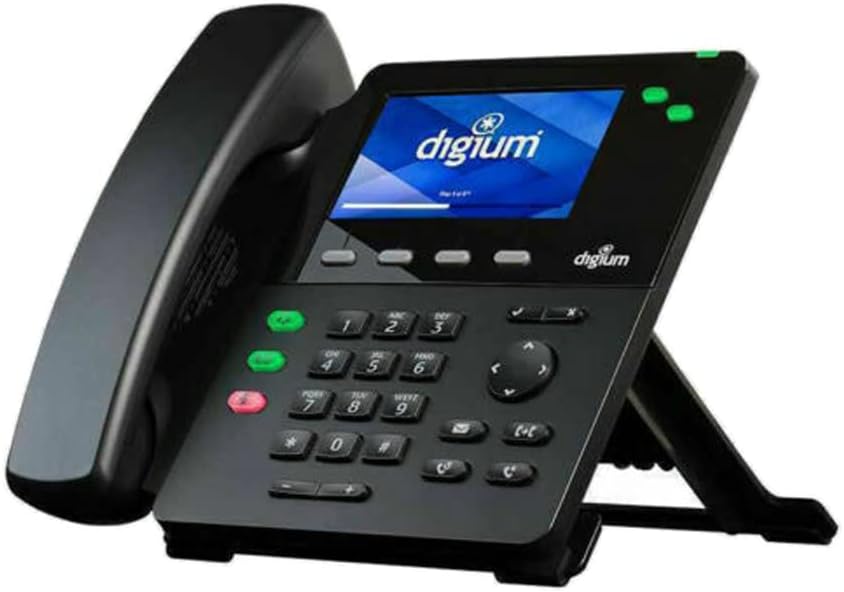
Figure 2.2.1: Assembled Digium D60 SIP Phone. The image shows the black phone unit with its handset resting on the cradle, and the desk stand supporting it at an angle. The color display shows the 'digium' logo. Various buttons, including a numeric keypad and function keys, are visible on the phone's base.
3. Operating Instructions
3.1 Basic Call Functions
- Making a Call:
- Pick up the handset or press the Speaker button.
- Dial the desired number using the keypad.
- Press the Dial soft key or wait for the call to connect automatically.
- Answering a Call:
- When the phone rings, pick up the handset or press the Speaker button.
- Alternatively, press the Answer soft key.
- Ending a Call:
- Hang up the handset or press the Speaker button again if using speakerphone.
- Alternatively, press the End Call soft key.
- Muting a Call: Press the Mute button during a call to mute your microphone. Press again to unmute.
- Adjusting Volume: Use the Volume control buttons to adjust the handset, speaker, or headset volume during a call, or the ringer volume when idle.
3.2 Advanced Features
- Hold: Press the Hold soft key during an active call. Press the corresponding line key or Resume soft key to retrieve the call.
- Transfer:
- During an active call, press the Transfer soft key. The current call is put on hold.
- Dial the number of the party you wish to transfer to.
- Wait for the second party to answer (consulted transfer) or press Transfer again to complete the transfer (blind transfer).
- Conference:
- During an active call, press the Conf soft key. The current call is put on hold.
- Dial the number of the third party.
- Once the third party answers, press the Conf soft key again to join all parties.
- Voicemail: Press the Message button (envelope icon) to access your voicemail. Follow the audio prompts. The Message Waiting Indicator (MWI) LED will flash when new voicemails are present.
4. Maintenance
4.1 Cleaning the Phone
To maintain the appearance and functionality of your Digium D60 phone:
- Use a soft, dry, non-abrasive cloth to wipe the phone's surface.
- For stubborn marks, slightly dampen the cloth with water.
- Avoid using harsh chemicals, cleaning sprays, or abrasive materials, as these can damage the phone's finish and internal components.
- Ensure no liquid enters the phone's openings.
4.2 Firmware Updates
Firmware updates are typically managed by your system administrator. These updates provide new features, performance improvements, and security enhancements. Do not attempt to manually update firmware unless instructed by your administrator or Digium support.
5. Troubleshooting
This section addresses common issues you might encounter with your Digium D60 phone.
| Problem | Possible Cause | Solution |
|---|---|---|
| Phone does not power on. | No power supply connected or PoE issue. |
|
| No dial tone. | Network connectivity issue or SIP registration failure. |
|
| Poor audio quality (echo, static). | Network congestion, faulty cable, or environmental interference. |
|
| Display is blank or frozen. | Software glitch or power issue. |
|
6. Specifications
Key technical specifications for the Digium D60 SIP Phone:
- Display: 4.3 inch, 480 x 272 pixel, full-color LCD
- Line Keys: 2 line appearance keys
- Feature Keys: 4 dedicated feature keys
- Soft Keys: 4 context-sensitive soft keys
- Navigation: 4-way navigation controller
- Audio Features: Headset, speaker, and mute keys; Volume control; HD Voice support
- Message Indicator: 2-color LED Message Waiting Indicator
- Ports:
- 2P2C handset jack
- 2P2C headset jack
- Electronic Hookswitch (EHS) port
- 2 switched 10/100Mbps Ethernet ports (LAN and PC)
- 5 volt DC power port
- Power: 802.3at/af Power over Ethernet (PoE) compatible; 5V DC power input
- Dimensions (L x W x H): Approximately 12 x 6 x 12 inches
- Weight: Approximately 2.9 pounds
- Compatible Systems: Asterisk and Switchvox
7. Warranty Information
Digium products typically come with a limited manufacturer's warranty. For specific warranty terms, duration, and conditions, please refer to the warranty card included with your product or visit the official Digium website. Keep your proof of purchase for warranty claims.
8. Support
For technical assistance, troubleshooting beyond this manual, or inquiries regarding your Digium D60 SIP Phone, please contact your system administrator or refer to the official Digium support resources:
- Digium Official Website: www.digium.com
- Support Portal: Check the Digium website for their dedicated support portal, knowledge base, and FAQs.
When contacting support, please have your product model (D60) and serial number ready.
Related documentsD60


Ask a question about this manual
Ask about setup, troubleshooting, compatibility, parts, safety, or missing instructions. Manuals+ will review the question and use this page’s manual context to help answer it.