
1. Introduction
This manual provides detailed instructions for the ELEGOO UNO R3 2.8 Inch TFT Touch Screen. It covers product features, specifications, setup, operation, maintenance, and troubleshooting. Please read this manual thoroughly before using the product to ensure proper functionality and longevity.
2. Product Overview
The ELEGOO 2.8 Inch TFT Touch Screen is a versatile display module designed for use with ELEGOO UNO R3 and other Arduino-compatible boards. It offers a vibrant color display and touch input capabilities, making it suitable for various DIY electronics projects requiring a graphical user interface.

Image: The ELEGOO 2.8 Inch TFT Touch Screen module, accompanied by a white touch stylus and a quick start guide.
Key Features:
- 2.8-inch Color LCD Touch Screen: Features a 2.8-inch color LCD display, ideal for projects requiring a rich graphical user interface.
- Integrated Touch Stylus: Includes a touch stylus for precise and convenient control of the touch interface, enhancing user interaction and ease of use.
- Built-in SD Card Reader: The screen features an integrated SD card reader (soldered on the product), enabling data loading and management.
- Designed for ELEGOO UNO: Specifically engineered for seamless compatibility with the ELEGOO UNO R3 board, providing easy connection and integration for Arduino-compatible projects.
Note: The UNO R3 controller board and USB cable are not included with this product.
3. Package Contents
Upon opening the package, please verify that all components listed below are present and undamaged.
- 1x ELEGOO 2.8-inch TFT LCD Touch Screen
- 1x CD with tutorial and code libraries
- 1x Touch Stylus

Image: The ELEGOO 2.8 Inch TFT Touch Screen and accessories neatly packed in a cardboard box.
4. Specifications
| Feature | Detail |
|---|---|
| Brand | ELEGOO |
| Model Number | FR-EL-SM-004 |
| Screen Size | 2.8 inches |
| Material | Plastic |
| Product Dimensions | 12.3P x 10.6L x 3.9H centimeters |
| Special Features | Touch screen, high-resolution LCD, stylus included, table mounting option |
| Included Components | 1x 2.8-inch TFT LCD Touch Screen, 1x CD with tutorial, 1x Touch Stylus |
| Compatibility | ELEGOO UNO R3 and Arduino-compatible boards |

Image: Dimensional diagram of the 2.8-inch TFT LCD screen module, showing its width (2.09 inches / 53mm) and height (3.07 inches / 78mm).
5. Setup Instructions
Follow these steps to set up your ELEGOO 2.8 Inch TFT Touch Screen with an Arduino-compatible board.
- Prepare your Arduino Board: Ensure your ELEGOO UNO R3 or compatible Arduino board is ready for use.
- Connect the TFT Screen: Carefully align the pins of the 2.8-inch TFT Touch Screen with the corresponding headers on your Arduino UNO R3 board. Gently press down to ensure a secure connection.
- Install Libraries: The included CD contains necessary libraries and example code. Insert the CD into your computer and follow the instructions to install the libraries into your Arduino IDE. Typically, this involves copying the library folders to the libraries directory within your Arduino installation (e.g., Program Files (x86)/Arduino/libraries).
- Load Example Code: Open the Arduino IDE. Navigate to File > Examples and locate the examples provided for the 2.8-inch TFT Touch Screen. Start with Example01-Simple test to verify basic screen functionality.
- Power the Board: Connect your Arduino board to your computer via a USB-A to B cable. The TFT screen will draw power directly from the Arduino board.

Image: Rear view of the ELEGOO 2.8 Inch TFT LCD screen, highlighting the integrated SD card slot and the pin headers for connection to a microcontroller board.

Image: Detailed circuit diagram of the 2.8-inch TFT LCD screen, illustrating pin assignments for LCD data, SD card SPI bus, and control signals.
6. Operating Instructions
Once the screen is set up and powered, you can begin interacting with it.
Basic Display:
After uploading a basic display sketch (like Example01-Simple test), the screen should illuminate and display text or graphics.

Image: The ELEGOO 2.8 Inch TFT Touch Screen connected to a board (not included), displaying "Hello World!" and other text, demonstrating basic display functionality.
Using the Touch Function:
The included stylus allows for precise touch input. Use the stylus to interact with on-screen elements as programmed in your sketches.
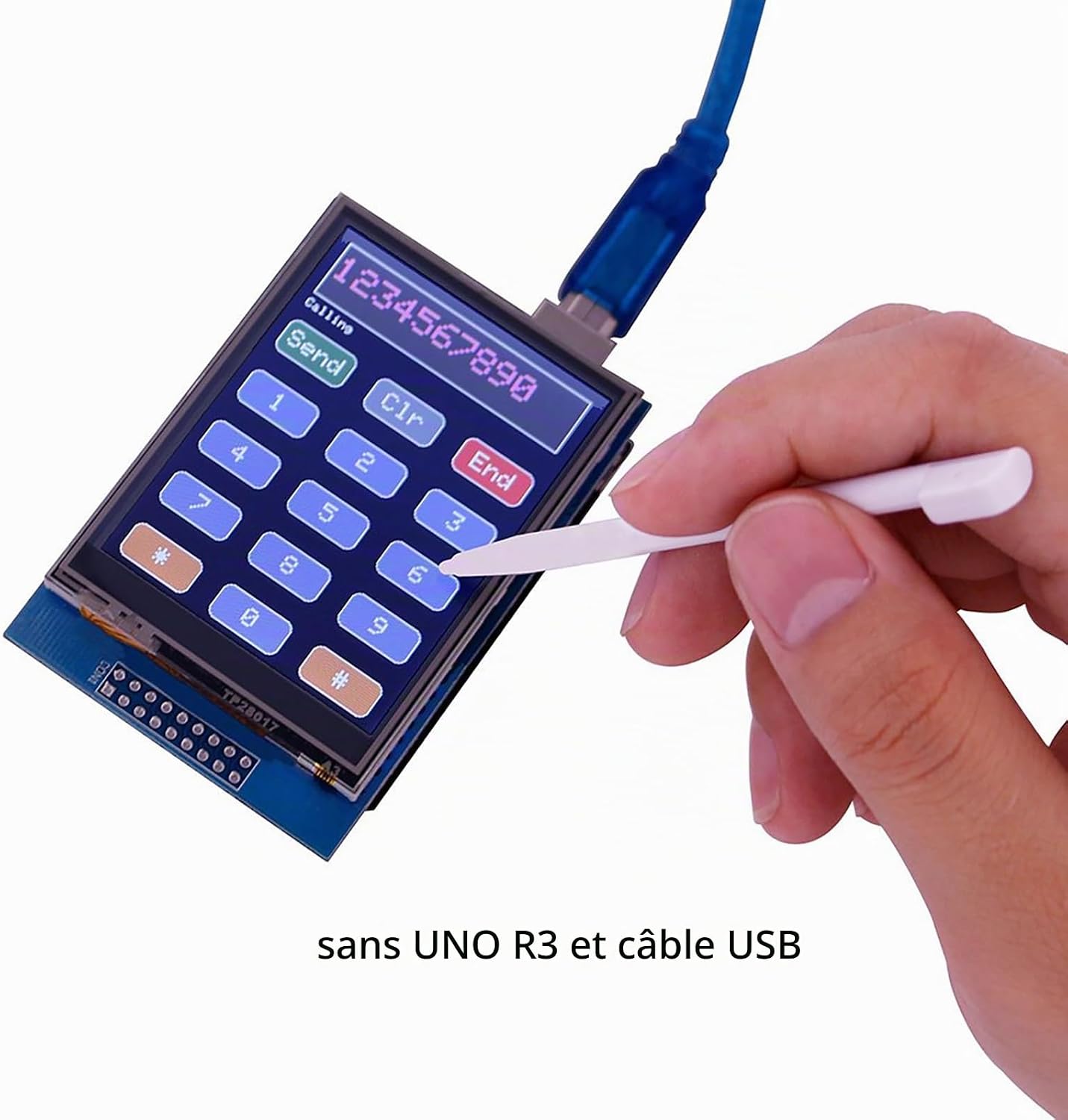
Image: A hand holding the white stylus, interacting with a numeric keypad interface displayed on the ELEGOO 2.8 Inch TFT Touch Screen.
SD Card Functionality:
The integrated SD card reader allows you to store and display images or other data. Refer to the provided tutorial CD for examples on how to read data from the SD card and display it on the screen.

Image: The ELEGOO 2.8 Inch TFT Touch Screen connected to a board (not included), displaying a full-color image of a tiger, demonstrating SD card image display capabilities.
7. Maintenance
Proper maintenance ensures the longevity and optimal performance of your TFT Touch Screen.
- Cleaning: Gently clean the screen with a soft, dry cloth. For stubborn marks, use a slightly damp cloth with mild soap and water. Avoid using abrasive materials, harsh chemicals, or strong cleaning agents, as these can damage the screen surface.
- Storage: When not in use, store the screen in a dry, dust-free environment, away from direct sunlight and extreme temperatures.
- Handling: Handle the screen by its edges to avoid touching the display surface or bending the PCB.
8. Troubleshooting
This section addresses common issues you might encounter with your ELEGOO 2.8 Inch TFT Touch Screen.
- Q1: How to power the screen?
- This screen can be powered directly by the UNO or 2560 motherboard using a USB-A to B port cable; no additional power supply is required.
- Q2: Why is the 2.8-inch TFT screen not working?
- Please use Example01-Simple test to check the screen first. This code file does not use any library files. If this code file makes the screen work correctly, there might be a library file issue. If the screen still does not work, it may be defective. Please send us a photo showing the connection between the 2.8-inch screen and the controller board, and we will assist you in resolving the issue.
- Q3: The touch function of the 2.8-inch TFT screen is not working?
- Please try downloading the following code to the control board: drive.google.com/file/d/1wps9b6sMZNwhEfTe6SEEvCfTFbGid5lL/view?usp=share_link. When you touch the screen, it will display the X-axis, Y-axis, and touch pressure values. The X-axis value ranges from approximately 1000 to 100 from left to right. The Y-axis value ranges from approximately 100 to 1000 from top to bottom. Please contact us if you continue to experience issues.
- Q4: How to turn off the backlight of the 2.8-inch TFT screen?
- The backlight circuit is directly connected to the 5V and GND pins of the PCB. The backlight can only be turned off by cutting the power supply.
9. Warranty Information
ELEGOO products are manufactured to high-quality standards. For specific warranty details and terms, please refer to the documentation included with your purchase or visit the official ELEGOO website. Keep your proof of purchase for warranty claims.
10. Support
For further assistance, technical support, or inquiries, please contact ELEGOO customer service.
- Email: service@elegoo.com
- Website: www.elegoo.com
- Manufacturer Address: Shenzhen ELEGOO Technology Co., Ltd, No.30 Dahe Industrial Park, Guancheng Community, Guanhu Street, Longhua, Shenzhen, China
When contacting support, please provide your product model number (FR-EL-SM-004) and a detailed description of the issue.
