
1. Introduction
Thank you for choosing the Urmet 1750/4 Mirro Color Monitor. This manual provides essential information for the safe and efficient installation, operation, and maintenance of your new monitor. Please read this manual thoroughly before use and retain it for future reference.
The Urmet 1750/4 Mirro Color Monitor is designed to provide clear video and audio communication for your intercom system. It features intuitive controls for adjusting display settings and can be integrated with Yokis radio series products for enhanced home automation capabilities.
2. Safety Information
- Electrical Safety: Installation and wiring must be performed by a qualified electrician in accordance with local electrical codes. Disconnect power before performing any installation or maintenance.
- Environment: Do not expose the monitor to extreme temperatures, humidity, or direct sunlight. Avoid installing in areas with excessive dust or vibrations.
- Cleaning: Use a soft, dry cloth for cleaning. Do not use abrasive cleaners or solvents.
- Modifications: Do not attempt to open or modify the monitor. Unauthorized modifications can void the warranty and pose safety risks.
3. Package Contents
Please check the package contents to ensure all items are present:
- Urmet 1750/4 Mirro Color Monitor
- Mounting bracket
- Screws and wall plugs
- User Manual (this document)
- (Note: Additional accessories like power supply or specific wiring may be sold separately depending on your system configuration.)
4. Setup and Installation
4.1 Mounting the Monitor
- Choose a suitable location for the monitor, typically near the entrance or in a central living area, ensuring it is at an appropriate viewing height.
- Secure the mounting bracket to the wall using the provided screws and wall plugs. Ensure the bracket is level and firmly attached.
- Refer to the wiring diagram provided with your intercom system for connecting the monitor. Connect all necessary cables (power, video, audio, data) to the terminals on the back of the monitor.
- Carefully attach the monitor to the mounting bracket, ensuring it clicks securely into place.
4.2 Initial Power-On
Once installation is complete and all connections are secure, restore power to the intercom system. The monitor should power on and display a standby screen or the video feed from the outdoor unit.
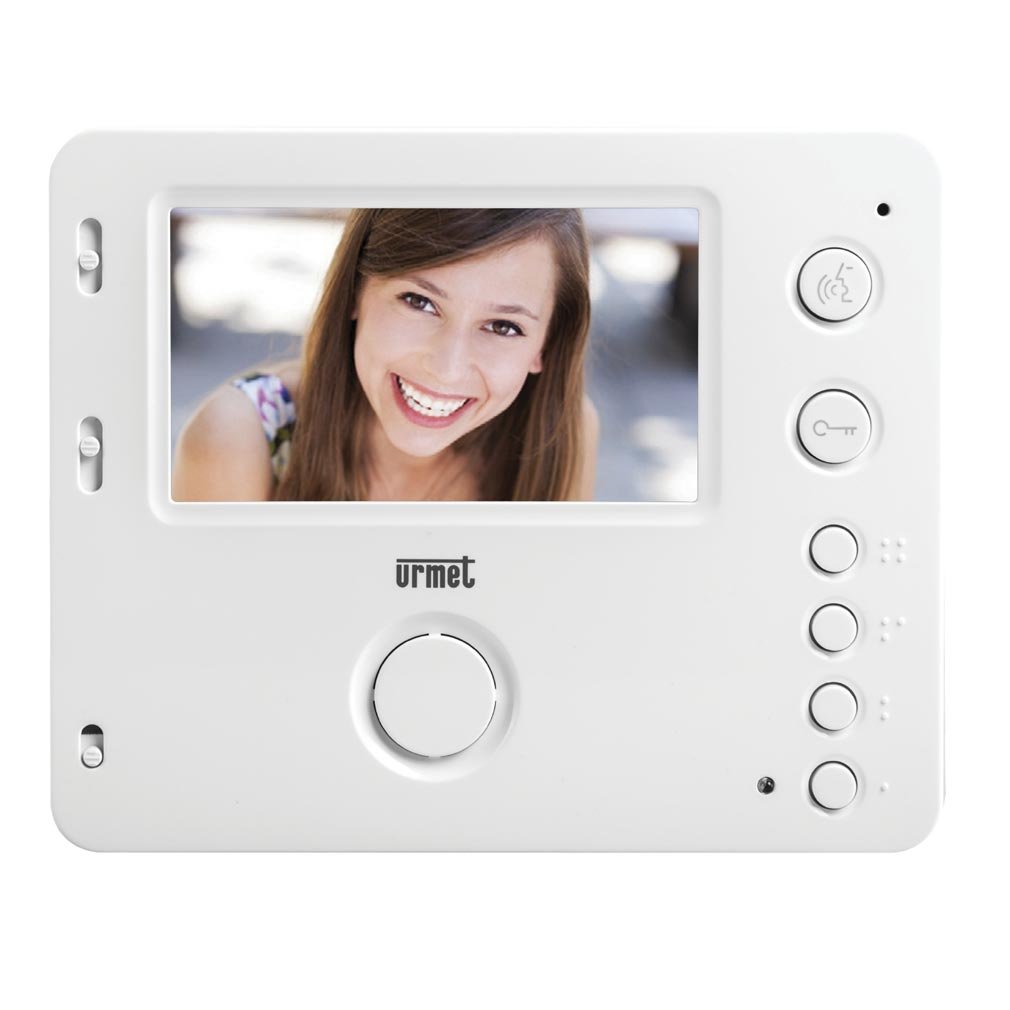
Figure 1: Front view of the Urmet 1750/4 Mirro Color Monitor. This image shows the display screen and control buttons, illustrating the sleek design and user interface.
5. Operating Instructions
The Urmet 1750/4 Mirro Color Monitor offers straightforward operation for daily use.
5.1 Basic Functions
- Answering a Call: When a visitor presses the call button on the outdoor unit, the monitor will ring and display the visitor's image. Press the Answer button (typically marked with a telephone icon) to establish communication.
- Opening the Door: During a call, press the Door Release button (typically marked with a key icon) to unlock the entrance.
- Monitoring: Press the Monitor button (typically marked with a camera icon) to view the outdoor camera feed without an incoming call.
5.2 Adjusting Display and Ringtones
The monitor features scroll wheels, usually located on the side or bottom edge, for adjusting settings:
- Ringtone Volume: Use the dedicated scroll wheel to increase or decrease the ringtone volume.
- Contrast: Adjust the contrast scroll wheel to modify the difference between light and dark areas on the screen.
- Brightness: Adjust the brightness scroll wheel to control the overall luminance of the display.
5.3 Yokis Radio Series Integration (Optional)
The Urmet 1750/4 monitor is compatible with products from the Yokis radio series. By adding a wireless e4bpp transmitter (sold separately), you can initiate home automation commands directly from the monitor.
- e4bpp Transmitter: Connect the e4bpp transmitter according to its specific installation guide.
- Command Buttons: Once integrated, two separate buttons on the monitor can be configured to trigger specific Yokis scenarios, such as turning lights on/off or activating a central control for home entry/exit. Refer to the e4bpp transmitter manual for configuration details.
6. Maintenance
Regular maintenance ensures the longevity and optimal performance of your Urmet 1750/4 Mirro Color Monitor.
- Cleaning the Screen: Gently wipe the screen with a soft, lint-free cloth. For stubborn marks, slightly dampen the cloth with water. Do not spray cleaning solutions directly onto the screen.
- Cleaning the Casing: Use a soft, dry cloth to clean the monitor casing. Avoid using harsh chemicals or abrasive materials.
- Ventilation: Ensure that the ventilation openings on the monitor (if any) are not blocked to prevent overheating.
7. Troubleshooting
If you encounter issues with your monitor, refer to the following common problems and solutions:
| Problem | Possible Cause | Solution |
|---|---|---|
| No image on screen | No power; loose video cable; outdoor unit not functioning. | Check power supply; ensure video cable is securely connected; check outdoor unit. |
| No sound during call | Loose audio cable; speaker/microphone issue; volume too low. | Check audio cable connections; adjust volume scroll wheel; contact support if issue persists. |
| Poor image quality | Incorrect brightness/contrast settings; dirty camera lens (outdoor unit); faulty cable. | Adjust brightness and contrast scroll wheels; clean outdoor camera lens; check video cable integrity. |
| Door release not working | Faulty wiring to door lock; door release mechanism issue. | Verify wiring to the door lock; test the door release mechanism independently; consult an electrician. |
If the problem persists after attempting these solutions, please contact Urmet technical support or a qualified service technician.
8. Specifications
Below are the technical specifications for the Urmet 1750/4 Mirro Color Monitor:
- Brand: Urmet
- Model Number: 1750/4
- Screen Size: 4.3 Inch
- Display Surface Description: Glossy
- Refresh Rate: 120 Hz
- Special Features: Home automation integration, high refresh rate
- Connectivity Technology: HDMI (Note: This might refer to internal components or specific system connections, not necessarily a user-facing HDMI port for external devices.)
- Number of HDMI Ports: 1
- Hardware Interface: HDMI
- Color Display: Yes
- Item Weight: 330.69 Pounds (Note: This weight seems unusually high for a monitor. Please verify product specifications if this is critical. It might be a data entry error.)
9. Warranty and Support
Urmet products are manufactured to high-quality standards and are covered by a limited warranty. For specific warranty terms and conditions, please refer to the warranty card included with your product or visit the official Urmet website.
For technical assistance, troubleshooting, or service inquiries, please contact Urmet customer support. Contact information can typically be found on the Urmet website or on your product packaging.
Urmet Official Website: www.urmet.com

