
1. Introduction
This manual provides comprehensive instructions for the Gvirtue Universal Remote Control, model PN-15+EL. This remote is designed as a compatible replacement for a wide range of Panasonic TVs, including VIERA Link, HDTV, 3D, LCD, and LED models. It offers a seamless control experience for your television.

Figure 1.1: Gvirtue Universal Remote Control, model PN-15+EL.
2. Setup
2.1 Battery Installation
The Gvirtue Universal Remote Control requires two (2) AAA batteries for operation. Batteries are not included with the remote and must be purchased separately.
- Locate the battery compartment on the back of the remote control.
- Slide the battery cover downwards to open it.
- Insert two AAA batteries, ensuring correct polarity (+ and -) as indicated inside the compartment.
- Slide the battery cover back into place until it clicks securely.

Figure 2.1: Battery installation for the remote control. Ensure correct polarity.
2.2 Initial Setup and Compatibility
This remote control is designed to work right out of the box for approximately 99% of Panasonic TVs, requiring no programming. For the remaining 1% of Panasonic TVs, the remote can be set up simply and easily following the instructions provided in this manual.
It is compatible with various Panasonic TV models, including LCD, LED, OLED, HDTV, UHD, 3D, VIERA, Plasma, 4K, and 8K Smart TVs. Compatible remote model names include N2QAYB000485, N2QAYB000100, N2QAYB000221, N2QAYB00048, and many more.
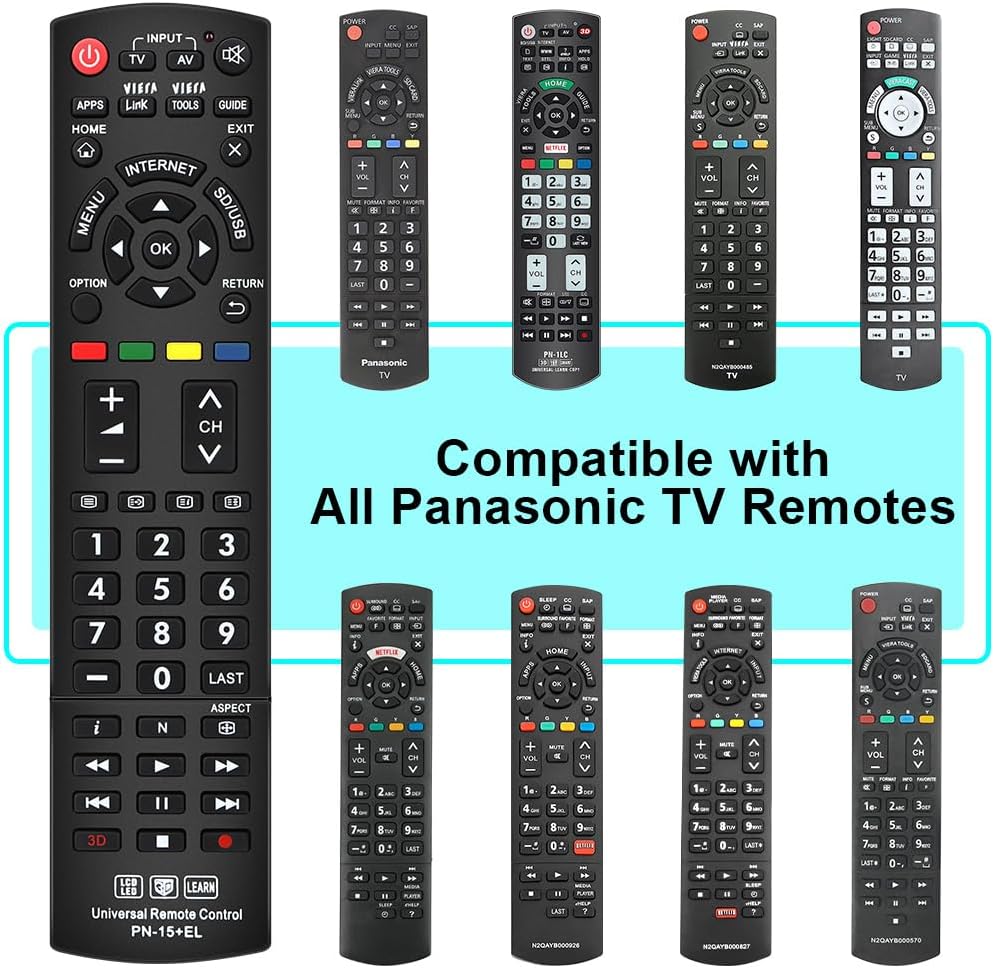
Figure 2.2: The Gvirtue remote is compatible with a wide range of Panasonic TV remotes.

Figure 2.3: Universal compatibility with Panasonic LCD, LED, OLED, HDTV, UHD, 3D, VIERA, Plasma, 4K, and 8K Smart TVs.
3. Operating Instructions
3.1 Button Functions
The remote control features dedicated buttons for various functions, providing quick access to your TV's features.
- POWER (●): Turns the TV on and off.
- INPUT / TV / AV: Selects the TV mode directly.
- MUTE: Cuts off the sound temporarily.
- VIERA Link: VIERA Link™ is a new name for EZ Sync™. It allows intelligent operation of up to four AV devices connected to your VIERA television using only the VIERA remote control. Simply connect the devices together using HDMI cables and you're ready to go.
- TOOLS: Displays frequently used functions.
- GUIDE: Displays and Electronic Program Guide.
- HOME: Enters the player's home menu. Displays the wallpaper when pressed on the category icon of the home menu.
- EXIT: Exits the menu.
- MENU: Displays the main on-screen menu.
- OPTIONS: Displays the available options on the screen.
- RETURN: Returns to the previous menu.
- Color buttons (YELLOW/BLUE/RED/GREEN): Shortcut keys for interactive functions.
- VOL+/-: Adjusts the volume.
- CH+/-: Changes channels.
- 3D: Turns the 3D function on or off.

Figure 3.1: Detailed overview of remote control button functions.
3.2 Learning Function
The remote control supports a learning function, which allows it to learn commands from your original infrared remote. This feature is useful for customizing specific buttons or if your TV is part of the 1% that requires programming.

Figure 3.2: The remote's learning function allows it to mimic commands from your original infrared remote.
For optimal performance, ensure the remote is pointed directly at the TV's infrared receiver. The remote features an upgraded smart chip for stable performance and farther transmitting distance.

Figure 3.3: Key features include stable performance and extended range.
Video 3.1: Demonstration of the Gvirtue Universal Remote Control for Panasonic TVs.
4. Maintenance
4.1 Battery Replacement
When the remote control's performance degrades or it stops responding, it is likely time to replace the batteries. Follow the battery installation steps in Section 2.1 to replace the old batteries with new AAA batteries.
4.2 Cleaning
To clean the remote control, use a soft, dry cloth. Do not use liquid cleaners or abrasive materials, as these can damage the remote's surface or internal components.
5. Troubleshooting
5.1 Remote Not Responding
- Check Batteries: Ensure batteries are correctly installed and not depleted. Replace if necessary.
- Line of Sight: Make sure there are no obstructions between the remote control and the TV's infrared receiver. Point the remote directly at the TV.
- Distance: While the remote offers a farther transmitting distance, ensure you are within a reasonable range for optimal signal reception.
- TV Compatibility: Although compatible with 99% of Panasonic TVs out of the box, if your TV is not responding, it might require the simple setup process mentioned in Section 2.2 or utilizing the learning function in Section 3.2.
6. Specifications
| Feature | Detail |
|---|---|
| Brand | Gvirtue |
| Model Number | PN-15+EL |
| Product Dimensions | 3 x 2 x 1 inches |
| Item Weight | 1.6 ounces |
| Batteries Required | 2 AAA batteries (not included) |
| Special Feature | Universal, Ergonomic |
| Color | Black |
| Max Number of Supported Devices | 15 (for learning function, if applicable) |
| Compatible Devices | Television (Panasonic TVs) |

Figure 6.1: Physical dimensions of the remote control.
7. Warranty and Support
For warranty information or technical support, please refer to the contact details provided with your product packaging or visit the official Gvirtue website. Keep your purchase receipt as proof of purchase for any warranty claims.
You can also visit the Gvirtue Store on Amazon for more information and products: Gvirtue Amazon Store.