
Introduction
Thank you for choosing the Divoom Onbeat 500 Portable Wireless Bluetooth Speaker. This device is designed to deliver powerful sound with convenient wireless connectivity. This manual will guide you through the setup, operation, and maintenance of your speaker to ensure optimal performance and longevity.
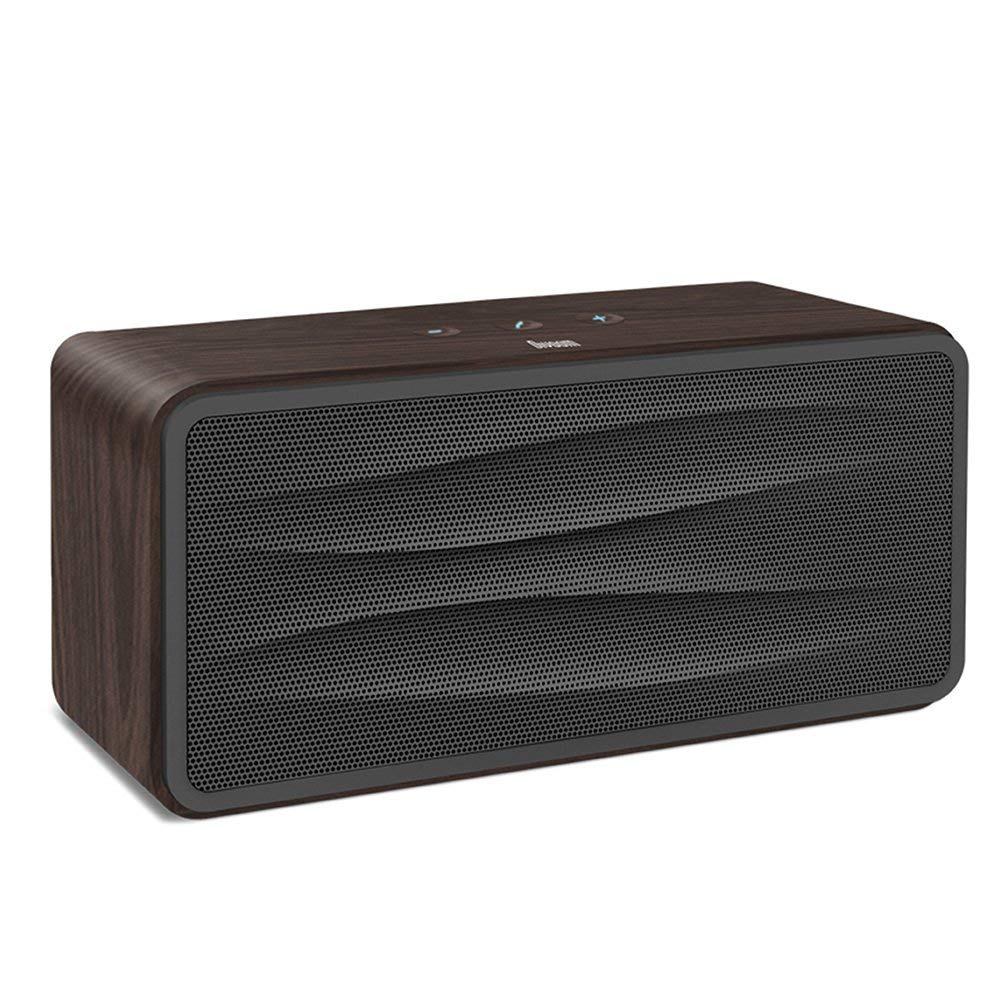
Figure 1: Front view of the Divoom Onbeat 500 speaker. This image displays the speaker's main grille and overall design.
Package Contents
Please check the package for the following items:
- Divoom Onbeat 500 Speaker
- Micro USB Charging Cable
- Auxiliary Cable
- User Manual (this document)
- Warranty Card
Product Features
The Divoom Onbeat 500 speaker offers a range of features for an enhanced audio experience:
- Powerful Sound: 2.1 channel design with a proprietary passive bass radiator for rich audio.
- NFC Technology: Tap-to-pair functionality for quick and easy Bluetooth connection.
- Bluetooth Connectivity: Wirelessly play and control music from up to 33 feet (10 meters) away.
- Built-in Speakerphone: Allows you to make and take calls directly from the speaker.
- Long-lasting Battery: Integrated 5000mAh battery provides extended playback time.
- Auxiliary Input: For wired connection to non-Bluetooth devices.
Setup
1. Charging the Speaker
Before initial use, fully charge your Divoom Onbeat 500 speaker. Use the provided Micro USB charging cable to connect the speaker to a USB power source (e.g., computer USB port, USB wall adapter). The charging indicator light will illuminate during charging and turn off or change color when fully charged. A full charge typically provides 8-10 hours of playback.
2. Powering On/Off
- To Power On: Press and hold the Power button for a few seconds until you hear an audible prompt or see the indicator light illuminate.
- To Power Off: Press and hold the Power button again for a few seconds until the speaker powers down.
3. Bluetooth Pairing
The Onbeat 500 offers two methods for wireless connection:
NFC (Near Field Communication) Pairing:
If your device supports NFC, you can pair quickly:
- Ensure NFC is enabled on your smartphone or tablet.
- With the Onbeat 500 powered on, gently tap your NFC-enabled device against the NFC area on the speaker.
- Confirm the pairing request on your device. The speaker will indicate a successful connection.
Standard Bluetooth Pairing:
For devices without NFC or for manual pairing:
- Power on the Divoom Onbeat 500 speaker. It will automatically enter Bluetooth pairing mode if no device is connected, or you may need to press a dedicated Bluetooth button (refer to speaker controls).
- On your audio device (smartphone, tablet, computer), go to the Bluetooth settings and enable Bluetooth.
- Search for available devices. You should see "Divoom Onbeat 500" in the list.
- Select "Divoom Onbeat 500" to connect. The speaker will confirm the connection with an audible prompt.
4. AUX Connection
To connect a device using the auxiliary cable:
- Connect one end of the provided auxiliary cable to the AUX-in port on the Divoom Onbeat 500.
- Connect the other end of the auxiliary cable to the headphone jack or audio output of your device.
- The speaker will automatically switch to AUX mode, or you may need to select it manually (refer to speaker controls).

Figure 2: Side view of the Divoom Onbeat 500, illustrating the location of the charging port, AUX input, and control buttons.
Operating the Speaker
1. Music Playback
Once connected via Bluetooth or AUX, you can control music playback from your connected device. The speaker may also have integrated controls for volume adjustment, play/pause, and track skipping. Refer to the speaker's physical buttons for these functions.
2. Speakerphone Functionality
When connected to a smartphone via Bluetooth, the Divoom Onbeat 500 can be used as a speakerphone:
- Answering a Call: Press the Call button (often indicated by a phone icon) on the speaker.
- Ending a Call: Press the Call button again.
- Rejecting a Call: Press and hold the Call button.

Figure 3: Rear view of the Divoom Onbeat 500, highlighting the passive bass radiator for enhanced low-frequency sound.
Maintenance
1. Cleaning
To maintain the appearance and functionality of your speaker:
- Wipe the exterior with a soft, dry, lint-free cloth.
- Do not use abrasive cleaners, alcohol, benzene, or other chemical solvents, as these may damage the finish.
- Avoid getting moisture into any openings.
2. Battery Care
To prolong the life of the built-in lithium-ion battery:
- Avoid fully discharging the battery frequently.
- Store the speaker in a cool, dry place when not in use for extended periods.
- Charge the speaker at least once every three months if stored for a long time to prevent deep discharge.
Troubleshooting
If you encounter issues with your Divoom Onbeat 500, please refer to the following common solutions:
| Problem | Possible Solution |
|---|---|
| Speaker does not power on | Ensure the battery is charged. Connect the speaker to a power source using the Micro USB cable and try again. |
| No sound from speaker | Check the volume level on both the speaker and your connected device. Ensure the speaker is correctly paired via Bluetooth or connected via AUX. Try re-pairing the Bluetooth device. |
| Bluetooth pairing fails | Ensure the speaker is in pairing mode. Turn off and on Bluetooth on your device. Move your device closer to the speaker. Clear previous Bluetooth connections on your device and try again. |
| Poor sound quality | Ensure the speaker and connected device are within range (for Bluetooth). Check for interference from other wireless devices. Try a different audio source or cable. |
Specifications
Detailed technical specifications for the Divoom Onbeat 500 speaker:
- Model Name: Divoom Onbeat 500
- Speaker Type: Computer Speaker
- Connectivity Technology: Bluetooth
- Wireless Communication Technology: Bluetooth
- Control Method: Touch
- Power Source: Battery Powered
- Battery: 1 Lithium Ion battery (5000mAh)
- Audio Wattage: 20 Watts
- Speaker Maximum Output Power: 100 Watts
- Surround Sound Channel Configuration: 2.1
- Compatible Devices: Android, Windows, iPhone (iOS)
- Connector Type: USB (for charging)
- Product Dimensions: 22.5 x 7.49 x 10.49 cm (LxWxH)
- Item Weight: 1.55 kg
- Color: Charcoal
- Special Features: NFC, Built-in Speakerphone, Passive Bass Radiator
Warranty and Support
Your Divoom Onbeat 500 speaker comes with a limited warranty. Please refer to the included Warranty Card for detailed terms and conditions, including warranty period and coverage.
For technical support, service inquiries, or further assistance, please visit the official Divoom website or contact their customer service department using the information provided on your Warranty Card or product packaging. Please have your model number (Onbeat 500) and purchase details ready when contacting support.


