
ezcap ezcap231
Ezcap Cassette to MP3 Converter User Manual
Model: ezcap231
Introduction
The ezcap Cassette to MP3 Converter is a standalone digital audio converter designed to transform your old cassette tapes into modern MP3 files. This device allows you to digitize your audio collection directly onto a USB flash drive without the need for a computer. It features automatic and manual recording modes, playback functionality, and a compact, portable design for convenient use anywhere.

Figure 1: Front view of the Ezcap Cassette to MP3 Converter.
Safety Information
- Do not expose the device to water or excessive moisture.
- Avoid extreme temperatures. Operate and store the device in a dry environment within recommended temperature ranges.
- Do not attempt to disassemble or modify the device. Refer all servicing to qualified personnel.
- Use only specified power sources (USB port or 2x AA batteries).
- Ensure the USB flash drive is properly inserted and removed only when recording or playback is stopped to prevent data corruption.
Package Contents
Verify that all items are present in your package:
- Ezcap Cassette to MP3 Converter Unit
- USB Power Cable
- Earbuds (3.5mm jack)
- User Manual (Quick Start Guide)
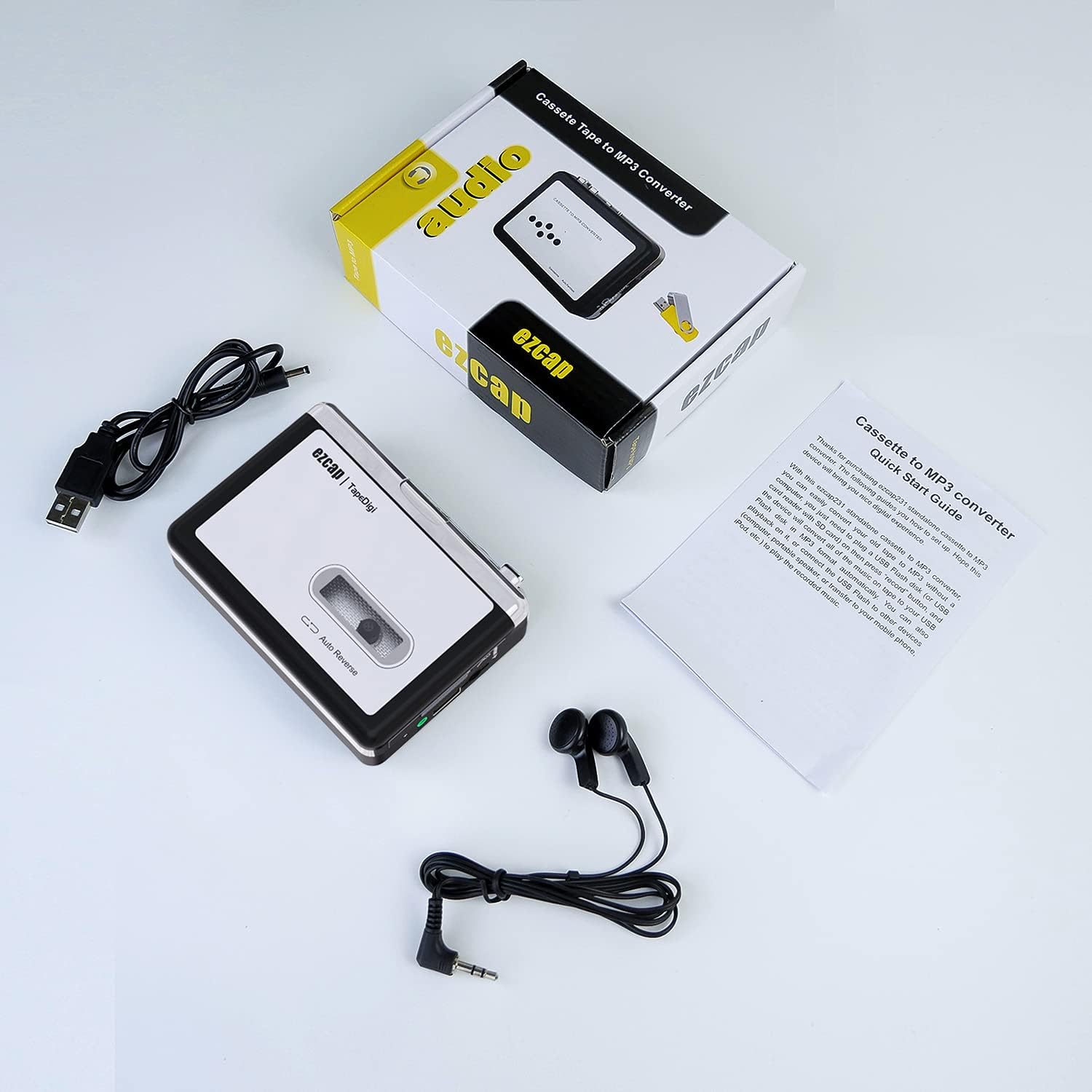
Figure 2: Included items in the product package.
Product Overview
Familiarize yourself with the various parts and controls of your Ezcap Cassette to MP3 Converter.

Figure 3: Side and top controls.

Figure 4: Front panel controls.
- Volume Control (Vol+/-): Adjusts playback volume.
- OTG Port: USB port for connecting a USB flash drive.
- Slide Down: Mechanism to open the cassette compartment.
- AUX Port: 3.5mm audio input for external audio sources.
- DIR Button: Changes the direction of cassette playback.
- Auto Reverse Switch: Enables or disables automatic tape side switching.
- F.F. (Fast Forward) Button: Fast forwards the tape.
- REW (Rewind) Button: Rewinds the tape.
- PLAY Button: Starts cassette playback.
- STOP Button: Stops cassette playback or recording.
- Recording Key (Front Panel): Initiates or stops recording to USB.
- Playback Controls (Front Panel): Buttons for starting/stopping playback of recorded files, navigating tracks, and adjusting playback volume.
Setup
1. Powering the Device
The Ezcap Cassette to MP3 Converter can be powered by two AA batteries or via the included USB power cable.
- Battery Power: Open the battery compartment on the back of the device and insert two AA batteries, ensuring correct polarity.
- USB Power: Connect the small end of the USB cable to the DC 5V port on the device and the larger end to a USB power adapter (not included) or a computer's USB port. USB power is generally more stable for recording.

Figure 5: Powering options for the device.
2. Inserting a Cassette Tape
- Gently slide down the "OPEN" latch on the side of the device to open the cassette compartment.
- Insert your cassette tape into the compartment, ensuring the tape side you wish to record first is facing the playback head.
- Close the cassette compartment firmly until it clicks into place.
3. Connecting a USB Flash Drive
Insert a USB flash drive into the OTG port on the side of the device. The device supports FAT, FAT32, and exFAT formats. For optimal performance, it is recommended to use a USB flash drive with a capacity of 32GB or less.

Figure 6: Connecting a USB flash drive.
Operating Instructions
Recording Cassettes to MP3
The device offers both automatic and manual recording modes.
- Select Recording Mode:
- In standby mode, long press the recording key (on the front panel) to switch between Automatic and Manual recording.
- In Automatic Mode, the converter will automatically detect pauses between songs and save each track as a separate MP3 file.
- In Manual Mode, the device will record continuously into a single MP3 file until you press the stop button.
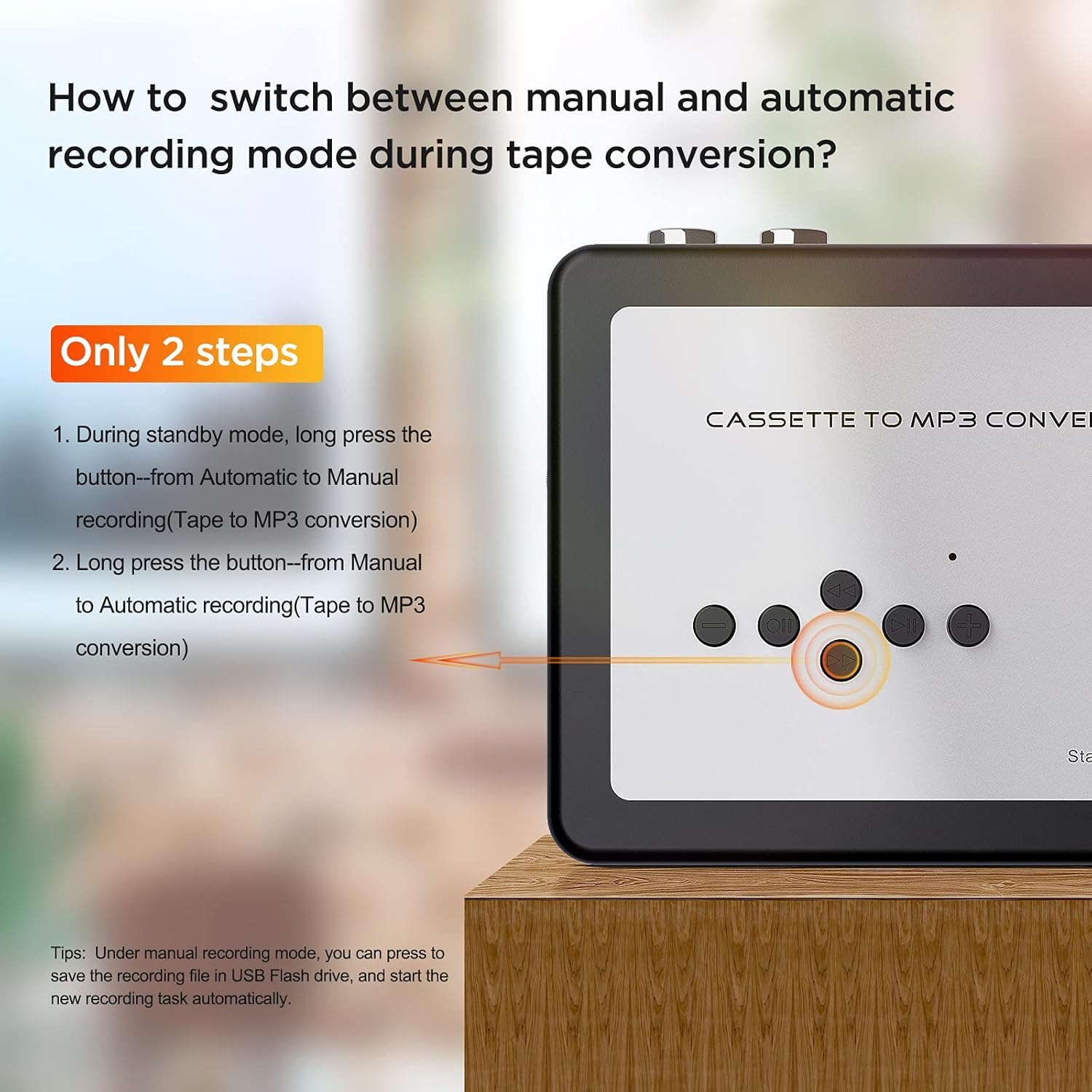
Figure 7: Switching recording modes.
- Start Recording:
- Press the PLAY button on the side of the device to start the cassette tape playing.
- Press the Recording Key (the second tiny black button from the USB port end on the front panel, marked with a circle and two small circles inside) once. The indicator light will blink continuously, indicating recording is in progress.
- Stop Recording:
- To pause recording, press the Recording Key again. The light will stop blinking and remain solid. Press it again to resume.
- To stop recording completely, press the STOP button on the side of the device. The indicator light will turn off.
- Auto Reverse Function: If the Auto Reverse switch is enabled, the device will automatically switch to the other side of the tape and continue recording when one side finishes.
Video 1: Demonstration of the Ezcap Cassette Player and Converter's recording and playback features. This video shows how to connect a USB flash drive, insert a cassette, initiate recording, and play back recorded files directly on the device.
Playback of Recorded MP3 Files
You can play back the recorded MP3 files directly from the USB flash drive on the device.
- Ensure a USB flash drive with recorded MP3 files is inserted.
- Press the Start/Stop Playback button (labeled with a play/pause icon on the front panel).
- Use the Previous Track and Next Track buttons to navigate between files.
- Adjust the playback volume using the +/- Playback Volume control buttons on the front panel or the physical volume wheel on the side.
- To stop playback, press the Start/Stop Playback button again.
Maintenance
- Cleaning: Use a soft, dry cloth to clean the exterior of the device. Do not use liquid cleaners or aerosols.
- Storage: When not in use for extended periods, remove batteries to prevent leakage. Store the device in a cool, dry place away from direct sunlight and extreme temperatures.
- Tape Care: Ensure your cassette tapes are in good condition before recording to prevent damage to the device's playback mechanism.
Troubleshooting
| Problem | Possible Cause | Solution |
|---|---|---|
| Device does not power on. | Low or dead batteries; USB cable not connected properly. | Replace batteries or ensure USB cable is securely connected to a working power source. |
| No sound during playback. | Volume too low; headphones not connected; faulty headphones; tape not playing. | Increase volume; ensure headphones are fully plugged in; try different headphones; ensure tape is playing. |
| Recording light not blinking. | USB flash drive not inserted or full; incorrect recording mode selected. | Insert a USB flash drive with sufficient space; ensure it's formatted correctly (FAT/FAT32/exFAT); check recording mode. |
| Poor recording quality. | Low battery power; dirty tape heads; worn-out tape. | Use USB power or fresh batteries; clean tape heads (refer to general cassette player maintenance); try a different tape. |
| USB flash drive not recognized. | Incorrect format; drive capacity too large. | Ensure drive is FAT, FAT32, or exFAT; use a drive 32GB or less. |
Specifications
- Model Number: ezcap231
- Dimensions: 6 x 4.5 x 1.6 inches
- Item Weight: 8 ounces
- Power Supply: 2 x AA Batteries or DC 5V USB Power
- Audio Rates: 44.1kHz and 48kHz @ 16-bit
- USB Format Support: FAT, FAT32, exFAT (up to 32GB recommended)
- Output: 3.5mm headphone jack
- Features: Auto Reverse, Auto/Manual Recording Mode, Playback Function
Warranty and Support
Ezcap products are designed for reliability and performance. For warranty information, technical support, or service inquiries, please refer to the contact details provided with your purchase documentation or visit the official Ezcap website. Keep your purchase receipt as proof of purchase for warranty claims.
Related documentsezcap231


Ask a question about this manual
Ask about setup, troubleshooting, compatibility, parts, safety, or missing instructions. Manuals+ will review the question and use this page’s manual context to help answer it.