
1. Product Overview
The Excelvan E58 is a compact 58mm thermal receipt printer designed for various point-of-sale (POS) applications. It offers versatile connectivity options including USB and Bluetooth, making it compatible with a range of operating systems such as Android, iOS, Windows, and Linux. This printer is capable of printing at speeds up to 130mm/s and supports ESC/POS commands.

Figure 1: Excelvan E58 Thermal Receipt Printer.
2. Package Contents
Please verify that all items listed below are included in your package:
- Excelvan E58 Thermal Receipt Printer
- Power Adapter (EU Plug)
- USB Cable (110 cm)
- Driver CD
- Paper Roll (58mm)
- User Manual

Figure 2: Included accessories and printer unit.
3. Setup
3.1 Connecting Power
- Ensure the printer is switched off.
- Connect the power adapter to the printer's power input port.
- Plug the power adapter into a suitable electrical outlet.

Figure 3: Rear ports of the printer, including the power input.
3.2 Loading Paper
- Press the 'OPEN' button or lever on the side of the printer to open the paper cover.
- Insert the 58mm thermal paper roll into the compartment, ensuring the printing side faces upwards and the paper feeds smoothly from the bottom of the roll.
- Pull a small length of paper out past the cutter.
- Close the paper cover firmly until it clicks into place.
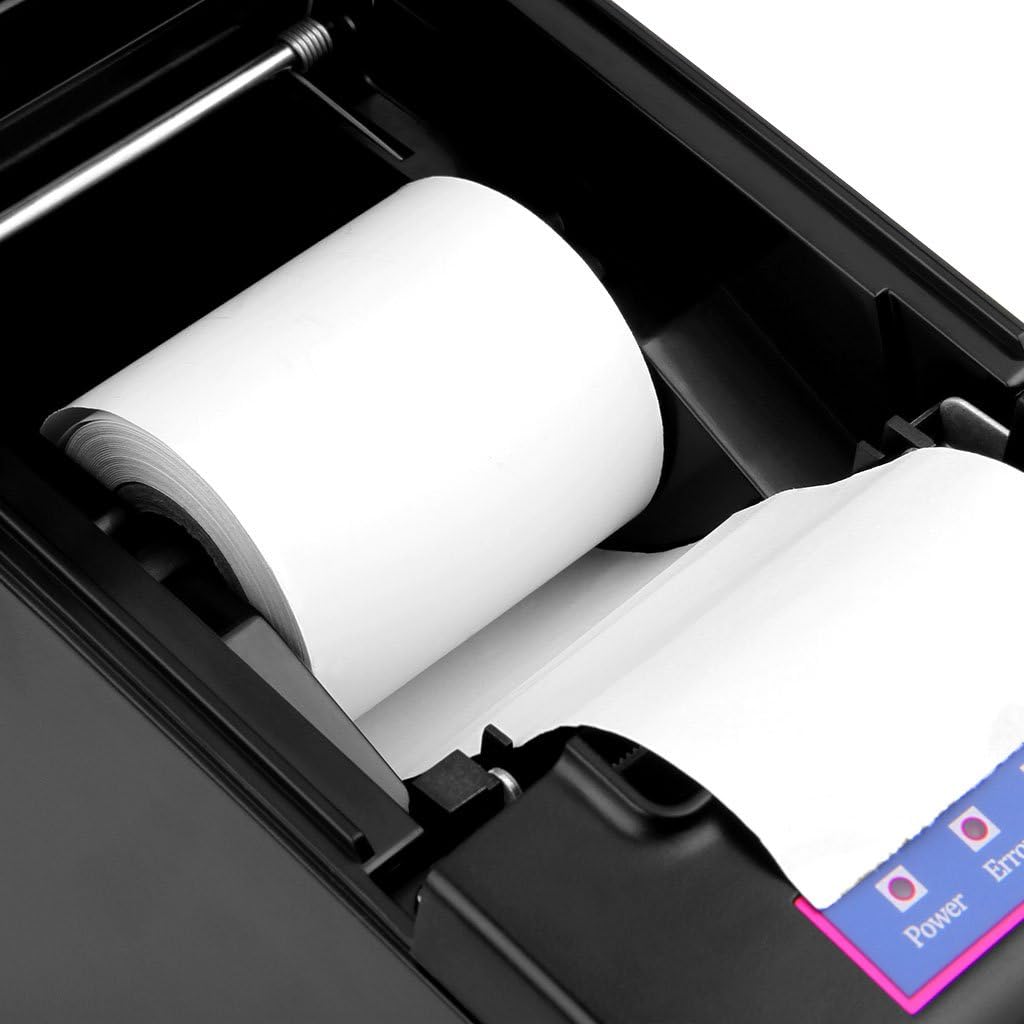
Figure 4: Paper roll loaded inside the printer compartment.
4. Operating Instructions
4.1 Power On/Off
- To power on, press the 'ON/OFF' switch located on the front of the printer. The power indicator light will illuminate.
- To power off, press the 'ON/OFF' switch again. The power indicator light will turn off.
4.2 USB Connection
- Connect one end of the USB cable to the printer's USB port and the other end to your computer.
- Install the printer driver from the provided CD or download the latest driver from the official Excelvan support website.
- Follow the on-screen instructions to complete the driver installation.
- Once the driver is installed, the printer should be recognized by your operating system (Windows, Linux).
4.3 Bluetooth Connection
- Ensure the printer is powered on and within range of your device (Android, iOS, Windows).
- On your device, navigate to the Bluetooth settings and enable Bluetooth.
- Search for available devices. The printer should appear as "E58" or a similar identifier.
- Select the printer to pair. If prompted for a PIN, enter "0000" or "1234".
- Once paired, you can select the printer from your application's print settings.
Note: While the printer supports iOS, some users have reported compatibility challenges. Ensure your printing application supports external Bluetooth thermal printers and refer to the application's documentation for specific setup instructions.
4.4 Cash Drawer Connection
The printer includes a cash drawer port (RJ11/RJ12). Connect your compatible cash drawer to this port. The cash drawer will typically open automatically upon a print command from your POS software.

Figure 5: Cash drawer port for integration with POS systems.
5. Maintenance
5.1 Cleaning the Printer Head
- Turn off the printer and disconnect the power cable.
- Open the paper cover.
- Use a cotton swab lightly dampened with isopropyl alcohol to gently wipe the thermal print head.
- Allow the print head to dry completely before closing the cover and powering on the printer.
5.2 Paper Roll Replacement
Follow the steps outlined in Section 3.2 "Loading Paper" to replace an empty paper roll with a new 58mm thermal paper roll.
6. Troubleshooting
| Problem | Possible Cause | Solution |
|---|---|---|
| Printer does not power on. | No power supply; Power switch off. | Check power cable connection; Ensure power switch is in 'ON' position. |
| No printing. | Paper loaded incorrectly; No paper; Driver not installed; Incorrect port selected. | Reload paper correctly; Insert new paper roll; Install printer driver; Select correct USB or Bluetooth port. |
| Bluetooth connection fails. | Printer not in pairing mode; Incorrect PIN; Device compatibility. | Ensure printer is discoverable; Use PIN "0000" or "1234"; Verify application support for Bluetooth printing, especially for iOS. |
| Print quality is poor. | Dirty print head; Low quality thermal paper. | Clean the print head (refer to Section 5.1); Use high-quality thermal paper. |
| Printer emits an unwanted beep sound. | Error condition (e.g., paper cover open, out of paper); Default setting. | Resolve the error (close cover, load paper). Consult the driver software or advanced settings for options to disable error beeps if available. |
7. Specifications
| Feature | Specification |
|---|---|
| Printing Method | Thermal Line Printing |
| Print Width | 48 mm |
| Resolution | 384 dots/line (384 dpi) |
| Print Speed | 130 mm/s |
| Interface | USB, Bluetooth |
| Paper Type | Thermal Receipt Paper |
| Paper Width | 57.5 ± 0.5 mm |
| Paper Roll Diameter | Max φ 83 mm |
| Commands | ESC/POS compatible |
| Operating Systems | Android, iOS, Windows (2000/2003/XP/7/8/8.1/10), Linux |
| Cash Drawer Output | DC 12V/1A |
| Power Adapter Input | AC 110V/220V, 50/60Hz |
| Power Adapter Output | DC 12V/2A |
| Dimensions (L x W x H) | 17 x 11.5 x 12 cm |
| Weight | 1.39 kg |
| Print Head Life | 100 km |
| Cutter Life | 1,000,000 cuts |

Figure 6: Printer dimensions.
8. Warranty and Support
8.1 Limited Warranty
The Excelvan E58 printer comes with a limited warranty. Please refer to the warranty card included in your package or contact your retailer for specific terms and conditions regarding warranty coverage and duration.
8.2 Customer Support
For technical assistance, troubleshooting, or inquiries regarding your Excelvan E58 printer, please contact your point of purchase or visit the official Excelvan support website for further resources.