
1. Introduction
This manual provides detailed instructions for the setup, operation, maintenance, and troubleshooting of your EXCELVAN E300 Portable Thermal Printer. Please read this manual carefully before using the printer to ensure proper function and longevity of the device.
The EXCELVAN E300 is a compact and efficient thermal printer designed for printing receipts and tickets. It features high-speed printing, a durable print head, and versatile connectivity options including Bluetooth and USB, making it suitable for various point-of-sale (POS) environments.
2. Product Overview
2.1 Package Contents
Upon unpacking, please verify that all items listed below are included:
- 1 x 80mm Thermal Printer
- 1 x Power Adapter
- 1 x Lithium Battery
- 1 x USB Cable (110 cm)
- 1 x Thermal Paper Roll
- 1 x User Manual (this document)
- 1 x CD (containing drivers and software)
2.2 Printer Components
Familiarize yourself with the main components of your EXCELVAN E300 printer:

Figure 1: Front view of the EXCELVAN E300 printer with key components labeled.
- Paper Warehouse Cover: Protects the paper roll compartment.
- Feed Button: Advances the paper.
- Charge Indicator: Lights up when the battery is charging.
- Battery Capacity Indicator: Shows the current battery level.
- Error Indicator: Lights up to indicate an error (e.g., paper out, cover open).
- Power Button: Turns the printer on/off.
3. Setup
3.1 Battery Installation
- Open the battery compartment cover located on the bottom of the printer.
- Insert the provided lithium battery, ensuring the contacts align correctly.
- Important: Remove any insulating tape from the battery contacts before installation or charging.
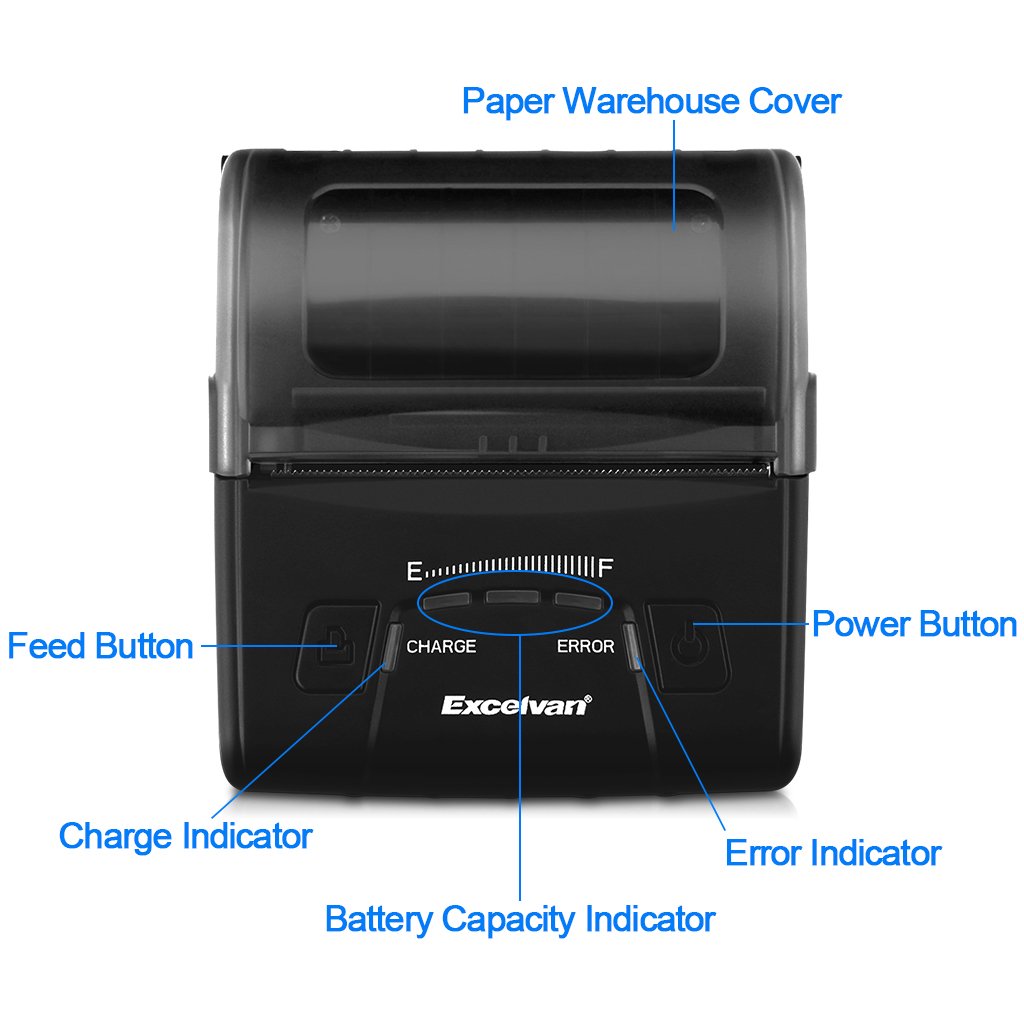
Figure 2: Battery installation and warning to remove insulating tape.
- Close the battery compartment cover securely.
3.2 Charging the Battery
Before first use, fully charge the printer battery.
- Connect the power adapter to the printer's DC IN 9V port.
- Plug the power adapter into a wall outlet.
- The Charge Indicator light will illuminate during charging. It will turn off or change color (depending on model) when fully charged.
- Note: The USB cable is for data connection to a computer only and does not charge the device.
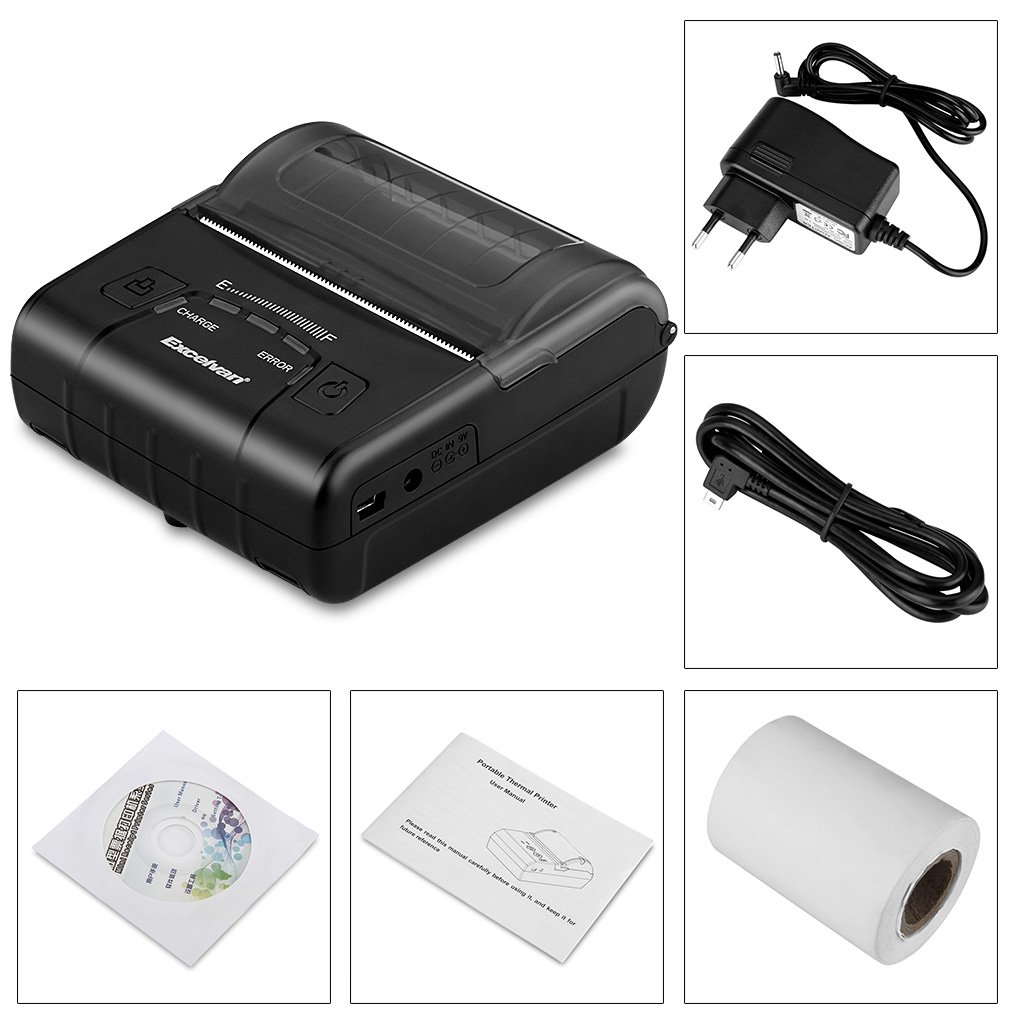
Figure 3: Charging port and USB port. Use the power adapter for charging.
3.3 Loading Thermal Paper
The printer uses 80mm wide thermal paper rolls.
- Open the Paper Warehouse Cover by gently lifting it.
- Insert the thermal paper roll into the compartment, ensuring the paper feeds from the bottom and the leading edge comes out towards the front of the printer.
- Pull a small amount of paper out past the cutting edge.
- Close the Paper Warehouse Cover firmly until it clicks into place.
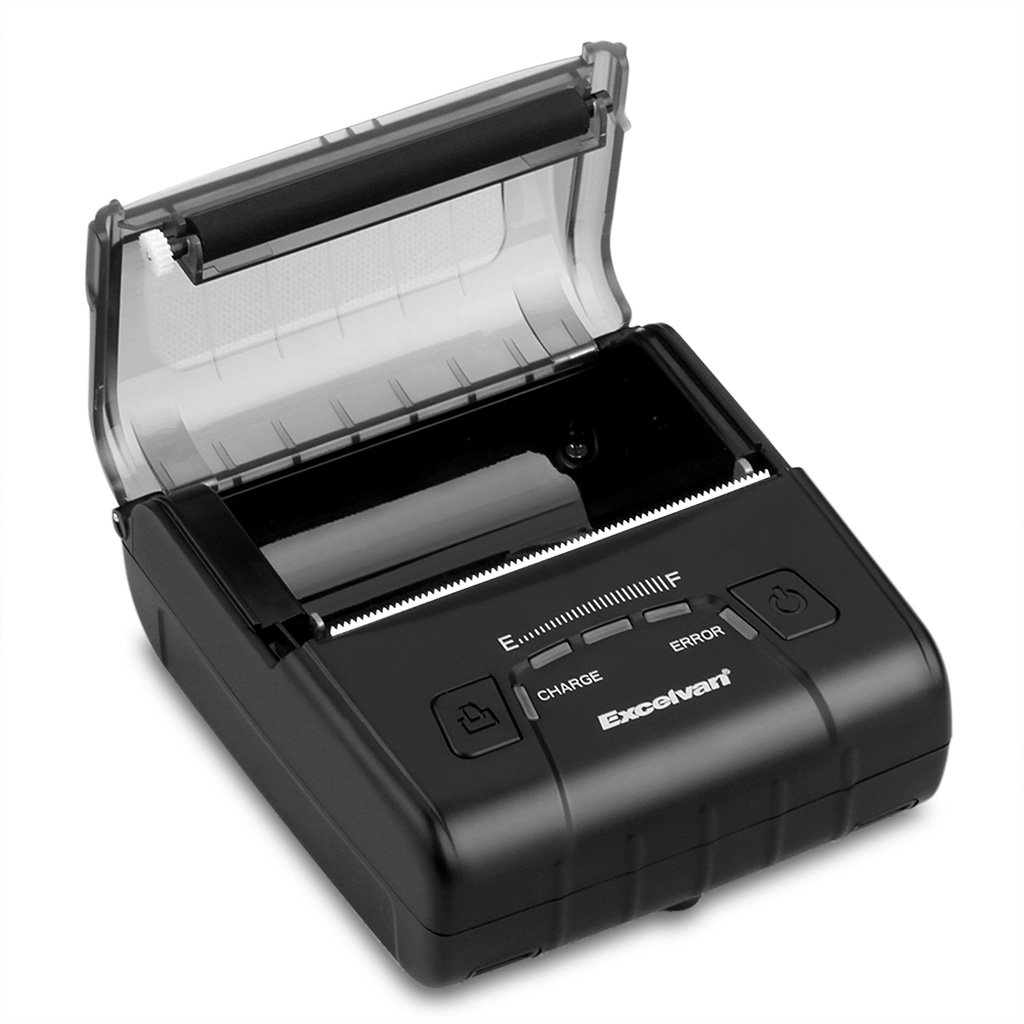
Figure 4: Loading thermal paper into the printer.
4. Operating Instructions
4.1 Power On/Off
- To Power On: Press and hold the Power Button until the indicator lights illuminate.
- To Power Off: Press and hold the Power Button until the indicator lights turn off.
4.2 Driver Installation
Install the appropriate drivers for your operating system from the provided CD or download them from the official EXCELVAN website (if available).
- Supported Operating Systems: Android, iOS, Linux, Windows (2000, 2003, XP, 7, 8, 8.1, 10).
4.3 Connecting the Printer
The EXCELVAN E300 supports both Bluetooth and USB connectivity.
4.3.1 Bluetooth Connection
- Ensure the printer is powered on.
- On your device (smartphone, tablet, computer), enable Bluetooth and search for available devices.
- Select "EXCELVAN E300" or a similar name from the list.
- Enter the pairing PIN (usually "0000" or "1234") if prompted.
- Once paired, you can select the printer from your application's print settings.
4.3.2 USB Connection
- Connect one end of the USB cable to the printer's USB port.
- Connect the other end to an available USB port on your computer.
- Ensure the necessary drivers are installed. The printer should appear as an available printing device in your system settings.
4.4 Printing
Once connected and drivers are installed, you can initiate printing from your application.

Figure 5: The printer in operation, producing a receipt.
- Use the Feed Button to advance paper manually if needed.
- The printer supports ESC/POS commands for advanced control.
- Graphic printing, including bitmaps and QR codes, is supported.
5. Maintenance
5.1 Cleaning the Print Head
Regular cleaning of the print head ensures optimal print quality and extends the printer's lifespan.
- Turn off the printer and disconnect the power adapter.
- Open the Paper Warehouse Cover.
- Use a cotton swab lightly dampened with isopropyl alcohol to gently wipe the thermal print head (the dark strip inside the cover).
- Allow the print head to dry completely before closing the cover and powering on the printer.
5.2 Battery Care
- Avoid fully discharging the battery frequently.
- Charge the battery regularly, even if the printer is not in use for extended periods.
- Store the printer in a cool, dry place when not in use.
6. Troubleshooting
This section addresses common issues you might encounter with your EXCELVAN E300 printer.
| Problem | Possible Cause | Solution |
|---|---|---|
| Printer does not power on. | Low battery or no power. | Charge the battery using the power adapter. Ensure the power adapter is correctly connected. |
| No paper output. | Paper out, paper jam, or cover not closed. | Check if the paper roll is empty and replace if necessary. Clear any paper jams. Ensure the Paper Warehouse Cover is securely closed. |
| Error Indicator is lit. | Paper out, cover open, or print head overheating. | Check paper status and cover. If the printer has been printing continuously, allow it to cool down. |
| Poor print quality. | Dirty print head, low battery, or incorrect paper. | Clean the print head (see Section 5.1). Ensure the battery is sufficiently charged. Use high-quality thermal paper. |
| Cannot connect via Bluetooth. | Bluetooth not enabled, incorrect pairing, or interference. | Ensure Bluetooth is enabled on both devices. Re-attempt pairing. Move closer to the printer and away from other wireless devices. |
7. Specifications
Detailed technical specifications for the EXCELVAN E300 Thermal Printer:
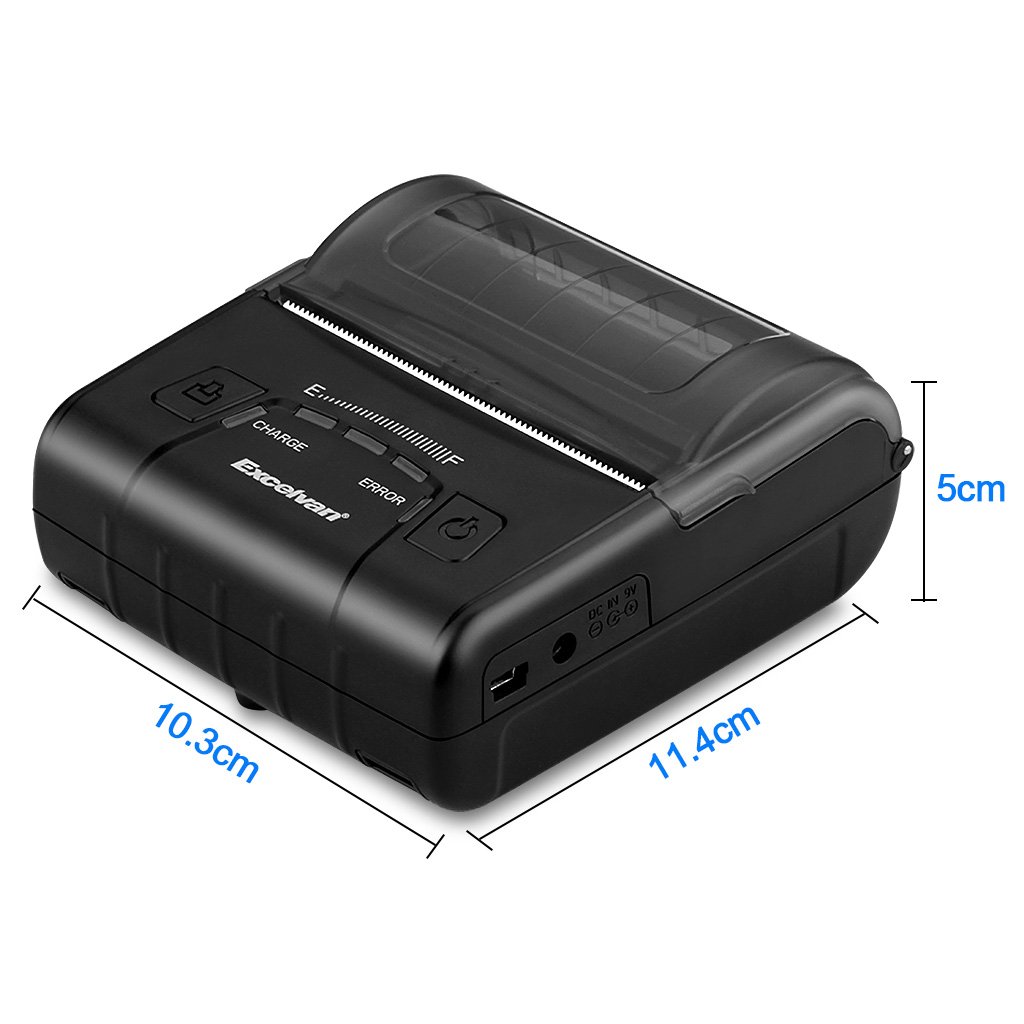
Figure 6: EXCELVAN E300 Printer Dimensions.
| Feature | Specification |
|---|---|
| Printing Method | Thermal Line Printing |
| Effective Print Width | 72 mm |
| Resolution | 384 dots/line |
| Printing Speed | 90 mm/s |
| Interface | USB, Bluetooth |
| Paper Type | Thermal Paper |
| Paper Width | 79.5 ± 0.5 mm |
| Paper Diameter | ≤ 43 mm (40 mm recommended) |
| Commands | ESC/POS compatible |
| Power Supply | Rechargeable Polymer Lithium Battery |
| Battery Capacity | 2500 mAh / 7.4 V |
| Power Adapter Output | 9.0 V / 2 A |
| Driver Software | Android, iOS, Linux, Win2000/2003/XP/7/8/8.1/10 |
| Print Head Life | 50 km (Print Density ≤ 12.5) |
| Operating Temperature | 5 °C ~ 45 °C |
| Operating Humidity | 10% ~ 80% |
| Dimensions (L x W x H) | 11 x 5 x 10 cm (approximate) |
| Weight | 285 Grams |
8. Warranty and Support
8.1 Warranty Information
The EXCELVAN E300 printer comes with a standard manufacturer's warranty. Please refer to the warranty card included in your package or contact your retailer for specific terms and conditions regarding warranty coverage and duration.
8.2 Customer Support
For technical assistance, troubleshooting not covered in this manual, or inquiries about your product, please contact EXCELVAN customer support or your authorized dealer. Contact information can typically be found on the product packaging or the official EXCELVAN website.