
Introduction
The C2G 40914 Compact Amplifier is designed to amplify dynamic microphone or stereo audio signals, providing 15 Watts of power per channel to a sound reinforcement system. This amplifier features a discreet installation and remote control capability via an included wall plate. It is suitable for various audio setups requiring compact amplification and external volume management.
What's in the Box
Please verify that all components are present before proceeding with installation:
- Compact Amplifier
- Decorator Volume Control Wall Plate
- Face Plate Cover
- Power Adapter
- Bracket Mounting Screws 6-32 (25mm) qty. 2
- Wall Plate Mounting Screw M3.5 (8mm) qty. 3
- User Manual
Product Overview
Familiarize yourself with the amplifier and wall plate components.

Figure 1: Front view of the C2G 40914 Compact Amplifier. This image displays the local volume control knob, power indicator LED, 1/4 inch microphone input, 3.5mm auxiliary input, and input select switch.

Figure 2: Rear view of the C2G 40914 Compact Amplifier. This view shows the speaker output terminals (L+, L-, R+, R-), the remote volume control port (RJ45), and the DC 12V power input.

Figure 3: Decorator Volume Control Wall Plate and face plate cover. The wall plate features a rotary volume knob and a power indicator LED.
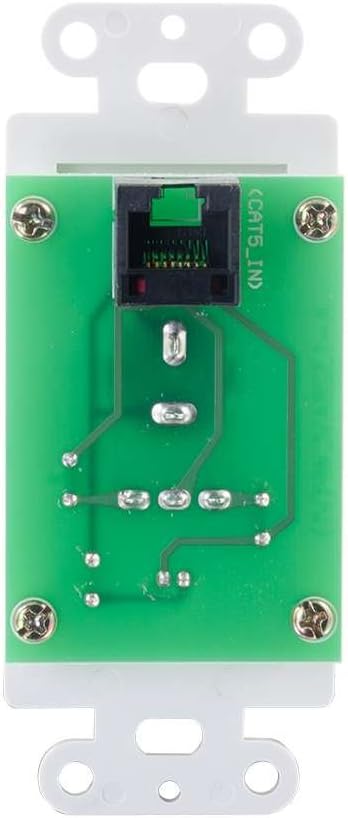
Figure 4: Rear view of the Decorator Volume Control Wall Plate, showing the RJ45 connector for remote communication with the amplifier.
Setup
-
Mounting the Amplifier:
The amplifier includes a built-in mounting bracket. Secure the amplifier to a suitable surface using the provided 6-32 (25mm) mounting screws. Ensure adequate ventilation around the unit.
-
Connecting Speakers:
Connect your passive speakers to the speaker output terminals on the rear of the amplifier (L+, L-, R+, R-). Ensure correct polarity (+ to + and - to -) for each speaker channel. The amplifier provides 15 watts per channel.
-
Connecting Audio Sources:
- Microphone Input: Connect a dynamic microphone to the 1/4 inch MIC IN jack on the front panel.
- Auxiliary Input: Connect an audio source (e.g., smartphone, media player) to the 3.5mm AUX IN jack on the front panel.
-
Connecting the Remote Wall Plate:
Install the Decorator Volume Control Wall Plate in a standard wall box. Connect a Cat5e/Cat6 cable (not included) from the RJ45 port on the rear of the wall plate to the REMOTE port (RJ45) on the rear of the amplifier. Secure the wall plate with the provided M3.5 (8mm) screws and attach the face plate cover.
-
Powering the Amplifier:
Connect the included power adapter to the DC 12V input on the rear of the amplifier, then plug the adapter into a standard AC power outlet. The power indicator LED on the amplifier and wall plate will illuminate.
Operating Instructions
-
Power On/Off:
The amplifier powers on automatically when connected to power. The power indicator LED on both the amplifier and the wall plate will light up.
-
Input Selection:
Use the INPUT SELECT switch on the front panel of the amplifier to choose between the MIC IN and AUX IN audio sources.
-
Volume Control:
The amplifier offers both local and remote volume control options:
- Local Volume: Adjust the rotary knob labeled VOLUME on the front panel of the amplifier.
- Remote Volume: Adjust the rotary knob labeled VOLUME on the Decorator Volume Control Wall Plate.
Use the VOLUME SELECT switch on the amplifier to determine whether the local or remote volume control is active. Set to 'LOCAL' to use the amplifier's knob, or 'REMOTE' to use the wall plate's knob.
-
Microphone Usage:
When MIC IN is selected, speak into the connected dynamic microphone. Adjust the volume using the selected volume control (local or remote) to achieve the desired output level.
Maintenance
- Keep the amplifier and wall plate clean by wiping with a soft, dry cloth.
- Avoid using liquid cleaners or aerosol sprays, which may damage the unit.
- Ensure proper ventilation around the amplifier to prevent overheating.
- Do not expose the unit to excessive moisture or extreme temperatures.
Troubleshooting
If you encounter issues with your C2G 40914 Compact Amplifier, please refer to the following common solutions:
-
No Audio Output:
- Ensure the power adapter is securely connected and the power indicator LEDs are lit.
- Verify that speakers are correctly wired to the amplifier's output terminals with correct polarity.
- Check that the INPUT SELECT switch is set to the correct source (MIC or AUX).
- Confirm that the VOLUME SELECT switch is set to the active volume control (LOCAL or REMOTE) and that the volume knob is turned up.
- Test with a different audio source or microphone to rule out source device issues.
-
Remote Volume Control Not Working:
- Ensure the Cat5e/Cat6 cable connecting the wall plate to the amplifier is securely plugged into both RJ45 ports.
- Verify that the VOLUME SELECT switch on the amplifier is set to 'REMOTE'.
- Check the wall plate's power indicator LED to ensure it is receiving power.
-
Distorted Audio:
- Reduce the volume level on both the amplifier/wall plate and the audio source device.
- Ensure speaker impedance matches the amplifier's requirements (typically 4-8 ohms).
- Check all cable connections for looseness or damage.
Specifications
| Feature | Detail |
|---|---|
| Product Dimensions | 1.95 x 1.3 x 4.05 inches (L x W x H) |
| Item Weight | 1 pound |
| Model Number | 40914 |
| Output Power | 15 Watts per channel (30W total) |
| Input Connectors | 1/4 inch Dynamic Microphone, 3.5mm Stereo Audio Line Level |
| Output Connectors | Speaker Terminals (L+, L-, R+, R-) |
| Remote Control | RJ45 for external volume control wall plate |
| Power Supply | DC 12V (Power Adapter included) |
| Compatible Devices | Speakers |
| Color | Black |
Warranty and Support
The C2G 40914 Compact Amplifier is thoroughly inspected and tested to ensure quality and comes with a warranty for your complete satisfaction. For specific warranty terms and conditions, please refer to the documentation included with your purchase or visit the official C2G website.
For technical support, troubleshooting assistance, or further inquiries, please visit the C2G Store or their official support channels.