
1. Product Overview
The TP-Link N300 WiFi Wireless Router TL-WR845N is designed to provide a reliable and high-speed wireless network for your home or small office. It offers 300Mbps wireless speed, making it suitable for interruption-sensitive applications such as HD video streaming and online gaming. Equipped with three 5dBi high-gain antennas, it ensures broad wireless coverage and enhanced signal stability.
This router supports multiple operating modes including Router Mode, Access Point Mode, Range Extender Mode, and WISP Mode, offering flexibility for various networking needs. Advanced features like Parental Control and Guest Network provide enhanced security and network management capabilities. The device is also IPv6 compatible, ensuring future-proof internet connectivity.

Figure 1: TP-Link N300 WiFi Wireless Router TL-WR845N with three antennas.
2. Setup and Installation
2.1 Unboxing the Router
Upon opening the package, you will find the following items:
- TP-Link TL-WR845N Wireless N Router
- Power Supply Unit
- Ethernet Cable
- Quick Installation Guide
Video 1: Unboxing and initial look at the TP-Link TL-WR845N router and its components.
2.2 Physical Connection
- Connect the Antennas: Ensure the three external antennas are securely attached to the router.
- Connect to Power: Plug the power adapter into the router's power port and then into a wall outlet.
- Connect to Internet: Connect your modem's Ethernet cable to the blue WAN port on the router.
- Connect Devices (Optional): For wired connections, use Ethernet cables to connect your computers or other devices to the yellow LAN ports (1-4) on the router.

Figure 2: Rear panel of the router with power, WPS/Reset, WAN, and LAN ports.
2.3 Quick Setup
The TP-Link TL-WR845N can be set up quickly using its intuitive web interface or the TP-Link Tether app. The Tether app provides an easy way to access and manage your router from your mobile device.
Video 2: A quick guide to setting up the TP-Link N300 WiFi Router.
3. Operating Modes
The TL-WR845N supports four main operating modes to suit different networking requirements:
- Router Mode: Connects to the internet via a modem and creates a private wireless network for all your devices.
- Access Point Mode: Transforms your existing wired network into a wireless one, allowing wireless devices to connect.
- Range Extender Mode: Boosts the existing wireless coverage in your home, eliminating Wi-Fi dead zones.
- WISP Mode: Connects to an ISP network wirelessly in areas without wired service, acting as a client router.

Figure 3: Access Point Mode setup, converting a wired network to wireless.

Figure 4: Range Extender Mode setup, extending existing Wi-Fi coverage.

Figure 5: WISP Mode setup, connecting wirelessly to an ISP.
4. Key Features
- 300Mbps Wireless Speed: Provides fast and stable Wi-Fi for your network-needed devices, ideal for streaming and downloading.
- Three 5dBi High Gain Antennas: Greatly increase wireless robustness and stability, ensuring better coverage for small to medium-sized homes.
- IPv6 Compatible: Supports the latest Internet Protocol version, ensuring your network is future-proof.
- WPS Button: Easy wireless security encryption at a push of the WPS button, simplifying secure connections.
- Parental Control: Allows parents or administrators to deploy restricted access for children or staff. URL blocking can be used to limit web access.
- Guest Network: Provides secure access for guests to share your Wi-Fi network without compromising your private network.
- Bandwidth Control: IP-based bandwidth control allows administrators to determine how much bandwidth is allotted to each connected device.
- TP-Link Tether App: Enables quick installation and easy management of the router using any mobile device.
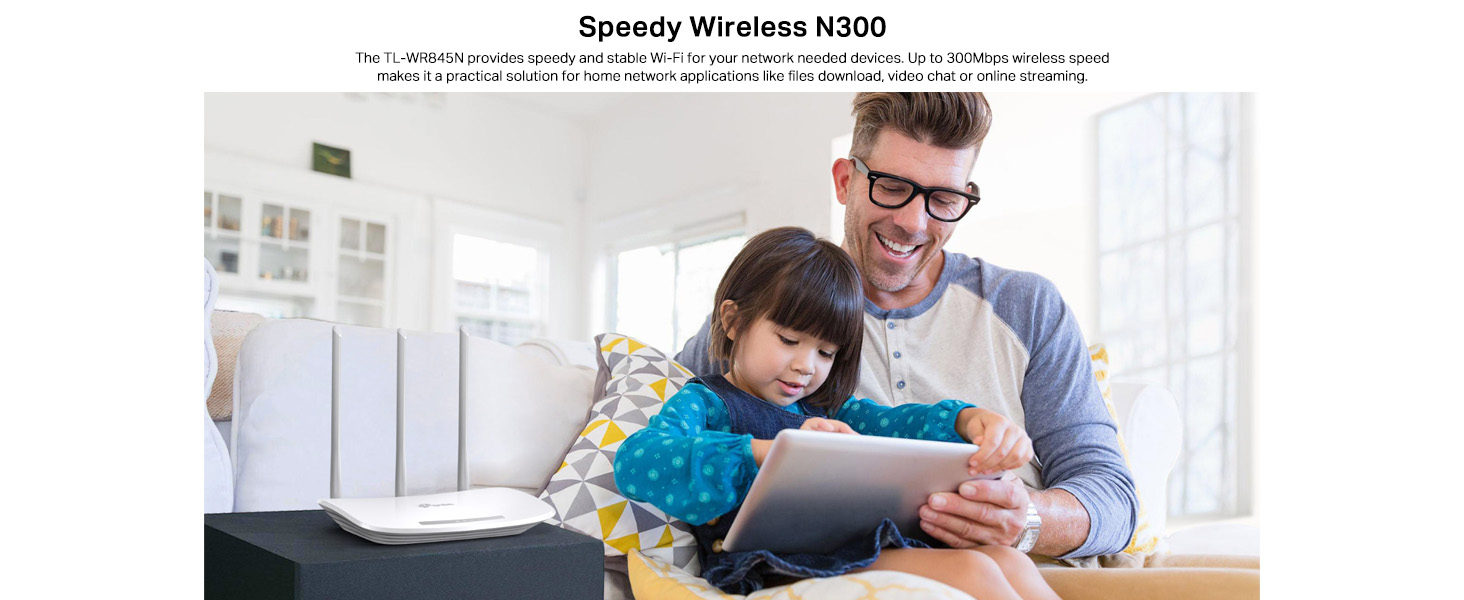
Figure 6: Three high-gain antennas enhance Wi-Fi coverage.
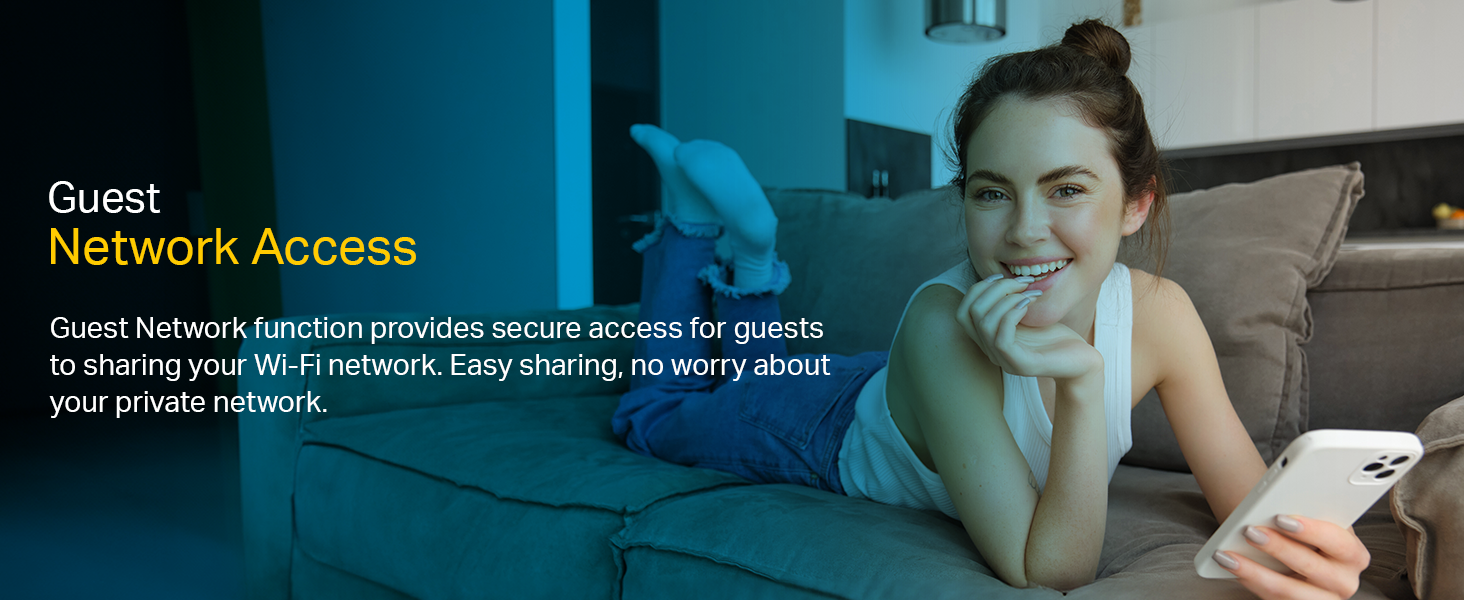
Figure 7: Parental Control features help manage internet access for children.

Figure 8: Guest Network Access provides secure internet sharing.
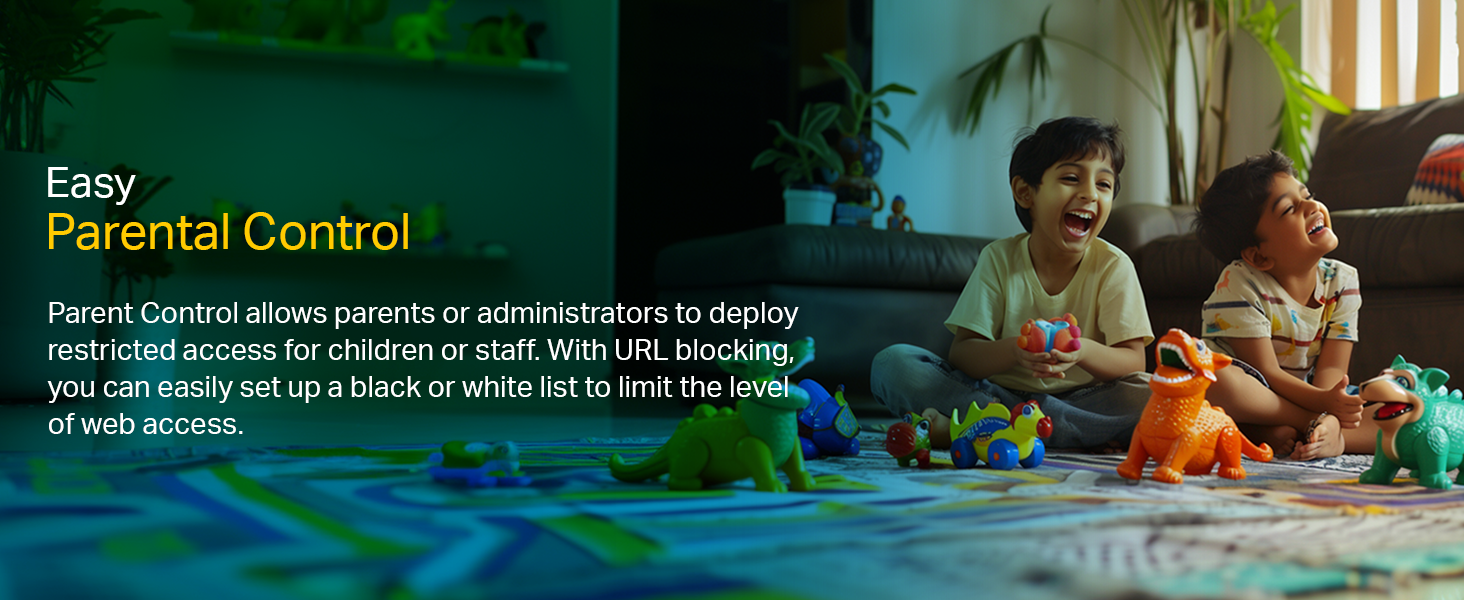
Figure 9: Manage your router easily with the TP-Link Tether App.
5. Technical Specifications
| Feature | Specification |
|---|---|
| Brand | TP-Link |
| Model Name | TL-WR845N |
| Wireless Type | 802.11n |
| Wireless Speed | 300Mbps |
| Frequency Band Class | Single-Band |
| Antennas | Three 5dBi high gain Antennas |
| Ethernet Ports | 1 WAN, 4 LAN |
| IPv6 Compatible | Yes |
| Working Modes | Router Mode, Access Point Mode, Range Extender Mode, WISP Mode |
| Special Features | Parental Control, Guest Network, Wireless Security Encryption, Bandwidth Control |
| Dimensions (LxWxH) | 14.4 x 23 x 3.5 cm |
| Item Weight | 630 g |
| Included Components | Wireless N Router TL-WR845N, Power Supply Unit, Ethernet Cable, Quick Installation Guide |
6. Troubleshooting
6.1 No Internet Access
- Check all cable connections: Ensure the Ethernet cable from your modem is securely plugged into the router's blue WAN port.
- Verify modem status: Confirm your modem is working correctly and has an active internet connection.
- Restart devices: Power off your modem and router, wait for 30 seconds, then power on the modem first, followed by the router.
- Check router settings: Access the router's web management page (usually via
http://tplinkwifi.netorhttp://192.168.0.1) and verify your WAN settings are correctly configured according to your ISP.
6.2 Weak or Unstable Wi-Fi Signal
- Router Placement: Position the router in a central location, away from obstructions and interference sources (e.g., cordless phones, microwaves).
- Antenna Orientation: Adjust the three external antennas for optimal signal reception.
- Interference: Avoid placing the router near large metal objects or other electronic devices that may cause interference.
- Channel Selection: In the router's wireless settings, try changing the Wi-Fi channel to a less congested one.
6.3 Cannot Access Router Management Page
- IP Address: Ensure your device is connected to the router (wired or wirelessly) and try accessing
http://tplinkwifi.netor the default IP address (e.g.,192.168.0.1or192.168.1.1). - Browser Cache: Clear your web browser's cache and cookies, or try a different browser.
- Firewall/Antivirus: Temporarily disable any firewall or antivirus software on your computer that might be blocking access.
7. Warranty and Support
The TP-Link N300 WiFi Wireless Router TL-WR845N comes with a 3-year company warranty.
For technical support, product information, and warranty claims, please contact TP-Link India Private Limited:
- Contact Address: Green Industrial Park, Dongri Pada, Poman, Kaman-Bhiwandi Road, Vasai East, Palghar, Maharashtra – 401208
- Toll Free: 1800 2094 168
- Email: support.in@tp-link.com
Please retain your purchase receipt for warranty purposes.


