1. Introduction
This manual provides detailed instructions for the installation, operation, and maintenance of your WOLF GUARD M2Bx Wireless GSM Home Alarm System. The M2Bx is an advanced security system featuring a graphic LCD menu, GSM telephone combiner, and remote management capabilities via a dedicated mobile application. It supports up to 100 wireless sensors and 4 wired zones, offering comprehensive protection for your property.
The system includes pet-immune PIR motion sensors, door/window sensors, remote controls, and both wired indoor and wireless outdoor sirens, providing a complete security solution.

Image 1.1: Overview of the WOLF GUARD M2Bx Wireless GSM Home Alarm System kit, showing the control panel, wireless siren, door/window sensors, PIR motion sensors, and remote controls.
2. System Components
The standard M2Bx kit typically includes the following components:
- 1x M2Bx Alarm Control Panel (Main Unit)
- 3x Pet-Immune PIR Motion Sensors
- 6x Wireless Door/Window Sensors
- 3x Remote Controls
- 1x Wired Indoor Siren
- 1x Wireless Outdoor Siren
- 1x Power Adapter (12V)
- Mounting hardware and user manual
3. Setup and Installation
3.1 Control Panel Installation
- Power Connection: Connect the 12V power adapter to the control panel and plug it into a standard electrical outlet.
- SIM Card Insertion: Open the SIM card slot on the control panel and insert a valid GSM SIM card. Ensure the SIM card has sufficient credit for calls and SMS.
- Initial Power-Up: The system will power on and display the main menu on the LCD screen. Follow the on-screen prompts for initial language and time settings.
3.2 Sensor Installation
All sensors are wireless and communicate with the main control panel. Ensure sensors are within range of the control panel.
3.2.1 Door/Window Sensors

Image 3.1: A wireless door/window sensor, consisting of two parts that separate when a door or window is opened.
- Placement: Mount the larger part of the sensor on the door or window frame and the smaller magnetic part on the moving door or window. Ensure they are aligned and within 1 cm of each other when closed.
- Pairing: Refer to the control panel's menu for adding new wireless sensors. Activate the sensor by separating the two parts, and the control panel should detect it. Assign it to a specific zone.
3.2.2 PIR Motion Sensors
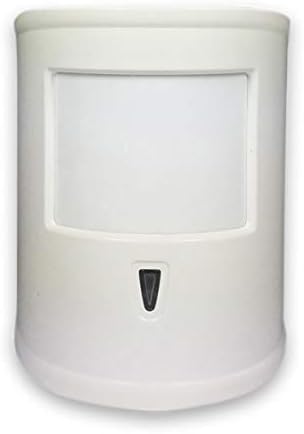
Image 3.2: A pet-immune passive infrared (PIR) motion sensor, designed to detect movement while ignoring small pets.
- Placement: Install PIR sensors in corners of rooms, approximately 2-2.5 meters (6.5-8 feet) above the floor. Avoid pointing them directly at heat sources or windows.
- Pet Immunity: These sensors are designed to ignore pets up to a certain weight. Test placement to ensure proper functionality.
- Pairing: Follow the control panel's instructions to add the PIR sensor to a zone. Test its detection range and pet immunity after pairing.
3.3 Siren Connection
3.3.1 Wired Indoor Siren
Connect the wired indoor siren to the designated siren port on the control panel. Ensure the connection is secure.
3.3.2 Wireless Outdoor Siren

Image 3.3: A wireless outdoor siren with a red flashing light, designed for external mounting to deter intruders.
- Mounting: Choose a visible and secure location outside your property, away from direct rain and sunlight if possible.
- Pairing: Power on the wireless siren and follow the control panel's instructions to pair it. Test the siren's functionality after pairing.
3.4 Remote Control Pairing

Image 3.4: A remote control for the alarm system, featuring buttons for arming, disarming, home arming, and an SOS function.
Access the remote control pairing menu on the control panel. Press any button on each remote control to pair it with the system. Each remote typically has buttons for Arm, Disarm, Home Arm, and SOS.
3.5 Mobile Application Setup
Download the official WOLF GUARD mobile application from your smartphone's app store (available for Android and iOS). Follow the in-app instructions to register your alarm system and link it to your account. This allows for remote control and monitoring.
4. Operating the System
4.1 Arming and Disarming
- Full Arm: Activates all sensors. Use when leaving the property. Can be done via control panel, remote control, or mobile app.
- Home Arm (Stay Arm): Activates perimeter sensors (e.g., door/window sensors) while allowing free movement within the property. Use when staying at home.
- Disarm: Deactivates the alarm system.
4.2 Alarm Notifications
In case of an alarm trigger, the system will:
- Activate the sirens (indoor and outdoor).
- Send SMS alerts to pre-programmed phone numbers.
- Initiate voice calls to pre-programmed phone numbers, identifying the triggered sensor.
- Send push notifications via the mobile application.
4.3 Remote Management
The mobile application allows you to:
- Arm and disarm the system remotely.
- Check system status.
- Receive real-time alerts.
- Manage sensors and settings.
5. Maintenance
5.1 Battery Replacement
Wireless sensors and remote controls are powered by batteries. Replace batteries promptly when the system indicates a low battery warning. Refer to individual sensor manuals for specific battery types and replacement procedures.
5.2 Cleaning
Wipe the control panel and sensors with a soft, dry cloth. Avoid using abrasive cleaners or solvents that could damage the surfaces.
5.3 System Checks
Periodically test your alarm system:
- Trigger a sensor to ensure the siren sounds and notifications are sent.
- Check the GSM signal strength on the control panel.
- Verify that all sensors are communicating with the control panel.
6. Troubleshooting
If you encounter issues with your WOLF GUARD M2Bx system, refer to the following common troubleshooting steps:
| Problem | Possible Cause | Solution |
|---|---|---|
| Sensor not responding/triggering | Low battery, out of range, improper installation, not paired. | Replace battery, relocate sensor closer to control panel, re-align magnetic parts (door/window sensor), re-pair sensor with control panel. |
| No alarm notifications (SMS/Call) | No GSM signal, SIM card issues, incorrect phone numbers programmed, insufficient SIM credit. | Check GSM signal strength on control panel, ensure SIM card is active and has credit, verify programmed phone numbers, re-insert SIM card. |
| Siren not sounding | Siren not connected/paired, power issue, faulty siren. | Check wired connection (indoor siren), re-pair wireless siren, ensure siren has power, contact support if siren is faulty. |
| Remote control not working | Low battery, out of range, not paired. | Replace remote control battery, use closer to control panel, re-pair remote control. |
| Mobile app connectivity issues | Internet connection problems, incorrect app settings, server issues. | Check your smartphone's internet connection, verify app settings, restart the app, contact WOLF GUARD support if server issues are suspected. |
7. Specifications
| Feature | Detail |
|---|---|
| Brand | WOLF GUARD |
| Model Number | M2Bx |
| Dimensions (L x W x H) | 30 x 20 x 20 cm |
| Weight | 2 Kilograms |
| Color | Black |
| Material | Plastics |
| Power Source | 12V Power Adapter |
| Installation Type | Screw-in |
| Connectivity Technology | Wireless (GSM) |
| Compatible Devices | Smartphone (Android, iOS) |
| Supported Sensors | Up to 100 wireless sensors, 4 wired zones |
| Warning Type | Audio and Motion |
8. Warranty and Support
For information regarding product warranty, technical support, or service, please refer to the documentation provided with your purchase or contact your retailer. You may also visit the official WOLF GUARD website for further assistance.


