
1. Introduction
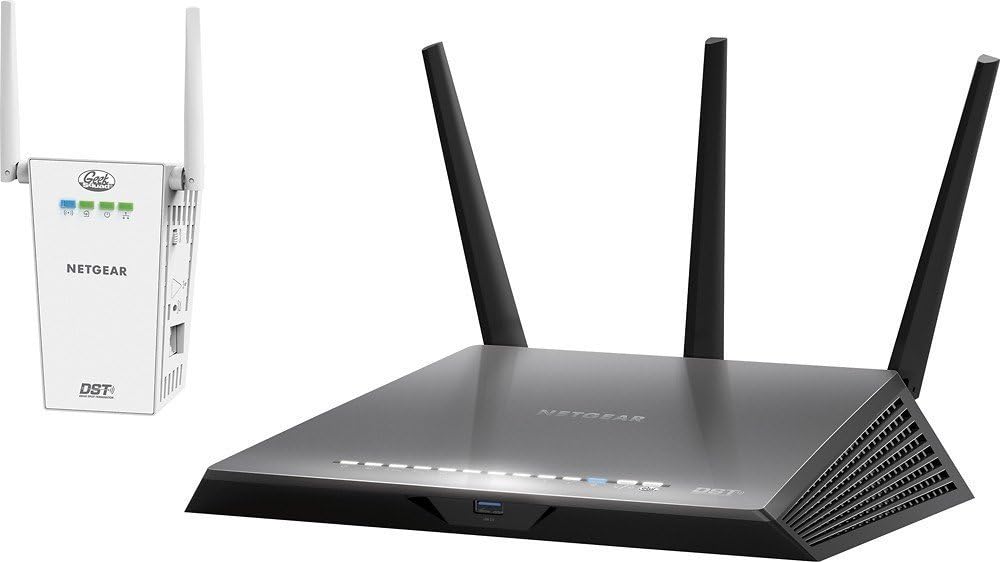
The NETGEAR Nighthawk R7300 DST Dual-Band Gigabit Router with DST Adapter provides a reliable wireless network for your home. Featuring Beamforming technology, it directs concentrated signals to connected devices, while three detachable antennas enhance signal strength. The included Dead Spot Terminator (DST) adapter can be plugged into an electrical outlet to extend Wi-Fi coverage and eliminate dead zones.
What's in the Box
- NETGEAR Nighthawk R7300 Router
- 3 Antennas
- DST Adapter
- Ethernet Cable
- Power Adapter
- Quick Start Guide
2. Setup and Installation
Follow these steps to set up your NETGEAR Nighthawk R7300 router and DST adapter.
2.1 Router Connection
- Position the Router: Place the router in a central location for optimal Wi-Fi coverage.
- Attach Antennas: Screw the three detachable antennas onto the connectors on the back of the router.
- Connect to Modem: Connect one end of the Ethernet cable to the yellow Internet port on the router and the other end to your modem's Ethernet port.
- Power On: Connect the power adapter to the router's power port and plug it into an electrical outlet. Wait for the power LED to turn solid white.

2.2 DST Adapter Setup
- Plug in DST Adapter: Plug the DST adapter into an electrical outlet in an area with weak Wi-Fi signal.
- Connect to Router: The DST adapter will automatically connect to your Nighthawk router to extend your Wi-Fi network. Refer to the DST adapter's specific instructions for pairing if needed.
2.3 Initial Configuration
- Connect to Wi-Fi: On your computer or mobile device, connect to the Wi-Fi network name (SSID) and password found on the router's label.
- Access Setup Wizard: Open a web browser and go to www.routerlogin.net or www.netgear.com. Follow the on-screen instructions to complete the setup.
- Nighthawk App: Alternatively, download the NETGEAR Nighthawk app from your device's app store for guided setup and network management.
3. Operating Your Router
3.1 Connecting Devices
- Wi-Fi Connection: Connect your wireless devices (smartphones, tablets, laptops) to the 2.4 GHz or 5 GHz Wi-Fi networks broadcast by the router. The 2.4 GHz band offers wider coverage, while the 5 GHz band provides faster speeds over shorter distances.
- Ethernet Connection: For wired devices (gaming consoles, desktop PCs, smart TVs), use Ethernet cables to connect them to the four Gigabit LAN ports on the back of the router for stable and high-speed connections.
3.2 Advanced Features
- Guest Network: Create a separate Wi-Fi network for guests to provide internet access without sharing your main network password or access to your local devices. Manage this feature through the Nighthawk app or router's web interface.
- Traffic Meter: Monitor your internet usage and data consumption through the router's traffic meter feature. This helps in managing data plans and identifying high-usage devices.
- ReadySHARE USB: Connect a USB storage device to the router's USB port to share files across your network. You can also connect a USB printer to share it with multiple computers.
- ReadyCLOUD USB: Access your USB storage device connected to the router from anywhere using the ReadyCLOUD app, turning it into a personal cloud storage.
- VPN Support: The router supports VPN (Virtual Private Network) for secure remote access to your home network.
- Beamforming: This technology focuses Wi-Fi signals directly to your connected devices, improving range and performance, especially for devices further away from the router.
4. Maintenance
4.1 Firmware Updates
Regularly check for and install firmware updates for your router. Firmware updates often include security fixes, performance improvements, and new features. You can usually update the firmware through the Nighthawk app or the router's web interface.
4.2 Cleaning
Keep your router clean and free from dust to ensure proper ventilation and prevent overheating. Use a soft, dry cloth to wipe the exterior. Do not use liquid cleaners.
5. Troubleshooting
5.1 Common Issues
- No Internet Connection: Check all cable connections (modem to router, router to power). Restart your modem and router. Verify your internet service provider (ISP) status.
- Slow Wi-Fi Speed: Ensure your devices are connected to the appropriate Wi-Fi band (5 GHz for faster speeds). Reduce interference by moving the router away from other electronic devices. Check for firmware updates.
- Wi-Fi Drops Frequently: Adjust antenna positions. Ensure the router is not obstructed. Consider using the DST adapter to improve coverage in problematic areas.
5.2 Resetting the Router
If you encounter persistent issues, you may need to reset your router to factory default settings. Locate the Reset button on the back of the router (often a small pinhole). Use a paperclip or similar pointed object to press and hold the Reset button for about 7-10 seconds until the power LED blinks. The router will restart with factory settings, requiring re-configuration.
5.3 Indicator Lights
The LED indicator lights on the front of the router provide status information. Refer to the Quick Start Guide for a detailed explanation of each light's meaning (e.g., power, internet, Wi-Fi bands, Ethernet port activity).
6. Specifications
| Feature | Detail |
|---|---|
| Brand | NETGEAR |
| Model Name | R7300 |
| Item Model Number | R7300 |
| Connectivity Technology | Wi-Fi |
| Wireless Communication Standard | 802.11n (AC1900) |
| Frequency Band Class | Dual-Band (2.4 GHz & 5 GHz) |
| Special Feature | WPS |
| Included Components | 3 antennas, DST adapter |
| Recommended Uses For Product | Home |
| Compatible Devices | Personal Computer |
| Color | black |
| Item Weight | 4.54 pounds |
| Package Dimensions | 14.3 x 10.8 x 4.1 inches |
| Date First Available | April 26, 2016 |
7. Warranty and Support
For detailed warranty information, technical support, and additional resources, please visit the official NETGEAR support website. You can find FAQs, troubleshooting guides, and contact information for customer service.


