
BENGOO G9000
BENGOO G9000 Stereo Gaming Headset User Manual
Model: G9000 | Brand: BENGOO
Introduction
The BENGOO G9000 Stereo Gaming Headset is designed for an immersive gaming experience across multiple platforms. Featuring 7.1 surround sound, noise-cancelling microphone, and comfortable memory foam earmuffs, this headset provides clear audio and communication for extended gaming sessions. This manual provides essential information for setup, operation, maintenance, and troubleshooting to ensure optimal performance of your headset.
What's in the Box
- BENGOO G9000 Gaming Headset
- User Manual (this document)
- 3.5mm Jack Splitter Cable (for PC with separate audio/mic ports)
Key Features
- Multi-Platform Compatible: Supports PlayStation 4, PlayStation 5, Xbox, Xbox Series X|S, Xbox One, PC, Nintendo 3DS, Laptop, PSP, Tablet, iPad, Computer, Mobile Phone. (Note: An extra Microsoft Adapter is required for old version Xbox One controllers, not included).
- 7.1 Surround Sound: Delivers clear sound with strong bass, splendid ambient noise isolation, and high-precision 40mm magnetic neodymium drivers for vivid sound fields and clarity.
- Noise Isolating Microphone: Omni-directional microphone with premium noise-cancelling features for high-quality communication. The long, flexible mic design allows for easy angle adjustment.
- Great Humanized Design: Superior comfortable and breathable protein over-ear pads, multi-points headbeam, and skin-friendly leather material ensure comfort during prolonged wearing. Glaring LED lights on the earcups enhance the gaming atmosphere.
- Effortless Volume Control: High tensile strength, anti-winding braided USB cable with a rotary volume controller and a key microphone mute for easy volume adjustment and mic muting.
Setup Guide
Connecting to Consoles (PS4, PS5, Xbox One, Nintendo Switch)
For most consoles, simply plug the 3.5mm jack directly into your controller's headset port. The USB plug is only for powering the LED lights on the headset.
- Locate the 3.5mm audio jack on your controller (e.g., PS4/PS5 DualShock/DualSense, Xbox One, Nintendo Switch).
- Insert the 3.5mm plug of the headset firmly into the controller's audio jack.
- If desired, connect the USB plug to a USB port on your console or a USB power adapter to activate the LED lights.
- Adjust audio settings on your console as needed to ensure headset audio and microphone input are correctly configured.
- Important Note for Old Xbox One Controllers: An additional Microsoft Adapter (not included) is required to connect the headset to older Xbox One controllers that do not have a built-in 3.5mm jack.
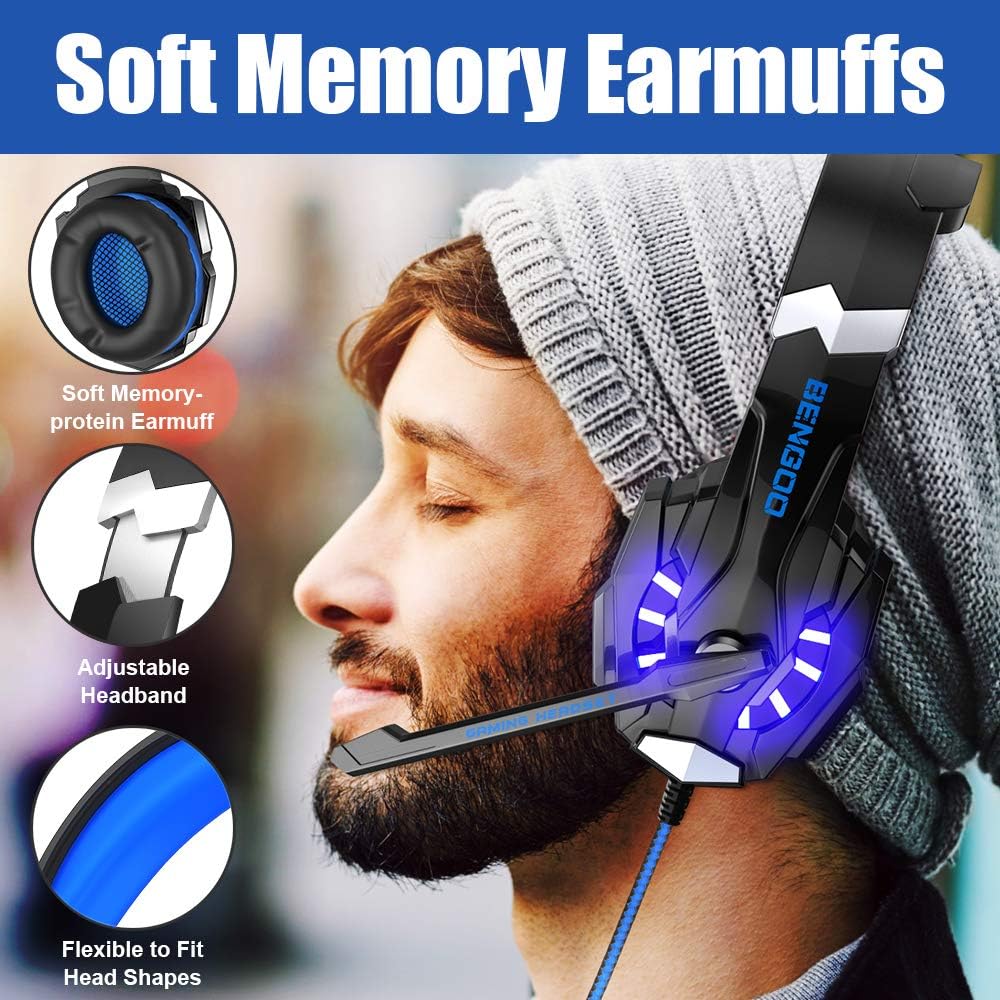
Image: Universal Compatibility diagram showing connections to various devices including PS4, Switch, iPad, Smartphone, PC, Xbox One, and Laptop.
Connecting to PC/Laptop
For PCs and laptops, you may need to use the included 3.5mm splitter cable if your device has separate ports for audio output and microphone input.
- If your PC/laptop has a single 3.5mm combo jack (headphone/mic), plug the headset's 3.5mm jack directly into it.
- If your PC/laptop has separate 3.5mm ports (one for headphones, one for microphone), use the included splitter cable. Plug the headset's 3.5mm jack into the splitter, then plug the splitter's two jacks (pink for mic, green for audio) into the corresponding ports on your PC.
- Connect the USB plug to a USB port on your PC/laptop to power the LED lights.
- Ensure your computer's audio settings are configured to use the headset as the default playback and recording device.
Video: Demonstrates connecting the BENGOO G9000 headset to a laptop, showing the 3.5mm audio jack and USB plug for LED lights. The video highlights the ease of connection for immediate use.
Operating Instructions
Volume Control and Microphone Mute
The headset features an in-line control unit for convenient audio management.
- Volume Wheel: Rotate the scroll wheel on the in-line control unit up or down to adjust the headset's volume.
- Microphone Mute Switch: Use the toggle switch on the in-line control unit to quickly mute or unmute the microphone. This allows for instant privacy during gameplay or calls.

Image: The in-line audio control box with a rotary volume controller and a microphone mute switch for easy access during gaming.
Adjusting the Microphone
The microphone is flexible and can be adjusted to your preferred position for optimal voice pickup.
- Gently bend the microphone arm to position it closer to or further from your mouth.
- Ensure the microphone is not obstructed for clear communication.
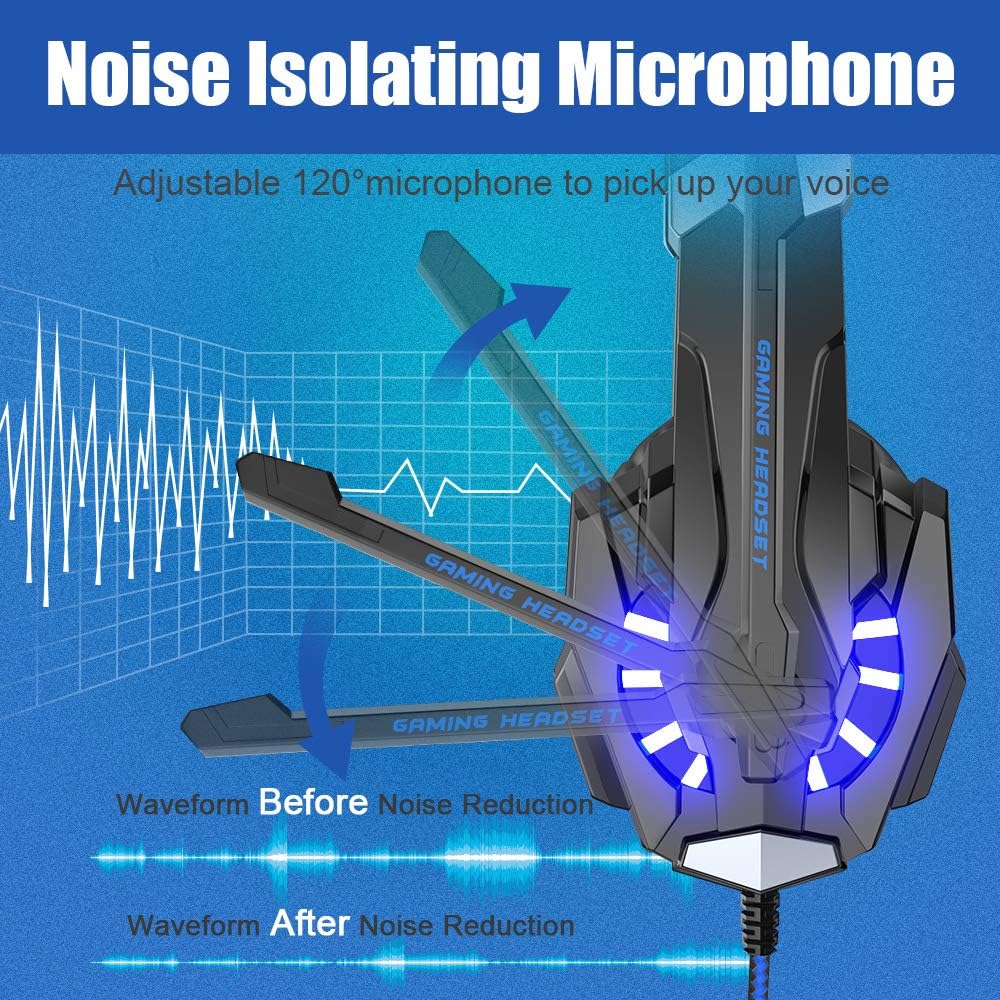
Image: Illustration of the adjustable 120° microphone, demonstrating its flexibility and noise reduction capabilities for clear voice transmission.
LED Lighting
The headset features LED lights on the earcups that activate when the USB plug is connected to a powered USB port.
- Plug the USB connector into any available USB port on your console, PC, or a USB power adapter.
- The LED lights will illuminate, enhancing the aesthetic appeal of the headset during use.
Maintenance
Proper care and maintenance will extend the lifespan of your BENGOO G9000 headset.
- Cleaning: Use a soft, dry cloth to wipe down the headset, especially the earcups and headband. For protein leather earmuffs, a slightly damp cloth can be used, but avoid excessive moisture. Do not use harsh chemicals or abrasive cleaners.
- Cable Care: The braided cable is designed to be anti-winding. Avoid sharp bends, kinks, or excessive pulling on the cable to prevent internal damage. Use the included cable tie to keep the cable neatly organized when not in use.
- Storage: Store the headset in a cool, dry place away from direct sunlight and extreme temperatures. Avoid placing heavy objects on top of the headset.
- Microphone Protection: When not in use, gently fold the microphone arm up to prevent accidental damage.
Troubleshooting
If you encounter issues with your BENGOO G9000 headset, try the following solutions:
| Problem | Solution |
|---|---|
| No sound from headset / Sound is distorted |
|
| Microphone not working / Poor mic quality |
|
| LED lights not working |
|
| Headset uncomfortable after long use |
|
Specifications
| Feature | Detail |
|---|---|
| Model Name | G9000 |
| Connectivity Technology | Wired |
| Headphones Jack | 3.5 mm Jack |
| Microphone | Omni-directional, Noise Isolating |
| Driver Diameter | 40mm Neodymium Magnet |
| Sound Type | 7.1 Surround Sound, Bass Surround |
| Ear Placement | Over Ear |
| Earmuff Material | Protein Leather, Soft Memory Foam |
| LED Lighting | Yes (USB powered) |
| Cable Feature | Braided, Anti-winding |
| Control Type | Rotary Volume Control, Mic Mute Switch |
| Compatible Devices | PS4, Xbox One, PS5, PC, Nintendo 3DS, Laptop, PSP, Tablet, iPad, Computer, Mobile Phone |
| Item Weight | 9.6 ounces |
| Product Dimensions | 8.3 x 4.4 x 7.9 inches |
| Material | Faux Leather, Metal |
Warranty and Support
For warranty information and customer support, please refer to the official BENGOO website or contact their customer service directly. Keep your purchase receipt as proof of purchase for any warranty claims.
You can also find additional support and resources on the BENGOO Store on Amazon.
Related documentsG9000


Ask a question about this manual
Ask about setup, troubleshooting, compatibility, parts, safety, or missing instructions. Manuals+ will review the question and use this page’s manual context to help answer it.