
1. Product Overview
The VONETS VAP11G-500 is an industrial-grade wireless device designed for various networking applications. It functions as a WiFi repeater, AP client, bridge, booster, and extender, offering 300Mbps high-speed transmission and strong coverage. This device is suitable for challenging environments such as elevators, factories, and farms, facilitating video transmission and long-range WiFi coverage projects.

Image 1.1: The VONETS VAP11G-500 device with its integrated USB power and RJ45 Ethernet cables.
Key Features:
- Professional Intelligent WiFi repeater/extender/bridge, signal booster/amplifier.
- High-power mode transmission distance: up to 200 meters (without obstacles and for small data); Video transmission: less than 50 meters.
- Suitable for use in elevators, factories, farms, and similar environments for video transmission or long-range WiFi coverage projects.
- Easy three-step setup process.
- Supports WPA-PSK/WPA2-PSK, 64/128/WEP security mechanisms.
- Supports 2.4Ghz, 802.11b/g/n wireless transmission protocol, 300Mbps high-speed transmission.
- Input Voltage: DC5V-15V, designed to reduce electronic waste by not requiring a special power source.
2. Package Contents
Please verify that all items listed below are included in your package. If any items are missing or damaged, please contact customer support.
- VONETS VAP11G-500 Industrial Wireless Repeater/Bridge device (with integrated USB power and RJ45 Ethernet cables)
- Antenna
- User Manual (this document)
3. Specifications
| Feature | Detail |
|---|---|
| Model Number | VAP11G-500 |
| Product Dimensions | 5.8 x 3.6 x 1.8 inches |
| Item Weight | 7 ounces |
| Wireless Standard | 802.11bgn (2.4GHz) |
| Data Transfer Rate | 300 Megabits Per Second |
| Input Voltage | DC5V-15V |
| Manufacturer | Shenzhen Houtian Network Communication Technology Co.,Ltd |
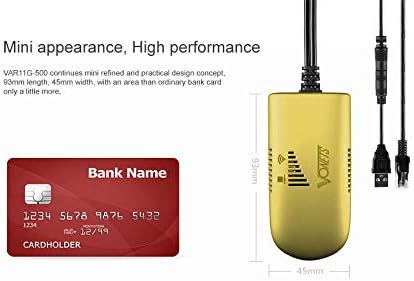
Image 3.1: The compact size of the VAP11G-500, shown next to a bank card for scale.
4. Setup and Configuration
The VAP11G-500 can be configured via a computer or a smartphone. Ensure the device is powered correctly before starting the configuration process.
4.1 Powering the Device
- Connect the USB power cable of the VAP11G-500 to a 5V/2A power source (e.g., a computer USB port or a USB power adapter).
- Observe the LED indicator on the device. It should flash normally, indicating it is powered on.
Video 4.1: How to Configure 2.4GHz WiFi Bridge VAP11G-500. This video demonstrates the initial power-on and configuration steps for the device.
4.2 Configuration via Computer
- Connect the VAP11G-500's RJ45 Ethernet cable to your computer's Ethernet port.
- Open a web browser on your computer.
- In the address bar, enter the configured domain http://vonets.cfg or the IP address 192.168.254.254 and press Enter.
- When prompted, enter the User ID and password. Both are typically "admin". Click "Login".
- Navigate to the "Scan Hotspots" section. The device will search for available WiFi networks.
- Select the desired WiFi hotspot from the list and click "Next".
- Enter the password for the selected WiFi hotspot.
- Click "Apply" and then "Reboot". The device will reboot, which may take about 1 minute. Wait until the LED light flashes normally.
- Once rebooted, the device should be connected to the internet. You can verify by opening a website in your browser.
4.3 Configuration via Smartphone
- Ensure the VAP11G-500 is powered on.
- On your smartphone, go to WiFi settings and search for available networks.
- Find the WiFi network (SSID) of the VAP11G-500. The SSID typically starts with "VONETS_2.4G_XXXX" where XXXX corresponds to the last four digits of the device's MAC address (found on the back of the device).
- Connect to this network. The default password is "12345678".
- Open a web browser on your smartphone.
- In the address bar, enter http://vonets.cfg or 192.168.254.254 and press Enter.
- Enter the User ID and password, both typically "admin". Click "Login".
- Navigate to the "Scan Hotspots" section.
- Select the desired WiFi hotspot from the list and click "Next".
- Enter the password for the selected WiFi hotspot.
- Click "Apply" and then "Reboot". The device will reboot.
- After reboot, reconnect your smartphone to the VAP11G-500's configured WiFi network (the SSID will be the same as the source WiFi SSID, e.g., H3C_VONETS_2.4G_30). The password will be the same as the source WiFi hotspot's password.
- You can now enjoy WiFi Internet.
5. Operating Modes
The VAP11G-500 supports multiple operating modes to suit various networking needs:
- WiFi Repeater: Extends the range of an existing WiFi network.
- AP Client: Connects a wired device to a wireless network.
- Bridge: Connects two wired networks wirelessly or extends a wireless network to a wired device.
- Booster/Extender: Enhances WiFi signal strength and coverage.

Image 5.1: Diagram illustrating the high-power WiFi bridge/repeater functionality with a range of up to 200 meters.

Image 5.2: Application of VAP11G-500 in WiFi Bridge mode, connecting a network camera to a router and monitoring display.

Image 5.3: Wireless monitoring application connection diagram (Case 1), showing multiple cameras connected via a switch to the VAP11G-500 for extended range.
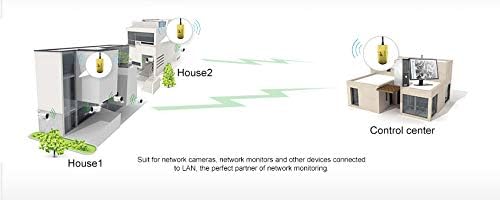
Image 5.4: Application diagram demonstrating how two VAP11G-500 devices can extend network coverage between two buildings (House 1 and House 2) to a control center.
6. Maintenance
- Keep the device in a cool, dry place, away from direct sunlight and extreme temperatures.
- Avoid exposing the device to water or moisture.
- Clean the device regularly with a soft, dry cloth. Do not use liquid cleaners or aerosols.
- Ensure proper ventilation to prevent overheating.
- Periodically check for firmware updates on the manufacturer's website to ensure optimal performance and security.
7. Troubleshooting
If you encounter issues with your VAP11G-500, refer to the following common troubleshooting steps:
- No Power/LEDs Off:
- Ensure the USB power cable is securely connected to a 5V/2A power source.
- Try a different USB port or power adapter.
- Cannot Access Configuration Page:
- Verify that your computer or smartphone is directly connected to the VAP11G-500 via Ethernet (for computer) or its default WiFi SSID (for smartphone).
- Confirm that you are entering the correct domain (http://vonets.cfg) or IP address (192.168.254.254).
- Ensure your computer's network adapter is set to obtain an IP address automatically (DHCP).
- Try clearing your browser's cache or using a different browser.
- No Internet Connection After Configuration:
- Double-check the WiFi hotspot password entered during configuration. A single incorrect character will prevent connection.
- Ensure the source WiFi hotspot is active and providing internet access.
- Reboot both the VAP11G-500 and your main router.
- Verify that the VAP11G-500's operating mode (e.g., Repeater, Bridge) is correctly set for your network topology.
- Poor Signal/Slow Speed:
- Relocate the VAP11G-500 closer to your main router or the area requiring extended coverage.
- Minimize obstacles (walls, large metal objects) between the VAP11G-500 and the source WiFi.
- Check for interference from other 2.4GHz devices (e.g., cordless phones, microwaves).
- Device Not Responding (Hard Reset):
- If the device becomes unresponsive, you may need to perform a factory reset. Refer to the full product manual or manufacturer's website for specific instructions on how to perform a hard reset, as this will revert all settings to default.
8. Warranty and Support
For warranty information, technical support, or further assistance, please contact Vonets customer service. Details can typically be found on the product packaging or the official Vonets website.
Manufacturer: Shenzhen Houtian Network Communication Technology Co.,Ltd
Website: www.vonets.com


