
Introduction and Overview
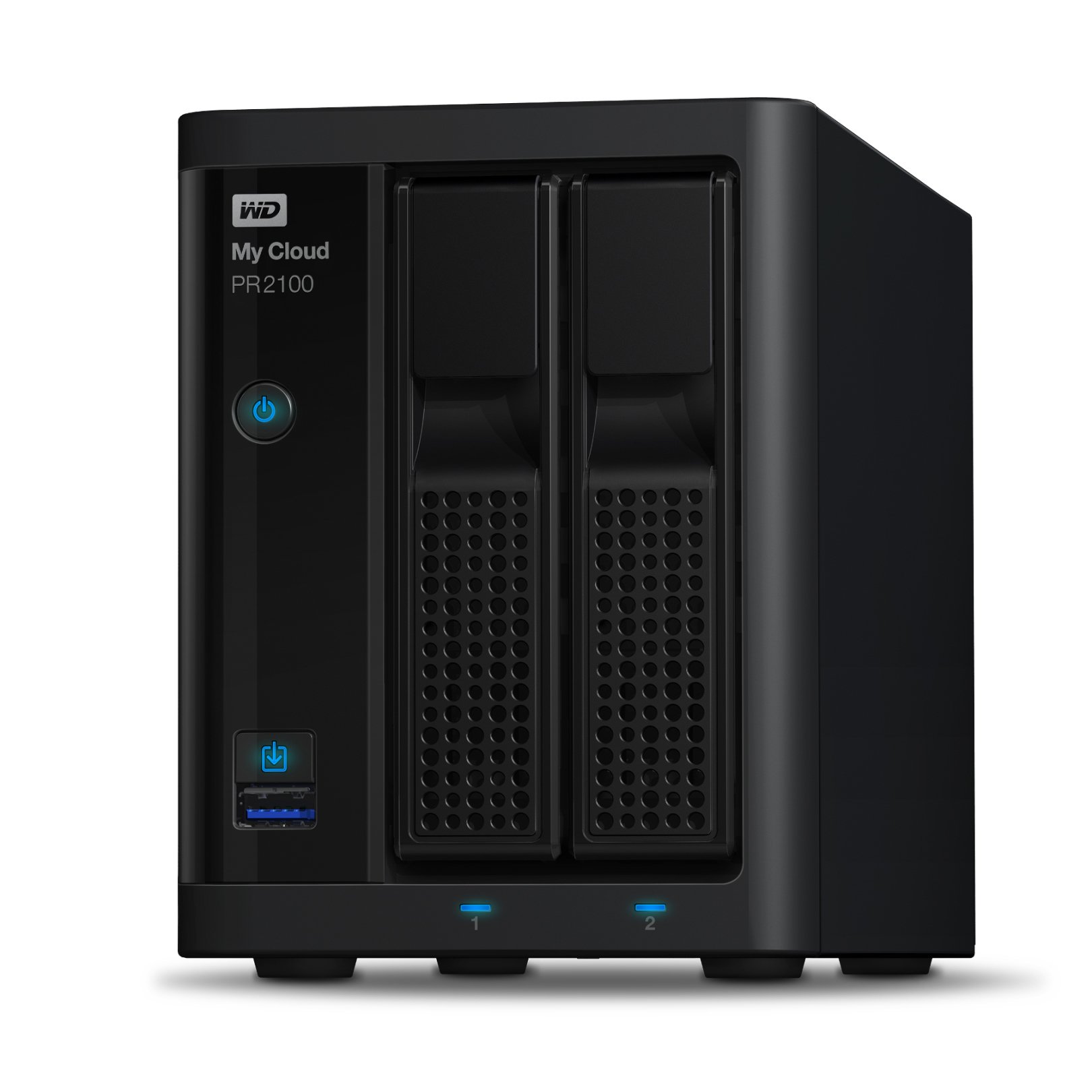
The WD My Cloud Pro Series PR2100 is a Network Attached Storage (NAS) device designed for centralized data management, media streaming, and collaborative workflows. It features a 1.6GHz Quad-Core Intel Pentium N3710 processor and 4GB DDR3L Memory, enabling efficient performance for various tasks.
Key features include:
- Built-in video transcoding for HD streaming through Plex.
- Centralized storage to organize media and improve your workflow.
- Quick, easy setup and a robust Device Manager with My Cloud OS 3.
- Comprehensive security through password protection and AES 256-bit volume encryption.
- Automatic backup software for PC, and full Apple Time Machine support for Mac.
Setup
Setting up your WD My Cloud Pro Series PR2100 is designed to be quick and straightforward. The device comes with essential accessories to get you started.
What's in the Box:
- Ethernet Cable
- Power Supply and Cable
- Quick Install Guide
Initial Connection:
- Connect the Ethernet cable from your PR2100 to your network router or switch.
- Connect the power supply to the PR2100 and plug it into a power outlet.
- Follow the instructions in the Quick Install Guide to access the My Cloud OS 3 dashboard via a web browser on a computer connected to the same network.
- Complete the initial setup steps, including creating user accounts and configuring storage settings.
Operating the Device
The My Cloud Pro Series PR2100 offers various functionalities for managing and accessing your data.
Data Storage and Access:
- Centralized Storage: Store all your digital content in one secure location, accessible from any device on your network.
- File Sharing: Easily share files and folders with other users on your network or remotely via My Cloud OS 3.
- USB Import: Use the one-touch copy button to quickly import files from external USB devices.
Media Streaming with Plex:
The PR2100 is optimized for Plex Media Server, allowing you to stream your media collection to compatible devices. The built-in hardware transcoding ensures smooth playback of HD videos.
- Install the Plex Media Server app from the My Cloud OS 3 dashboard.
- Organize your media library within Plex for easy access and streaming.
Backup Solutions:
- Apple Time Machine: Supports full Apple Time Machine for Mac users to back up their systems.
- WD SmartWare Pro: Utilize WD SmartWare Pro backup software for PC systems to automate backups.
- Cloud Backups: Configure backups to cloud services for offsite data protection.
Video 1: My Cloud Pro Series Overview. This video provides a general overview of the My Cloud Pro Series, demonstrating its features for creative professionals, including centralized storage, easy sharing, and Plex media server optimization.
Video 2: WD Creator Series: How RAID Works. This video explains the concept of RAID (Redundant Array of Independent Disks) and its importance for data protection and performance in storage solutions like the My Cloud Pro Series.
Maintenance
Regular maintenance ensures the longevity and optimal performance of your WD My Cloud Pro Series PR2100.
- Firmware Updates: Periodically check for and install firmware updates via the My Cloud OS 3 dashboard to ensure the latest features and security patches.
- Drive Health: Monitor the health of your hard drives through the device manager. Replace drives promptly if any issues are detected.
- Data Backup: Maintain a consistent backup strategy, including offsite backups, to protect against data loss from hardware failure or other unforeseen events.
- Security: Utilize password protection and AES 256-bit volume encryption for comprehensive data security. Regularly review user access permissions.
Troubleshooting
If you encounter issues with your PR2100, consider the following troubleshooting steps:
- No Network Access:
- Verify that the Ethernet cable is securely connected to both the NAS and your router.
- Check the network status lights on the device and your router.
- Restart your router and the NAS device.
- Cannot Access Dashboard:
- Ensure your computer is on the same network as the NAS.
- Try accessing the dashboard using the device's IP address directly in your web browser.
- Clear your browser's cache and cookies.
- Slow Performance:
- Check your network speed and ensure there are no other bandwidth-intensive activities occurring.
- Verify the health of your hard drives.
- Ensure the device firmware is up to date.
- Data Loss Prevention: Always ensure your data is backed up to multiple locations, including an external drive or cloud service, to prevent permanent data loss.
Specifications
| Brand | WD |
| Model Number | WDBBCL0080JBK-NESN |
| Size | 8TB |
| Color | Black |
| Material | Aluminum |
| Processor | Intel Pentium N3710 Quad-Core 1.6GHz |
| Memory | 4GB DDR3L |
| Compatible Devices | Automatic backup software for PC, and full Apple Time Machine support for Mac |
| Item Weight | 7.83 Pounds |
| Mounting Type | Surface Mount, Desktop |
Warranty and Support
The WD My Cloud Pro Series PR2100 comes with a 3-year limited warranty from the manufacturer, Western Digital. For technical support, warranty claims, or additional product information, please refer to the official Western Digital support website or contact their customer service.
For further assistance, visit the WD Store on Amazon.


