
Introduction
Thank you for choosing the Esperanza Titanum TM116R Wireless Optical Mouse. This manual provides detailed instructions to help you set up, operate, maintain, and troubleshoot your new device. Please read this manual carefully before use to ensure optimal performance and longevity of your mouse.
Package Contents
- Esperanza Titanum TM116R Wireless Optical Mouse
- USB Nano Receiver
- User Manual (this document)

Image: The retail packaging of the Esperanza Titanum TM116R Wireless Optical Mouse, showing the mouse and USB receiver.
Setup Guide
1. Battery Installation
- Locate the battery compartment on the underside of the mouse.
- Open the battery compartment cover.
- Insert one (1) Lithium-ion battery (not included) into the compartment, ensuring the polarity (+/-) matches the indicators inside.
- Close the battery compartment cover securely.
2. Connect the USB Receiver
- Remove the USB Nano Receiver from its storage slot, usually located within the battery compartment or near it.
- Plug the USB Nano Receiver into an available USB port on your computer (PC, Mac) or compatible device.
- Your operating system should automatically detect and install the necessary drivers. This process may take a few moments.

Image: The Esperanza Titanum TM116R Wireless Optical Mouse shown alongside its compact USB Nano Receiver.
3. Power On the Mouse
Locate the On/Off switch on the underside of the mouse and slide it to the "On" position. The mouse is now ready for use.
Operating Instructions
The Esperanza Titanum TM116R mouse features a standard 3-button design with a scroll wheel, offering intuitive control for various tasks.
- Left Button: Primary click function, used for selecting items, opening files, and interacting with software.
- Right Button: Secondary click function, typically used to open context menus or access additional options.
- Scroll Wheel: Used for vertical scrolling through documents and web pages. Pressing the scroll wheel often acts as a middle click, which can have various functions depending on the application.
- 4-Way Scrolling: In addition to vertical scrolling, this mouse supports horizontal scrolling by tilting the scroll wheel left or right in compatible applications.
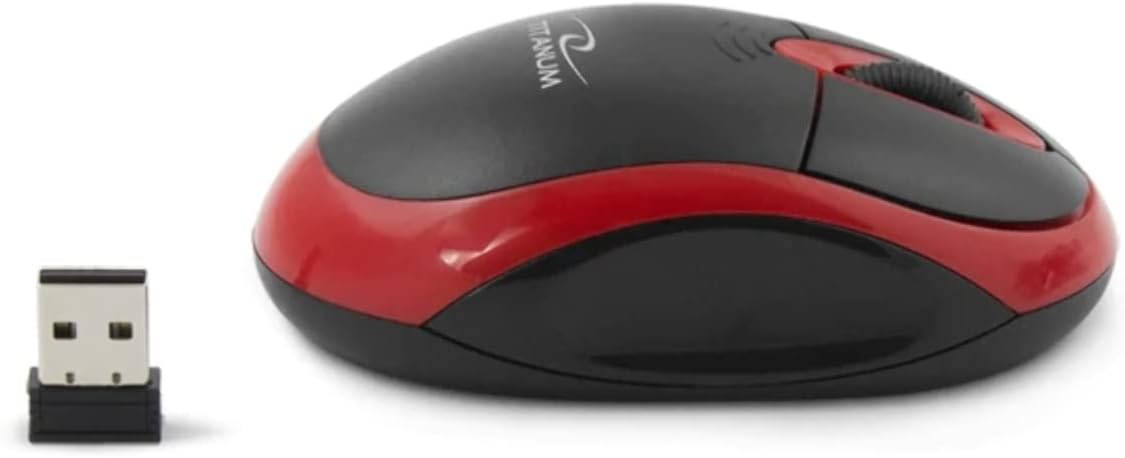
Image: Side profile of the Esperanza Titanum TM116R Wireless Optical Mouse, highlighting its ergonomic, ambidextrous design.
Ambidextrous Design
The mouse is designed for comfortable use by both left-handed and right-handed users.
Maintenance
Cleaning the Mouse
To maintain optimal performance, periodically clean your mouse:
- Ensure the mouse is turned off.
- Use a soft, lint-free cloth lightly dampened with water or a mild cleaning solution to wipe the surface of the mouse.
- Do not use harsh chemicals or abrasive materials.
- For the optical sensor, use a dry cotton swab to gently clean any dust or debris.
Battery Replacement
When the mouse performance degrades or stops responding, it's likely time to replace the battery. Follow the battery installation steps outlined in the Setup Guide.
Storage
When not in use for extended periods, turn off the mouse to conserve battery life. You can store the USB Nano Receiver in its dedicated slot on the mouse to prevent loss.
Troubleshooting
| Problem | Possible Cause | Solution |
|---|---|---|
| Mouse not responding | Low or dead battery; Mouse is off; USB receiver not connected; Receiver out of range. |
|
| Cursor movement is erratic or lagging | Low battery; Dirty optical sensor; Interference from other wireless devices; Mouse used on an unsuitable surface. |
|
| Buttons or scroll wheel not working | Software issue; Physical obstruction; Low battery. |
|
Specifications
| Feature | Detail |
|---|---|
| Model | TM116R |
| Connectivity | 2.4 GHz Wireless (Radio-frequency) |
| Sensor Technology | Optical |
| DPI (Dots Per Inch) | 1000 |
| Number of Buttons | 3 (Left, Right, Scroll Wheel/Middle Click) |
| Scrolling | 4-way Scroll Wheel (Vertical and Horizontal) |
| Hand Orientation | Ambidextrous |
| Power Source | 1 x Lithium-ion battery (not included) |
| Compatible Operating Systems | PC, Mac, Chrome OS |
| Color | Black/Red |
Warranty and Support
Esperanza provides a 2-year availability for spare parts for the Titanum TM116R Wireless Optical Mouse. For technical support, warranty claims, or further assistance, please contact your retailer or the manufacturer directly. Please retain your proof of purchase for warranty purposes.


