
1. Introduction
This manual provides detailed instructions for the installation, operation, and maintenance of your Polarlander K-CS02 2-DIN Car Stereo. Please read this manual thoroughly before using the product to ensure proper function and safety. Keep this manual for future reference.
2. Safety Information
- Always operate the vehicle safely. Distracted driving can lead to accidents.
- Do not attempt to install or service this unit yourself. Refer to qualified personnel for installation and repairs.
- Ensure all wiring is correctly connected to prevent short circuits or damage to the unit and vehicle's electrical system.
- Avoid exposing the unit to extreme temperatures, direct sunlight for prolonged periods, or excessive moisture.
- Clean the screen with a soft, dry cloth. Do not use abrasive cleaners or solvents.
3. Package Contents
Verify that all items listed below are included in your package:
- Polarlander K-CS02 Car Stereo Unit
- Wire Harness
- Remote Control
- Mounting Brackets (2)
- User Manual
- Frame

Figure 3.1: Package Contents
4. Setup and Installation
Professional installation is recommended for this car stereo. Incorrect wiring can cause damage to the unit or your vehicle. Refer to the wiring diagram below for connections.
4.1 Wiring Diagram

Figure 4.1: Rear Panel and Wiring Diagram
The diagram illustrates the various input and output ports on the rear of the unit, including the ISO power plug, connections for rear and front view cameras, subwoofer output, video outputs (Video Output 1, Video Output 2), and audio outputs (Audio Output Right, Audio Output Left).
4.2 Dimensions
The unit has standard 2-DIN dimensions. Refer to the image for precise measurements to ensure compatibility with your vehicle's dashboard.
Figure 4.2: Unit Dimensions
5. Operating Instructions
This section details the various functions and how to operate your car stereo. The video below provides a comprehensive overview of the unit's features, including unboxing, wiring, Bluetooth pairing, USB music playback, Mirror Link, and DVD playback.
Video 5.1: Polarlander K-CS02 Car Stereo Overview and Demonstration
5.1 Bluetooth Function
The unit supports Bluetooth for audio streaming (A2DP), phonebook download (PB-Download), phonebook search (PB-Search), and hands-free calling. Ensure your mobile phone supports Bluetooth Audio Output for full functionality.
- Pairing: Navigate to the Bluetooth menu on the stereo. Enable Bluetooth on your mobile device and search for "CarBT" or a similar device name. Enter the default PIN (usually 0000) if prompted.
- Music Playback: Once paired, you can stream audio from your phone to the stereo. Use the stereo's controls or your phone to manage playback.
- Hands-Free Calling: Answer, make, and end calls directly from the stereo's touch screen. Your phonebook can be synchronized for easy access.
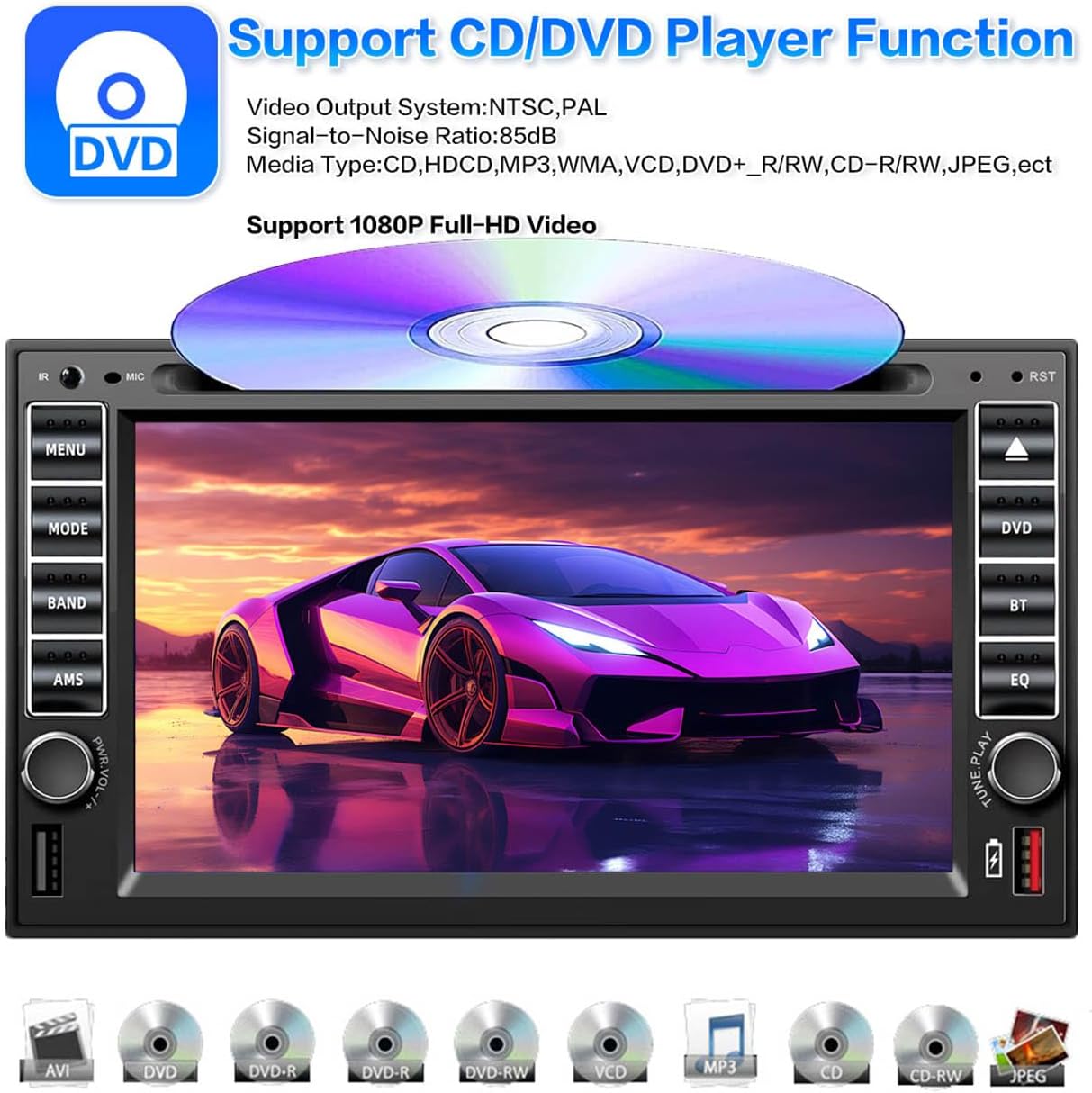
Figure 5.1: Bluetooth Functionality
5.2 CD/DVD Player
The unit features a built-in CD/DVD player. It supports various media types including CD, HDCD, MP3, WMA, VCD, DVD+R/RW, CD-R/RW, and JPEG. It also supports 1080P Full-HD video playback.
- Inserting a Disc: Gently insert a disc into the disc slot with the label side facing up. The unit will automatically load and begin playback.
- Playback Controls: Use the on-screen controls or remote control for play, pause, skip tracks, fast forward, and rewind.
- Ejecting a Disc: Press the eject button on the front panel to remove a disc.

Figure 5.2: CD/DVD Player Function
5.3 USB & SD Card Playback
Connect USB devices or insert SD cards to play audio and video files. The unit supports external memory up to 2TB (FAT32 format).
- USB Connection: Plug your USB drive into the front USB port.
- SD Card: Insert an SD card into the designated slot.
- File Browsing: Navigate through folders and select files using the touch screen.

Figure 5.3: USB & AUX Connection and EQ/DSP
5.4 Radio Function
The unit includes an FM/AM radio tuner with a radio response bandwidth of AM: 522-1710KHz and FM: 64-108MHz. It supports 24 station presets and RDS (Radio Data System).
- Tuning: Use the on-screen controls to manually tune or auto-scan for stations.
- Presets: Save your favorite stations to the 24 available presets for quick access.

Figure 5.4: Radio Function and Mirror Link
5.5 Mirror Link
Connect your Android phone or iPhone via USB to mirror its screen onto the unit's display. This allows you to view your phone's content on the larger screen. Note that some newer phone models may not support this feature.
- Connection: Connect your smartphone to the unit's USB port using a compatible USB cable.
- Activation: Follow the on-screen prompts on both your phone and the stereo to activate Mirror Link.
Figure 5.5: Mirror Link Functionality
5.6 Steering Wheel Control
The unit supports steering wheel controls, allowing you to manage music and volume without taking your hands off the wheel, enhancing driving safety.
- Configuration: Access the 'Steering Learn' option in the system settings to program your vehicle's steering wheel buttons.
- Multi-Color Buttons: The unit features panel buttons with seven colorful light options. Adjust the color bar value to change the button illumination.

Figure 5.6: Steering Wheel Control and Multi-Color Buttons
5.7 Rear View Camera Support
The stereo supports RCA connector type rear view camera signal input. When reversing gear is engaged, the unit will automatically switch to the parking image. An optional camera is required.

Figure 5.7: Rear View Camera and Multiple OSD Languages
5.8 EQ & DSP Settings
Customize your audio experience with the Equalizer (EQ) and Digital Signal Processor (DSP) settings. The unit features an amplifier output power of 45W per channel (x4) and supports a subwoofer output.
- EQ Modes: Select from preset EQ modes such as Rock, Hip Hop, Latin, Rave, or customize your own.
- Loudness: Adjust the loudness feature for enhanced bass and treble at low volumes.
- Subwoofer: Enable or disable the subwoofer output.
- Audio Line Out: The unit provides a 4.1 audio line out configuration.
Figure 5.8: EQ & DSP Settings Interface
5.9 Language Settings
The unit supports multiple OSD (On-Screen Display) languages, including English, French, German, Russian, Portuguese, Spanish, Italian, Arabic, Turkish, Hebrew, and Chinese (Traditional and Simplified).
- Changing Language: Navigate to the system settings menu and select 'Language' to choose your preferred OSD language.
Figure 5.9: Multiple OSD Languages
6. Maintenance
- Cleaning the Screen: Use a soft, lint-free cloth to wipe the touch screen. For stubborn smudges, slightly dampen the cloth with water. Do not spray cleaners directly onto the screen.
- General Cleaning: Keep the unit free from dust and debris. Use a soft brush or compressed air to clean vents and ports.
- Disc Care: Handle CDs and DVDs by their edges. Store them in cases to prevent scratches. Clean discs with a soft cloth from the center outwards.
7. Troubleshooting
If you encounter issues with your car stereo, refer to the following common problems and solutions:
| Problem | Possible Cause | Solution |
|---|---|---|
| No power | Incorrect wiring, blown fuse | Check power connections and vehicle fuses. Consult a professional if unsure. |
| No sound | Volume too low, incorrect audio source, speaker wiring issues | Increase volume. Verify correct audio source. Check speaker connections. |
| Bluetooth not connecting | Bluetooth off, incorrect pairing, device not discoverable | Ensure Bluetooth is enabled on both devices. Re-attempt pairing. Check device visibility settings. |
| Disc not playing | Disc dirty or scratched, incompatible format | Clean the disc. Try a different disc. Ensure disc format is supported. |
| Mirror Link not working | Incompatible phone, incorrect cable, software issues | Check phone compatibility. Use a high-quality USB cable. Restart both devices. |
If the problem persists after attempting these solutions, please contact customer support or a qualified service technician.
8. Specifications
- Model Number: K-CS02
- Screen Size: 6.5 Inches
- Display Type: LCD
- Media Type Support: SD, VCD, CD, DVD, USB
- Radio Tuner: FM/AM (FM: 64-108MHz, AM: 522-1710KHz)
- Bluetooth: Yes (A2DP, Phonebook)
- USB Port: Yes (Up to 2TB, FAT32)
- AUX Input: Yes
- Rear View Camera Input: Yes (RCA type)
- Steering Wheel Control: Yes
- Amplifier Output: 4 x 45W
- Subwoofer Output: Yes
- Item Weight: 4.11 pounds
- Package Dimensions: 9.41 x 8.66 x 6.38 inches
9. Warranty and Support
For warranty information, please refer to the documentation provided at the time of purchase or contact your retailer. For technical support, troubleshooting assistance, or service inquiries, please contact Polarlander customer service through the contact information provided on their official website or your purchase platform.


