
1. Introduction
This manual provides essential information for the proper setup, operation, and maintenance of your eSynic 3.5-inch USB External Floppy Disk Drive. Please read these instructions carefully before using the device to ensure optimal performance and longevity.
2. Product Overview
2.1. Key Features
- 3.5-inch USB External Floppy Disk Drive.
- Super slim and lightweight design for portability.
- Compatible with USB 1.1, 2.0, and 3.0 interfaces.
- Supports reading and writing 1.44 MB floppy disks.
- Plug & Play functionality for MAC, Windows 10, Windows 8, 7, Vista, XP, ME, 2000, SE, and 98.
- Durable hard plastic enclosure.
- Powered directly from the USB port, no external power required.
- Equipped with an interference preventer for strong anti-interference ability.
2.2. Package Contents
- 1 x eSynic 3.5-inch USB External Floppy Disk Drive
- 1 x User Manual (this document)
3. Setup Instructions
The eSynic USB Floppy Disk Drive is designed for plug-and-play operation, requiring no additional drivers for most compatible operating systems.
- Connect the Drive: Locate an available USB port on your computer. The drive features a built-in USB cable. Insert the USB-A connector into your computer's USB port. If your computer only has USB-C ports, use a compatible USB-A to USB-C adapter (not included).

Image: The eSynic USB Floppy Drive connected to a laptop, illustrating the USB-A connection.
- Power Indicator: Once connected, a small green LED light on the front of the drive will illuminate, indicating that the drive is receiving power and is ready for use.
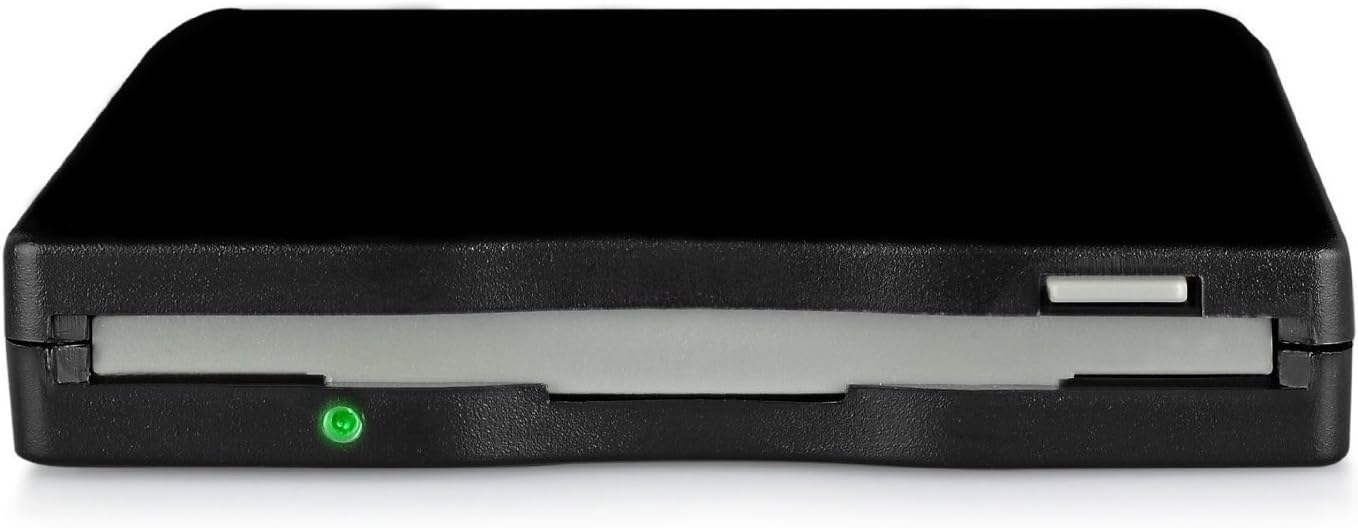
Image: A close-up view of the front of the eSynic USB Floppy Drive, showing the green LED light indicating power.
- System Recognition: Your operating system (Windows or Mac) should automatically detect and install the necessary drivers. The drive will appear as a