
1. Introduction
This manual provides detailed instructions for the installation, operation, and maintenance of your TMEZON 8-Channel 1080P Wireless Security Camera System. Please read this manual thoroughly before using the product to ensure proper setup and functionality. This system is designed to provide reliable surveillance for homes, offices, warehouses, and other properties.
2. Package Contents
Verify that all items listed below are included in your package. If any items are missing or damaged, please contact customer support.
- 1x 8-Channel 960P WIFI NVR (Network Video Recorder)
- 8x 960P HD WIFI IP Cameras
- 9x Power Supplies (1 for NVR, 8 for cameras)
- 1x USB Mouse
- 1x 1M Network Cable
- 8x Screw Bags (for camera mounting)

Image: Visual representation of the components included in the TMEZON Wireless Security Camera System package, showing the NVR, eight IP cameras, power adapters, USB mouse, network cable, and mounting hardware.
Note: A Hard Disk Drive (HDD) for video storage is NOT included and must be purchased separately.
3. System Overview
The TMEZON Wireless Security Camera System consists of an 8-channel Network Video Recorder (NVR) and eight 1080P HD wireless IP cameras. The system utilizes a built-in WiFi module for wireless communication between the NVR and cameras, simplifying installation.
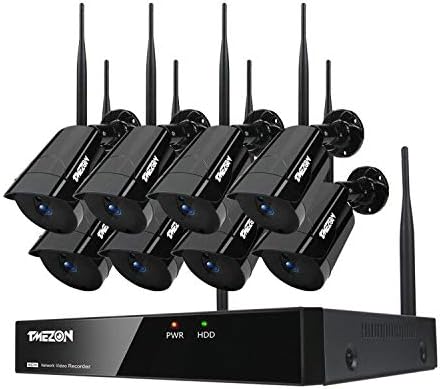
Image: The complete TMEZON 8-channel wireless security camera system, featuring the NVR unit and eight bullet-style IP cameras with antennas.
4. Setup Guide
4.1 Initial Connection (Plug & Play)
- Power On NVR: Connect the NVR to its power supply and plug it into an electrical outlet.
- Power On Cameras: Connect each IP camera to its respective power supply and plug them into electrical outlets.
- Automatic Pairing: The NVR and cameras are pre-paired at the factory. Once powered on, the cameras will automatically connect to the NVR.

Image: Illustration of the auto-pairing feature, showing the NVR and a single camera connected to power outlets, indicating immediate functionality without complex configuration.
4.2 NVR System Connection
To view and manage your security system, connect the NVR to a monitor and network.
- Connect Monitor: Use an HDMI or VGA cable to connect the NVR to a monitor or TV.
- Connect USB Mouse: Plug the included USB mouse into one of the NVR's USB ports for navigation.
- Connect to Network: Connect the NVR to your router using the provided Ethernet cable for internet access and remote viewing capabilities.
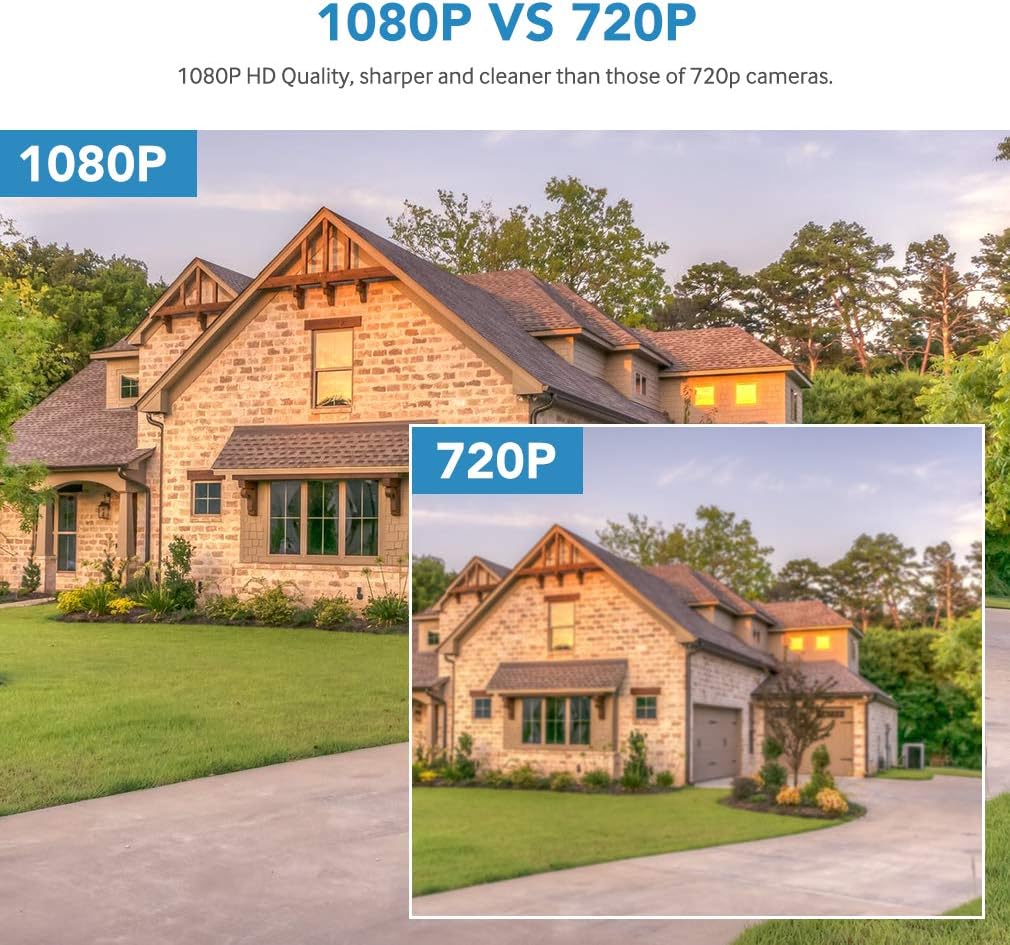
Image: Rear view of the TMEZON NVR, highlighting connection ports for HDMI/VGA (monitor), Ethernet (router), USB (mouse), and DC 12V (power adapter).
4.3 Mobile App Setup
For remote access and notifications, install the dedicated mobile application.
- Download App: Search for the official TMEZON app (e.g., 'IP Pro' or similar as indicated in the app store) on Google Play Store (Android) or Apple App Store (iOS) and install it on your smartphone.
- Register Account: Open the app and follow the on-screen instructions to register a new user account.
- Add Device: Use the app to scan the QR code on your NVR or manually enter the device ID to add your security system.
- Live View: Once added, you can access the live view of your cameras remotely.

Image: A three-step visual guide showing the NVR connected to power and internet, followed by screenshots of a smartphone downloading the 'IP Pro' app and then displaying a live camera view within the app.
5. Operating Instructions
5.1 Motion Detection and Alerts
The system supports smart motion detection, which can trigger alerts and recordings.
- Configuration: Access the NVR menu or mobile app settings to configure motion detection zones and sensitivity for each camera.
- Alerts: When motion is detected, the system can send instant email alerts or push notifications to your mobile phone.
- Recording: Motion-triggered recording saves storage space by only recording when activity is detected.

Image: Depiction of the motion detection feature, showing a camera monitoring an area with a detected motion event highlighted, and a smartphone displaying an alert notification.
5.2 Remote Viewing
With the mobile app, you can view live camera feeds from anywhere with an internet connection. The app also allows for playback of recorded footage (if an HDD is installed).
5.3 Night Vision
Each camera is equipped with IR-CUT filters and Array LEDs, providing clear night vision up to 100ft (30m) in low-light conditions. The system automatically switches between day and night modes.
5.4 Signal Transmission
The wireless system offers robust signal transmission. In open areas, the range can extend up to 1000ft. With obstacles such as walls, the effective range is up to 200ft. For optimal performance, minimize the number of obstacles between cameras and the NVR.

Image: Diagram illustrating the wireless signal range of the TMEZON system, showing a range of up to 200ft with obstacles and up to 1000ft in open space between cameras and the NVR.
6. Installation Considerations
6.1 Camera Placement
Mount cameras in strategic locations to maximize coverage. Consider areas with high traffic, entry points, and valuable assets. Ensure cameras are within the NVR's wireless range.
6.2 Weatherproofing
The IP cameras are rated IP66 weatherproof, meaning they are protected against dust ingress and powerful water jets. This makes them suitable for both indoor and outdoor installation.

Image: A TMEZON IP camera mounted outdoors, with visual cues indicating its IP66 weatherproof rating, showing it can withstand rain and other environmental elements.
7. Maintenance
- Clean Lenses: Regularly clean camera lenses with a soft, damp cloth to ensure clear image quality.
- Check Connections: Periodically inspect all power and network connections for security and integrity.
- Firmware Updates: Check the TMEZON website or app for available firmware updates to ensure optimal performance and security.
- HDD Management: If an HDD is installed, ensure it has sufficient space. Configure overwrite settings if continuous recording is desired.
8. Troubleshooting
- No Image on Monitor: Ensure the NVR is powered on, the monitor is connected correctly via HDMI/VGA, and the monitor input source is selected appropriately.
- Cameras Not Connecting: Verify that all cameras are powered on. Check if they are within the NVR's wireless range. If issues persist, try re-pairing the cameras (refer to advanced NVR settings).
- No Remote Access: Ensure the NVR is connected to the internet via an Ethernet cable. Check your router's internet connection. Verify that the mobile app is correctly configured and the device is added.
- Poor Image Quality: Clean camera lenses. Ensure cameras are not pointing directly into strong light sources. Check for obstructions. Note that 1080P offers significantly better clarity than 720P.

Image: A side-by-side comparison of video quality, demonstrating the sharper and clearer details provided by 1080P resolution compared to 720P resolution in a typical home surveillance scenario.
9. Specifications
NVR Specifications:
- Channels: 8-Channel
- Resolution: 960P (for recording/preview)
- Video Output: Support video preview/recording/playback/USB backup
- HDD Support: 1 SATA port, up to 4TB HDD (not included)
- USB Ports: 2x USB2.0 (for mouse control, backup, upgrade)
- Connectivity: Wireless and wired mixed use support
IP Camera Specifications:
- Image Sensor: 1.3 Megapixel 1/3" Progressive Scan Sensor
- Resolution: HD 1280*960P
- Lens: 3.6mm
- Night Vision: 3x Array LEDs with IR-CUT filter, up to 100ft (30m)
- Weatherproof Rating: IP66
10. Warranty and Support
Your TMEZON Wireless Security Camera System comes with a 2-year warranty. For technical support, troubleshooting assistance, or warranty claims, please contact TMEZON customer service.
Email: support@tmezon.com
Please provide your model number (MZ-WF-8013P/00-A1) and a detailed description of your issue when contacting support for faster service.