
Introduction
This manual provides detailed instructions for the proper use and maintenance of your Olympus S-701 Pearlcorder Microcassette Voice Recorder. Please read this manual thoroughly before operating the device to ensure optimal performance and longevity.
Package Contents
Verify that all items are present in the package:
- Olympus S-701 Voice Recorder
- Microcassette Tape
- 2 AA Batteries
Device Overview
Familiarize yourself with the components of your S-701 recorder.
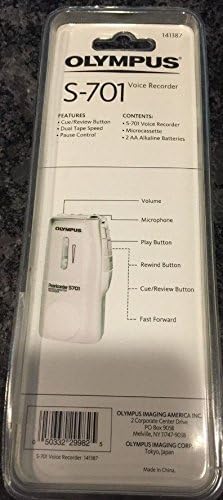
Figure 1: Rear View of Olympus S-701. This image highlights the volume control, microphone, play button, rewind button, cue/review button, and fast forward button.
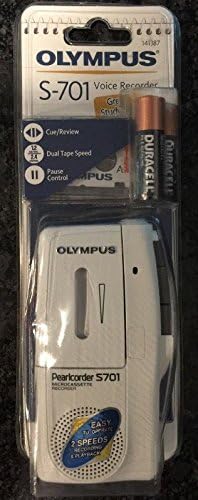
Figure 2: Front View of Olympus S-701. The front of the recorder shows the speaker grille and the microcassette compartment.
- Microphone: Integrated microphone for recording audio.
- Speaker: For audio playback.
- Volume Control: Adjusts playback volume.
- Play Button: Initiates playback.
- Record Button: Initiates recording (often red).
- Stop/Eject Button: Stops operations and opens the cassette compartment.
- Fast Forward (FF) Button: Advances the tape quickly.
- Rewind (REW) Button: Rewinds the tape quickly.
- Cue/Review Button: Allows quick forward (cue) or backward (review) scanning during playback.
- Pause Control: Temporarily stops recording or playback.
- Dual Tape Speed Switch: Selects between two recording/playback speeds (e.g., 2.4 cm/s and 1.2 cm/s).
- Battery Compartment: Holds two AA batteries.
- Microcassette Compartment: Where the microcassette tape is inserted.
Setup
1. Battery Installation
- Locate the battery compartment cover on the back of the recorder.
- Slide the cover open in the direction indicated by the arrow.
- Insert two AA batteries, ensuring correct polarity (+ and -) as marked inside the compartment.
- Close the battery compartment cover securely.
Note: Always use fresh batteries for optimal performance. Remove batteries if the recorder will not be used for an extended period to prevent leakage.
2. Microcassette Insertion
- Press the STOP/EJECT button to open the microcassette compartment.
- Carefully insert a microcassette tape with the open side facing the recorder's head assembly. Ensure the tape is seated correctly.
- Gently close the compartment cover until it clicks into place.
Operating Instructions
Recording
- Ensure a microcassette is inserted and the batteries are fresh.
- Select the desired tape speed using the DUAL TAPE SPEED switch (e.g., 2.4 for standard, 1.2 for extended recording time).
- Press the RECORD button (usually red). The recording indicator light will illuminate.
- Speak clearly into the built-in microphone. Maintain a consistent distance from the microphone for optimal audio quality.
- To temporarily pause recording, slide the PAUSE control. Slide it back to resume.
- To stop recording, press the STOP button.
Tip: For best results, record in a quiet environment. Avoid covering the microphone during recording.
Playback
- Ensure a recorded microcassette is inserted.
- Press the PLAY button. Audio will begin playing through the built-in speaker.
- Adjust the playback volume using the VOLUME control.
- To temporarily pause playback, slide the PAUSE control. Slide it back to resume.
- To stop playback, press the STOP button.
Fast Forward and Rewind
- To fast forward the tape, press and hold the FAST FORWARD (FF) button. Release to stop.
- To rewind the tape, press and hold the REWIND (REW) button. Release to stop.
Cue/Review Function
The Cue/Review function allows you to quickly scan forward or backward through a recording while listening to the audio at an accelerated pace.
- During playback, press and hold the CUE button to scan forward.
- During playback, press and hold the REVIEW button to scan backward.
- Release the button to resume normal playback.
Maintenance
Cleaning the Recorder
- Wipe the exterior of the recorder with a soft, dry cloth.
- Do not use liquid cleaners, solvents, or abrasive materials, as these can damage the finish or internal components.
- Periodically clean the tape head and pinch roller using a cotton swab lightly dampened with isopropyl alcohol. Ensure the recorder is off and batteries are removed before cleaning these components. Allow to dry completely before use.
Storage
- Store the recorder in a cool, dry place away from direct sunlight, extreme temperatures, and high humidity.
- Remove batteries if the device will be stored for an extended period to prevent corrosion.
- Keep microcassettes away from strong magnetic fields to prevent data loss.
Troubleshooting
| Problem | Possible Cause | Solution |
|---|---|---|
| Recorder does not power on. | Dead or incorrectly inserted batteries. | Replace batteries with fresh ones, ensuring correct polarity. |
| No sound during playback. | Volume too low; tape not recorded; tape head dirty. | Increase volume; ensure tape has recorded content; clean tape head. |
| Poor recording quality. | Microphone obstructed; low batteries; tape head dirty; recording in noisy environment. | Ensure microphone is clear; replace batteries; clean tape head; record in a quieter area. |
| Tape does not move. | Tape jammed; batteries low; mechanical issue. | Check tape for damage or tangles; replace batteries. If issue persists, contact support. |
Specifications
| Feature | Detail |
|---|---|
| Model Number | S-701 |
| Recording Medium | Microcassette Tape |
| Power Source | 2 x AA Batteries (included) |
| Item Weight | 9.6 ounces |
| Package Dimensions | 9.02 x 3.03 x 1.1 inches |
| Microphone Form Factor | Built-In |
| Manufacturer | Olympus |
Note: Specifications are subject to change without notice for product improvement.
Support and Warranty
For technical assistance or warranty inquiries, please refer to the contact information provided with your purchase documentation or visit the official Olympus support website.
You can often find support resources and FAQs on the manufacturer's website:


