
1. Introduction
This manual provides detailed instructions for the installation, operation, and maintenance of your Zenec Z-E2026 Navigation System. Please read this manual thoroughly before using the device to ensure proper functionality and to prevent damage.
The Zenec Z-E2026 is an advanced in-car navigation and entertainment system designed for specific vehicle platforms, including the VW Golf V. It features a DSP-based crossover with HPF/LPF functions, a phase diversity RDS system, 4.2 pre-amplified outputs (4V), voice support for Bluetooth phone operation (SIVR), and SD card navigation.
2. Safety Information
Always observe the following safety precautions:
- Do not operate the device in a way that distracts you from driving.
- Ensure all connections are secure before operating the vehicle.
- Consult a professional for installation if you are unsure about any steps.
- Keep the device away from extreme temperatures and moisture.
3. Package Contents
Verify that all items are present in the package:
- Zenec Z-E2026 Navigation System Unit
- Fakra Connector
- Dual Tuner
- Antenna Adapter (ZE-NC-ANT 2, if applicable for specific vehicle models)
- User Manual (this document)
4. Setup and Installation
The Zenec Z-E2026 is designed for integration into specific vehicle platforms. Professional installation is recommended.
4.1 Antenna Connection
The Z-E2026 features a dual Fakra connector and a dual tuner. Installation is only possible in vehicles equipped with a compatible antenna system from the factory.
- For Radio Generation III (e.g., RCD 310, RCD 510): Direct connection is possible. (Note: RCD 210 radio is not compatible for single antenna factory connection).
- For Radio Generation II (e.g., RCD 300, RCD 500): The antenna adapter ZE-NC-ANT 2 must be used in addition.
4.2 Initial Power-Up
After installation, turn on your vehicle's ignition. The system should power on automatically. Follow any on-screen prompts for initial setup, such as language selection and time zone settings.
5. Operating Instructions
The Zenec Z-E2026 features a touchscreen interface for intuitive control.
5.1 Main Interface Overview

The main screen provides access to key functions: HOME, TUNER, MEDIA, NAV, and BT (Bluetooth). Use the touchscreen to select desired functions.
5.2 Navigation System
The integrated navigation system provides detailed maps and route guidance.
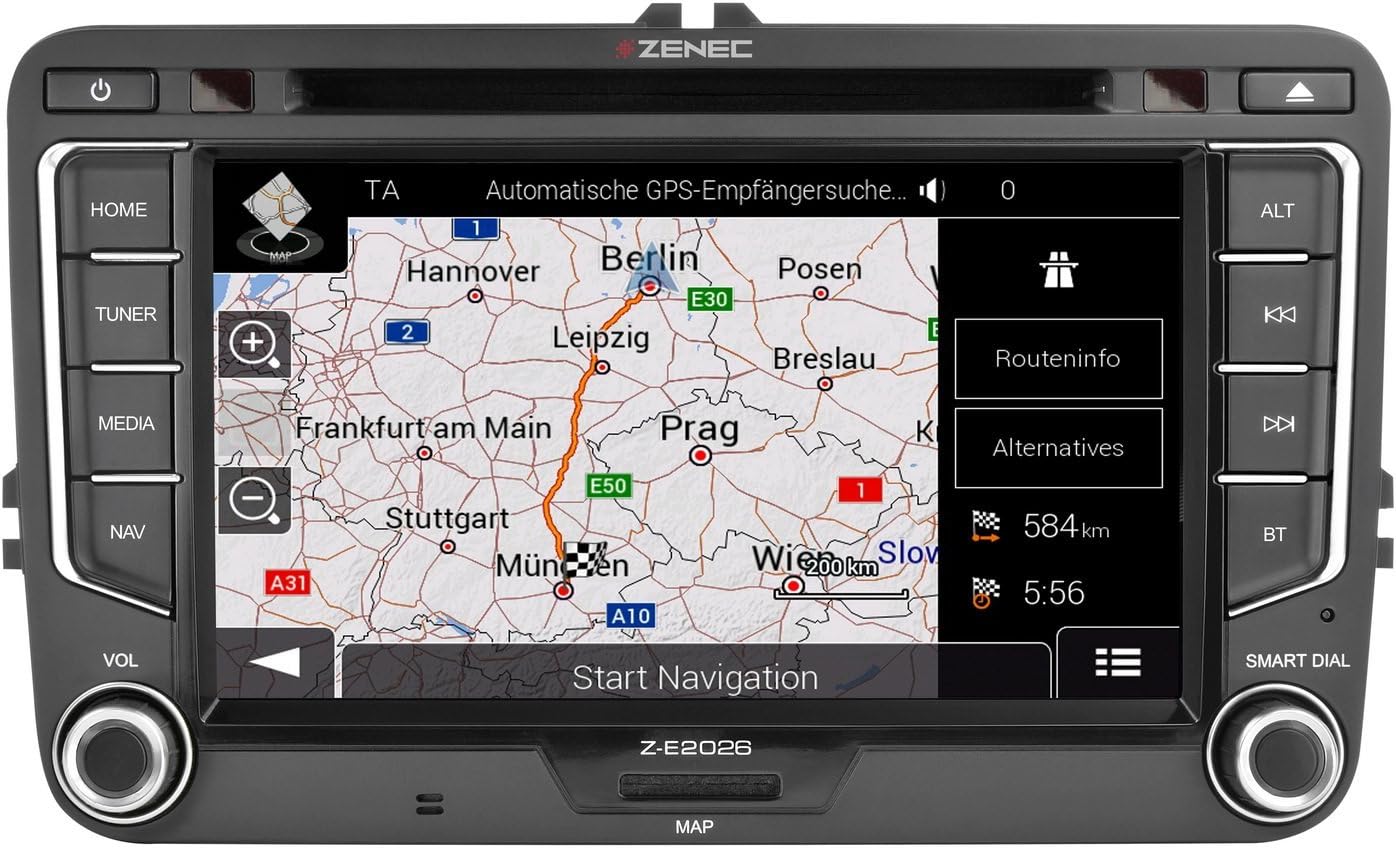
To start navigation:
- Press the NAV button or touch the NAV icon on the screen.
- Enter your destination using the on-screen keyboard.
- Select your preferred route options (e.g., fastest, shortest).
- Confirm to start route guidance.
The system supports SD card navigation for map data.
5.3 Bluetooth Connectivity
Connect your mobile phone via Bluetooth for hands-free calling and audio streaming.

Pairing a device:
- Press the BT button or touch the BT icon.
- Enable Bluetooth on your mobile phone and search for available devices.
- Select "Zenec Z-E2026" from the list on your phone.
- Confirm the pairing code on both devices if prompted.
The system supports Voice Support for Bluetooth phone operation (SIVR).
5.4 Media Playback
The Z-E2026 supports various media formats and sources, including USB and MP3 playback.

To access media functions:
- Press the MEDIA button or touch the MEDIA icon.
- Select your desired media source (e.g., USB, Bluetooth Audio).
- Use the on-screen controls to play, pause, skip tracks, and adjust audio settings.
The system features a DSP-based crossover with HPF/LPF functions for advanced audio customization.
6. Maintenance
6.1 Cleaning the Device
Use a soft, dry cloth to clean the screen and exterior of the unit. Do not use abrasive cleaners or solvents, as these can damage the surface.
6.2 Software Updates
Periodically check the official Zenec website for available software and map updates. Follow the instructions provided with the update files carefully to ensure proper installation.
7. Troubleshooting
If you encounter issues with your Zenec Z-E2026, refer to the following common problems and solutions:
| Problem | Possible Cause | Solution |
|---|---|---|
| No power | Incorrect wiring, blown fuse | Check power connections and vehicle fuses. Consult an installer if necessary. |
| No sound | Volume too low, mute activated, incorrect audio settings | Increase volume, check mute status, verify audio output settings. |
| GPS signal lost or inaccurate | Poor satellite reception, faulty GPS antenna | Ensure the vehicle is in an open area. Check GPS antenna connection. |
| Bluetooth pairing issues | Bluetooth not enabled, incorrect pairing procedure | Ensure Bluetooth is active on both devices. Re-attempt pairing following instructions in Section 5.3. |
| Touchscreen unresponsive | Temporary software glitch | Restart the vehicle ignition. If the problem persists, perform a factory reset (refer to advanced settings, if available). |
If the problem persists after attempting these solutions, please contact Zenec customer support or your authorized dealer.
8. Specifications
| Feature | Detail |
|---|---|
| Model Number | Z-E2026 |
| Brand | Zenec |
| Screen Size | 7 Inch |
| Input Device | Touchscreen |
| Connectivity Technologies | Bluetooth, HDMI |
| Wireless Communication Technologies | Bluetooth |
| Special Features | Touchscreen, DSP-based crossover (HPF/LPF), Phase Diversity RDS, SIVR Voice Support |
| Audio Output Mode | Stereo (4.2 pre-amplified outputs, 4V) |
| Included Components | Fakra connector, Dual Tuner, Antenna Adapter |
| Item Weight | 4.04 Kilograms |
| Dimensions (Package) | 39.2 x 26.6 x 17.8 cm |
| Vehicle Service Type | Car |
| Mounting Type | Panel Mount |
9. Warranty and Support
For warranty information, please refer to the documentation provided at the time of purchase or visit the official Zenec website. For technical support, contact your authorized Zenec dealer or Zenec customer service.
Manufacturer: Zenec
First Available Date: January 15, 2020


