
1. Introduction
This manual provides detailed instructions for the setup, operation, and maintenance of your Fujitsu ScanSnap iX500 Color Duplex Desk Scanner. The ScanSnap iX500 is designed for efficient document management, offering high-speed scanning and versatile connectivity options for both Mac and PC environments.
Key features include one-touch scanning to various formats, automatic double-sided scanning, Wi-Fi connectivity, and intelligent image correction. This model was originally released in 2013.
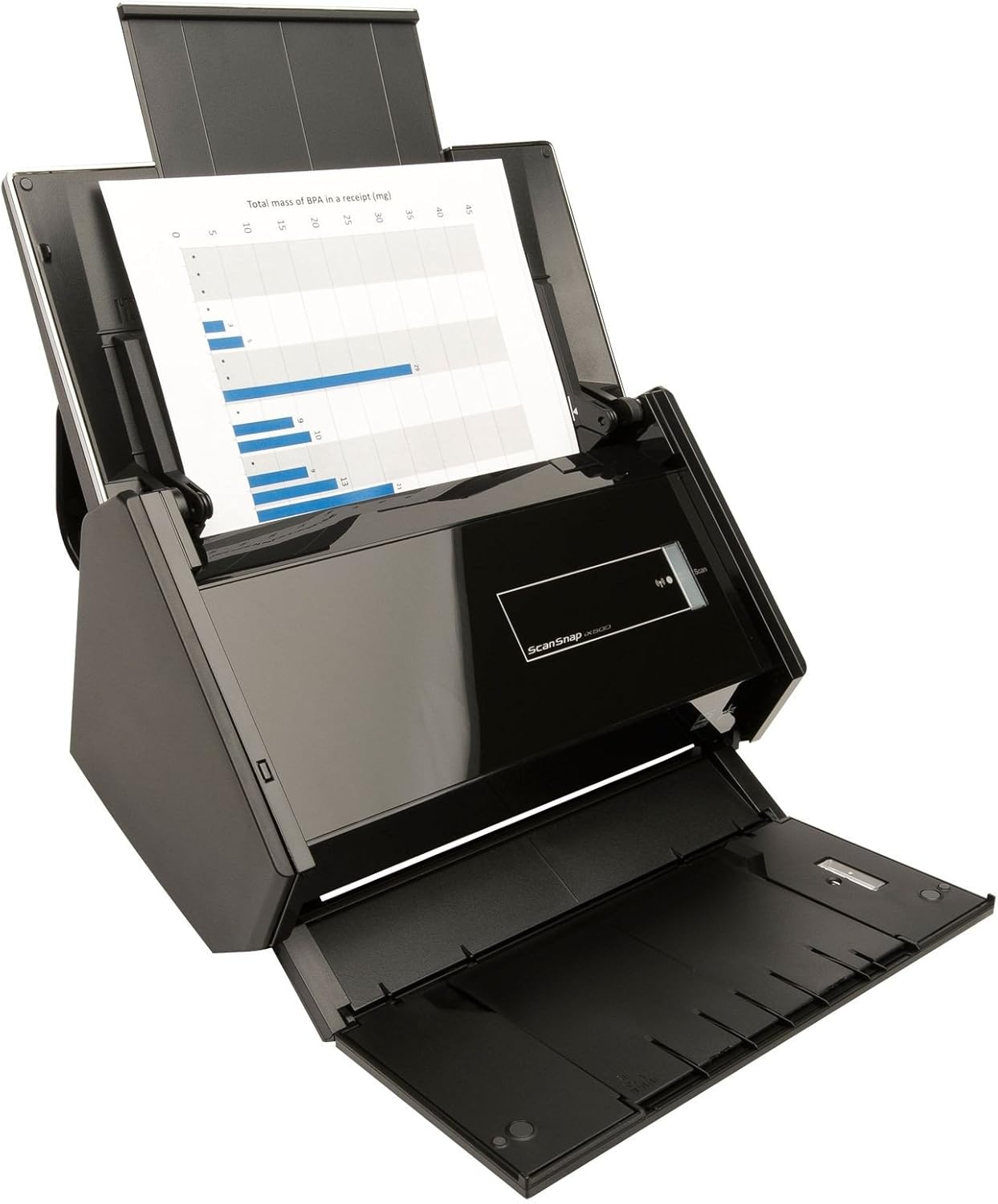
Image 1: The Fujitsu ScanSnap iX500 scanner in its compact, closed state.
2. What's in the Box
Verify that all the following items are included in your package:
- ScanSnap iX500 Scanner
- Power Adapter
- Power Cable
- Carrier Sheet
- Setup DVD
- CardMinder Software
- ABBYY FineReader Software
- Standard Nuance PowerPDF (Windows) / Nuance PDF Converter for Mac
3. Setup
3.1 Initial Connection
- Unpack the Scanner: Carefully remove the scanner and all accessories from the packaging.
- Connect Power: Connect the power adapter to the scanner and then plug the power cable into an electrical outlet.
- Connect to Computer (Optional USB): For initial setup or wired connection, connect the scanner to your computer using a USB cable.
- Install Software: Insert the Setup DVD into your computer's optical drive and follow the on-screen instructions to install the ScanSnap Manager software and other bundled applications.
3.2 Wi-Fi Setup
The ScanSnap iX500 supports Wi-Fi connectivity for wireless scanning to your computer or mobile device. Refer to the detailed instructions in the ScanSnap Manager software for configuring Wi-Fi settings. An existing wireless router is required for Wi-Fi functionality.
Video 1: An official product video demonstrating the features and setup of the Fujitsu ScanSnap iX500 scanner, including its compact design and wireless capabilities.
4. Operating Instructions
4.1 Basic Document Scanning
- Prepare Documents: Ensure documents are free of staples, paper clips, or any obstructions. Fan the edges to prevent misfeeds.
- Load Documents: Lift the scanner lid and place up to 50 sheets into the Automatic Document Feeder (ADF). Adjust the side guides to fit the document width.
- Start Scanning: Press the "Scan" button on the scanner or initiate scanning from the ScanSnap Manager software on your computer. The scanner will automatically detect document size, color, and orientation, and perform double-sided scanning at up to 25 pages per minute (50 images per minute).
- Review Scans: Scanned documents will appear in the ScanSnap Manager or your designated application.

Image 2: The Fujitsu ScanSnap iX500 scanner in operation, feeding documents through its automatic document feeder.
4.2 Scanning Business Cards and Irregular Documents
The ScanSnap iX500 can scan various document types, including business cards, driver's licenses, and other plastic cards. Use the included carrier sheet for delicate or irregular-shaped documents to ensure smooth feeding and prevent damage.
4.3 PC-less Scanning to Mobile Devices
With the ScanSnap Connect Application (available for iOS and Android), you can scan documents directly to your smartphone or tablet without needing a computer. Ensure your mobile device and scanner are connected to the same Wi-Fi network.
4.4 Scanning to Cloud Services and Applications
The ScanSnap iX500 integrates with various cloud services and applications. Through the ScanSnap Manager's Quick Menu, you can configure direct scanning to:
- Cloud Services: Dropbox, Google Drive, Evernote, SugarSync, and more. (Requires internet connection)
- Productivity Software: Convert scans to searchable PDFs, editable Word, Excel, or PowerPoint documents using bundled software like ABBYY FineReader and Nuance PowerPDF/PDF Converter.
- Business Card Management: Export contact information from scanned business cards to applications like CardMinder, Outlook, or Salesforce CRM.
- Other Destinations: Scan to a local folder, email as an attachment, or directly to a printer.
5. Features Overview
The ScanSnap iX500 incorporates advanced technology to streamline your scanning workflow:
- GI Processor: An advanced processor embedded in the scanner handles image processing, enabling fast and efficient scanning without relying heavily on your computer's CPU.
- Intelligent Scan Correction: The scanner automatically performs several image enhancements:
- Automatic Color Detection: Identifies and processes documents in color or monochrome as appropriate.
- Automatic Size Detection & Orientation: Adjusts the scan area and rotates images to the correct orientation.
- Automatic Blank Page Removal: Eliminates blank pages from double-sided scans, reducing file size and clutter.
- Automatic Bleed-Through Correction: Minimizes the appearance of text or images from the opposite side of a page.
- Quick Menu: A customizable interface provides quick access to various scan-to options, allowing you to direct your scanned documents to your preferred applications or destinations with ease.
6. Maintenance
Regular maintenance ensures optimal performance and longevity of your ScanSnap iX500 scanner.
6.1 Cleaning
- Exterior: Wipe the exterior with a soft, dry cloth. Do not use abrasive cleaners or solvents.
- Rollers: Periodically clean the feed rollers with a cleaning kit (sold separately or as part of maintenance supplies) to prevent paper jams and ensure proper feeding.
- Glass: Gently clean the scanner's glass surfaces with a lint-free cloth and a mild glass cleaner.
6.2 Consumables
The feed rollers are consumable parts and may need replacement after extensive use. Refer to the ScanSnap website or your dealer for replacement parts.
7. Troubleshooting
This section addresses common issues you might encounter with your ScanSnap iX500.
7.1 Paper Jams
- Cause: Improperly loaded documents, worn feed rollers, or foreign objects.
- Solution: Open the scanner cover and carefully remove any jammed paper. Ensure documents are properly aligned and free of staples or tears before loading. If jams persist, consider cleaning or replacing the feed rollers.
7.2 Wireless Connectivity Issues
- Cause: Incorrect Wi-Fi settings, network interference, or outdated drivers.
- Solution: Verify your scanner's Wi-Fi settings through the ScanSnap Manager software. Ensure the scanner and your computer/mobile device are on the same network. Try restarting your wireless router and the scanner. Update scanner drivers and software to the latest versions.
7.3 Poor Scan Quality
- Cause: Dirty scanner glass or rollers, incorrect scan settings, or damaged documents.
- Solution: Clean the scanner's glass and rollers as described in the Maintenance section. Check your scan settings in ScanSnap Manager to ensure appropriate resolution and image enhancements are selected.
8. Specifications
| Feature | Detail |
|---|---|
| Brand | ScanSnap |
| Model Name | iX500 |
| Item Model Number | PA03656-B305 |
| Scanner Type | Document |
| Connectivity Technology | Wi-Fi, USB |
| Resolution | 600 DPI |
| Item Weight | 6.6 pounds |
| Product Dimensions | 11.5 x 6.6 x 6.3 inches |
| Wattage | 20 watts |
| Color Depth | 48 Bits |
| Standard Sheet Capacity | 50 sheets |
| Optical Sensor Technology | CMOS |
| Material Type | ABS Plastics |
| Color | Black |
| Date First Available | March 16, 2013 |
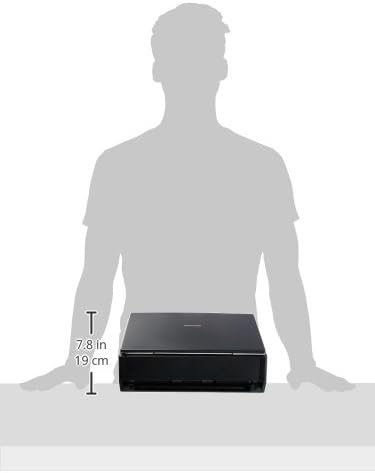
Image 3: Dimensions of the Fujitsu ScanSnap iX500 scanner.
9. Warranty and Support
For detailed warranty information, please refer to the warranty card included with your product or visit the official Fujitsu ScanSnap website. Technical support and service information can also be found on the manufacturer's website or by contacting their customer service.
Manufacturer: Fujitsu Ltd.


