
1. Introduction
This manual provides essential information for the safe and efficient use of your FUJITSU LIFEBOOK A573/G FMVA03003 laptop. Please read this manual thoroughly before operating the device and retain it for future reference. This document covers setup, operation, maintenance, and troubleshooting for your laptop.
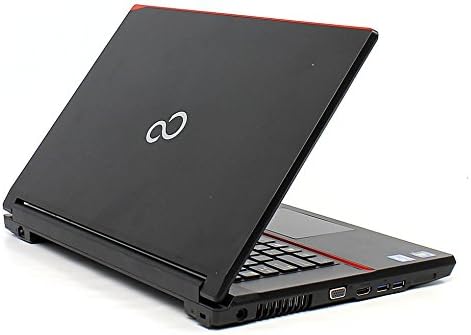
Figure 1: FUJITSU LIFEBOOK A573/G FMVA03003 Laptop. This image displays the laptop with its lid partially open, revealing the keyboard and the right-side ports including USB and HDMI connections. The Fujitsu logo is visible on the lid.
2. Setup
2.1 Unpacking
- Carefully remove the laptop and all accessories from the packaging.
- Verify that all components listed in the packing slip are present.
- Retain the packaging materials for potential future transport or service.
2.2 Connecting Power
- Connect the AC adapter to the power input port on the laptop.
- Plug the power cord into a grounded electrical outlet.
- The battery will begin charging automatically.
2.3 Initial Boot and Operating System Setup
- Press the power button to turn on the laptop.
- Follow the on-screen instructions to complete the initial setup of the Windows XP operating system. This typically includes setting up user accounts, language preferences, and network connections.
3. Operating Instructions
3.1 Power On/Off and Sleep Mode
- Power On: Press the power button located on the laptop.
- Power Off: Click 'Start' > 'Turn Off Computer' > 'Turn Off' in Windows XP.
- Sleep Mode: Close the laptop lid or click 'Start' > 'Turn Off Computer' > 'Stand By'.
3.2 Keyboard and Touchpad
- The integrated keyboard functions like a standard desktop keyboard.
- The touchpad acts as a mouse. Use one finger to move the cursor and tap to click. Two-finger gestures may be supported for scrolling.
3.3 Connecting Peripherals
- USB Devices: Insert USB devices (e.g., mouse, external drive) into the available USB ports.
- HDMI Display: Connect an external monitor or TV using an HDMI cable to the HDMI port.
3.4 Wi-Fi Connection
- Ensure Wi-Fi is enabled on the laptop (check for a physical switch or software setting).
- In Windows XP, click the wireless network icon in the system tray.
- Select your desired network and enter the security key if prompted.
4. Maintenance
4.1 Cleaning
- Use a soft, lint-free cloth to clean the screen and exterior surfaces.
- For stubborn marks, slightly dampen the cloth with water or a mild, non-abrasive cleaner.
- Avoid spraying liquids directly onto the laptop.
4.2 Battery Care
- To prolong battery life, avoid extreme temperatures.
- If storing the laptop for an extended period, ensure the battery is charged to approximately 50%.
4.3 Software Updates and Data Backup
- Regularly check for and install available operating system and driver updates to ensure optimal performance and security.
- Periodically back up important data to an external storage device or cloud service to prevent data loss.
5. Troubleshooting
5.1 Common Issues and Solutions
- No Power:
Ensure the AC adapter is securely connected to both the laptop and a working power outlet. Check the power indicator light.
- Display Issues:
If the screen is blank, try adjusting the brightness. If using an external monitor, ensure the cable is connected properly and the display output is configured correctly (e.g., using function keys to switch display modes).
- Wi-Fi Connectivity Problems:
Verify that Wi-Fi is enabled. Restart your router and the laptop. Ensure you have the correct network password.
- Slow Performance:
Close unnecessary applications. Run a disk cleanup and defragmentation (if using HDD). Check for malware.
6. Specifications
| Feature | Specification |
|---|---|
| Brand | FUJITSU |
| Model Name | A573/G (FMVA03003) |
| Screen Size | 15.6 inches |
| Operating System | Windows XP |
| Installed RAM Memory Size | 320 GB (HDD) |
| Hard Disk Description | HDD |
| Connectivity Technology | HDMI, USB, Wi-Fi |
| CPU Brand | FUJITSU (Intel Core i5 3340M 2.7GHz) |
7. Warranty and Support
For information regarding warranty coverage, technical support, or service, please refer to the warranty card included with your product or visit the official FUJITSU support website. Keep your purchase receipt as proof of purchase for warranty claims.


