Introduction
The Genius LuxeMate 100 is a cost-effective USB keyboard designed for comfortable and quiet typing. It features a flat profile, a German standard QWERTZ layout, and adjustable feet for ergonomic positioning. This manual provides essential information for setting up, operating, maintaining, and troubleshooting your keyboard.
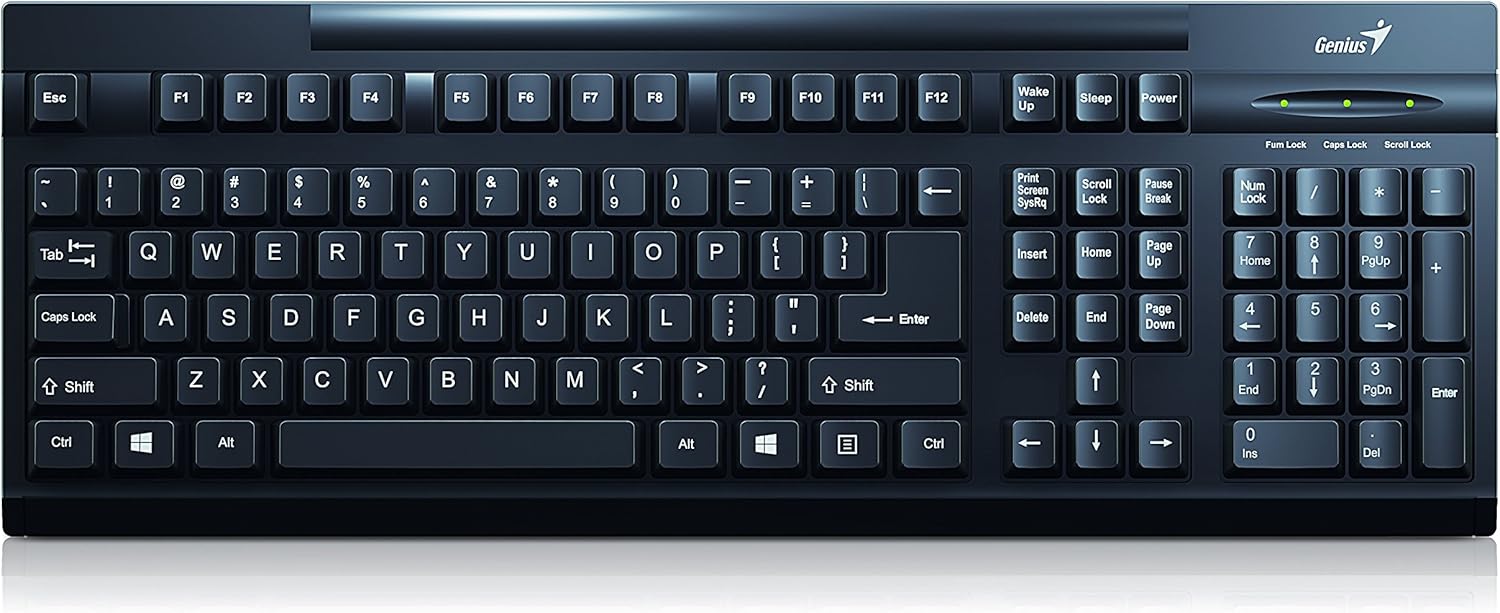
Figure 1: Top view of the Genius LuxeMate 100 Keyboard, showing the full German standard layout.
Setup Guide
The LuxeMate 100 keyboard is designed for simple plug-and-play installation, requiring no additional software drivers. Follow these steps to connect your keyboard:
- Locate an available USB port on your computer (desktop PC, laptop, etc.).
- Insert the USB connector of the LuxeMate 100 keyboard firmly into the USB port.
- Your operating system (e.g., Windows) will automatically detect and install the necessary drivers. This process usually takes a few seconds.
- Once the installation is complete, the keyboard is ready for use.

Figure 2: Angled view of the keyboard, highlighting its compact design and USB connection point.
For improved typing comfort, you can adjust the keyboard's angle using the integrated feet located on the underside. Gently pull out the feet until they click into place to elevate the rear of the keyboard.

Figure 3: Side view of the keyboard with its adjustable feet extended, providing an ergonomic typing angle.
Operating Instructions
The LuxeMate 100 keyboard features a standard German QWERTZ layout, providing all essential keys for daily computing tasks. Its low-profile keys offer a comfortable and quiet typing experience.

Figure 4: Close-up view of the keyboard keys, showing the German QWERTZ layout and keycap design.
Key Functions:
- Standard Alphanumeric Keys: Used for typing letters, numbers, and symbols.
- Function Keys (F1-F12): These keys perform various functions depending on the application or operating system.
- Windows Start Screen Button: Activates the Windows Start menu or screen.
- Numeric Keypad: Located on the right side, for efficient data entry. Ensure Num Lock is active (indicated by an LED light above the keypad).
- Caps Lock, Num Lock, Scroll Lock Indicators: LED lights above the numeric keypad indicate the status of these functions.
The keyboard's slim profile contributes to its lightweight design, making it easy to integrate into any workspace.

Figure 5: Side profile of the keyboard, illustrating its ultra-thin and slim design.
Care and Maintenance
To ensure the longevity and optimal performance of your Genius LuxeMate 100 keyboard, follow these simple maintenance guidelines:
- Cleaning: Regularly wipe the keyboard surface with a soft, dry, lint-free cloth. For stubborn dirt, slightly dampen the cloth with water or a mild, non-abrasive cleaning solution. Avoid excessive moisture.
- Dust Removal: Use compressed air to remove dust and debris from between the keys.
- Avoid Liquids: Do not spill liquids on the keyboard. If a spill occurs, immediately disconnect the keyboard from your computer and allow it to dry completely before reconnecting.
- Storage: When not in use for extended periods, store the keyboard in a clean, dry environment away from direct sunlight and extreme temperatures.
- Handling: Avoid dropping the keyboard or subjecting it to strong impacts, as this can damage internal components.
Troubleshooting
If you encounter issues with your LuxeMate 100 keyboard, try the following troubleshooting steps:
- Keyboard Not Responding:
- Ensure the USB cable is securely plugged into a working USB port on your computer.
- Try plugging the keyboard into a different USB port.
- Restart your computer.
- Test the keyboard on another computer to determine if the issue is with the keyboard or your computer's setup.
- Keys Not Working or Sticking:
- Check for any visible debris or foreign objects lodged under the keys. Use compressed air to clear them.
- Ensure the keyboard is clean and free from spills.
- Num Lock/Caps Lock/Scroll Lock Lights Not Working:
- Press the respective key (Num Lock, Caps Lock, Scroll Lock) to toggle its status. If the light does not change, refer to "Keyboard Not Responding" steps.
If these steps do not resolve the issue, please refer to the support section.
Technical Specifications
| Feature | Specification |
|---|---|
| Brand | Genius |
| Model Number | 31300725108 |
| Connectivity Technology | USB (USB-A) |
| Keyboard Layout | German Standard (QWERTZ) |
| Button Shape | Concave |
| Colour | Black |
| Dimensions (WxHxD) | 306 x 155 x 20 mm (as per description) / 34.9 x 18 x 3 cm (as per specifications) |
| Weight | 320 g |
| Material | Plastic |
| Compatible Devices | Laptop, PC |
| Operating System | Windows |
| Package Content | LuxeMate 100 Keyboard, Multi-lingual Quick Guide |
Note: Dimensions may vary slightly based on measurement method. The description states 306x155x20 MM, while specifications state 34.9x18x3 cm. Please refer to the product packaging for the most accurate dimensions.
Warranty and Support
For warranty information and technical support regarding your Genius LuxeMate 100 keyboard, please refer to the documentation included with your product or visit the official Genius website. Contact details for customer service are typically provided in the quick guide or on the manufacturer's support page.
When contacting support, please have your product model number (31300725108) and purchase details ready.


