
Introduction
This manual provides detailed instructions for the setup, operation, and maintenance of your Theater Solutions TS212 by Goldwood Bluetooth 2.1 Speaker System. Please read this manual thoroughly before using the product to ensure proper function and to maximize your listening experience. Keep this manual for future reference.
What's in the Box
Carefully unpack all components and ensure all items are present. If any items are missing or damaged, please contact customer support.
- Powered Subwoofer Speaker
- 2 Passive Wired Satellite Speakers
- Full Function Remote Control
- 3.5mm to RCA Audio Cable
- User Manual (this document)

Image: All components included in the TS212 system package.
Product Overview
Subwoofer Front Panel

Image: Front view of the TS212 subwoofer.
- Woofer: Front-firing for enhanced bass response.
- Port: Bass reflex port for optimized airflow.
- Control Panel (Top): Includes volume, mode selection, and playback controls.
Subwoofer Top Panel (USB/SD)

Image: Top panel of the TS212 subwoofer with media inputs.
- SD/MMC Card Slot: For playing audio files from an SD or MMC card.
- U Disk (USB) Port: For playing audio files from a USB drive or charging devices.
Subwoofer Rear Panel

Image: Rear view of the TS212 subwoofer.
- Power Switch: Toggles the system power ON/OFF.
- AC IN: Power input for the included power cord.
- Treble VOL: Adjusts the high-frequency output.
- Bass VOL: Adjusts the low-frequency output.
- INPUT/OUTPUT: RCA stereo input and output jacks for connecting audio sources and satellite speakers.
Satellite Speaker

Image: One of the TS212 satellite speakers.
- Full-Range Driver: Delivers clear mid-range and high-frequency audio.
- Wired Connection: Connects directly to the subwoofer via integrated RCA cables.
Remote Control
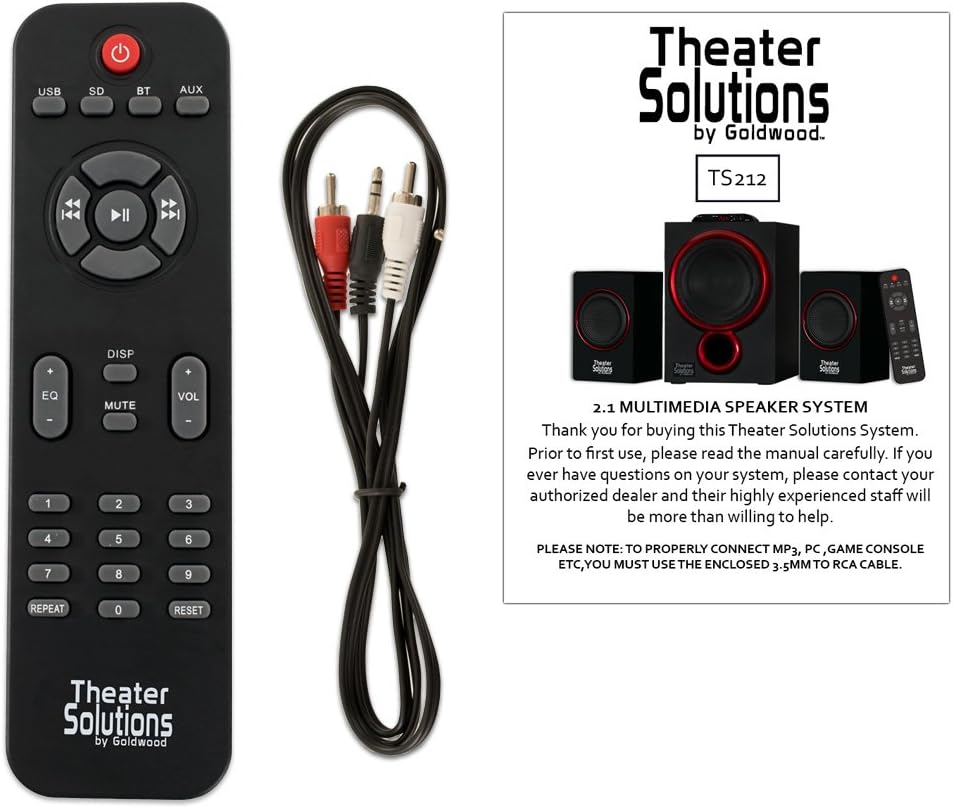
Image: Remote control for the TS212 system.
- Power Button: Turns the system on or off.
- Mode Button: Cycles through input modes (Bluetooth, AUX, USB, SD).
- Volume +/-: Adjusts the master volume.
- Playback Controls: Play/Pause, Skip Forward/Backward.
- EQ: Selects equalizer presets.
- Mute: Mutes the audio output.
- Numeric Keypad: For direct track selection in USB/SD mode.
Setup
1. Placement
- Place the subwoofer on a stable, flat surface, preferably on the floor, to optimize bass performance.
- Position the satellite speakers to the left and right of your listening area, facing towards you, for optimal stereo imaging. Ensure they are on a stable surface.
2. Connecting Satellite Speakers
- Connect the RCA cables from the two satellite speakers to the corresponding RCA output jacks on the rear panel of the subwoofer. Match the colors (typically red for right, white/black for left).
3. Connecting Audio Source
- For devices with a 3.5mm audio output (e.g., smartphones, laptops, MP3 players), use the included 3.5mm to RCA cable. Connect the 3.5mm end to your device and the RCA ends to the INPUT jacks on the subwoofer's rear panel.
- For devices with RCA audio outputs (e.g., DVD players, some TVs), use a standard RCA to RCA cable (not included) to connect to the INPUT jacks on the subwoofer.
4. Power Connection
- Ensure the power switch on the rear of the subwoofer is in the OFF position.
- Connect the power cord to the AC IN port on the subwoofer and then plug it into a standard 110V grounded wall outlet.
Operating Instructions
1. Powering On/Off
- Flip the power switch on the rear of the subwoofer to the ON position. The LED display on the subwoofer will illuminate.
- To turn off the system, flip the power switch to the OFF position.
2. Mode Selection
- Press the 'MODE' button on the subwoofer's top panel or the remote control to cycle through available input modes: Bluetooth (BT), Auxiliary (AUX), USB, and SD. The selected mode will be shown on the LED display.
3. Bluetooth Operation
- Select 'BT' mode using the 'MODE' button. The system will enter pairing mode, indicated by a flashing 'BT' on the display.
- On your Bluetooth-enabled device (e.g., smartphone), search for Bluetooth devices and select 'TS212' from the list.
- Once paired, the 'BT' indicator will stop flashing, and you can play audio from your device through the speaker system.
4. Auxiliary (AUX) Input
- Select 'AUX' mode using the 'MODE' button.
- Ensure your audio source is connected to the RCA INPUT jacks on the subwoofer's rear panel.
- Play audio from your connected device.
5. USB/SD Card Playback
- Insert a USB drive into the 'U DISK' port or an SD/MMC card into the 'SD/MMC CARD' slot on the subwoofer's top panel.
- The system will automatically switch to USB or SD mode and begin playing compatible audio files. If not, select the appropriate mode using the 'MODE' button.
- Use the playback controls on the subwoofer or remote to manage your music.
6. Adjusting Volume, Bass, and Treble
- Master Volume: Use the 'VOL +/-' buttons on the subwoofer's top panel or the remote control.
- Bass/Treble: Use the 'BASS VOL' and 'TREBLE VOL' knobs on the rear panel of the subwoofer to fine-tune the low and high frequencies.
Maintenance
- Cleaning: Use a soft, dry cloth to clean the surfaces of the speakers. Do not use liquid cleaners or abrasive materials.
- Ventilation: Ensure the subwoofer has adequate ventilation and its vents are not blocked to prevent overheating.
- Storage: When not in use for extended periods, store the system in a cool, dry place away from direct sunlight and extreme temperatures.
Troubleshooting
| Problem | Possible Cause | Solution |
|---|---|---|
| No power | Power cord not connected; Power switch off; Outlet not working | Ensure power cord is securely plugged in; Turn power switch ON; Test outlet with another device |
| No sound | Incorrect mode selected; Volume too low; Audio cable loose/incorrect; Device not playing audio | Select correct input mode; Increase volume; Check all cable connections; Ensure audio is playing on source device |
| Bluetooth not connecting | Not in Bluetooth mode; Device too far; Already paired with another device | Select 'BT' mode; Move device closer (within 10 meters); Disconnect from other devices and try pairing again |
| USB/SD not playing | Incorrect mode; Incompatible file format; Corrupted media; Media not inserted correctly | Select USB/SD mode; Ensure files are compatible (e.g., MP3); Try different USB/SD media; Reinsert media |
| Distorted sound | Volume too high; Source audio quality poor; Incorrect bass/treble settings | Reduce volume on both system and source; Use high-quality audio files; Adjust Bass/Treble knobs |
Specifications
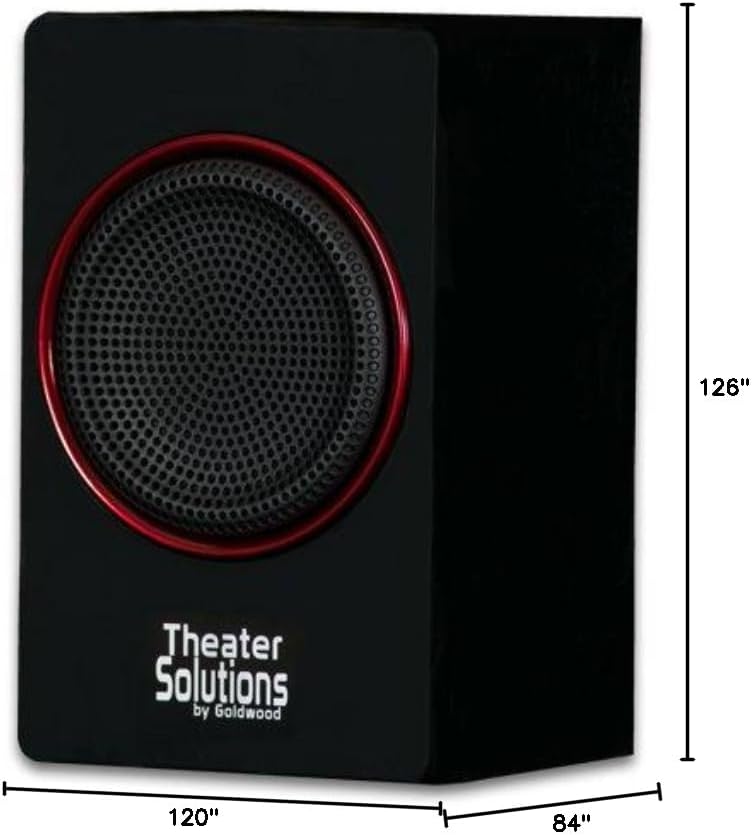
Image: Dimensions of the TS212 subwoofer.
| Feature | Detail |
|---|---|
| Model Number | TS212 |
| Brand | Theater Solutions |
| Speaker Configuration | 2.1 Channel |
| Maximum Output Power | 600 Watts (Peak) |
| Connectivity Technology | Auxiliary, Bluetooth, RCA, USB |
| Bluetooth Range | 10 Meters |
| Audio Output Mode | Stereo |
| Subwoofer Diameter | 10 Inches |
| Satellite Speaker Size | 5.25 Inches |
| Power Source | Corded Electric (110V US Standard) |
| Item Weight | 12 Pounds |
| Subwoofer Dimensions (D x W x H) | 84"D x 120"W x 126"H (Note: These dimensions appear to be for packaging or an illustrative image, actual product dimensions are typically smaller: Subwoofer 10.5" x 7" x 10", Satellites 6" x 3.75" x 3.5" each) |
| Compatible Devices | Laptop, MP3 Player, Smartphone, Tablet, Television |
Warranty and Support
This Theater Solutions TS212 by Goldwood speaker system comes with a Lifetime Warranty against manufacturer's defects. For warranty claims or technical support, please contact Goldwood Sound, Inc. or your authorized dealer. Please retain your proof of purchase for warranty validation.

