
1. Introduction
This manual provides comprehensive instructions for the installation, operation, and maintenance of your DS18 DD652 Double DIN In-Dash Car Multimedia System. Please read this manual thoroughly before using the product to ensure proper functionality and to prevent damage. Keep this manual for future reference.
2. Safety Information
- Do not operate the system in a way that distracts you from driving. Always prioritize road safety.
- Ensure all wiring is correctly connected to prevent short circuits or damage. Incorrect wiring can lead to fire or electric shock.
- Avoid exposing the unit to moisture or extreme temperatures.
- Do not attempt to disassemble or modify the unit. Refer all servicing to qualified personnel.
- Keep the volume at a level that allows you to hear outside traffic sounds.
3. Product Overview
3.1 Front Panel Layout
The DS18 DD652 features a 6.2-inch HD digital panel and intuitive controls for easy operation. Below is an illustration of the front panel with key components identified.
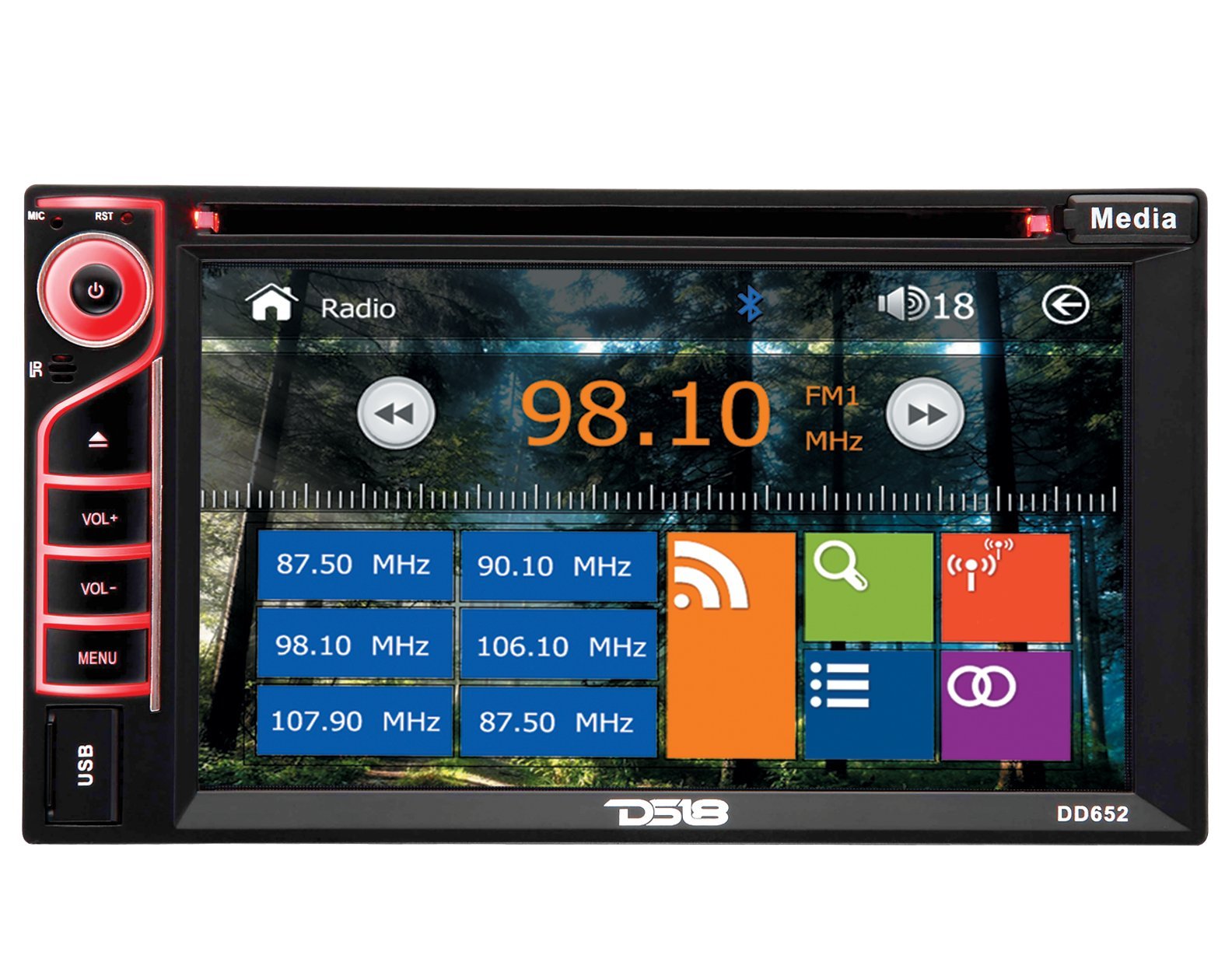
Figure 1: Front Panel of DS18 DD652 Multimedia System
- Power/Mute Button (G): Press to turn the unit on/off. Short press to mute/unmute audio.
- MIC: Built-in microphone for hands-free calling.
- RST (Reset): Small button for system reset (requires a pointed object).
- IR: Infrared receiver for the remote control.
- VOL+ / VOL-: Volume Up / Volume Down buttons.
- MENU: Access the main menu or return to the previous screen.
- USB Port: Connect USB storage devices for media playback.
- Media Button: Switches between different media sources.
- 6.2" HD Digital Touchscreen: Primary interface for navigation and control. Displays radio frequency (e.g., 98.10 MHz), Bluetooth icon, and various application icons.
- SD Card Slot: Located behind the panel (not visible in image, but mentioned in features).
4. Installation
Installation of the DS18 DD652 requires technical knowledge and experience with car audio systems. It is highly recommended to have this unit installed by a professional car audio technician to ensure proper wiring and functionality, and to avoid damage to your vehicle or the unit.
4.1 Wiring Diagram (General Guidelines)
Refer to the wiring diagram provided with your product packaging for specific connections. General connections include:
- Power: Connect the yellow wire to constant 12V, red wire to accessory 12V, and black wire to ground.
- Speakers: Connect speaker wires to the corresponding positive and negative terminals.
- Antenna: Connect the car's radio antenna.
- Rearview Camera Input: Connect the video signal from a rearview camera.
- Steering Wheel Control: Connect to your vehicle's steering wheel control interface (if applicable).
Warning: Incorrect wiring can cause severe damage to the unit and your vehicle's electrical system. Always disconnect the vehicle's battery before beginning installation.
5. Initial Setup
5.1 Powering On
After installation, press the Power button (G) on the front panel to turn on the unit. The DS18 logo will appear, followed by the main menu or the last active source.
5.2 Basic Settings
From the main menu, navigate to the "Settings" icon (often represented by a gear). Here you can adjust:
- Language: Select your preferred language.
- Time/Date: Set the current time and date.
- Display: Adjust brightness, contrast, and backlight settings.
- Audio: Fine-tune equalizer settings, balance, and fader.
6. Operating Instructions
6.1 Radio Operation
From the main menu, tap the "Radio" icon. The screen will display the current frequency (e.g., 98.10 MHz FM1). You can:
- Tune: Use the left/right arrow icons on the screen to manually tune or seek for stations.
- Band Selection: Tap "FM1" to cycle through FM1, FM2, FM3, AM1, AM2 bands.
- Preset Stations: Touch and hold a frequency box (e.g., "87.50 MHz") to save the current station as a preset. Tap a preset box to recall a saved station.
- RDS (Radio Data System): If available in your region, RDS provides station information like station name and program type.
6.2 Media Playback (DVD/CD/USB/SD)
The DS18 DD652 supports various media formats including DVD, VCD, CD, MP3, and MP4. Insert the media into the appropriate slot (DVD/CD slot or USB/SD card slot).
- DVD/CD: Insert a disc into the slot. The system will automatically switch to DVD/CD mode and begin playback.
- USB/SD: Insert a USB drive into the front USB port or an SD card into the SD card slot. Select "USB" or "SD" from the main menu or by pressing the "Media" button. Browse files and select your desired media.
- Supported Formats: MP3, MP4, WMA, AVI, etc. (Refer to product specifications for a complete list).
6.3 Bluetooth Connectivity
Pair your Bluetooth-enabled device (e.g., smartphone) with the DD652 for hands-free calling and audio streaming.
- From the main menu, tap the "Bluetooth" icon (often represented by a 'B' or a Bluetooth symbol).
- On your mobile device, search for available Bluetooth devices. The unit's name will typically be "DS18 DD652" or similar.
- Select the unit and enter the pairing code (usually "0000" or "1234") if prompted.
- Once paired, you can make/receive calls and stream audio wirelessly.
6.4 Rearview Camera Input
When a rearview camera is connected and the vehicle is shifted into reverse, the unit will automatically display the camera feed on the screen, enhancing parking safety.
6.5 Steering Wheel Control
If your vehicle supports steering wheel controls, the DD652 can be configured to respond to these controls. Refer to the installation section for wiring and the system settings for programming the functions.
7. Maintenance
- Cleaning the Screen: Use a soft, lint-free cloth to gently wipe the touchscreen. Do not use abrasive cleaners or solvents.
- Disc Care: Handle discs by their edges. Keep them clean and free of scratches.
- General Care: Keep the unit free from dust and debris. Avoid extreme temperatures and direct sunlight for prolonged periods.
8. Troubleshooting
| Problem | Possible Cause | Solution |
|---|---|---|
| No power | Incorrect wiring; Blown fuse; Vehicle battery low. | Check power connections; Replace fuse; Charge/check vehicle battery. |
| No sound | Volume too low; Mute activated; Incorrect speaker wiring. | Increase volume; Deactivate mute; Check speaker connections. |
| Poor radio reception | Antenna not connected; Weak signal area. | Ensure antenna is properly connected; Try tuning to a stronger station. |
| Bluetooth not connecting | Device not in pairing mode; Incorrect pairing code. | Ensure device is discoverable; Re-enter pairing code; Restart both devices. |
| Disc/USB/SD not playing | Unsupported format; Damaged media; Incorrectly inserted. | Check media format; Try a different disc/USB/SD; Re-insert media correctly. |
If problems persist after attempting these solutions, please contact DS18 customer support or a qualified service technician.
9. Specifications
| Model Number | DD652 |
| Display Type | LCD |
| Display Resolution | 800x480 |
| Screen Size | 6.2 inches |
| Supported Media | DVD, VCD, CD, MP3, MP4 |
| Connectivity | USB, SD Card, Bluetooth, Rearview Camera Input, Steering Wheel Control |
| Special Features | RDS, Internal Microphone, Wireless Remote Control |
| Dimensions (L x W x H) | 24.13 x 16.51 x 22.86 cm (9.5 x 6.5 x 9 inches) |
| Weight | 2.04 kg (4.5 lbs) |
10. Warranty and Support
DS18 products are designed and engineered for quality. For warranty information, please refer to the warranty card included with your product or visit the official DS18 website. For technical support or service inquiries, please contact DS18 customer service through their official channels.
Please retain your proof of purchase for warranty claims.


