
RF Explorer Digital Handheld Spectrum Analyzer
Model: WSUB1G (240 - 960 MHz)
User Instruction Manual
1. Introduction
The RF Explorer WSUB1G is a compact, lightweight, and highly integrated digital handheld spectrum analyzer designed for working with popular sub-1GHz ISM bands. It provides essential functionality for analyzing radio frequency environments, making it suitable for both outdoor and indoor applications. This device offers various spectrum analysis modes and can be connected to a PC for enhanced functionality.
2. Package Contents
Verify that all items listed below are present in your package:
- RF Explorer model WSUB1G unit
- Nagoya NA-773 wideband telescopic antenna
3. Setup
3.1. Initial Charging
The RF Explorer WSUB1G is equipped with a high-capacity Lithium-Ion battery, providing over 16 hours of continuous operation. Before first use, or if the battery is depleted, charge the device using a standard mini-USB 2.0 cable (not included). Connect the mini-USB end to the device and the other end to a compatible USB power source.
3.2. Antenna Attachment
To begin using the spectrum analyzer, attach the provided Nagoya NA-773 wideband telescopic antenna to the RF 50Ω connector on the device. Ensure the connection is secure but do not overtighten.

Image: Rear view of the RF Explorer showing the RF 50Ω antenna connector and the mini-USB port.

Image: RF Explorer with the telescopic antenna fully extended and attached to the device.
3.3. Powering On/Off
Locate the ON/OFF switch on the top right side of the device. Slide the switch to the 'ON' position to power on the unit. Slide it to 'OFF' to power down.
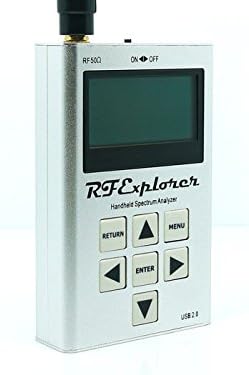
Image: Front view of the RF Explorer, highlighting the display, control buttons, and the ON/OFF switch at the top right.
4. Operating Instructions
4.1. Basic Navigation
The RF Explorer features a simple button interface for navigation and control:
- MENU: Access the main menu and settings.
- ENTER: Confirm selections or enter sub-menus.
- RETURN: Go back to the previous screen or menu.
- Arrow Buttons (Up, Down, Left, Right): Navigate through menu options and adjust parameters.

Image: Front panel of the RF Explorer, clearly showing the display and the arrangement of the MENU, RETURN, ENTER, and arrow buttons.
4.2. Spectrum Analyzer Modes
The device supports several spectrum analyzer modes to suit different analysis needs:
- Peak Max and Hold: Displays the maximum signal strength detected over time.
- Normal: Provides real-time spectrum analysis.
- Overwrite: Continuously updates the display with new sweep data.
- Averaging: Smooths out the signal display by averaging multiple sweeps.
These modes can be selected via the device's menu system.
4.3. Frequency Range and Span
The RF Explorer WSUB1G covers a wide frequency range from 240 MHz to 960 MHz. This includes popular ISM bands such as 315MHz, 433MHz, 868MHz, and 915MHz, as well as UHF TV, 70cm and 33cm HAM radio, and GSM frequencies.
The frequency span can be adjusted from 112 KHz up to 100 MHz, allowing for detailed analysis of specific frequency segments or broader overviews.
4.4. PC Client Software
For advanced analysis, data logging, and visualization, the RF Explorer can be connected to a Windows PC using a standard mini-USB 2.0 cable. The open-source PC client software provides additional functionality beyond the device's built-in display. Refer to the official RF Explorer website for software downloads and detailed instructions on its use.
5. Maintenance
5.1. Firmware Upgrades
Lifetime free firmware upgrades are available for the RF Explorer WSUB1G. Regularly check the official RF Explorer website for the latest firmware versions. Firmware updates often include new features, performance improvements, and bug fixes. Instructions for performing firmware upgrades are typically provided with the firmware download.
5.2. Battery Care
To maximize battery life and performance:
- Avoid fully discharging the battery frequently.
- Store the device in a cool, dry place when not in use for extended periods.
- Recharge the battery periodically if stored for a long time to prevent deep discharge.
6. Troubleshooting
6.1. Device Not Powering On
- Ensure the ON/OFF switch is in the 'ON' position.
- Connect the device to a USB power source using a mini-USB cable to check if the battery requires charging.
6.2. No Signal Detected / Incorrect Readings
- Verify that the antenna is securely attached to the RF 50Ω connector.
- Ensure the selected frequency range and span are appropriate for the signals you intend to analyze.
- Check for potential external interference sources if readings appear erratic.
6.3. PC Client Connectivity Issues
- Confirm that the mini-USB cable is properly connected to both the RF Explorer and the PC.
- Ensure the necessary drivers for the RF Explorer are installed on your Windows PC. These are typically available on the official RF Explorer website.
- Try a different mini-USB cable, as some cables may be for charging only and lack data transfer capabilities.
7. Technical Specifications
| Feature | Specification |
|---|---|
| Frequency Band | 240 - 960 MHz |
| Frequency Span | 112 KHz - 100 MHz |
| Amplitude Resolution | 0.5 dBm |
| Dynamic Range | -115 dBm to 0 dBm |
| Absolute Max Input Power | +5 dBm |
| Average Noise Level (typical) | -110 dBm |
| Frequency Stability and Accuracy (typical) | ±10 ppm |
| Amplitude Stability and Accuracy (typical) | ±3 dBm |
| Frequency Resolution | 1 KHz |
| Resolution Bandwidth (RBW) | Automatic 2.6 KHz to 600 KHz |
| Dimensions (LxWxH) | 6.7 x 4.5 x 1.2 inches (170 x 114 x 30 mm) |
| Weight | 9.8 ounces (278 g) |
| Battery | Lithium Ion (16+ hours continuous run) |
| Processor | 1 GHz Tegra (ARM) |
| Connectivity | Mini-USB 2.0 |
| Case Material | Solid Aluminum Metal |
8. Support and Warranty
For technical support, additional resources, and the latest firmware updates, please visit the official seeed studio website or the RF Explorer product page. The manufacturer provides lifetime free firmware upgrades to enhance the device's functionality and performance.
Information regarding specific warranty terms and conditions can typically be found on the product packaging or the manufacturer's official website. Please retain your proof of purchase for warranty claims.


