
CableCreation CC0298
CableCreation 3.5mm Audio Cable Instruction Manual
Comprehensive guide for your CableCreation Aux Cable (6FT/1.8M).
1. Introduction
The CableCreation 3.5mm Audio Cable is designed to provide high-quality audio connectivity between devices equipped with standard 3.5mm auxiliary ports. This durable and versatile cable ensures reliable sound transmission for an enhanced audio experience across various applications, from personal listening to car audio systems.

Figure 1: The CableCreation 3.5mm Aux Cable, featuring a black and white braided design and gold-plated connectors.
2. Features
- Step-down Design: Engineered for easy connection to your phone or device without requiring the removal of a phone case.
- Super Sound Quality: Equipped with 24K gold-plated connectors and a solid aluminum shell case to ensure reliable, crisp sound and corrosion resistance.
- Durable TPE Material & Tangle-Free: Features an inner enameled wire, TPE material, and nylon braiding for a 10000+ bend lifespan, ensuring the cable is soft, durable, and tangle-free. Double shielding minimizes signal loss.
- Universal Compatibility: Compatible with a wide range of devices including smartphones, headphones, iPods, iPads, car stereos, tablets, laptops, MP3 players, and speakers that have a standard 3.5mm auxiliary port.

Figure 2: Overview of key features including gold-plated connectors, Hi-Fi stereo sound, and tangle-free design.

Figure 3: Detailed view highlighting the 24K gold-plated connectors and durable aluminum alloy shell, contributing to superior sound quality and longevity.

Figure 4: The durable braided exterior of the cable, designed to prevent tangling and enhance durability.
3. Setup
Connecting your CableCreation 3.5mm Audio Cable is straightforward. Simply identify the 3.5mm auxiliary ports on your audio source device (e.g., smartphone, tablet, laptop) and your audio output device (e.g., headphones, car stereo, speaker).
- Locate the 3.5mm audio output jack on your source device.
- Insert one end of the CableCreation 3.5mm Audio Cable into the source device's audio output jack. The step-down design of the connector allows for connection even with most phone cases on.
- Locate the 3.5mm audio input jack on your output device.
- Insert the other end of the CableCreation 3.5mm Audio Cable into the output device's audio input jack.
Note: If you have a particularly bulky protective case on your device, it may be necessary to remove it for a secure and complete connection.
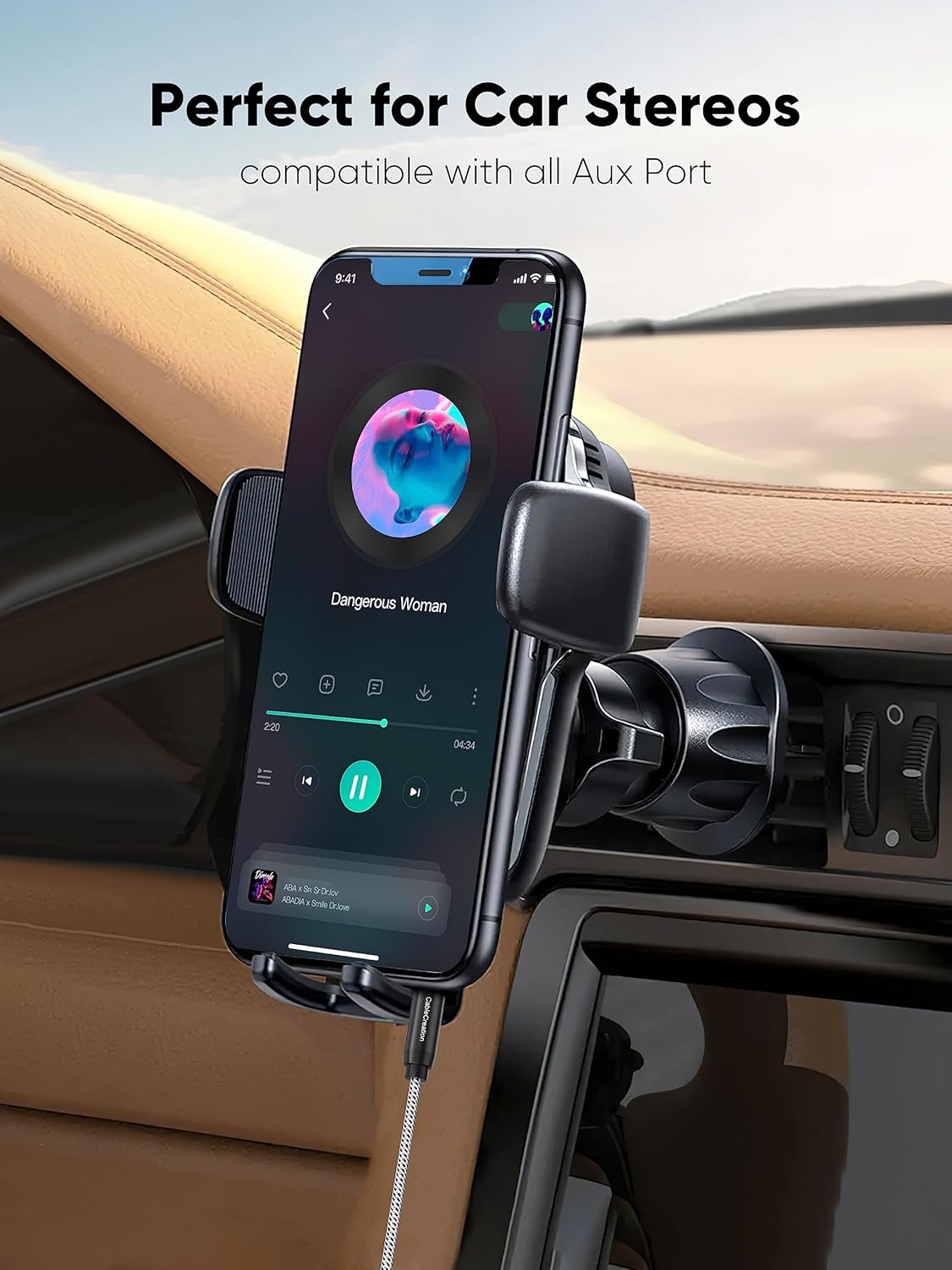
Figure 5: Example of connecting the aux cable to a smartphone for use with a car stereo system.
4. Operating
Once connected, the CableCreation 3.5mm Audio Cable facilitates audio transmission between your devices. Ensure both devices are powered on and the volume levels are appropriately adjusted.
- For Music Playback: Connect your smartphone, MP3 player, or laptop to headphones, portable speakers, or car stereos to enjoy high-fidelity audio.
- For Headsets: Use the cable to connect headphones to audio sources for listening to music, podcasts, or other audio content.
- General Audio Transfer: The cable can be used for any scenario requiring a male-to-male 3.5mm audio connection.

Figure 6: Illustrates typical usage, connecting headphones to a laptop for personal audio enjoyment.

Figure 7: The cable provides clear audio for headphones, enhancing the listening experience.

Figure 8: The cable can connect to portable speakers, allowing shared audio experiences.
5. Maintenance
To ensure the longevity and optimal performance of your CableCreation 3.5mm Audio Cable, follow these simple maintenance guidelines:
- Proper Storage: Avoid tightly coiling or bending the cable at sharp angles. Utilize the cable's tangle-free design by loosely coiling it when not in use.
- Clean Connectors: Periodically inspect the gold-plated connectors for dust or debris. Gently wipe them with a soft, dry cloth if necessary.
- Avoid Excessive Force: When plugging or unplugging, always grasp the connector housing, not the cable itself, to prevent strain on the connections.
- Protect from Extremes: Keep the cable away from extreme temperatures, direct sunlight, and moisture to prevent material degradation.
Figure 9: The braided design contributes to the cable's durability and resistance to tangles, simplifying maintenance.
6. Troubleshooting
| Problem | Possible Cause | Solution |
|---|---|---|
| No audio or intermittent sound. | Loose connection, incorrect port, device volume too low, or incompatible case. | Ensure both ends of the cable are fully inserted into their respective ports. Check that the correct audio input/output ports are being used. Increase volume on both source and output devices. If using a bulky phone case, remove it to ensure a complete connection. |
| Sound quality is poor (static, distortion). | Interference, damaged cable, or dirty connectors. | Ensure the cable is not near sources of strong electromagnetic interference. Inspect the cable for any visible damage. Clean the connectors with a soft, dry cloth. Test with another audio cable if possible to rule out device issues. |
| Microphone function not working with headset. | Cable does not support microphone function. | This CableCreation 3.5mm Audio Cable is a 3-pole TRS jack, which transmits stereo audio only and does not support microphone input. For microphone functionality, a 4-pole TRRS cable is required. |
7. Specifications
- Brand: CableCreation
- Model Number: CC0298
- Product Dimensions: 0.39 x 5.91 x 8.66 inches; 0.71 ounces
- Connector Type: Auxiliary (3.5mm Male to Male)
- Cable Type: AUX
- Special Feature: Braided, Step-down Design, 24K Gold-plated Connectors, Solid Aluminium Shell
- Compatible Devices: Smartphones, Headphones, iPod, iPad, Car Stereos, Tablet, Laptop, MP3 Player, Speaker (Fits with All Standard 3.5mm Aux Port)
- Date First Available: April 26, 2016
8. Warranty and Support
CableCreation stands behind the quality of its products. This CableCreation 3.5mm Audio Cable comes with a 2-year warranty.
For any quality-related concerns, technical assistance, or general inquiries, please contact CableCreation customer services. Our team is committed to providing lifetime friendly customer support.
You can visit the official CableCreation Store for more information and support resources.
Ask a question about this manual
Ask about setup, troubleshooting, compatibility, parts, safety, or missing instructions. Manuals+ will review the question and use this page’s manual context to help answer it.