
Introduction
This manual provides detailed instructions for the setup, operation, maintenance, and troubleshooting of your EZCAP284 HD 1080P Capture HDMI YPbPr Recorder. Please read this manual thoroughly before using the device to ensure proper functionality and to prevent damage.
Safety Information
- Do not expose the device to moisture, rain, or extreme temperatures.
- Avoid dropping or subjecting the device to strong impacts.
- Use only the specified power adapter.
- Do not attempt to disassemble or modify the device. This will void the warranty.
- Keep the device away from children.
Package Contents
Verify that all items are present in your package:
- EZCAP284 HD 1080P Capture Device
- Remote Control
- Power Adapter (not explicitly listed but implied for operation)
- User Manual (this document)
Product Overview
The EZCAP284 is a standalone HD video capture device designed for recording gameplay and other HDMI/YPbPr sources directly to a USB storage device without the need for a PC. It features HDMI pass-through for real-time viewing.

Figure 1: Top view of the EZCAP284 device, featuring a prominent record button.

Figure 2: Detailed view of the input and output ports on the EZCAP284.
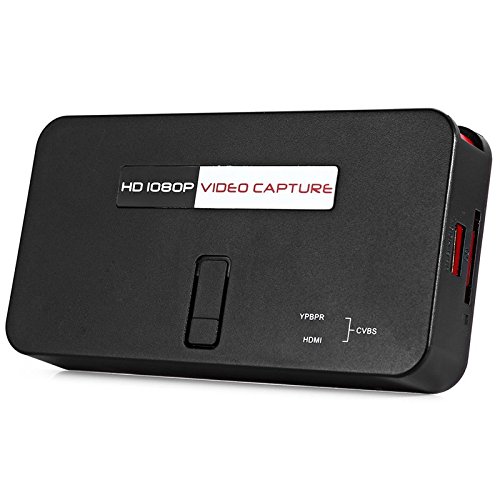
Figure 3: Bottom view of the EZCAP284 device, indicating model and certification information.
Setup
- Connect Video Source: Connect your game console (e.g., PS3) or other video source to the HDMI IN or YPbPr IN port on the EZCAP284 using the appropriate cables.
- Connect Display: Connect your TV or monitor to the HDMI OUT port on the EZCAP284. This allows you to view your gameplay in real-time while recording.
- Connect USB Storage: Insert a USB flash drive or external hard drive (formatted as FAT32 or NTFS) into the USB 2.0 port on the EZCAP284. This is where your recordings will be saved.
- Connect Power: Connect the power adapter to the DC IN port on the EZCAP284 and then plug it into a power outlet. The device will power on.
- Optional Audio Input: If you wish to record live commentary, connect a microphone to the 3.5mm Audio In port.
Operating Instructions
Recording Gameplay
- Ensure all connections are secure as described in the Setup section.
- Turn on your video source (e.g., game console) and your display.
- Press the REC button on the EZCAP284 device or the remote control to start recording. The indicator light will change to show recording is in progress.
- Press the REC button again to stop recording. The indicator light will revert to its standby state.
- Your recorded video file will be saved to the connected USB storage device.
Adding Live Commentary
To record your voice along with the gameplay:
- Connect a microphone to the 3.5mm Audio In port before starting your recording.
- The device will automatically mix the microphone audio with the video source audio during recording.
Playback
To view your recorded videos, safely remove the USB storage device from the EZCAP284 and connect it to a computer or a media player that supports the recorded video format.
Maintenance
- Cleaning: Use a soft, dry cloth to clean the exterior of the device. Do not use liquid cleaners or solvents.
- Storage: Store the device in a cool, dry place away from direct sunlight and extreme temperatures when not in use.
- Firmware: Check the manufacturer's website periodically for any firmware updates that may improve performance or add features.
Troubleshooting
| Problem | Possible Cause | Solution |
|---|---|---|
| No video output on display. | Incorrect cable connection; input source not active; display input not selected. | Check HDMI/YPbPr connections. Ensure video source is on. Select correct input on your TV/monitor. |
| Recording fails or stops unexpectedly. | USB storage full; USB drive not compatible; power interruption. | Ensure USB drive has sufficient space. Try a different USB drive (FAT32/NTFS). Check power connection. |
| No audio in recording. | Audio cables not connected; source audio muted; microphone not connected or faulty. | Verify audio connections from source. Ensure source audio is not muted. Check microphone connection and functionality. |
| Remote control not working. | Batteries low or inserted incorrectly; IR sensor blocked. | Replace batteries. Ensure line of sight to the device's IR sensor. |
Specifications
| Feature | Description |
|---|---|
| Model | EZCAP284 |
| Type | Adapter / Video Capture Device |
| Material | Copper (internal components) |
| Interfaces | 3.5mm Audio In, HDMI In, HDMI Out, YPbPr In, USB 2.0 |
| Video Capture Resolution | Up to 1080p |
| Platform Compatibility | PlayStation (and other HDMI/YPbPr sources) |
| Included Components | Remote Control |
| Color | Black |
| Dimensions (L x W x H) | 14.00 x 7.40 x 2.00 cm (approximate) |
| Weight | 0.463 kg (approximate package weight) |
Warranty and Support
For warranty information and technical support, please refer to the documentation provided with your purchase or contact the seller/manufacturer directly. Keep your proof of purchase for warranty claims.