
Introduction
The DJI Ronin-MX is a professional 3-axis gimbal stabilizer designed to provide smooth, stable footage for a variety of camera setups. Engineered for demanding environments, it offers precise control and adaptability for professional videography and filmmaking.
Product Overview
The Ronin-MX gimbal system is built for stability in high G-force environments, making it suitable for mounting on vehicles or aerial platforms like the DJI M600 (requires SRW-60G for video transmission, sold separately). It supports a wide range of cameras, including RED EPIC and ARRI ALEXA Mini, with a maximum weight recommendation of 9.92 pounds.
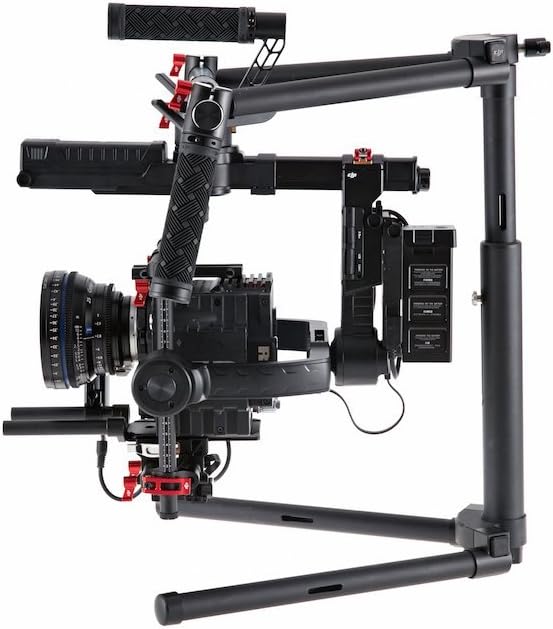
Image: DJI Ronin-MX 3-Axis Gimbal Stabilizer with a camera attached, showcasing its robust design and stabilization capabilities.
Key Features:
- 3-Axis Stabilization: Provides professional-grade smooth footage.
- High G-Force Stability: Designed for use in dynamic environments.
- Wide Camera Compatibility: Supports various professional cameras like RED EPIC and ARRI ALEXA Mini.
- Wireless Control and Transmission: Allows for remote operation and adjustments.
- Comprehensive App Control: Enables fine-tuning and mode selection via a dedicated application.
- Multiple Operating Modes: Includes Upright, Underslung, and Briefcase modes for versatile shooting.
- Auto Tune Stability (ATS): Facilitates rapid balancing of the gimbal.
- SmoothTrack™: Ensures fluid and controlled camera movements.
What's in the Box
The DJI Ronin-MX package includes the following components:
- Gimbal
- Handle Bar
- Remote Control
- Tuning Stand
- Charger
- DJI Intelligent Battery (x2)
- Cable Pack
- Micro USB Cable
- CAN Cable
- Camera Mounting Plate
- Camera Upper Mounting Plate
- Vibration Absorber
- Accessories Package

Image: Various components of the DJI Ronin-MX Gimbal Stabilizer, including the main unit, handles, and remote control.
Setup
Proper setup and balancing are crucial for optimal performance of the Ronin-MX. The system is designed for a quick setup, often achievable within 5 minutes for experienced users.
Initial Assembly:
- Attach the handle bar to the gimbal frame.
- Mount the camera onto the Camera Mounting Plate and secure it with the Camera Upper Mounting Plate.
- Insert the DJI Intelligent Batteries into their designated slots.
- Place the gimbal on the Tuning Stand for balancing.
Balancing the Gimbal:
Achieving perfect balance is essential for smooth operation and to prevent motor strain. Use the Auto Tune Stability (ATS) feature via the comprehensive app control for rapid and precise balancing. Adjust the camera's position on the mounting plate until it remains level in all axes when powered off.

Image: The DJI Ronin-MX Gimbal Stabilizer resting on its tuning stand, ready for camera mounting and balancing.
Operation
The Ronin-MX offers flexible operation modes and precise control for capturing dynamic shots.
Operating Modes:
- Upright Mode: For standard handheld operation.
- Underslung Mode: Ideal for low-angle shots, holding the gimbal below the operator.
- Briefcase Mode: Allows for compact carrying and shooting in narrow spaces.
Wireless Control:
The included remote control provides wireless access to gimbal movements, allowing a second operator to control pan, tilt, and roll independently while the primary operator focuses on movement. This enhances shot precision and creative flexibility.

Image: The DJI Ronin-MX Gimbal Stabilizer configured for two-handed operation, demonstrating its ergonomic design.
App Control:
Utilize the DJI Assistant app for comprehensive control over gimbal settings, including motor parameters, SmoothTrack tuning, and firmware updates. This app provides a detailed interface for customizing the gimbal's behavior to suit specific shooting requirements.
Specifications
| Feature | Detail |
|---|---|
| Model Name | Ronin-MX |
| Manufacturer Part Number | CP.ZM.000377 |
| Item Weight | 6.1 Pounds (2.77 kg) |
| Maximum Weight Recommendation | 9.92 Pounds (4.5 kg) |
| Folded Size (L x W x H) | 300 mm x 180 mm x 120 mm |
| Image Stabilization | 3-axis image stabilization |
| Compatible Devices | Camera (Supports RED EPIC, ARRI ALEXA Mini, etc.) |
| Shooting Modes | Upright, Underslung, Briefcase |
| Wireless Control | Yes, via included remote and app |
| Color | Black |
Maintenance
Regular maintenance ensures the longevity and optimal performance of your DJI Ronin-MX.
- Cleaning: Use a soft, dry cloth to clean the gimbal body and motors. Avoid using liquid cleaners directly on electronic components.
- Storage: Store the gimbal in a dry, dust-free environment. When not in use for extended periods, remove the batteries.
- Battery Care: Charge batteries fully before storage and periodically recharge them every three months to maintain battery health. Avoid over-discharging or over-charging.
- Firmware Updates: Regularly check for and install the latest firmware updates via the DJI Assistant app to ensure compatibility and access to new features.
Troubleshooting
This section addresses common issues you might encounter with your Ronin-MX.
- Gimbal Not Activating/Balancing Issues:
- Ensure the camera is correctly mounted and balanced. Re-run the Auto Tune Stability (ATS) process.
- Check for any obstructions preventing free movement of the gimbal axes.
- Verify that the firmware is up to date.
- Remote Control Disconnection:
- Ensure the remote control batteries are charged.
- Re-pair the remote control with the gimbal according to the pairing instructions in the full manual.
- Minimize interference from other wireless devices.
- Battery Not Charging:
- Ensure the charger is properly connected to a power source and the battery.
- Check for any visible damage to the battery or charger.
- If issues persist, contact DJI Support for assistance.
Warranty and Support
For detailed warranty information and technical support, please refer to the official DJI website or contact their customer service. Keep your proof of purchase for warranty claims.
Online Resources: Visit the DJI Official Website for product registration, FAQs, and the latest software downloads.


