
1. Introduction
The StarTech.com USB-C Multiport Adapter DKT30CHV is designed to expand the connectivity of your USB-C enabled laptop, tablet, or smartphone. This portable travel dock allows you to connect to a 4K HDMI or 1080p VGA display, a Gigabit Ethernet network, and a 5Gbps USB-A 3.0 peripheral, all through a single USB-C port on your host device. It is bus-powered, eliminating the need for an external power adapter, making it ideal for mobile use.
Key Features:
- 4-in-1 Portable Dock: Provides 4K 30Hz HDMI or 1080p VGA video output, one USB-A (USB 3.1 Gen 1 5Gbps) port, and Gigabit Ethernet.
- Wide Device Compatibility: Compatible with USB-C and Thunderbolt 3 (TB3) devices from various brands including HP, Dell, Lenovo, Apple MacBook Pro/Air, and Chromebooks.
- Wide Operating System Compatibility: Supports Windows, macOS, Ubuntu, and Chrome OS.
- Compact & Light Design: Easily fits into a laptop bag or pocket for travel.

Image 1: The StarTech.com USB-C Multiport Adapter DKT30CHV, a compact black device with various ports.
2. Package Contents
- 1x USB-C Multiport Adapter (DKT30CHV)
- 1x Instruction Manual
3. Setup
Follow these steps to set up your StarTech.com USB-C Multiport Adapter:
- Connect to Host Device: Plug the integrated USB-C cable from the adapter into an available USB-C or Thunderbolt 3 port on your laptop, tablet, or smartphone. Ensure your host device's USB-C port supports video (DisplayPort Alternate Mode) for video output functionality.
- Connect Display: Connect an HDMI cable from your monitor to the adapter's HDMI port for up to 4K 30Hz resolution, or connect a VGA cable to the adapter's VGA port for up to 1080p resolution. The adapter supports one video output at a time.
- Connect to Network: Connect an Ethernet cable from your network router or switch to the adapter's Gigabit Ethernet port for a wired network connection.
- Connect USB Peripherals: Plug your USB-A devices (e.g., mouse, keyboard, external hard drive) into the adapter's USB 3.0 (USB 3.1 Gen 1) port.

Image 2: A close-up view of the adapter's ports, including Gigabit Ethernet, USB-A 3.0, VGA, and HDMI.
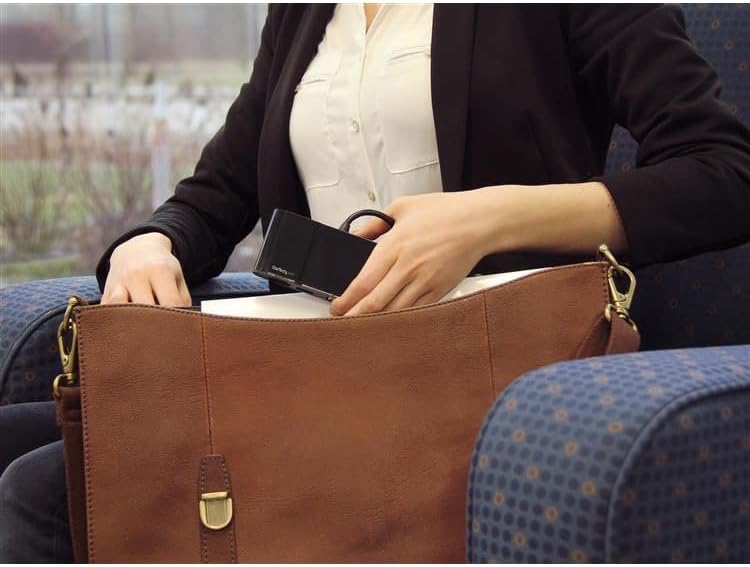
Image 3: The compact USB-C Multiport Adapter being stored in a bag, highlighting its portability.
4. Operating Instructions
Once connected, the adapter functions as an extension of your host device's capabilities. Most operating systems provide native support, meaning drivers are often not required for basic functionality. However, for optimal performance, especially with the Gigabit Ethernet port, it is recommended to check the StarTech.com support website for the latest drivers specific to your operating system.
Display Output:
The adapter supports either HDMI or VGA output, but not simultaneously. Your operating system should automatically detect the connected display. You can configure display settings (e.g., extended desktop, duplicate display) through your computer's display preferences.
USB 3.0 Port:
The USB 3.0 port provides 5Gbps data transfer speeds for connecting peripherals. It is backward compatible with USB 2.0 devices.
Gigabit Ethernet:
The Gigabit Ethernet port provides a stable and fast wired network connection. Ensure the Ethernet cable is securely connected to both the adapter and your network device.
Video 1: An official StarTech.com video demonstrating the general benefits and ease of use of their docking stations and adapters for various professional scenarios.
5. Maintenance
To ensure the longevity and optimal performance of your StarTech.com USB-C Multiport Adapter, follow these maintenance guidelines:
- Cleaning: Use a soft, dry cloth to clean the adapter. Avoid using harsh chemicals or abrasive cleaners.
- Storage: Store the adapter in a cool, dry place away from direct sunlight and extreme temperatures.
- Handling: Handle the adapter with care. Avoid dropping it or subjecting it to strong impacts. Do not pull on the integrated cable forcefully.
6. Troubleshooting
If you encounter issues with your USB-C Multiport Adapter, refer to the following common troubleshooting steps:
- No Display Output:
- Ensure your host laptop's USB-C port supports video (DisplayPort Alternate Mode). Not all USB-C ports have this capability.
- Verify that the video cable (HDMI or VGA) is securely connected to both the adapter and the display.
- Try connecting the display directly to your laptop (if possible) to rule out display or cable issues.
- Restart your host device.
- No Network Connection (Gigabit Ethernet):
- Ensure the Ethernet cable is securely connected to both the adapter and your network device.
- Check your host device's network settings to ensure the Ethernet adapter is recognized and enabled.
- Visit the StarTech.com support website to download and install the latest Ethernet drivers for your operating system, if necessary.
- USB Peripherals Not Recognized:
- Ensure the USB peripheral is properly connected to the adapter's USB 3.0 port.
- Try connecting the USB peripheral directly to your host device (if possible) to confirm it is functional.
- If connecting a high-power USB device, ensure your host device can provide sufficient power through its USB-C port. The DKT30CHV is bus-powered and does not support USB Power Delivery to charge other devices.
- Intermittent Connections or Performance Issues:
- Ensure all cables are firmly seated and not loose.
- Avoid excessive bending or strain on the integrated USB-C cable.
- Reduce the number of simultaneously active high-bandwidth devices if experiencing slowdowns, as all ports share the USB 3.0 bandwidth.
7. Specifications

Image 4: Diagram showing the dimensions of the StarTech.com USB-C Multiport Adapter: 4.5 inches (11.4 cm) length, 2.1 inches (5.4 cm) width, and 0.7 inches (1.7 cm) height.
| Feature | Specification |
|---|---|
| Brand | StarTech.com |
| Model Number | DKT30CHV |
| Color | Black |
| Hardware Interface | Thunderbolt, USB, USB 2.0, USB 3.0, USB 3.1 Type C, USB Type C |
| Special Feature | Portable |
| Compatible Devices | Audio/Video Device, Chromebook, Docking Station, Monitors, Network Device, Notebook, Projectors, Workstation |
| Total USB Ports | 1 (USB-A 3.0) |
| Data Transfer Rate | 5 Gigabits Per Second |
| Number of Ports | 4 (HDMI, VGA, USB-A 3.0, Gigabit Ethernet) |
| Operating System | Chrome OS, Linux, macOS, Windows |
| Enclosure Material | Metal |
| Item Dimensions (L x W x H) | 4.5"L x 2.1"W x 0.7"H (11.4 cm x 5.4 cm x 1.7 cm) |
| Item Weight | 0.16 Pounds (72.57 g) |
| UPC | 662919087369, 065030864695 |
8. Warranty and Support
The StarTech.com USB-C Multiport Adapter DKT30CHV is backed by a 3-year warranty. StarTech.com also offers free lifetime technical support to assist you with any questions or issues you may encounter.
For technical assistance, product information, or to download drivers, please visit the official StarTech.com support website: www.startech.com/support


