
1. Product Overview
The TP-Link M7350 is a portable 4G LTE mobile Wi-Fi hotspot designed for on-the-go internet access. It allows you to share a 4G connection with multiple devices simultaneously, making it an ideal companion for travel, remote work, or simply extending your network. Its compact design and long-lasting battery ensure reliable connectivity wherever you are.

Image: Front view of the TP-Link M7350 Mobile Wi-Fi Hotspot, showcasing its sleek black design and integrated TFT display.
2. Package Contents
- TP-Link M7350 Mobile Wi-Fi Hotspot
- 2550mAh Internal Battery (pre-installed or separate)
- Micro USB Cable for charging
- Quick Installation Guide
- SIM Card Adapters (Standard, Micro, Nano)
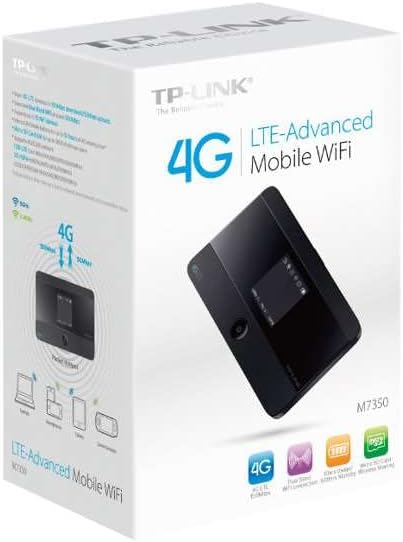
Image: The retail packaging of the TP-Link M7350, highlighting key features and contents.
3. Device Layout
Familiarize yourself with the physical components of your M7350 device:
- TFT Display: Shows network status, signal strength, battery level, data usage, and more.
- Power Button: Press and hold to turn on/off. Press briefly to wake up the screen.
- Micro USB Port: For charging the device.
- SIM Card Slot: Insert your 4G SIM card here.
- Micro SD Card Slot: (Optional) For storage expansion.
- Internal Antenna: For optimal signal reception.
4. Setup Guide
4.1. Inserting the SIM Card and Battery
- Remove the back cover of the M7350 device.
- If the battery is not pre-installed, insert the 2550mAh battery into its compartment, ensuring the contacts align.
- Locate the SIM card slot. Using the appropriate SIM adapter if necessary, gently insert your 4G SIM card into the slot until it clicks into place. Ensure the gold contacts face downwards.
- Replace the back cover.
4.2. Charging the Device
Connect the M7350 to a power adapter (5V/1A recommended) or a computer's USB port using the provided Micro USB cable. The battery icon on the display will indicate charging status. A full charge typically takes approximately 3-4 hours.
5. Operating Instructions
5.1. Powering On/Off
- To power on: Press and hold the Power button until the TP-Link logo appears on the display.
- To power off: Press and hold the Power button until "Power Off" appears, then confirm.
- To wake up the screen: Briefly press the Power button.
5.2. Connecting to Wi-Fi
- Ensure the M7350 is powered on and has an active SIM card with data.
- On your Wi-Fi enabled device (smartphone, tablet, laptop), search for available Wi-Fi networks.
- Select the network name (SSID) displayed on the M7350's screen (e.g., "TP-Link_XXXX").
- Enter the Wi-Fi password (Key) also displayed on the M7350's screen.
- Your device should now be connected to the internet via the M7350.
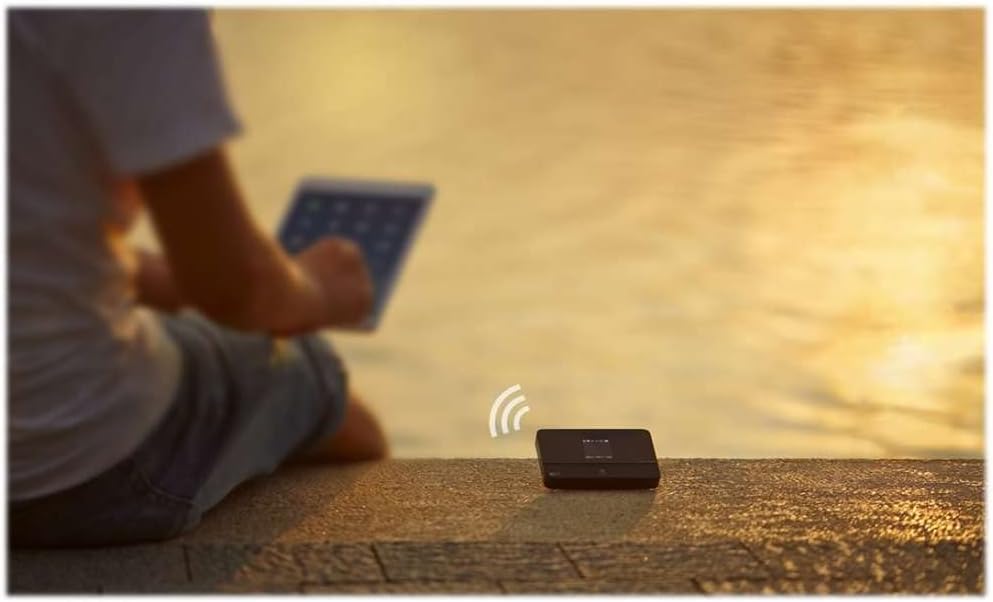
Image: The TP-Link M7350 providing Wi-Fi connectivity in an outdoor setting, demonstrating its portability.
5.3. Using the tpMiFi App
For advanced management and monitoring, download the tpMiFi app from your device's app store. The app allows you to:
- Monitor data usage in real-time.
- View connected devices.
- Send and receive SMS messages.
- Change Wi-Fi settings (SSID, password).
- Manage network type (2G/3G/4G).
- Check battery status and signal strength.

Image: The TP-Link M7350 positioned next to a tablet and headphones, illustrating its use for entertainment and connectivity.
6. Maintenance and Care
- Keep the device dry and away from extreme temperatures.
- Avoid dropping or subjecting the device to strong impacts.
- Clean the device with a soft, dry cloth. Do not use liquid cleaners.
- When not in use for extended periods, fully charge the battery and store the device in a cool, dry place.
- Do not attempt to disassemble or modify the device. This will void the warranty.
7. Troubleshooting
| Problem | Possible Solution |
|---|---|
| No internet connection |
|
| Cannot connect to Wi-Fi |
|
| Slow connection speed |
|
| Battery drains quickly |
|
8. Specifications
- Model: M7350
- Dimensions: 2.6 x 0.63 x 4.17 inches
- Weight: 4.4 ounces
- Battery: 2550mAh Lithium Polymer (included)
- Network Types: FDD-LTE Cat4 (800/900/1800/2100/2600 MHz), DC-HSPA+/HSPA/UMTS (900/2100 MHz), EDGE/GPRS/GSM (850/900/1800/1900)
- Wireless Standards: IEEE 802.11a, IEEE 802.11b
- Frequency Bands: Dual-Band (2.4 GHz and 5 GHz)
- Download Speed: Up to 150 Mbps
- Upload Speed: Up to 50 Mbps
- Max Users: Up to 15 simultaneous users
- Ports: 1 Micro USB for power, SIM card slot, Micro SD card slot
- Special Feature: WPS
- Color: Black
9. Warranty and Support
TP-Link products come with a limited warranty. For detailed warranty information, technical support, and product registration, please visit the official TP-Link website or refer to the warranty card included in your package.
Online Support: www.tp-link.com/us/support/
For the latest drivers, manuals, and firmware updates, please visit the TP-Link support page for the M7350 model.


