
1. Introduction
This manual provides detailed instructions for the installation, operation, and maintenance of the Hager TYF120 IP/KNX Gateway. The TYF120 acts as a crucial interface between a KNX bus line and a PC or other data processing devices within a network, enabling programming and communication.
2. Product Overview
The Hager TYF120 is a compact KNX/IP interface designed for DIN rail mounting (REG 2M). It facilitates communication and programming within a KNX system via an IP network.
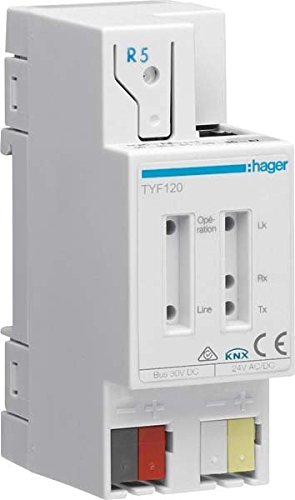
Figure 1: Hager TYF120 IP/KNX Gateway. This image displays the front view of the TYF120 device, highlighting its connection terminals for Bus 30V DC and 24V AC/DC, as well as the 'Operation' and 'Line' indicator LEDs. The model number TYF120 and Hager branding are clearly visible.
2.1. Key Features
- KNX/IP Interface for DIN rail mounting (REG 2M, IP20 protection).
- Functions as a programming interface between the KNX bus line and a PC in the network.
- Integrated bus coupler for seamless KNX system integration.
- Supports EIBnet/IP according to Konnex specifications for Core Routing Tunneling Device Management.
- Supported Internet protocols include ARP, ICMP, IGMP, UDP/IP, and DHCP.
2.2. Indicators and Connections
- Operation LED: A green LED indicates the device is powered and operating correctly.
- Data Traffic LEDs (Line): Yellow or red LEDs indicate data traffic on the KNX bus.
- Bus 30V DC Terminals: Connections for the KNX bus line (typically grey and red terminals).
- 24V AC/DC Terminals: Auxiliary power supply connections (typically white and yellow terminals).
3. Technical Specifications
| Specification | Value |
|---|---|
| Brand | Hager |
| Model Number | TYF120 |
| Type | KNX/IP Gateway |
| Mounting | DIN Rail (REG 2M) |
| Protection Class | IP20 |
| Supported Protocols | ARP, ICMP, IGMP, UDP/IP, DHCP, EIBnet/IP |
| International Article Code (EAN) | 03250615882110 |
| Package Dimensions | 9.8 x 8.2 x 4 cm |
4. Installation and Setup
The Hager TYF120 IP/KNX Gateway is designed for installation on a DIN rail within an electrical distribution board or enclosure. Ensure all power is disconnected before beginning installation.
4.1. Mounting
- Ensure the mounting location is dry, free from excessive dust, and within the specified operating temperature range.
- Snap the TYF120 device onto a standard 35mm DIN rail.
- Verify that the device is securely fastened and cannot be easily dislodged.
4.2. Wiring
- KNX Bus Connection: Connect the KNX bus line (typically 30V DC) to the designated "Bus 30V DC" terminals on the device. Observe correct polarity if applicable.
- Auxiliary Power Supply: Connect a 24V AC/DC power supply to the "24V AC/DC" terminals. This supply powers the IP communication part of the gateway.
- Network Connection: Connect an Ethernet cable from your network switch or router to the network port on the TYF120. Refer to the device's physical layout for the exact location of the Ethernet port, which is essential for IP communication.
4.3. Initial Power-Up
- Once all connections are secure, restore power to the KNX bus and the 24V AC/DC auxiliary supply.
- Observe the "Operation" LED. It should illuminate green, indicating proper power and device functionality.
- The "Line" LEDs may flash yellow or red, indicating data traffic on the KNX bus.
5. Operation
The Hager TYF120 IP/KNX Gateway primarily functions as a communication bridge and programming interface for your KNX installation.
5.1. Programming Interface
The gateway allows a PC running KNX programming software (e.g., ETS) to connect to the KNX bus via the IP network. This enables configuration, commissioning, and diagnostics of KNX devices.
- Ensure your PC is connected to the same IP network as the TYF120.
- Configure your KNX programming software to use the TYF120 as the IP interface. The gateway supports EIBnet/IP for this purpose.
- The device supports standard internet protocols like ARP, ICMP, IGMP, UDP/IP, and DHCP for network integration.
5.2. Data Communication
Beyond programming, the gateway facilitates data exchange between KNX devices and IP-based systems, enabling advanced control and monitoring applications.
6. Maintenance
The Hager TYF120 IP/KNX Gateway is designed for maintenance-free operation. No regular servicing or calibration is required.
- Keep the device clean and free from dust accumulation. Use a dry, soft cloth for cleaning.
- Ensure proper ventilation around the device if installed in an enclosed space.
- Periodically check all wiring connections for tightness and integrity.
7. Troubleshooting
This section provides guidance for common issues you might encounter with the TYF120 gateway.
7.1. Indicator LED Status
| LED | Status | Meaning | Action |
|---|---|---|---|
| Operation | Green (Solid) | Device is powered and operating normally. | No action required. |
| Operation | Off | No power supply to the device. | Check 24V AC/DC auxiliary power supply and KNX bus power. Verify wiring connections. |
| Line (Data Traffic) | Yellow/Red (Flashing) | Indicates data communication on the KNX bus. | Normal operation during data transfer. |
| Line (Data Traffic) | Off (when bus activity expected) | No data traffic detected or issue with KNX bus connection. | Verify KNX bus wiring and ensure other KNX devices are active. Check bus power supply. |
7.2. General Troubleshooting
- Cannot connect via ETS:
- Ensure the gateway has power (green Operation LED).
- Verify the Ethernet cable connection to your network.
- Check network settings on your PC and ensure it's on the same subnet as the gateway, or that DHCP is functioning correctly.
- Confirm the correct IP interface is selected in your ETS software.
- Temporarily disable firewalls on your PC to rule out blocking issues.
- Intermittent communication:
- Check for loose KNX bus or network cable connections.
- Ensure the KNX bus power supply is stable and sufficient for all connected devices.
- Investigate potential network conflicts or excessive network traffic.
8. Warranty and Support
For warranty information, please refer to the documentation provided with your purchase or contact Hager customer support directly. Hager products typically come with a standard manufacturer's warranty covering defects in materials and workmanship.
For technical assistance, product inquiries, or to report issues, please visit the official Hager website or contact their authorized service centers. Ensure you have your product model number (TYF120) and any relevant purchase details available when seeking support.
Manufacturer: Hager
Website: www.hager.com (Please note: This is a generic link. Refer to your regional Hager website for specific support.)


