
MoKo 78-9963
MoKo Universal Foldable Keyboard User Manual
Model: 78-9963
Brand: MoKo
1. Introduction
Thank you for choosing the MoKo Universal Foldable Keyboard. This ultra-thin, portable wireless Bluetooth keyboard is designed for seamless compatibility with iOS, Android, and Windows tablet and smartphone devices. Its innovative foldable design makes it an ideal companion for productivity on the go. This manual provides detailed instructions for setup, operation, maintenance, and troubleshooting to ensure optimal performance and longevity of your device.

Image: The MoKo Universal Foldable Keyboard shown both folded for portability and unfolded for use, highlighting its compact and ergonomic design.
2. What's in the Box
Please check the package contents to ensure all items are present:
- Foldable Bluetooth Keyboard
- Micro-USB charging cable
- User manual
3. Setup Guide
3.1 Charging the Keyboard
Before initial use, fully charge the keyboard. Connect the included Micro-USB charging cable to the keyboard's charging port and the other end to any standard USB power source (e.g., computer USB port, USB wall adapter).

Image: An illustration showing the keyboard's excellent battery life, including 60 hours of consecutive working time and 30 days of standby time, with a charging time of less than 2 hours.
3.2 Power On/Off
The keyboard features an automatic magnetic switch. Simply unfold the keyboard to power it on. Fold the keyboard to power it off and conserve battery life.

Image: A visual representation of the keyboard's magnetism switch, illustrating how unfolding the keyboard turns it on and folding it turns it off.
3.3 Bluetooth Pairing
- Ensure the keyboard is powered on (unfolded).
- On your device (tablet, smartphone), go to Bluetooth settings and turn on Bluetooth.
- Press the Fn + T keys simultaneously on the keyboard to enter pairing mode. The blue LED indicator on the keyboard will blink.
- On your device, search for "Foldable Bluetooth Keyboard" in the list of available devices and select it.
- Wait for your device to show "Connected".

Image: A close-up of the keyboard highlighting the 'Fn' and 'T' keys, with a smartphone screen in the background showing the Bluetooth settings and the keyboard listed as 'Foldable Bluetooth Keyboard' ready for connection.
Video: This video demonstrates the Bluetooth pairing process for the MoKo Foldable Bluetooth Keyboard, showing how to activate pairing mode and connect to a device.
4. Operating Instructions
4.1 System Compatibility
The MoKo Universal Foldable Keyboard is compatible with major operating systems. To switch between systems, press the following key combinations:
- Fn + Q: For Android System
- Fn + W: For Windows System
- Fn + E: For iOS System

Image: Various devices (monitors, tablets, smartphones) are displayed, along with logos for Windows, iOS, and Android, indicating the keyboard's wide system compatibility.
Video: This video showcases the MoKo Universal Foldable Keyboard's features, including its ultra-thin design, ergonomic layout, USB rechargeability, and compatibility with iOS, Android, and Windows systems.
4.2 Typing Experience
The keyboard features a full-size keyset and an ergonomic design with a 166° natural typing gesture, providing a comfortable and efficient typing experience. The sensitive and operative keys ensure accurate input.

Image: The MoKo Universal Foldable Keyboard is shown fully unfolded, highlighting its ergonomic split design for comfortable typing.
5. Maintenance
5.1 Cleaning
To clean the keyboard, gently wipe the surface with a soft, damp cloth. Avoid using harsh chemicals or abrasive materials that could damage the finish or internal components. Ensure the keyboard is powered off before cleaning.
5.2 Storage
When not in use, fold the keyboard to protect the keys and screen. Store it in a cool, dry place away from direct sunlight and extreme temperatures. The compact, folded size (6.2" x 4" x 0.5") allows it to easily fit into a purse, bag, or pocket.

Image: The keyboard is shown folded, emphasizing its ultra-thin and lightweight design, and its ability to be easily carried in a bag or pocket.
5.3 Battery Care
To prolong battery life, avoid fully discharging the keyboard frequently. Charge it regularly, especially if it will be stored for an extended period. Do not expose the keyboard to extreme heat or cold.
6. Troubleshooting
6.1 Keyboard Not Connecting
- Ensure the keyboard is fully charged.
- Make sure Bluetooth is enabled on your device.
- Re-enter pairing mode on the keyboard (Fn + T) and try searching for it again on your device.
- If previously paired, try 'forgetting' the device in your Bluetooth settings and then re-pairing.
- Ensure the keyboard is within the effective Bluetooth range (typically 10 meters).
6.2 Keys Not Responding
- Check if the keyboard is connected to your device.
- Verify that the correct operating system mode is selected (Fn + Q/W/E).
- Recharge the keyboard if the battery is low.
- Restart both the keyboard (fold and unfold) and your device.
6.3 Unexpected Behavior
- Interference from other wireless devices can affect performance. Move away from other Bluetooth or Wi-Fi devices.
- Ensure your device's operating system is up to date.
7. Specifications
| Feature | Description |
|---|---|
| Brand | MoKo |
| Model Number | 78-9963 |
| Connectivity Technology | Bluetooth |
| Hardware Platform | Tablet, Smartphone |
| Operating System Compatibility | Windows, Mac OS, iOS, Android |
| Item Weight | 6.2 ounces (176g) |
| Product Dimensions (Folded) | 6.22 x 4 x 0.5 inches |
| Product Dimensions (Unfolded) | 12.9"L x 4"W x 0.23"H |
| Color | Gray |
| Power Source | Battery Powered (1 Lithium Polymer battery included) |
| Number of Keys | 64 |
| Keyboard Description | Foldable, Wireless, Pocket Size, Scissor Switch, QWERTY |
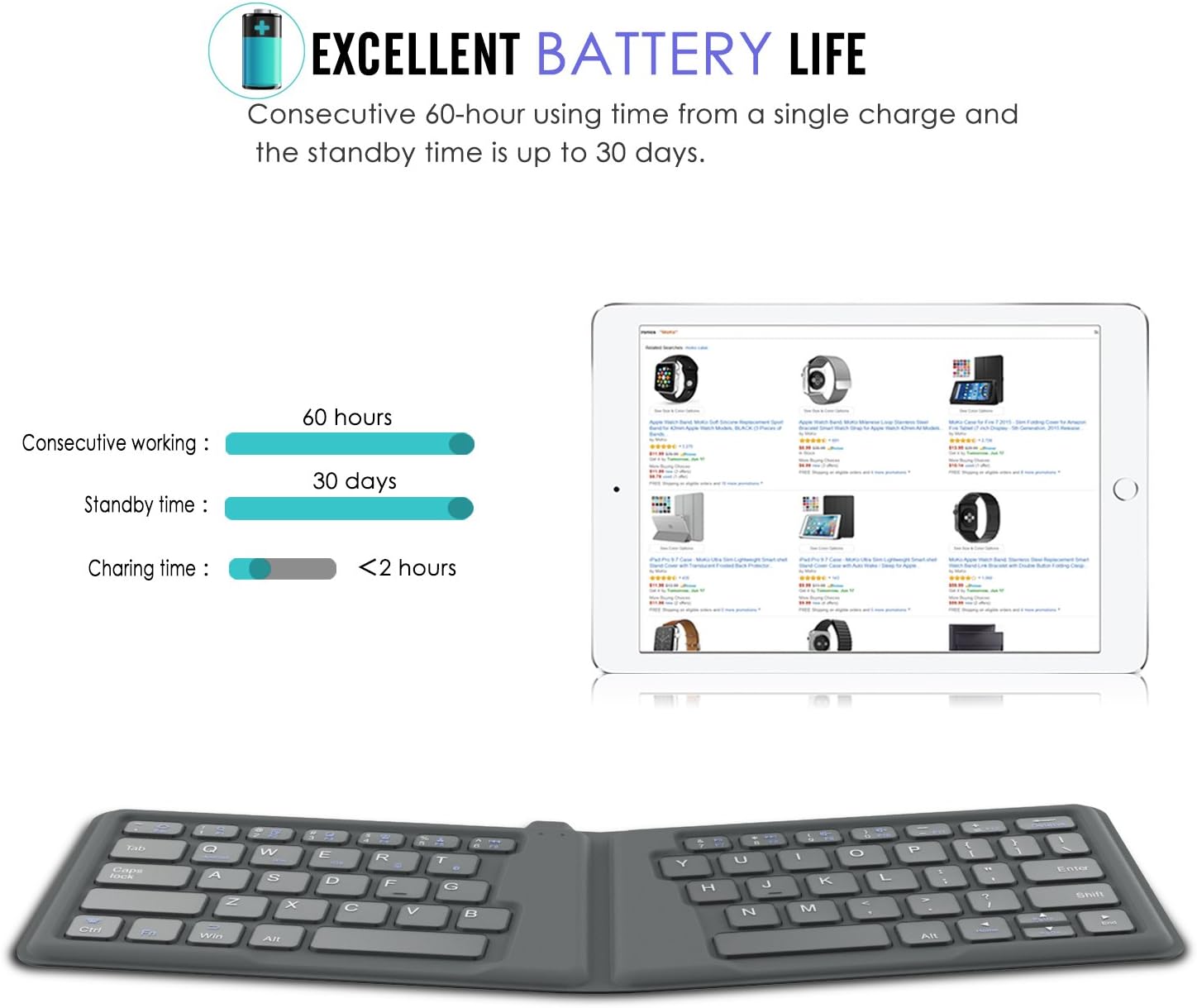
Image: A technical drawing showing the precise dimensions of the MoKo Foldable Keyboard in both its unfolded and folded states, including length, width, and thickness measurements.
8. Warranty and Support
For warranty information or technical support, please refer to the warranty card included with your product or contact MoKo customer service directly. You can typically find contact details on the official MoKo website or through your purchase platform.
For additional resources, a PDF user manual is available for download: Download User Manual (PDF)
Related documents78-9963


Ask a question about this manual
Ask about setup, troubleshooting, compatibility, parts, safety, or missing instructions. Manuals+ will review the question and use this page’s manual context to help answer it.