
Introduction
The BoxWave AccuPoint Active Stylus is designed to provide a natural and precise writing and drawing experience on your touchscreen devices. Utilizing electronic pulses, it offers enhanced accuracy and reduced screen pressure compared to standard styluses. This manual provides essential information for setting up, operating, maintaining, and troubleshooting your stylus.
What's in the Box
- AccuPoint Active Stylus (Jet Black)
- MicroUSB Charging Cable
- Replacement Tips (various types)

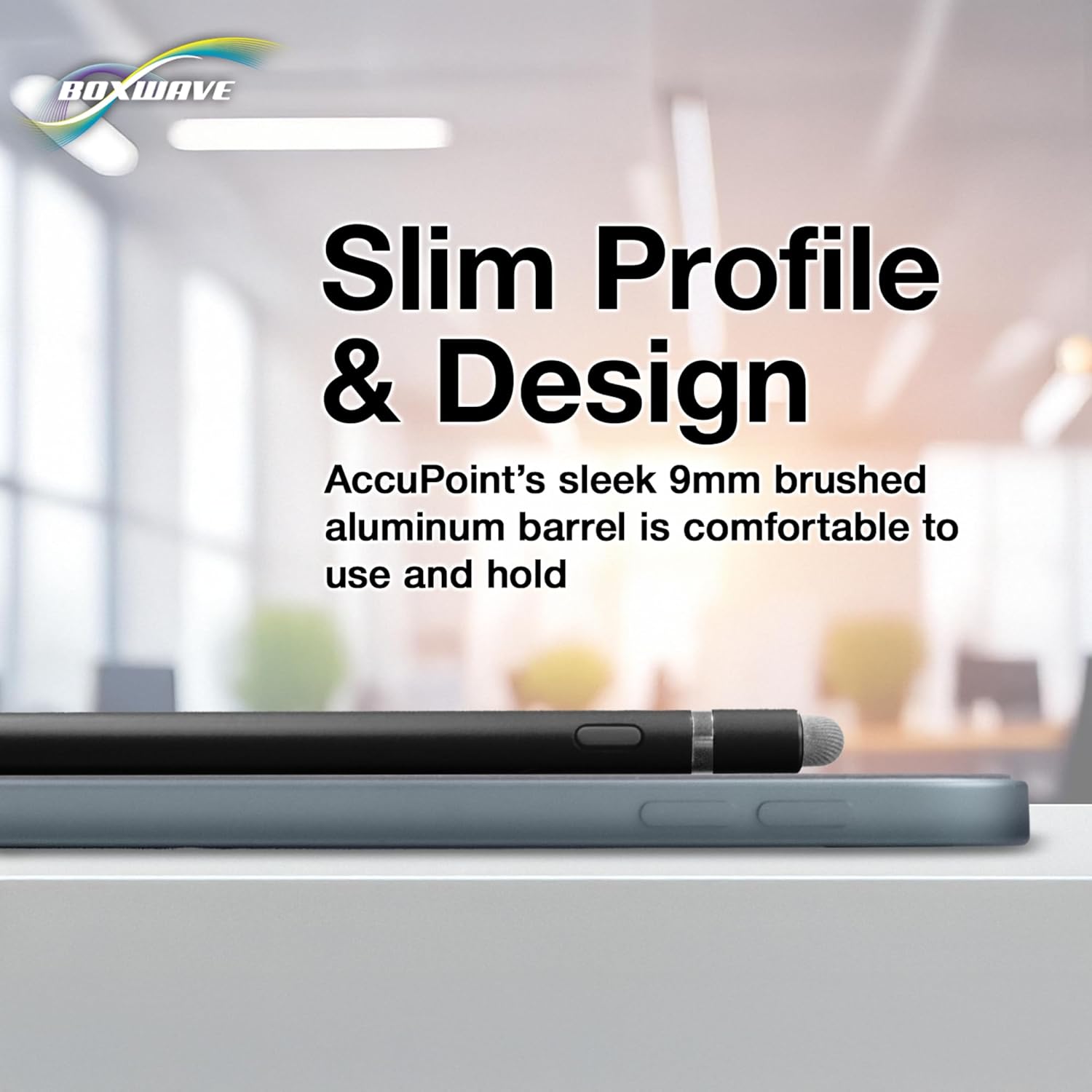
The BoxWave AccuPoint Active Stylus in Jet Black, demonstrating its use on a tablet for precise interaction.

An exploded view highlighting the key components of the stylus: the MicroUSB charging port, the LED indicator light, the ultra-fine metal capacitive tip, and the FiberMesh tip.
Setup
1. Charging the Stylus
- Locate the MicroUSB charging port on the stylus. This is typically found under a removable cap or at one end of the stylus.
- Connect the included MicroUSB cable to the stylus and to any standard USB power source (e.g., computer, wall adapter).
- The indicator light on the stylus will illuminate (often red or blue) to show it is charging.
- A full charge provides up to 12 hours of use. The indicator light will change color (e.g., green) when fully charged.
The stylus connected via its MicroUSB port to a charging cable, illustrating the charging process with the indicator light illuminated.

The stylus being charged from a standard USB power source, such as a laptop, emphasizing ease of recharging.
2. Powering On/Off
- To power on the stylus, press and hold the power button (if present) or simply touch the tip to the screen. The indicator light will turn blue.
- To power off, press and hold the power button again, or the stylus may automatically power off after a period of inactivity.
Operating Instructions
The AccuPoint Active Stylus is designed for intuitive use, mimicking the feel of a traditional pen.
Using the Ultra-Accurate 2mm Tip
- Simply touch the 2mm fine tip to your device's touchscreen.
- Apply light pressure, similar to writing with a pen on paper, for precise input.
- This tip is ideal for drawing, writing, detailed selections, and fine-point navigation.
Using the FiberMesh Tip (if applicable)
- Some models may include a FiberMesh tip on the opposite end. This tip offers a softer touch and is suitable for general navigation, tapping, and swiping.
- It requires less screen pressure than the fine tip and can be used for broader interactions.

A user demonstrating the precise control of the stylus while navigating and selecting apps on a tablet device.

The stylus being used with a smartphone, showcasing its versatility for on-the-go use.
Maintenance
Tip Replacement
The stylus comes with replacement tips to ensure continued optimal performance.
- Gently pull out the old tip from the stylus barrel.
- Insert a new tip firmly into the stylus barrel until it is securely in place.

A detailed view of both the fine metal capacitive tip and the FiberMesh tip, along with the Micro USB charging port, illustrating the interchangeable and functional ends of the stylus.
Cleaning
- Use a soft, dry cloth to clean the stylus body.
- For the tips, gently wipe with a microfiber cloth. Avoid harsh chemicals or abrasive materials.
Troubleshooting
- Stylus not responding: Ensure the stylus is fully charged and powered on.
- Inaccurate input: Check if the tip is clean and securely attached. Ensure your device screen is also clean.
- Intermittent connection: Some screen protectors or device cases may interfere with stylus performance. Try removing them to test.
Specifications
| Feature | Detail |
|---|---|
| Brand | BoxWave |
| Model Number | bw-1388-0-9874 |
| Item Weight | 1.3 ounces |
| Product Dimensions | 1 x 1.9 x 8 inches |
| Color | Jet Black |
| Material | Aluminum |
| Battery Life (Average Standby) | 12 Hours |
| Compatible Devices | Smartphones, Tablets (Minimum Android 10.0) |
Warranty and Support
For warranty information or technical support, please refer to the product packaging or visit the official BoxWave website. You may also contact BoxWave customer service directly for assistance with your AccuPoint Active Stylus.