
LEAGOO Leagoo Shark 1
LEAGOO Shark 1 Smartphone User Manual
Model: LEAGOO Shark 1
1. Introduction
This manual provides essential information for the proper use and maintenance of your LEAGOO Shark 1 smartphone. Please read it carefully before using your device.

Image 1.1: Front view of the LEAGOO Shark 1 smartphone displaying the home screen.

Image 1.2: Front and back view of the LEAGOO Shark 1 smartphone.
2. Package Contents
Ensure all items are present in the package:
- LEAGOO Shark 1 Smartphone (with built-in 6300mAh battery)
- USB Cable
- Charger
- Warranty Card
- User Manual
3. Setup
3.1. SIM Card and Micro SD Card Installation
The LEAGOO Shark 1 supports Dual SIM Dual Standby. It also supports Micro SD (TF) cards up to 64GB for expanded storage.
- Locate the SIM/Micro SD card tray on the side of the device.
- Use the provided SIM ejector tool to open the tray.
- Carefully place your SIM card(s) and/or Micro SD card into the designated slots. Ensure correct orientation.
- Gently push the tray back into the device until it is flush with the side.
Note: If using two SIM cards, the Micro SD card slot may not be available. Please refer to the device's physical tray design for specific configurations.
3.2. Initial Charging and Power On
- Connect the USB cable to the charging port on your phone and the other end to the provided charger.
- Plug the charger into a power outlet. Allow the phone to charge for at least 30 minutes before first use, or until the battery indicator shows sufficient charge.
- Press and hold the Power button (usually on the side) until the LEAGOO logo appears on the screen.
- Follow the on-screen instructions to complete the initial setup, including language selection, Wi-Fi connection, and Google account setup.
4. Operating Your Smartphone
4.1. Basic Navigation
The LEAGOO Shark 1 operates on Android 5.1 with LEAGOO OS v1.2, featuring a capacitive touchscreen for interaction.
- Tap: Select items, open apps, or confirm actions.
- Swipe: Navigate through home screens, menus, or web pages.
- Pinch-to-zoom: Adjust the zoom level in photos, maps, and web pages.
- Long Press: Access contextual menus or move icons on the home screen.
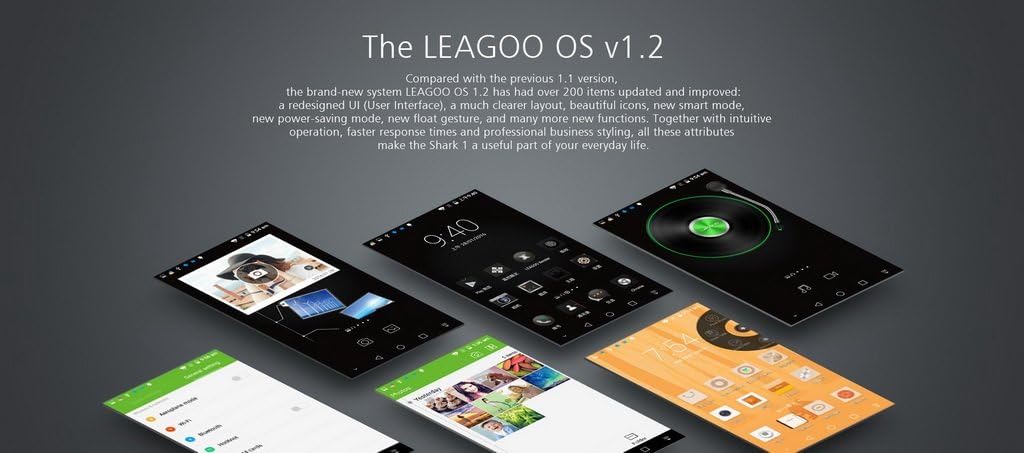
Image 4.1: Overview of the LEAGOO OS v1.2 user interface on the Shark 1.
4.2. Calls and Messaging
To make a call, open the Phone app and dial the number or select a contact. For messages, use the Messaging app to send SMS or MMS.
4.3. Camera Functions
The device features a 13.0MP (interpolated) rear camera with autofocus and LED flash, and a 5.0MP (interpolated) front camera.
- Open the Camera app from the home screen or app drawer.
- Tap the screen to focus on a specific area.
- Press the shutter button to capture a photo.
- Switch between front and rear cameras using the camera toggle icon.
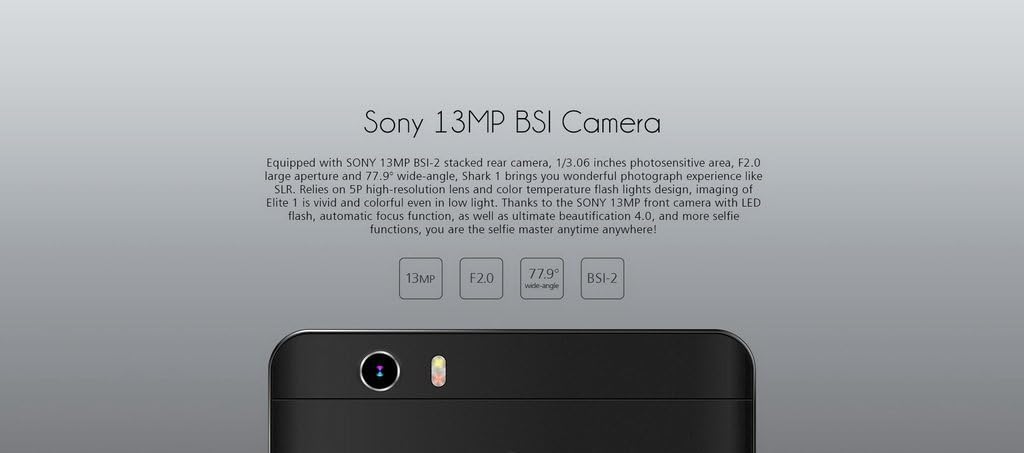
Image 4.2: Detail of the LEAGOO Shark 1's 13MP BSI Camera.
4.4. Internet and Connectivity
Connect to the internet via Wi-Fi or 4G LTE mobile data.
- Wi-Fi: Go to Settings > Wi-Fi to connect to available networks.
- Mobile Data: Ensure your SIM card has an active data plan. Enable mobile data in Settings > Data usage.
- Bluetooth: Pair with other Bluetooth devices via Settings > Bluetooth.
4.5. GPS and Navigation
The LEAGOO Shark 1 supports GPS, GLONASS, Galileo, and BeiDou, enhanced with an LNA-low noise amplifier for improved accuracy.
- Enable Location services in Settings.
- Use pre-installed map applications or download others from the Play Store for navigation.

Image 4.3: The LEAGOO Shark 1's globally accurate positioning feature.
4.6. Fingerprint ID
The device features a New Generation Fingerprint ID 3.0 sensor for quick and secure unlocking, with an unlock speed as fast as 0.39 seconds.
- Go to Settings > Security > Fingerprint.
- Follow the on-screen instructions to register your fingerprint(s).
- Once registered, you can use your fingerprint to unlock the device.
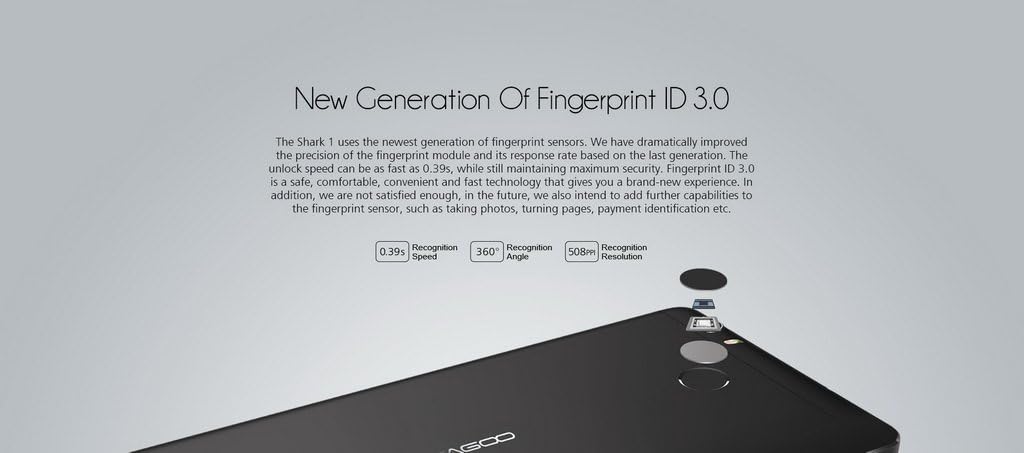
Image 4.4: The LEAGOO Shark 1's Fingerprint ID 3.0 sensor.
4.7. Multimedia
- FM Radio: Requires earphones to be connected as an antenna.
- Audio Jack: Standard 3.5mm port for headphones.
5. Maintenance
5.1. Battery Care
The LEAGOO Shark 1 is equipped with a high-capacity 6300mAh built-in Li-Polymer battery.
- Use only the original charger and USB cable provided with your device.
- Avoid exposing the phone to extreme temperatures.
- Do not attempt to remove or replace the built-in battery yourself.
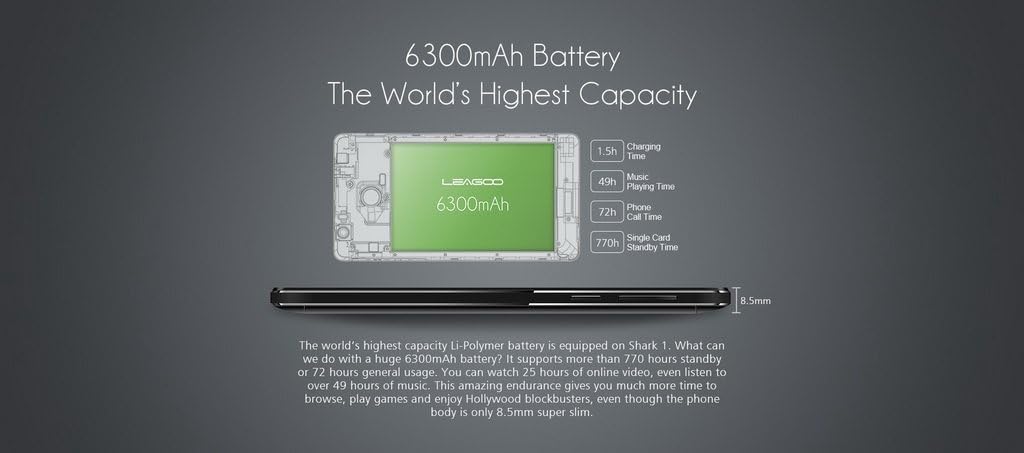
Image 5.1: The 6300mAh battery capacity and estimated usage times.
5.2. Cleaning Your Device
Use a soft, lint-free cloth to clean the screen and body of your phone. Avoid using harsh chemicals or abrasive materials.
5.3. Software Updates
Periodically check for software updates to ensure optimal performance and security. Go to Settings > About phone > System updates.
6. Troubleshooting
6.1. Common Issues and Solutions
- Device not powering on: Ensure the battery is charged. Connect the charger and wait a few minutes before attempting to power on again.
- Poor signal reception: Signal strength can vary based on location and network conditions. Move to an area with better coverage.
- Battery drains quickly: Close unused applications, reduce screen brightness, and disable unnecessary features like Wi-Fi or Bluetooth when not in use. Actual standby time is affected by network signal conditions.
- Cannot install Micro SD card with Dual SIM: The device's physical design may limit the use of a Micro SD card when two SIM cards are installed simultaneously. Choose between dual SIM functionality or expanded storage.
- Touchscreen unresponsive: Restart the device. If the issue persists, perform a factory reset (back up your data first).
7. Specifications

Image 7.1: The LEAGOO Shark 1's 6-inch Full HD LG Display.
| Feature | Detail |
|---|---|
| Model | LEAGOO Shark 1 |
| Operating System | Android 5.1 |
| CPU | MTK6753, Octa Core 1.3Ghz, ARM Cortex-A53 |
| GPU | Mali-T720 450MHz MP3 |
| RAM | 3 GB |
| ROM | 16 GB (Supports Micro SD/TF card up to 64GB) |
| Display Size | 6.0 inches |
| Display Type | IPS, Capacitive Touchscreen |
| Display Resolution | 1920 x 1080 pixels (Full HD) |
| Rear Camera | 8.0MP (interpolated to 13.0MP) with LED flash and autofocus |
| Front Camera | 2.0MP (interpolated to 5.0MP) |
| Battery | 6300mAh Li-Polymer (built-in) |
| SIM Card | Dual SIM Dual Standby |
| Network Bands | GSM: 850/900/1800/1900MHz; WCDMA: 900/2100MHz; FDD-LTE: 800/900/1800/2100/2600MHz (Band 1,3,7,8,20) |
| Wi-Fi | 802.11b/g/n |
| Bluetooth | Bluetooth 4.0 |
| GPS | Yes, with LNA-low noise amplifier (supports GPS, GLONASS, Galileo, BeiDou) |
| Sensors | Gravity Sensor (3-axis), E-Compass, Fingerprint ID |
| Dimensions | 158.6 x 82.8 x 8.5 mm |
| Net Weight | 240.9g (including battery) |
| Other Features | FM Radio, 3.5mm Earphone Port, Smart Gesture, Air Gesture, Fast Charging |

Image 7.2: The LEAGOO Shark 1's 3GB RAM and 16GB ROM specifications.
8. Warranty and Support
Your LEAGOO Shark 1 smartphone comes with a warranty. Please refer to the included Warranty Card for detailed terms and conditions, including warranty period and coverage.
For technical support or service inquiries, please contact your retailer or the official LEAGOO support channels. Keep your purchase receipt and warranty card for any service requests.
Related documentsLeagoo Shark 1


Ask a question about this manual
Ask about setup, troubleshooting, compatibility, parts, safety, or missing instructions. Manuals+ will review the question and use this page’s manual context to help answer it.