
1. Introduction and Overview
This manual provides instructions for the setup, operation, and maintenance of your Dell 2.0 Speaker System with Waves Maxx Audio, model AE215. This wired stereo speaker system is designed to deliver enhanced audio performance for various devices.

Figure 1: Dell AE215 Speaker System Front View
The Dell AE215 speaker system features 5 Watts RMS power output, enhanced bass, and versatile connectivity options including USB power, 3.5mm line-in, and a headphone jack.
2. What's in the Box
Carefully unpack your Dell AE215 Speaker System. The package should contain the following items:
- Dell 2.0 Speaker System AE215 (Left and Right Speakers)
- Integrated USB power cable
- Integrated 3.5mm audio cable
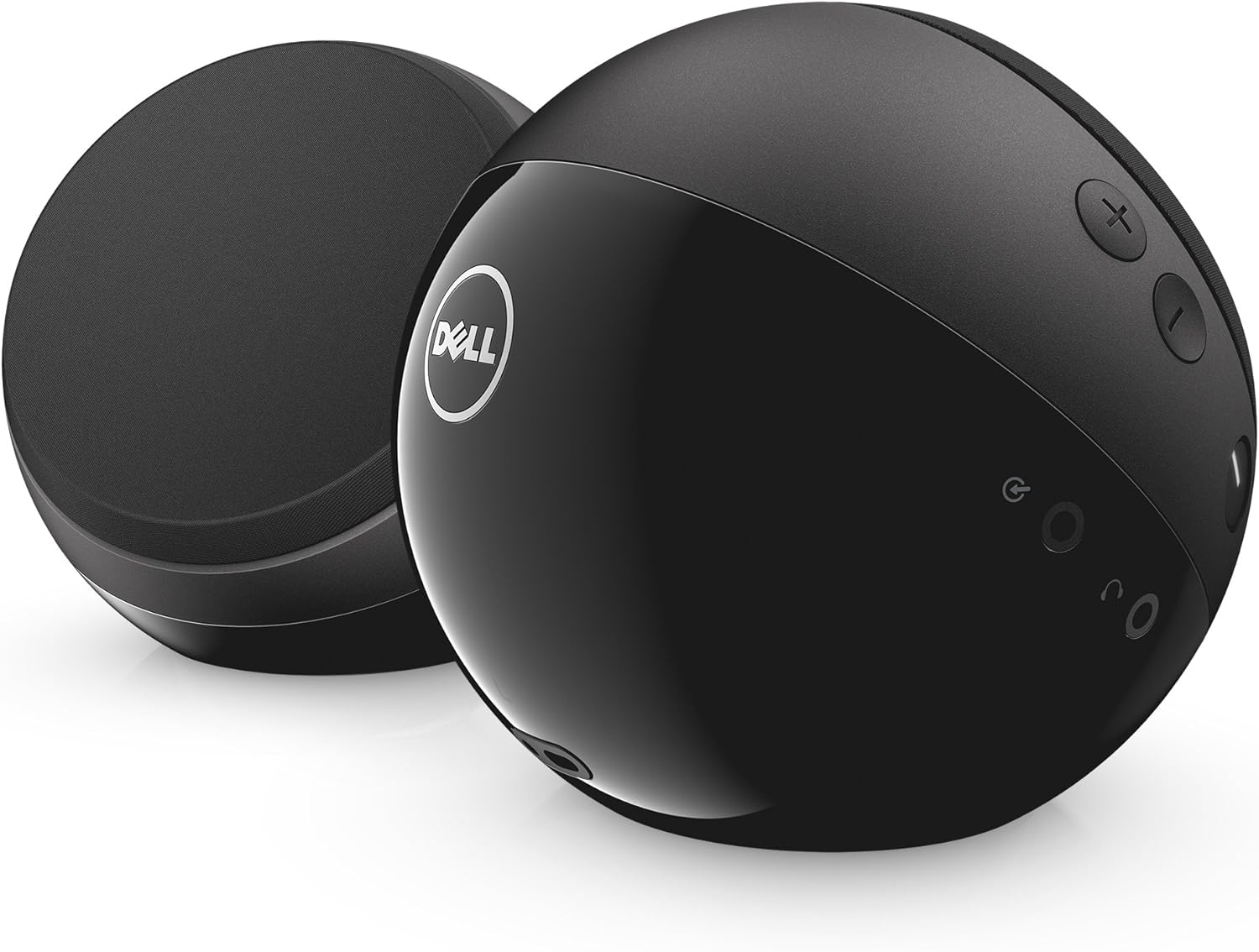
Figure 2: Dell AE215 Speaker System Rear View with Controls
3. Setup Instructions
- Placement: Position the left and right speakers on a flat, stable surface, ensuring they are equidistant from your listening position for optimal stereo sound.
- Connect USB Power: Plug the integrated USB cable from the speaker system into an available USB port on your computer, laptop, or a USB power adapter (not included). The speakers are USB powered.
- Connect Audio: Plug the integrated 3.5mm audio cable into the headphone jack or audio output port of your computer, laptop, smartphone, tablet, or MP3 player.
- Power On: Press the power button located on one of the speakers. The power indicator light will illuminate.
- Adjust Volume: Use the volume control buttons on the speaker or your connected device to set the desired audio level.
Video 1: Dell 2.0 Speaker System with Waves Maxx Audio – AE215 Overview and Setup
4. Operating Instructions
- Power On/Off: Press the power button to turn the speakers on or off.
- Volume Control: Use the '+' and '-' buttons on the speaker to increase or decrease the volume. You can also adjust the volume from your connected device.
- Headphone Jack: Connect headphones to the dedicated headphone jack on the speaker for private listening. When headphones are connected, audio output from the speakers will be muted.
- Auxiliary Input: The 3.5mm line-in cable serves as the primary audio input. Ensure your device's audio output is connected to this port.
5. Features
- Wired 2.0 Stereo speaker system
- 5 Watts RMS power output
- Enhanced bass for a richer audio experience
- USB powered for convenience
- 3.5mm line-in for broad compatibility
- Auxiliary input and headphone jack for versatile use
6. Specifications
| Model Name | Dell AE215 Speaker |
| Speaker Type | 2.0 Stereo |
| Connectivity Technology | Auxiliary, USB |
| Power Source | Corded Electric (USB Powered) |
| Speaker Maximum Output Power | 5 Watts RMS |
| Frequency Response | 80 Hz |
| Signal-to-Noise Ratio | 89 dB |
| Product Dimensions | 4.72"D x 4.72"W x 4.65"H |
| Item Weight | 1.95 Pounds |
| Material | Plastic |
| Color | Black |
| Compatible Devices | Smartphone, Tablet, MP3 Player, Laptop |
7. Maintenance
- Cleaning: Use a soft, dry cloth to clean the exterior of the speakers. Do not use liquid cleaners or abrasive materials.
- Storage: Store the speakers in a cool, dry place away from direct sunlight and extreme temperatures when not in use for extended periods.
- Avoid Moisture: The speakers are not waterproof. Avoid exposing them to water or high humidity.
8. Troubleshooting
- No Sound:
- Ensure the speakers are powered on and the power indicator light is illuminated.
- Check that both the USB power cable and the 3.5mm audio cable are securely connected to your device and the speakers.
- Verify that the volume on both the speakers and your connected device is turned up and not muted.
- Test with another audio source or device to rule out an issue with the original source.
- Distorted Sound or Hissing Noise:
- Lower the volume on both the speakers and your connected device.
- Ensure the audio cable is fully inserted and not damaged.
- If experiencing a persistent hissing or buzzing noise, especially when no audio is playing, this may be due to electrical interference from the USB port. Try connecting the USB power cable to a different USB port or an external USB power adapter (e.g., a phone charger) to isolate the power source.
- Speakers Not Recognized by Computer:
- Ensure the USB cable is connected. While the USB primarily provides power, some systems may require it for initial recognition.
- Check your computer's audio settings to ensure the correct audio output device is selected.
9. Warranty and Support
The Dell 2.0 Speaker System AE215 comes with a Limited Warranty. For specific warranty terms and conditions, please refer to the documentation included with your purchase or visit the official Dell support website.
For technical assistance, troubleshooting guides, or to contact customer support, please visit the Dell Support website at www.dell.com/support.


