
1. Introduction
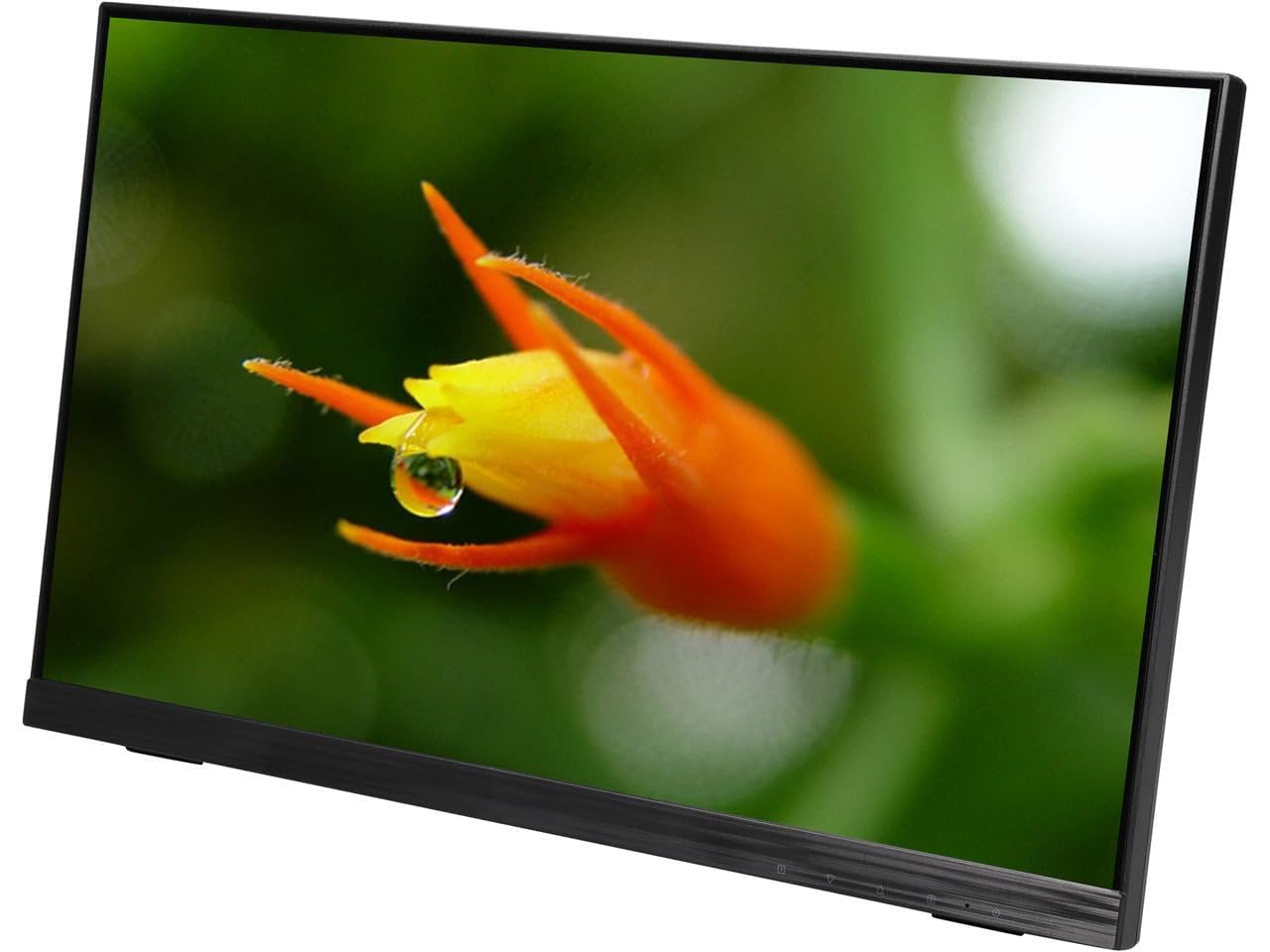
Thank you for choosing the Planar Helium PCT2235 22-inch LED Monitor. This monitor features advanced projected capacitive touch technology, supporting up to 10 simultaneous touch points for an intuitive and responsive user experience. Designed to integrate seamlessly with Microsoft Windows 10, it enhances web browsing, email management, and photo editing with its multi-touch capabilities. This manual provides essential information for the proper setup, operation, and maintenance of your new monitor.
2. Safety Information
Please read all safety instructions carefully before using this product. Failure to follow these instructions may result in electric shock, fire, or damage to the device.
- Power Source: Use only the power adapter supplied with the monitor. Ensure the power outlet is properly grounded.
- Ventilation: Do not block ventilation openings. Allow adequate space around the monitor for proper airflow to prevent overheating.
- Liquid Exposure: Keep the monitor away from liquids. Do not expose it to rain or moisture. If liquid enters the monitor, disconnect power immediately and contact customer support.
- Cleaning: Disconnect the power cord before cleaning. Use a soft, dry cloth. Avoid liquid cleaners or aerosol sprays.
- Placement: Place the monitor on a stable, flat surface. Avoid placing it in direct sunlight or near heat sources.
- Servicing: Do not attempt to service this product yourself. Refer all servicing to qualified service personnel.
3. What's in the Box
Verify that all components are present before proceeding with setup:
- Planar PCT2235 Monitor
- Power Cord
- VGA Cable
- DisplayPort Cable
- USB Cable (for touch functionality)
- Audio-in Cable
- User's Guide (this document)
4. Setup
4.1. Physical Placement and Stand Adjustment
Place the monitor on a stable surface. The integrated Planar Helium stand allows for flexible positioning, including tilting the screen to a near-flat angle for touch interaction or adjusting it to an upright viewing position. Gently adjust the stand to your desired viewing angle.
This image displays the rear of the Planar Helium PCT2235 22-inch LED Monitor. Key dimensions are indicated: 19.3 inches wide, 11.8 inches high, and 1.9 inches deep. The image highlights the integrated Helium stand and the 'PLANAR' branding on the upper back panel.
4.2. Connecting to a Computer
- Power Connection: Connect the power cord to the monitor's power input and then to a grounded electrical outlet.
- Video Connection: Connect one end of the provided video cable (HDMI, DisplayPort, or VGA) to the corresponding port on your computer and the other end to the monitor. For optimal performance and resolution, DisplayPort or HDMI is recommended.
- USB Connection (for Touch): To enable touch functionality, connect the supplied USB cable from the monitor's USB upstream port to an available USB port on your computer.
- Audio Connection (Optional): If you wish to use the monitor's built-in speakers or pass audio through the monitor, connect the audio-in cable from your computer's audio output to the monitor's audio-in port. Alternatively, audio can be transmitted via HDMI or DisplayPort.
5. Operating Instructions
5.1. Powering On/Off
- Press the power button located on the monitor's bezel to turn the monitor on or off.
- The power LED indicator will illuminate when the monitor is on.
5.2. Input Selection
Use the capacitive touch buttons on the monitor's bezel to access the On-Screen Display (OSD) menu. Navigate to the 'Input' or 'Source' option to select between HDMI, DisplayPort, or VGA inputs.
5.3. Touchscreen Functionality
Once the USB cable is connected to your computer, the touch functionality should be automatically recognized by Windows 10. You can use multi-touch gestures similar to a tablet or smartphone. For specific touch settings or calibration, refer to your operating system's display or tablet PC settings.
5.4. On-Screen Display (OSD) Menu
The OSD menu allows you to adjust various monitor settings such as brightness, contrast, color temperature, and input source. Access the OSD menu using the capacitive touch buttons on the monitor's bezel. Navigate through the options using the touch controls.
6. Maintenance
6.1. Cleaning the Monitor
- Always disconnect the power cord before cleaning.
- Use a soft, lint-free cloth slightly dampened with water to clean the screen. Avoid applying pressure to the screen.
- For stubborn marks, a mild, non-abrasive screen cleaner can be used, applied to the cloth, not directly to the screen.
- Clean the monitor casing with a soft, dry cloth.
6.2. General Care
- Avoid exposing the monitor to extreme temperatures or humidity.
- Do not place heavy objects on the monitor or its cables.
- Protect the screen from sharp objects to prevent scratches.
7. Troubleshooting
If you encounter issues with your Planar Helium PCT2235 monitor, refer to the following common problems and solutions:
7.1. No Image on Screen
- Check Power: Ensure the power cord is securely connected to both the monitor and the power outlet. Verify the power outlet is functional.
- Check Video Cable: Ensure the video cable (HDMI, DisplayPort, or VGA) is securely connected to both the monitor and the computer. Try a different video cable if available.
- Select Correct Input: Use the OSD menu to ensure the correct input source is selected (e.g., HDMI if connected via HDMI).
- Computer Output: Ensure your computer is powered on and sending a video signal. Try connecting another monitor to your computer to verify its video output.
7.2. Touch Functionality Not Working
- Check USB Cable: Ensure the USB cable is securely connected from the monitor's upstream port to a USB port on your computer.
- Restart Computer: Sometimes a simple restart of your computer can resolve driver or connection issues.
- Driver Installation: For some operating systems, specific touch drivers might be required. Check the Planar support website for the latest drivers.
- Operating System Settings: Verify touch screen settings in your computer's operating system (e.g., 'Tablet PC Settings' in Windows).
7.3. Poor Image Quality
- Adjust Resolution: Ensure your computer's display resolution is set to the monitor's native resolution (1920 x 1080).
- Adjust OSD Settings: Use the OSD menu to adjust brightness, contrast, and color settings to your preference.
- Check Cable Quality: A low-quality or damaged video cable can affect image quality. Try a different cable.
8. Specifications
| Brand | Planar |
| Model Number | PCT2235 |
| Model Name | 997-8286-00 |
| Screen Size | 21.5 Inches |
| Resolution | FHD 1080p (1920 x 1080 Pixels) |
| Aspect Ratio | 16:9 |
| Display Type | LCD, Edge-Lit LED |
| Screen Surface | Glossy |
| Refresh Rate | 60 Hz |
| Response Time | 14 Milliseconds |
| Brightness | 250 Nit |
| Contrast Ratio | 1000:1 |
| Viewing Angle | 170 Degrees |
| Connectivity | HDMI, DisplayPort, VGA, USB (upstream) |
| Mounting Type | Built-in 100 mm VESA, back |
| Item Dimensions (D x W x H) | 14"D x 21.8"W x 4.45"H |
| Item Weight | 7.94 Pounds |
9. Warranty & Support
For detailed warranty information and technical support, please refer to the warranty card included with your product or visit the official Planar website. You can also contact Planar customer service directly for assistance with product registration, troubleshooting, or service requests.
Manufacturer: Planar Systems, Inc.


