
1. Introduction
Thank you for purchasing the Silverlit Xion FPV Camera Drone 84765. This drone is designed for outdoor use and offers an exciting First-Person View (FPV) flying experience with its integrated camera. Please read this manual thoroughly before operating the drone to ensure safe and optimal performance. Keep this manual for future reference.

Image 1.1: The Silverlit Xion FPV Camera Drone 84765.
2. Safety Information
WARNING: Failure to follow these instructions may result in injury or damage to the product.
- Always operate the drone in open, clear areas, away from people, animals, buildings, and power lines.
- Do not fly in strong winds or adverse weather conditions.
- Keep hands, face, and loose clothing away from rotating propellers.
- Ensure the drone battery and remote control batteries are fully charged before each flight.
- Never leave charging batteries unattended.
- This product is intended for children. Adult supervision is recommended.
- Do not modify or disassemble the drone or its components.
- Always turn off the drone and remote control when not in use.
3. Package Contents
Verify that all items are present in the package:
- Silverlit Xion FPV Camera Drone 84765
- Remote Control
- FPV Goggles
- Rechargeable Drone Battery
- USB Charging Cable (for drone battery)
- Spare Propellers
- User Manual

Image 3.1: The Silverlit Xion FPV Drone product box, showing the drone and FPV goggles.
4. Setup
4.1. Remote Control Battery Installation
- Open the battery compartment on the back of the remote control.
- Insert the required batteries (not included) according to the polarity indicators.
- Close the battery compartment securely.
4.2. Drone Battery Installation
- Ensure the drone is powered off.
- Locate the battery compartment on the drone.
- Carefully insert the charged drone battery, ensuring it is properly seated and connected.
- Close the battery compartment cover.
4.3. Propeller Installation (if required)
If propellers are not pre-installed, attach them according to the markings (e.g., A and B) on the propellers and motor shafts. Ensure they are securely fastened.
4.4. Remote Control and Drone Pairing
- Place the drone on a flat, level surface.
- Turn on the drone. The indicator lights will flash.
- Turn on the remote control.
- Move the left joystick (throttle) fully up, then fully down. The drone's indicator lights will become solid, indicating successful pairing.
4.5. FPV Goggle Setup
Connect the FPV goggles to your smartphone (if applicable) or power them on as per their specific instructions. Ensure a stable connection for live video feed.

Image 4.1: The remote control and FPV goggles for the Silverlit Xion Drone.
5. Charging the Drone Battery
The drone's battery requires charging before use. A USB charging cable is included, but a compatible USB power adapter (not included) is required.
- Connect the USB charging cable to the drone battery.
- Plug the other end of the USB cable into a suitable USB power adapter (e.g., a smartphone charger or computer USB port).
- The charging indicator light will show the charging status (refer to the cable's specific instructions for light behavior).
- Charging typically takes 80-100 minutes for a full charge.
- After a flight, allow the battery to cool down for 10-15 minutes before recharging to prolong battery life.
Note: A fully charged battery provides approximately 4-5 minutes of flight time.
6. Operating the Drone
6.1. Pre-Flight Checklist
- Ensure drone and remote control batteries are fully charged.
- Check that propellers are securely attached and undamaged.
- Verify the flight area is clear of obstacles, people, and animals.
- Confirm successful pairing between the drone and remote control.
6.2. Take-off and Landing
- Place the drone on a flat, level surface.
- Slowly push the left joystick (throttle) upwards to make the drone ascend.
- To land, slowly pull the left joystick (throttle) downwards until the drone gently touches the ground.
6.3. Basic Flight Controls
- Left Joystick (Throttle): Up/Down for altitude control.
- Left Joystick (Yaw): Left/Right for rotating the drone horizontally.
- Right Joystick (Pitch/Roll): Up/Down for moving forward/backward; Left/Right for moving left/right (sideways).
6.4. Camera Operation and FPV
The drone features a 1080p video recording capability and 0.3 MP effective still resolution. Refer to the remote control diagram for specific camera buttons.
- Video Recording: Press the designated video button on the remote control to start/stop recording.
- Photo Capture: Press the designated photo button to take a still image.
- FPV Live Feed: Once the FPV goggles are set up and connected, you will see the live video feed from the drone's camera, enhancing your flying experience.
7. Maintenance
- Cleaning: Use a soft, dry cloth to clean the drone and remote control. Do not use harsh chemicals or solvents.
- Propeller Inspection: Regularly check propellers for cracks, bends, or damage. Replace any damaged propellers with spare parts provided.
- Storage: Store the drone and its components in a cool, dry place, away from direct sunlight and extreme temperatures. Remove batteries from the remote control if storing for extended periods.
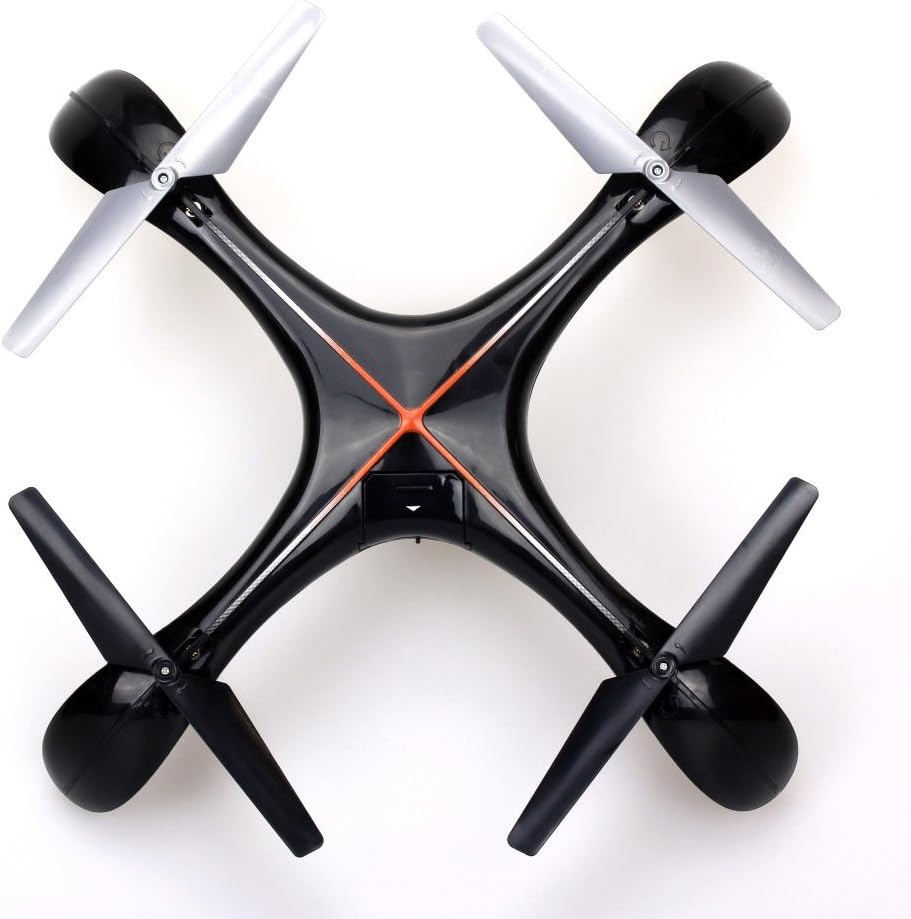
Image 7.1: Top view of the Silverlit Xion FPV Drone, showing propeller orientation.
8. Troubleshooting
| Problem | Possible Cause | Solution |
|---|---|---|
| Drone does not respond to remote control. | Low battery in drone or remote; not paired correctly. | Charge drone battery, replace remote control batteries, re-attempt pairing process. |
| Drone flies erratically or drifts. | Drone not calibrated on a flat surface; damaged propeller. | Ensure drone is placed on a level surface during pairing/initialization. Check and replace damaged propellers. Refer to manual for calibration steps if available. |
| Poor video quality or no FPV feed. | Weak signal; FPV goggles not connected properly. | Ensure drone is within range. Check FPV goggle connection and battery. |
| Short flight time. | Battery not fully charged; old battery. | Ensure battery is fully charged (80-100 minutes). Consider replacing the battery if it's old and performance has degraded. |
9. Specifications
- Brand: Silverlit
- Model Name: 84765
- Age Range: Child
- Video Recording Resolution: 1080p
- Effective Still Resolution: 0.3 MP
- Skill Level: Professional (Note: This may refer to advanced features, but basic operation is suitable for children with supervision)
- Control Type: Remote Control
- Batteries Included: No (for remote control)
- Remote Control Included: Yes
- Product Weight: 1.5 Kilograms
10. Warranty and Support
For warranty information or technical support, please refer to the documentation provided with your purchase or contact Silverlit customer service. Keep your proof of purchase for any warranty claims.