
Introduction
This manual provides detailed instructions for the installation, setup, operation, and maintenance of your Samsung SHS-2621 Smart Door Lock. Please read this manual thoroughly before using the product to ensure proper function and safety. Keep this manual for future reference.
Key Features
- Self-Diagnosing Status Icons: Easy-to-read icons display system status, battery life, and current setup.
- Password and Smart Card Double Authentication: Enhanced security requiring both a password and a key tag for access.
- Random Security Code Feature: Prevents password exposure by requiring a two-digit random number input before the main password.
- One-Touch Security Setup: Activates an alarm for forced entry attempts or repeated authentication failures. Also triggers if the lock is tampered with from the inside.
- Keypad Volume Control: Adjustable volume for the number pad, useful for quiet environments.
- Low Battery Warning Signal: A melody sounds when the battery needs replacement.
- Emergency Power Supply: Allows opening the door with a 9V battery if internal batteries are depleted.
- Optimized Remote Controller: Included for convenient remote access.
- English Interface & Manual: User-friendly interface and comprehensive manual in English.
- Multiple Key Tags: Includes 2 keychain type, 2 sticky type, and 2 RF card type key tags.
- Applicable Door Thickness: Designed for doors between 38mm and 80mm (1.5 - 3.15 inches).
Package Contents
Verify that all components are present before proceeding with installation.
- Samsung SHS-2621 Smart Door Lock (Main Unit)
- Remote Controller
- RF Key Tags (2 Keychain Type, 2 Sticky Type, 2 RF Card Type)
- Installation Hardware (bolts, screws, strike plate, bracket)
- User Manual

Figure 1: Included RF Key Tags and Access Cards. This image displays the various types of RF key tags and access cards provided with the Samsung SHS-2621 Smart Door Lock, including keychain, sticky, and card formats.
Specifications
| Model Number | SHS-2621 |
| Access Code Capacity | 1 (4-12 digit number combination) |
| RF ID Capacity | 20 (14443A type, 13.56MHz) |
| Applicable Door Thickness | 38 - 80 mm (1.5 - 3.15 inches) |
| Power Source | Standard: 4 AA Alkaline Batteries (1.5V, LR6) (not included) Emergency: 9V Battery (6LF22) (not included) |
| Battery Life | Approximately 10 months (based on 10 uses per day) |
| Exterior Body Dimensions (WxHxD) | 65.2 x 170.5 x 22.5 mm |
| Interior Body Dimensions (WxHxD) | 163.5 x 91.5 x 43.2 mm |
| Item Weight | 454 g |

Figure 2: Detailed Product Specifications. This table provides a comprehensive overview of the lock's technical specifications, including dimensions, power requirements, and access capacities.
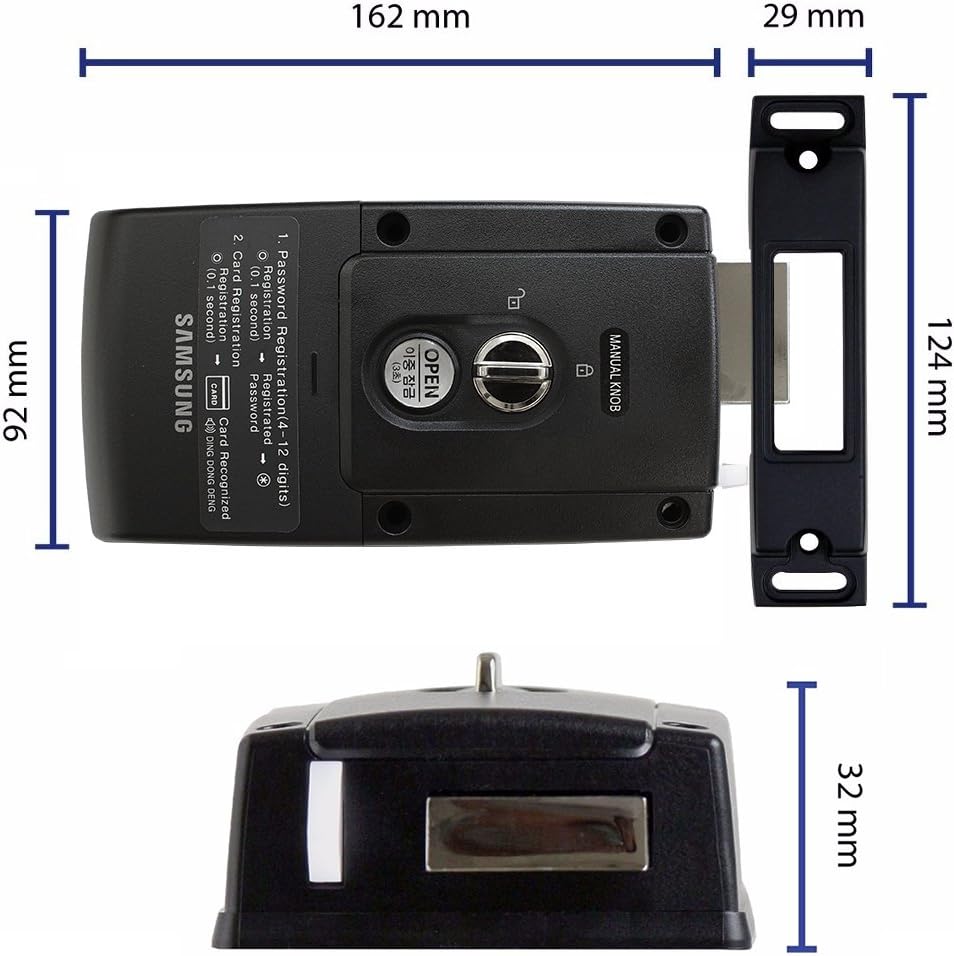
Figure 3: Product Dimensions. This image illustrates the physical measurements of the Samsung SHS-2621 Smart Door Lock's main body and its corresponding strike plate, including width, height, and depth.
Installation
Proper installation is crucial for the optimal performance and security of your smart door lock. Ensure your door thickness is between 38-80mm.
- Prepare the Door: Ensure the door and doorframe are prepared according to the installation blueprint, including drilling necessary holes for the lock body and strike plate.
- Install the Outer Body: Secure the [OUT BODY] to the exterior side of the door using the specified bolts (e.g., BOLT, FH+4.2X20).
- Install the Inner Body: Attach the [IN BODY] to the interior side of the door, aligning it with the outer body. Connect any necessary wiring through the long hole. Secure with bolts (e.g., BOLT, PH+M4X33).
- Install the Strike Plate Assembly: Mount the strike plate and bracket onto the doorframe using appropriate screws (e.g., BOLT, FH+4.2X20). Ensure proper alignment with the lock bolt.
- Install Batteries: Open the battery cover on the inner body and insert 4 AA alkaline batteries.
- Test Functionality: After installation, test the lock's basic functions, including manual operation and initial power-up.

Figure 4: Installation Diagram. This diagram provides a visual guide for installing the Samsung SHS-2621 Smart Door Lock, detailing the placement of components and the types of fasteners required for both the door and doorframe.
Setup
1. Password Registration
To register your master password (4-12 digits):
- Open the battery cover on the interior unit.
- Press the [Registration] button (usually marked with 'R' or 'REG').
- On the exterior keypad, enter your desired 4-12 digit password.
- Press the [*] button to confirm.
- A confirmation sound will indicate successful registration.
2. RF Key Tag Registration
To register RF key tags (up to 20):
- Open the battery cover on the interior unit.
- Press the [Registration] button.
- Place the RF key tag on the card reader part of the exterior unit.
- A confirmation sound will indicate successful registration. Repeat for all key tags.
- Press the [Registration] button again to exit registration mode.
3. Double Authentication Mode
To activate double authentication (requires both password and key tag):
- Open the battery cover.
- Press the [Registration] button.
- Enter your master password, then press [*].
- Press the [8] button, then [*].
- A confirmation sound indicates the mode is active. Repeat the process to deactivate.
Operating Instructions
1. Opening the Door from Outside
- Using Password: Touch the keypad to activate. Enter the random two-digit security code displayed, then your registered password, and press [*].
- Using RF Key Tag: Place the registered key tag on the card reader.
- Using Double Authentication: Touch the keypad, enter the random two-digit security code, then your password, press [*], and then place your registered key tag on the reader.
- Using Remote Controller: Press the unlock button on the remote controller.
2. Opening the Door from Inside
- Rotate the manual knob or push the open button on the interior unit.
3. One-Touch Security Setup (Away Mode)
Before leaving, press the [Security] button on the interior unit. This activates an alarm if forced entry is detected or if the lock is tampered with from the inside.
4. Keypad Volume Adjustment
To adjust the keypad sound volume:
- Open the battery cover.
- Locate the volume control switch (often a small button or switch near the battery compartment).
- Adjust to your preferred level (e.g., High, Low, Mute).
Maintenance
- Battery Replacement: When the low battery warning melody sounds, replace all 4 AA batteries promptly. Do not mix old and new batteries.
- Cleaning: Wipe the lock's surface with a soft, dry cloth. Avoid using abrasive cleaners, solvents, or chemical sprays, as these can damage the finish and electronic components.
- Regular Checks: Periodically check that all screws are tight and the lock operates smoothly.
Troubleshooting
| Problem | Possible Cause | Solution |
|---|---|---|
| Lock does not respond. | Dead batteries. | Replace all 4 AA batteries. If completely dead, use a 9V emergency battery on the exterior terminals. |
| Cannot register password/key tag. | Incorrect procedure; registration mode not active. | Ensure you press the [Registration] button before attempting to register. Follow the steps precisely. |
| Door does not unlock with registered password/key tag. | Incorrect password; unregistered key tag; double authentication active. | Verify password. Re-register key tag if necessary. If double authentication is active, ensure both password and key tag are used. |
| Alarm sounds unexpectedly. | One-Touch Security (Away Mode) active; tampering detected. | Deactivate Away Mode if not needed. Check for any signs of tampering or forced entry. |
| Keypad is not visible or responsive. | Keypad sleep mode; low battery. | Touch the keypad to wake it up. Replace batteries if the issue persists. |
Warranty and Support
For warranty information and technical support, please refer to the warranty card included with your product or visit the official Samsung website. Keep your purchase receipt as proof of purchase for warranty claims.
Online Support: www.samsung.com/support


