
1. Product Overview
The TiVo BOLT is a unified entertainment system designed to integrate your cable or HD antenna television with streaming services. It replaces traditional cable equipment, allowing you to record multiple shows simultaneously and access popular streaming applications from a single interface. The device supports 4K UHD content, offers features like SkipMode for commercial skipping, and QuickMode for faster playback of recorded content.

Image: The TiVo BOLT 500 GB DVR, a white, sleek device designed to sit horizontally.
Key Features:
- Record Multiple Shows: Record up to 4 shows at once and store up to 75 hours of HD programming.
- Cable or HD Antenna Compatibility: Works with your existing cable subscription (requires CableCARD) or plugs into any HD antenna for over-the-air channels.
- Integrated Streaming Apps: Access Netflix, Amazon Prime, HBO GO, Hulu, Pandora, and more directly from the TiVo interface.
- 4K UHD Compatible: Supports 4K/Ultra High-Definition content for enhanced visual clarity.
- SkipMode: Skip entire commercial breaks in recorded shows with a single button press.
- QuickMode: Speed through recorded and buffered shows 30% faster with pitch-corrected audio.
- OneSearch: Search across live TV, on-demand content, and streaming apps simultaneously.
- Mobile Device Streaming: Stream and download content to mobile devices within your home network.
2. What's in the Box
Verify that all components are present in the packaging:
- TiVo BOLT DVR Unit
- IR/RF Remote Control
- AC Adapter
- HDMI Cable
- Quick Start Guide
3. Setup Guide
Follow these steps to set up your TiVo BOLT:
- Connect to TV: Connect the included HDMI cable from the HDMI OUT port on the TiVo BOLT to an available HDMI input on your television.
- Connect to Source:
- For Cable TV: Insert your CableCARD into the designated slot on the TiVo BOLT. Then, connect your coaxial cable from the wall outlet to the CABLE IN port on the TiVo BOLT.
- For HD Antenna: Connect your HD antenna to the ANTENNA IN port on the TiVo BOLT.
- Connect to Network:
- Wired Connection: Connect an Ethernet cable from the Ethernet port on the TiVo BOLT to your router or network switch.
- Wireless Connection: The TiVo BOLT has built-in Wi-Fi. You will configure this during the on-screen guided setup.
- Connect Power: Plug the AC adapter into the power port on the TiVo BOLT, then plug the other end into a wall outlet. The device will power on automatically.
- Initial Setup: Turn on your TV and select the correct HDMI input. Follow the on-screen guided setup instructions using your TiVo remote control. This process will guide you through network configuration, channel scanning, and TiVo service activation.

Image: A diagram illustrating the three steps for HD antenna setup: 1. Connect HD antenna to TiVo BOLT. 2. Connect Ethernet and power adapter (skip Ethernet for Wi-Fi). 3. Use TiVo remote for guided setup on TV.
4. Operation
Using the TiVo Remote
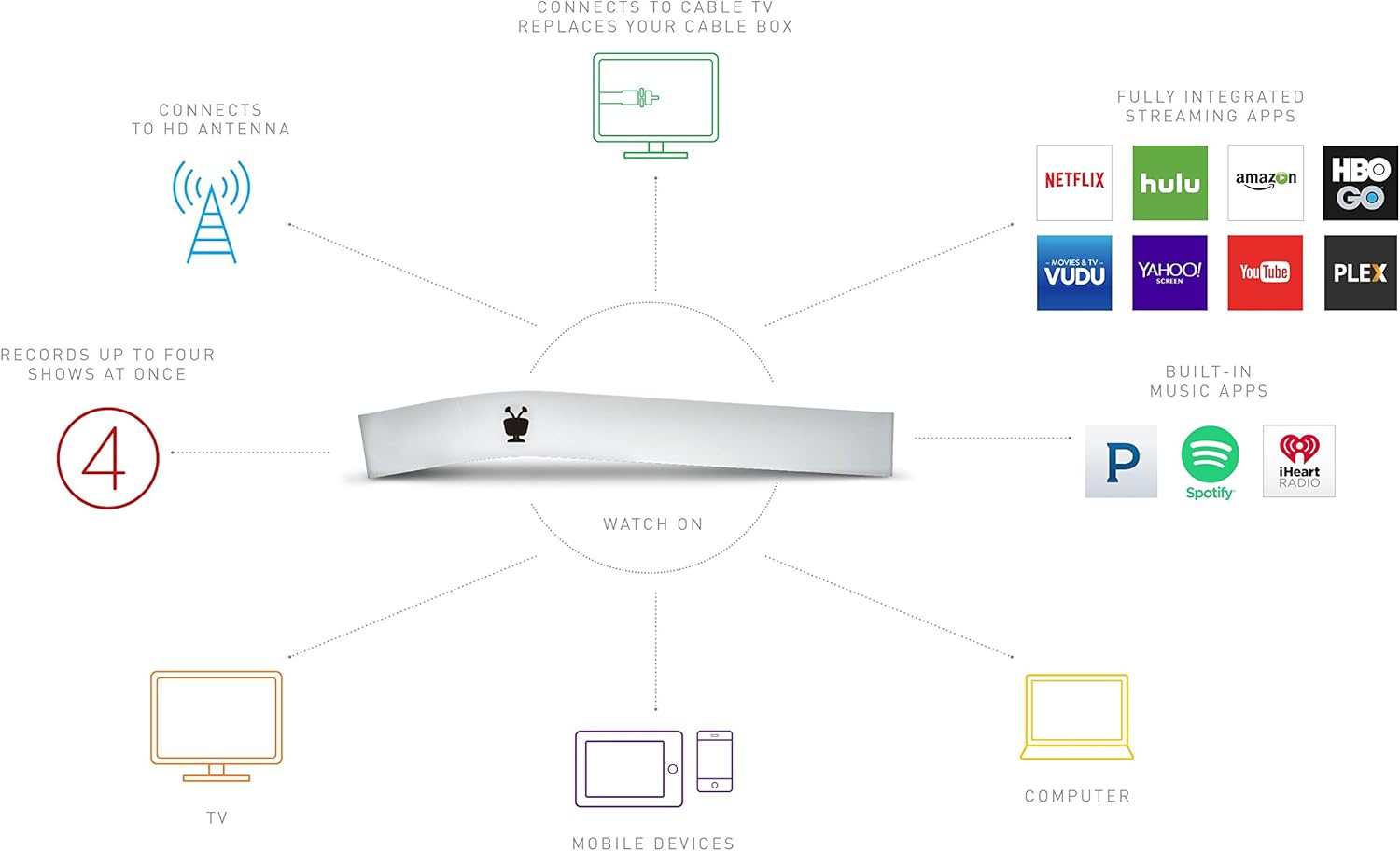
Image: The TiVo BOLT device positioned next to its remote control, highlighting the remote's design.
The TiVo remote is your primary tool for navigating the TiVo BOLT interface. Familiarize yourself with the buttons for channel selection, volume control, menu navigation, and special features like SkipMode and QuickMode.
Recording Programs
The TiVo BOLT allows you to record up to four shows simultaneously. To record a program, navigate to the program in the TiVo Guide or search results and select the record option. You can set up OnePass recordings for entire series, ensuring you capture every available episode.
Accessing Streaming Apps

Image: A television screen displaying the TiVo BOLT interface with various streaming app icons, including Netflix, Hulu, Amazon, Vudu, YouTube, Pandora, Spotify, iHeartRadio, and HBO GO.
Your favorite streaming apps are fully integrated into the TiVo experience. Navigate to the 'Apps & Games' section from the TiVo Central menu to access services like Netflix, Amazon Prime, HBO GO, Hulu, and more. This eliminates the need to switch inputs or devices.
OneSearch Functionality
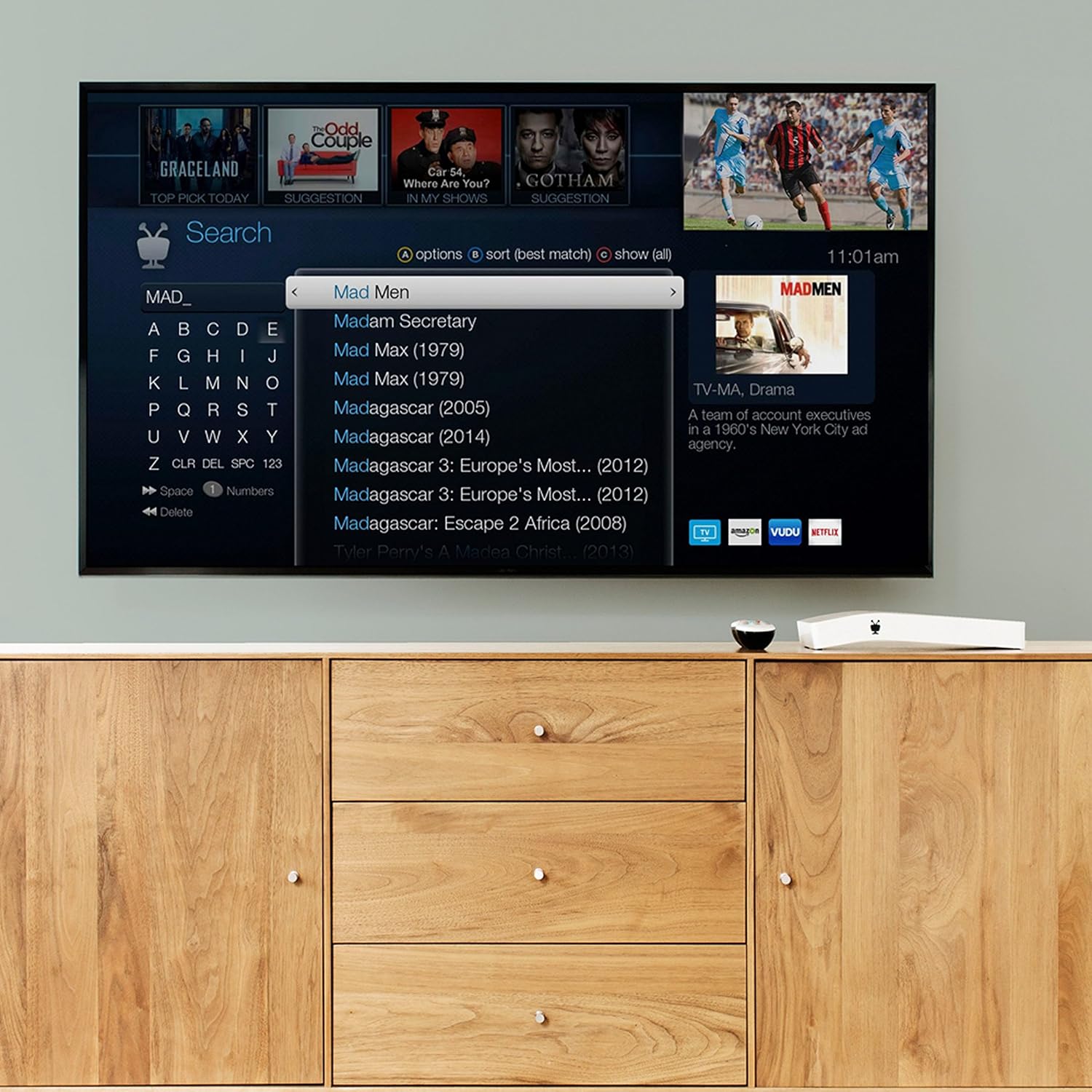
Image: The TiVo BOLT user interface on a TV screen, displaying a search input field and search results for 'Madam Secretary' and other titles, with options to sort and show all results.
Use OneSearch to find content across live TV, available on-demand, and integrated streaming apps simultaneously. Simply type in your desired show or movie title, and TiVo will present all available options, allowing you to choose the best source.
SkipMode and QuickMode
SkipMode: When watching a recorded show, press the 'SKIP' button on your remote to instantly jump past entire commercial breaks. This feature is available for many recorded programs.
QuickMode: To watch recorded or buffered shows 30% faster while maintaining natural-sounding audio, activate QuickMode. This is ideal for catching up on content quickly.
4K UHD Content
The TiVo BOLT is fully compatible with 4K/Ultra High-Definition content. If you have a 4K television and access to 4K content (e.g., via certain streaming apps), the TiVo BOLT will deliver the enhanced resolution and detail.
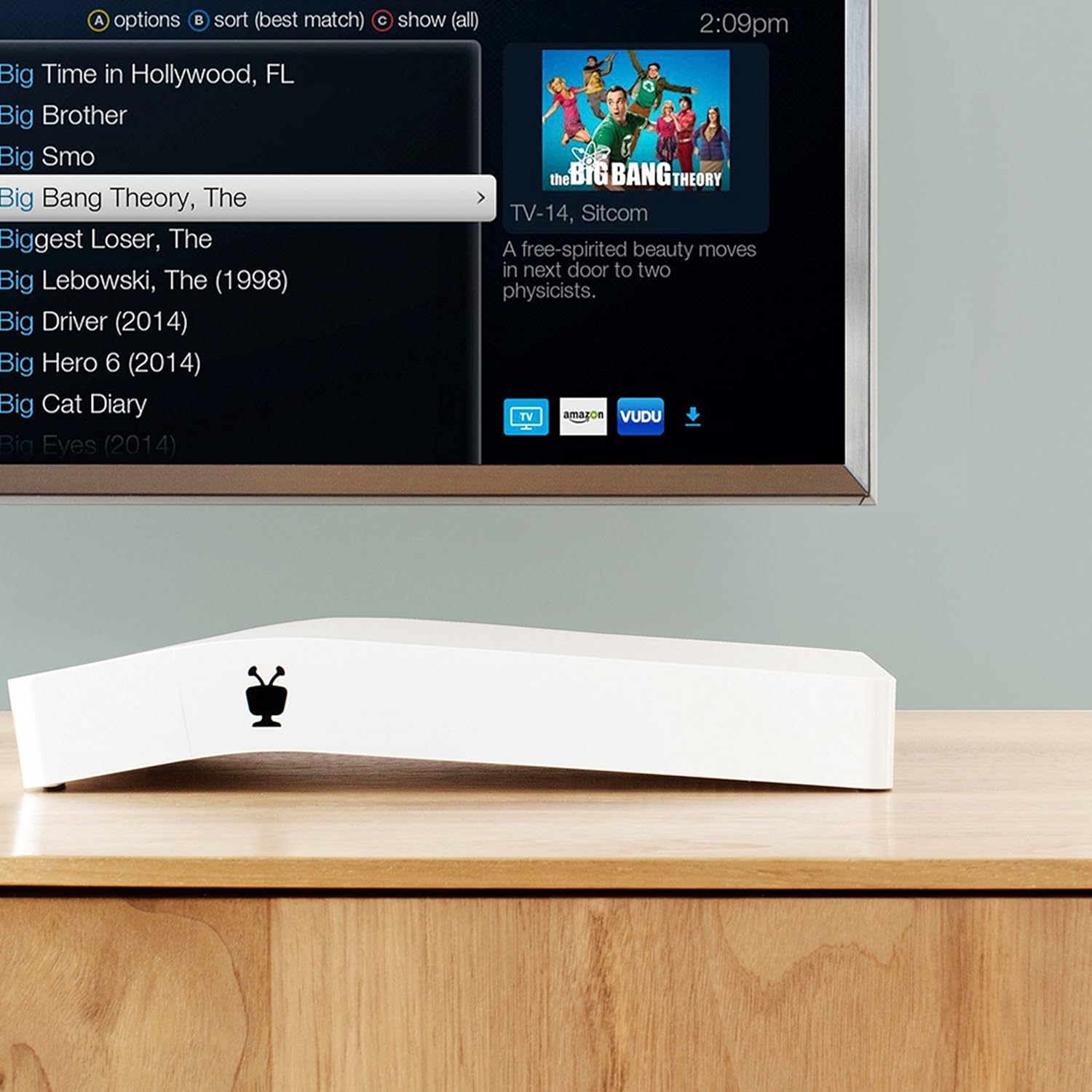
Image: A TiVo BOLT device resting on a wooden cabinet, with a television screen above it displaying a search interface and a thumbnail for 'The Big Bang Theory'.
Official Product Video
Video: An official manufacturer video providing an overview of the TiVo BOLT's features and capabilities, including its unified entertainment system, recording functions, streaming app integration, SkipMode, QuickMode, and 4K compatibility.
5. Maintenance
To ensure optimal performance and longevity of your TiVo BOLT, consider the following maintenance tips:
- Keep Clean: Regularly wipe the exterior of the device with a soft, dry cloth. Avoid using liquid cleaners or abrasive materials.
- Ensure Ventilation: Place the TiVo BOLT in a location with adequate airflow to prevent overheating. Do not block ventilation openings.
- Power Cycle: If you experience minor issues, try power cycling the device by unplugging it from the power outlet for 30 seconds, then plugging it back in.
6. Troubleshooting
If you encounter problems with your TiVo BOLT, try these basic troubleshooting steps:
- No Power: Ensure the AC adapter is securely connected to both the TiVo BOLT and a working power outlet.
- No Picture/Sound: Verify that the HDMI cable is correctly connected to both the TiVo BOLT and your TV, and that your TV is set to the correct HDMI input.
- Network Connection Issues: Check your Ethernet cable connection or Wi-Fi settings. Restart your router and modem, then restart the TiVo BOLT.
- Remote Not Responding: Replace the batteries in your remote control. Ensure there are no obstructions between the remote and the TiVo BOLT.
- Recording Problems: Confirm your CableCARD is properly installed and activated (if using cable). Check your antenna connection (if using HD antenna). Ensure your TiVo service subscription is active.
For persistent issues, refer to the online TiVo support resources or contact TiVo customer service.
7. Specifications
| Feature | Detail |
|---|---|
| Brand | TiVo |
| Model Name | BOLT |
| Model Number | R84950 |
| Storage Capacity | 500 GB (up to 75 hours HD programming) |
| Resolution | 3840x2160 (4K/UHD) |
| Connectivity Technology | Wi-Fi, Ethernet |
| Connector Type | Wi-Fi |
| Compatible Devices | Cable or Antenna |
| Total Number of HDMI Ports | 1 |
| Audio Output Mode | 5.1 Surround Sound |
| Supported Audio Format | AAC |
| Item Weight | 11.2 ounces |
| Item Dimensions (L x W x H) | 8"L x 2.7"W x 4.3"H |
| UPC | 851342000445 |
8. Warranty & Support
Warranty Information
The TiVo BOLT comes with a warranty covering 90 days for parts and labor, and 1 year for parts only. Please retain your proof of purchase for warranty claims.
Customer Support
For further assistance, technical support, or service inquiries, please visit the official TiVo support website or contact their customer service department. Contact information can typically be found on the TiVo website or in the Quick Start Guide included with your product.


