
Introduction
Thank you for choosing the OldShark Dash Cam. This 1080P Full HD dashboard camera is designed to provide reliable and high-quality video recording of your journeys, enhancing driving safety and providing crucial evidence in case of incidents. Equipped with a 3-inch display, 170° wide-angle lens, G-Sensor, and loop recording, it's an essential companion for every driver.
Please read this manual thoroughly before operating the device to ensure proper usage and to maximize its performance and lifespan.
Package Contents
Upon unpacking, please verify that all the following items are included in your package:
- OldShark Dash Cam Unit
- Car Charger
- Suction Mount
- 32GB Micro SD Card
- USB Data Cable
- User Manual (this document)

Image: All components included in the OldShark Dash Cam package, neatly laid out.
Product Features
- Ultra HD Video Recording: Captures clear 1080P Full HD video, ensuring detailed footage even in challenging light conditions.
- 170° Super Wide Angle Lens: Provides an expansive field of view, minimizing blind spots and capturing more of the road.
- Built-in G-Sensor: Automatically detects sudden impacts or collisions and locks the current video footage to prevent overwriting, serving as crucial accident evidence.
- Seamless Loop Recording: Overwrites the oldest unlocked footage when the memory card is full, ensuring continuous recording without manual intervention.
- 24-Hour Parking Monitor: Records short video clips when vibrations are detected while the vehicle is parked, offering surveillance even when you're away.
- Super Night Vision: Equipped with F1.6 large aperture, WDR (Wide Dynamic Range), and HDR (High Dynamic Range) technology for enhanced clarity in low-light conditions.
- Easy Installation: Simple plug-and-play setup with included suction mount and car charger.
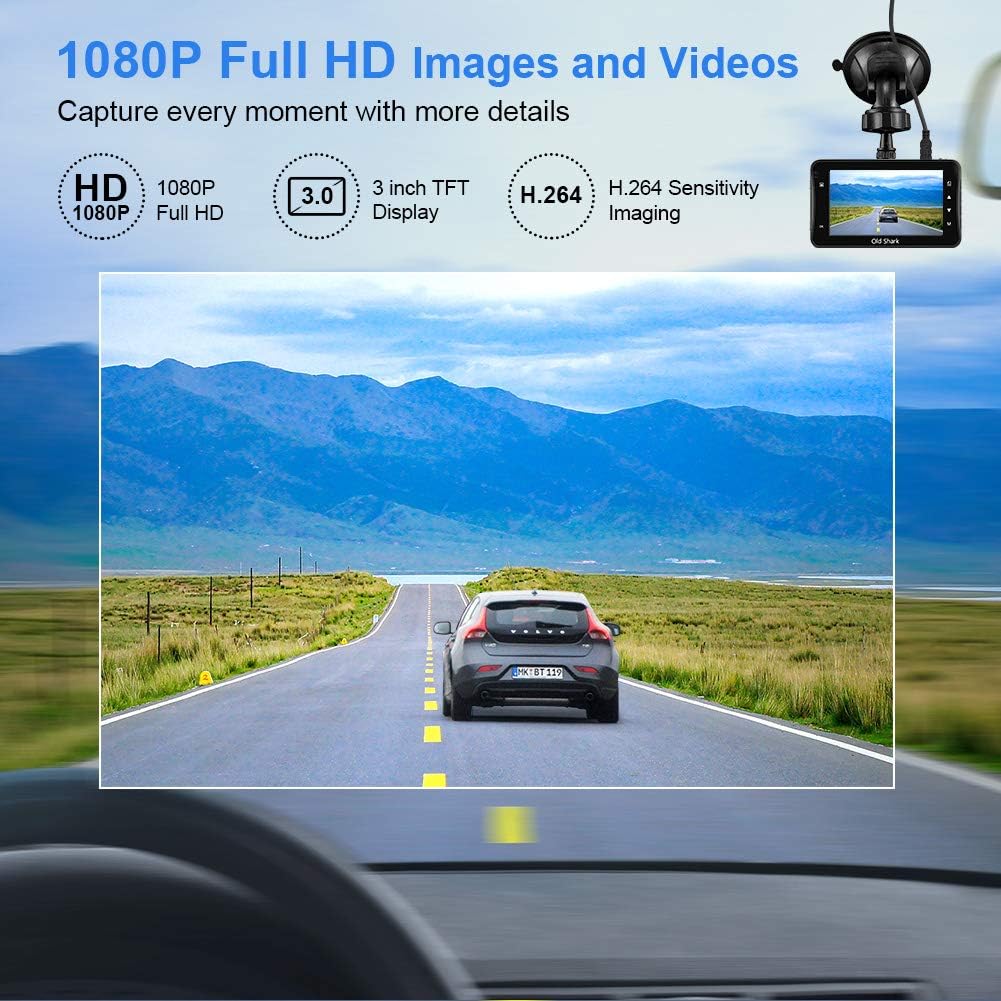
Image: Visual representation of the dash cam's 1080P Full HD video capabilities and display features.

Image: The G-Sensor feature, which automatically locks video footage during an impact to secure accident evidence.

Image: The 24-Hour Parking Monitor feature, which activates recording upon detecting vibrations while parked.

Image: The Super Night Vision capability, demonstrating improved low-light performance with its F1.6 aperture.

Image: The 170° wide-angle lens providing a broad view, with examples of recorded footage during day and night.
Setup Guide
1. Mounting the Dash Cam
- Clean the windshield area where you intend to mount the dash cam. Ensure it is free of dust and grease.
- Attach the suction mount to the dash cam unit.
- Press the suction cup firmly against the windshield and flip the lever to secure it. Position the camera to ensure a clear view of the road without obstructing your driving vision.
2. Inserting the Micro SD Card
- Locate the Micro SD card slot on the side of the dash cam.
- Insert the provided 32GB Micro SD card into the slot until it clicks into place. Ensure the card is inserted correctly with the gold contacts facing the back of the camera.
- For optimal performance, it is recommended to format the SD card within the dash cam's settings before first use and periodically thereafter.
3. Powering On
- Connect the car charger to the dash cam's power input port.
- Plug the other end of the car charger into your vehicle's cigarette lighter socket.
- The dash cam will automatically power on and begin recording when your vehicle's ignition is turned on. It will also power off automatically when the ignition is turned off.

Image: The OldShark Dash Cam, showing its compact design, the included suction mount for windshield attachment, and the 32GB Micro SD card for storage.
Operating Instructions
Basic Operation
- Power On/Off: The camera powers on/off automatically with the car ignition. You can also manually power it on/off by pressing and holding the Power button.
- Recording: Once powered on, the dash cam automatically starts loop recording. A red flashing dot or similar indicator on the screen confirms recording is active.
- Stop Recording: Press the OK button to stop recording. Press it again to resume.
- Mode Switching: Use the Mode button to switch between Video Recording, Still Photo, and Playback modes.
- Playback: In Playback mode, use the Up/Down buttons to navigate through recorded files. Press OK to play a selected video.
Menu Navigation
- Press the Menu button to access settings.
- Use the Up/Down buttons to scroll through menu options.
- Press OK to select an option or confirm a setting.
- Press Menu again to exit the menu.
Key Functions
- Loop Recording: Set the duration for video segments (e.g., 1, 3, 5 minutes). When the card is full, the oldest unlocked file will be overwritten.
- G-Sensor Sensitivity: Adjust the sensitivity of the G-Sensor (Low, Medium, High). A higher sensitivity means the camera will lock footage more easily upon detecting bumps or impacts.
- Parking Monitor: Enable this feature to allow the dash cam to automatically record a short video when it detects a vibration while the car is parked and turned off.
- Motion Detection: When enabled, the camera will start recording automatically if it detects movement in front of the lens while parked.
- Date/Time Stamp: Ensure the correct date and time are set in the menu for accurate timestamps on your recordings.
Maintenance
- Cleaning: Use a soft, dry cloth to clean the camera lens and screen. Avoid using abrasive cleaners or solvents.
- SD Card Care: Regularly format the Micro SD card (at least once a month) within the dash cam's settings to maintain optimal recording performance and prevent data corruption. Use only high-quality Class 10 or higher Micro SD cards.
- Temperature: Avoid exposing the dash cam to extreme temperatures (very hot or very cold) for extended periods, as this can affect battery life and component integrity.
- Firmware Updates: Check the official OldShark website periodically for any available firmware updates to ensure your dash cam has the latest features and bug fixes.
Troubleshooting
| Problem | Solution |
|---|---|
| Dash cam does not power on. | Ensure the car charger is securely connected to both the dash cam and the vehicle's cigarette lighter. Check if the vehicle's cigarette lighter is receiving power. Try a different power source if available. |
| Recording stops unexpectedly. | Check if the Micro SD card is full. Format the SD card. Ensure you are using a Class 10 or higher SD card. Reduce G-Sensor sensitivity if it's triggering too often. |
| Video footage is blurry or unclear. | Clean the camera lens and your car's windshield. Ensure the protective film has been removed from the lens. Check video resolution settings. |
| Dash cam freezes or becomes unresponsive. | Press the reset button (if available, usually a small pinhole) or disconnect and reconnect the power. Format the Micro SD card. |
| Date and time are incorrect. | Go to the system settings menu and manually set the correct date and time. Save the settings. |
Specifications
| Feature | Detail |
|---|---|
| Model Name | GS505 |
| Item Model Number | A1OS-GS505-T032 |
| Video Capture Resolution | 1080p Full HD |
| Lens Angle | 170° Wide Angle |
| Display Size | 3 Inch |
| Special Features | G-Sensor, Loop Recording, Parking Guard, Motion Detection, Auto On/Off, Time Stamp, Screensaver, Night Vision (F1.6 Aperture) |
| Connectivity Technology | USB |
| Mounting Type | Suction Mount |
| Product Dimensions | 3.46 x 1 x 0.59 inches |
| Item Weight | 4.4 ounces |
| Manufacturer | Old Shark |
Warranty Information
OldShark products are manufactured with high-quality standards. For specific warranty terms and conditions, please refer to the warranty card included in your product packaging or contact OldShark customer support. The warranty typically covers manufacturing defects for a specified period from the date of purchase.
Please retain your purchase receipt as proof of purchase for any warranty claims.
Customer Support
If you encounter any issues or have questions regarding your OldShark Dash Cam that are not covered in this manual, please do not hesitate to contact our customer support team.
For the most up-to-date contact information and support resources, please visit the official OldShark store on Amazon or their official website.
Online Resources:
- OldShark Amazon Store: Visit Store