
1. Introduction
This manual provides essential instructions for the safe and efficient use of your PCD E501 Smartphone. Please read this manual thoroughly before operating your device and retain it for future reference. The PCD E501 is a 5-inch Android smartphone featuring an 8 MP camera and running Android Kit Kat 4.4.2.
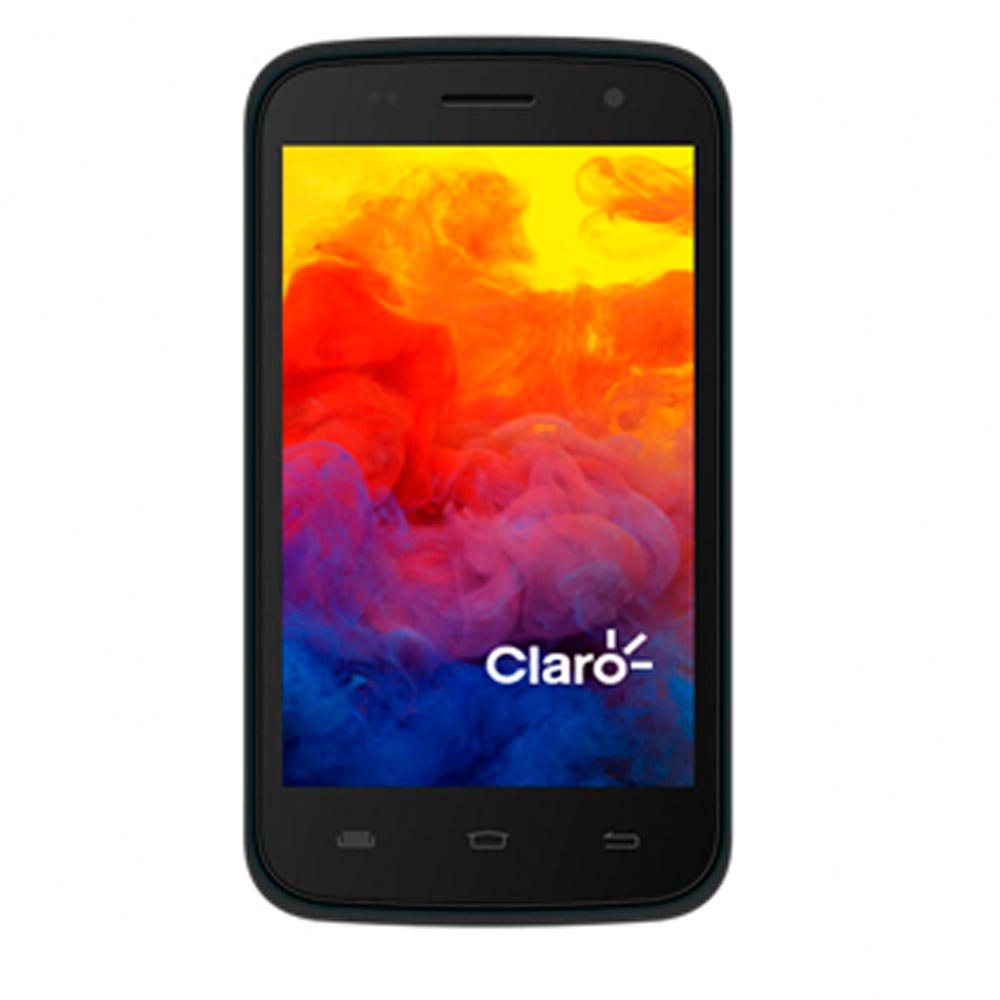
Figure 1: Front view of the PCD E501 Smartphone, showcasing its 5-inch display.
2. Setup
2.1 Unboxing and Initial Inspection
Carefully remove all components from the packaging. Verify that the following items are present:
- PCD E501 Smartphone
- Rechargeable Lithium-Ion Battery
- Wall Charger
- USB Cable
- User Manual (this document)
- Warranty Card
Inspect the device for any signs of damage. If any components are missing or damaged, contact customer support immediately.
2.2 Inserting the SIM Card and Battery
- Locate the back cover notch on the side or bottom of the phone. Gently pry open the back cover.
- If a battery is already installed, remove it by lifting it from the designated slot.
- Insert your SIM card(s) into the appropriate slot(s) with the gold contacts facing down. Ensure it clicks into place.
- Insert the rechargeable Lithium-Ion battery, aligning the gold contacts on the battery with the contacts in the phone. Press down gently until it is securely seated.
- Replace the back cover, pressing firmly around the edges until it snaps into place.
2.3 Charging the Battery
Before first use, fully charge the battery. Connect the USB cable to the phone's charging port and the other end to the wall charger. Plug the wall charger into a power outlet. The charging indicator will appear on the screen. A full charge typically takes approximately 2-3 hours.
2.4 Powering On/Off
- To power on: Press and hold the Power button (usually on the side) until the screen lights up.
- To power off: Press and hold the Power button until the power options menu appears. Select "Power off" and confirm.
3. Operating Instructions
3.1 Basic Navigation
The PCD E501 features a 5-inch touchscreen for navigation. Use the following gestures:
- Tap: To select an item or open an application.
- Swipe: To scroll through screens or lists.
- Pinch: To zoom in or out on images and web pages.
- Long Press: To access contextual menus or move icons.
3.2 Making Calls
- Tap the Phone icon on the home screen.
- Enter the phone number using the dial pad.
- Tap the Call button to initiate the call.
- To end a call, tap the End Call button.
3.3 Sending Messages
- Tap the Messages icon.
- Tap the New Message icon (usually a plus sign or a speech bubble).
- Enter the recipient's number or select from contacts.
- Type your message in the text field.
- Tap the Send button.
3.4 Using the Camera
The PCD E501 features an 8 MP rear camera and a 2 MP front camera.
- Tap the Camera icon on the home screen.
- Frame your shot using the screen as a viewfinder.
- Tap the Shutter button to take a photo.
- To switch between front and rear cameras, tap the Switch Camera icon.
3.5 Connecting to Wi-Fi
- Go to Settings > Wi-Fi.
- Toggle the Wi-Fi switch to On.
- Select your desired Wi-Fi network from the list.
- Enter the password if prompted and tap Connect.
4. Maintenance
4.1 Cleaning the Device
Use a soft, lint-free cloth to clean the screen and body of the phone. Avoid using harsh chemicals, abrasive cleaners, or aerosol sprays. Do not expose the device to excessive moisture.
4.2 Battery Care
- Avoid exposing the battery to extreme temperatures.
- Do not puncture or damage the battery.
- If the battery appears swollen or damaged, discontinue use and replace it with an authorized PCD battery.
- For optimal battery life, avoid frequently draining the battery completely or keeping it at 100% charge for extended periods.
4.3 Software Updates
Periodically check for software updates to ensure optimal performance and security. Go to Settings > About phone > System updates.
5. Troubleshooting
| Problem | Possible Solution |
|---|---|
| Phone does not turn on. | Ensure the battery is charged. Connect the charger and wait a few minutes before attempting to power on again. Verify the battery is correctly inserted. |
| Cannot make or receive calls. | Check if the SIM card is properly inserted. Ensure you have network signal. Restart the phone. Contact your service provider if the issue persists. |
| Wi-Fi connection issues. | Ensure Wi-Fi is enabled on your phone. Restart your Wi-Fi router. Forget the network and reconnect. |
| Apps are crashing or freezing. | Close and reopen the app. Clear the app's cache (Settings > Apps > [App Name] > Storage > Clear cache). Restart the phone. |
| Battery drains quickly. | Reduce screen brightness. Close unused apps running in the background. Disable Wi-Fi, Bluetooth, and GPS when not in use. Check battery usage in Settings to identify power-hungry apps. |
6. Specifications
| Feature | Detail |
|---|---|
| Model Number | E501 |
| Operating System | Android Kit Kat 4.4.2 |
| Processor | AMR Cortex-A7 1.3 GHz |
| RAM | 1 GB |
| Internal Storage | 8 GB ROM (approx. 6.09 GB usable) |
| Expandable Storage | Up to 32 GB via microSD (card not included) |
| Display | 5-inch LCD, 960 x 540 pixels, Touchscreen |
| Rear Camera | 8 Megapixels |
| Front Camera | 2 Megapixels |
| Wireless Connectivity | Cellular, Wi-Fi |
| Battery | 1 Lithium Ion (included) |
| Dimensions (L x W x H) | 14.74 x 7.4 x 1 cm (5.8 x 2.9 x 0.4 inches) |
| Weight | 350 g (12.3 oz) |
| Color | Black |
7. Warranty and Support
7.1 Warranty Information
Your PCD E501 Smartphone comes with a limited manufacturer's warranty. Please refer to the included Warranty Card for specific terms, conditions, and duration of coverage. This warranty typically covers defects in materials and workmanship under normal use. It does not cover damage caused by misuse, accidents, unauthorized modifications, or normal wear and tear.
7.2 Customer Support
For technical assistance, troubleshooting, or warranty claims, please contact PCD customer support. Refer to the contact information provided on your Warranty Card or visit the official PCD website for the most up-to-date support details.
When contacting support, please have your product model (E501) and proof of purchase readily available.