
1. Introduction
Thank you for choosing the EMTEC ECGPF500BT Wireless Bluetooth Gamepad. This manual provides essential information for setting up, operating, and maintaining your gamepad. Please read these instructions carefully before use to ensure optimal performance and longevity of your device.
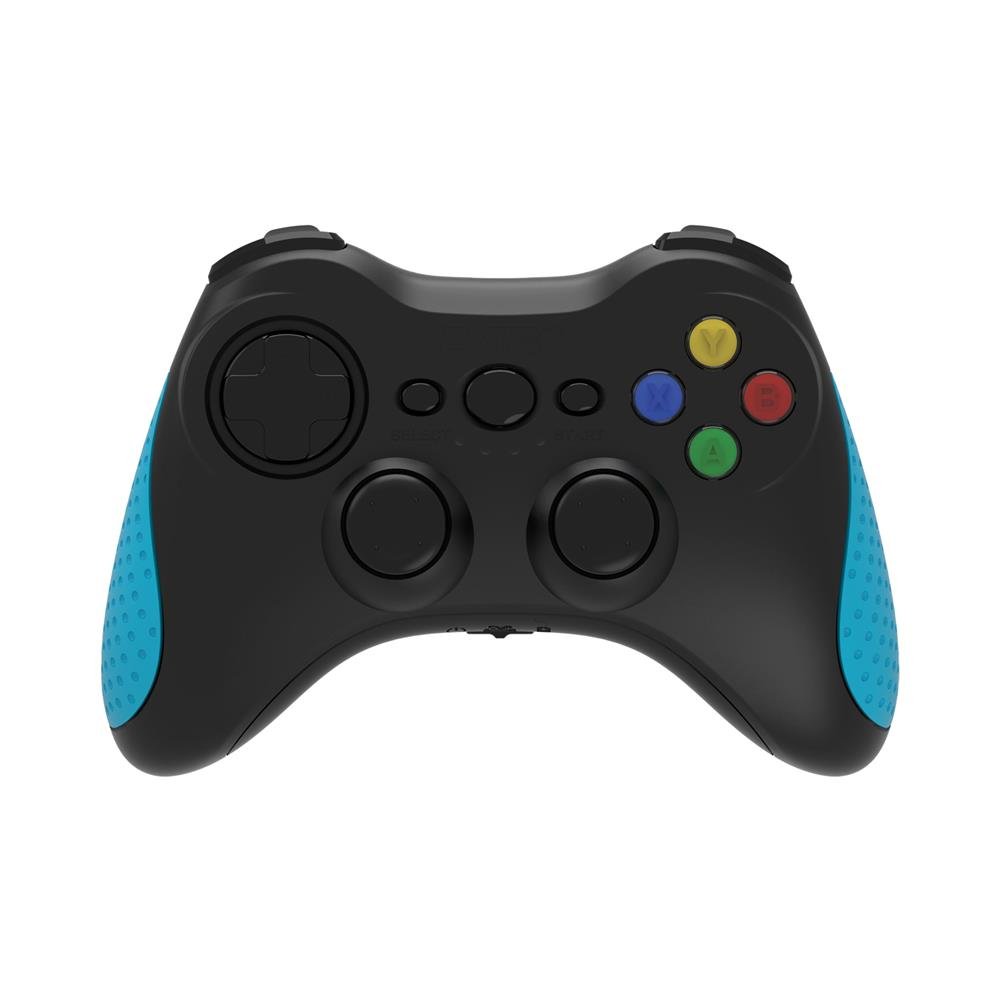
Image: The EMTEC ECGPF500BT Wireless Bluetooth Gamepad, featuring a black and blue design with standard gamepad buttons and dual analog sticks.
2. Package Contents
Please check the box for the following items:
- EMTEC ECGPF500BT Wireless Bluetooth Gamepad
- USB Charging Cable
- User Manual (this document)
3. Product Features
The EMTEC ECGPF500BT Gamepad offers a robust gaming experience with the following key features:
- Wireless Bluetooth Connectivity: Enjoy gaming without cables, offering freedom of movement.
- Android Compatibility: Designed for use with Android-supported devices, including smartphones, tablets, streaming players, and televisions.
- Analog Control Technology: Provides precise and responsive control for an immersive gaming experience.
- Extended Wireless Range: Operates reliably up to 10 meters from your connected device.
- Long-lasting Battery: Equipped with an 800 mAh battery, offering up to 15 hours of playtime on a single charge.
- 16 Responsive Buttons: Includes all standard gamepad buttons for comprehensive control.
- Ergonomic Design: Comfortable to hold for extended gaming sessions.
4. Setup
4.1. Charging the Gamepad
- Connect the small end of the USB charging cable to the charging port on the gamepad.
- Connect the larger end of the USB cable to a USB power source (e.g., computer USB port, USB wall adapter).
- The charging indicator light on the gamepad will illuminate, typically red, during charging.
- Once fully charged, the indicator light will change color or turn off (refer to specific gamepad LED behavior). A full charge takes approximately 2-3 hours.
4.2. Pairing with an Android Device
Follow these steps to pair your gamepad with an Android device:
- Ensure the gamepad is sufficiently charged.
- Power on the gamepad by pressing and holding the Power button (or a specific pairing button, refer to gamepad markings) until the indicator light starts flashing rapidly. This indicates it is in pairing mode.
- On your Android device (smartphone, tablet, TV, streaming player), go to Settings > Connected devices > Bluetooth.
- Turn on Bluetooth if it is not already enabled.
- Scan for available devices. The gamepad should appear in the list, often named something like "EMTEC Gamepad" or "ECGPF500BT".
- Select the gamepad from the list to initiate the pairing process.
- Once paired, the gamepad's indicator light will typically become solid, indicating a successful connection.
- Your gamepad is now ready for use with compatible Android games and applications.
5. Operating the Gamepad
5.1. Power On/Off
- To Power On: Press and hold the Power button for a few seconds until the indicator light illuminates.
- To Power Off: Press and hold the Power button for a few seconds until the indicator light turns off. The gamepad will also automatically power off after a period of inactivity to conserve battery.
5.2. Basic Controls
The EMTEC ECGPF500BT Gamepad features standard controls for gaming:
- Dual Analog Sticks: For precise 360-degree movement and camera control.
- Directional Pad (D-Pad): For directional input, often used in menu navigation or specific game actions.
- Action Buttons (A, B, X, Y or similar): For in-game actions like jumping, attacking, or interacting.
- Shoulder Buttons (L1, R1) and Triggers (L2, R2): For additional in-game actions, often used for shooting, aiming, or special abilities.
- Start/Select/Home Buttons: For pausing games, accessing menus, or returning to the device's home screen.
Button functions may vary depending on the game or application. Refer to the specific game's control settings for customization options.
6. Maintenance
6.1. Cleaning
- Use a soft, dry cloth to wipe the surface of the gamepad.
- For stubborn dirt, slightly dampen the cloth with water or a mild, non-abrasive cleaner.
- Do not use strong chemicals, solvents, or abrasive cleaning agents, as these can damage the gamepad's finish.
- Avoid getting moisture into any openings or ports.
6.2. Storage
- Store the gamepad in a cool, dry place away from direct sunlight and extreme temperatures.
- Avoid placing heavy objects on the gamepad.
- If storing for an extended period, ensure the battery is partially charged (around 50%) to prolong its lifespan. Recharge periodically if not in use.
7. Troubleshooting
| Problem | Possible Cause | Solution |
|---|---|---|
| Gamepad does not power on. | Low battery. | Charge the gamepad for at least 30 minutes. |
| Gamepad does not connect to device. | Bluetooth is off on the device. Gamepad not in pairing mode. Out of range. | Ensure Bluetooth is enabled on your device. Put the gamepad into pairing mode (flashing indicator light). Move the gamepad closer to your device (within 10 meters). |
| Buttons are unresponsive or laggy. | Low battery. Interference. Game compatibility issue. | Recharge the gamepad. Move away from other wireless devices. Check if the game supports external gamepads. |
| Short battery life. | Battery not fully charged. Aging battery. | Ensure the gamepad is fully charged before use. Battery performance may degrade over time. |
8. Specifications
| Feature | Detail |
|---|---|
| Model Number | ECGPF500BT |
| Device Type | Gamepad |
| Supported Platforms | Android (Streaming player, Tablet, Mobile phone, Television) |
| Connectivity Technology | Wireless, Bluetooth |
| Wireless Range | Up to 10 meters |
| Battery Capacity | 800 mAh |
| Battery Life | Up to 15 hours |
| Power Source | Battery powered (1 A included) |
| Number of Buttons | 16 |
| Color | Black, Blue |
| Dimensions (L x W x H) | 14.5 cm x 10 cm x 5.2 cm |
9. Warranty and Support
For warranty information and technical support, please refer to the warranty card included with your product or visit the official EMTEC website. Keep your proof of purchase for any warranty claims.
