
1. Introduction
The GAMDIAS Hermes GKB3000 is a mechanical gaming keyboard designed for enhanced durability and performance. It features GAMDIAS Certified Blue Switches with a 50 million actuation lifecycle, a 7-color spectrum backlight with 14 lighting effects, and various functional keys for an optimized gaming and typing experience. This manual provides instructions for setting up, operating, and maintaining your keyboard.
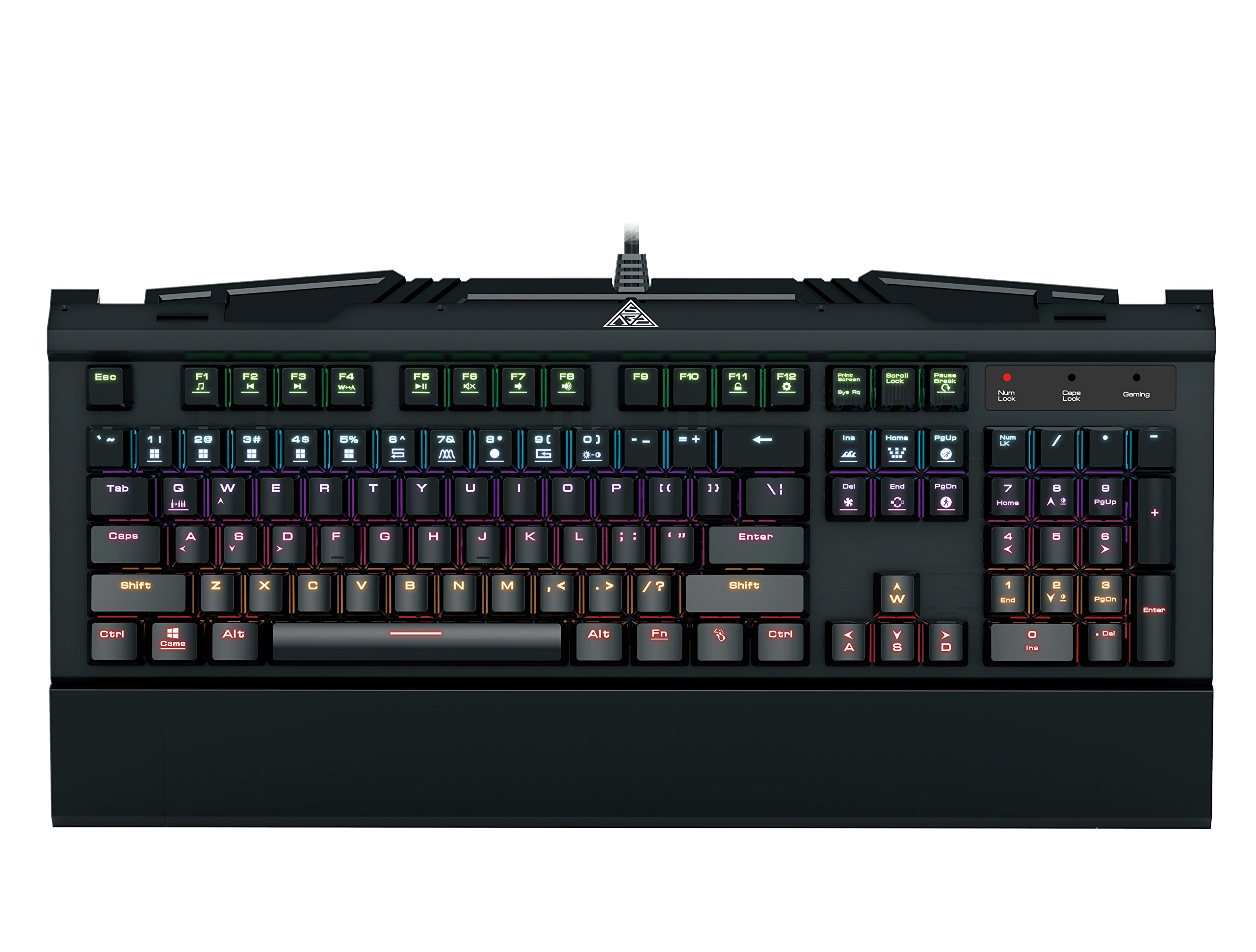
Image 1.1: The GAMDIAS Hermes GKB3000 Mechanical Gaming Keyboard. This image displays the full keyboard with its key layout and design, highlighting its compact yet robust build.
2. Package Contents
Please check the package contents upon unboxing to ensure all items are present and undamaged.
- GAMDIAS Hermes GKB3000 Mechanical Gaming Keyboard
- User Manual (this document)
3. Setup
Follow these steps to set up your GAMDIAS Hermes GKB3000 keyboard:
- Unpack the Keyboard: Carefully remove the keyboard from its packaging.
- Connect to Computer: Plug the USB-A connector of the keyboard cable into an available USB port on your computer.
- Driver Installation: The keyboard is plug-and-play. Your operating system (e.g., Windows) will automatically detect and install the necessary drivers. No additional software installation is typically required for basic functionality.
- Placement: Place the keyboard on a stable, flat surface for comfortable use.
4. Operating Instructions
4.1. Lighting Effects
The Hermes GKB3000 features a 7-color spectrum backlight with 14 sets of lighting effects. These include 9 preset effects and 5 customizable patterns.
- Switching Effects: Use the dedicated function keys (often combined with the Fn key) to cycle through the preset lighting effects. Refer to the keyboard's keycap legends for specific combinations.
- Customizing Effects: The keyboard supports 5 customizable lighting patterns. Instructions for programming these patterns are typically found in the full software suite available for download from the GAMDIAS website, if applicable.
- Brightness Adjustment: Adjust backlight brightness using designated function key combinations.
4.2. Multimedia Control Keys
Access multimedia functions quickly using the dedicated multimedia control keys, often activated by holding the Fn key in combination with the F-keys (F1-F12).
- Volume Control: Increase, decrease, or mute audio.
- Media Playback: Play/pause, stop, previous track, next track.
- Other Functions: May include opening default browser, email client, or calculator.
4.3. Special Gaming Functions
- WASD-Arrow Key Swap: This feature allows you to swap the functionality of the WASD keys with the arrow keys. This is useful for certain games or user preferences. Activate this function using a specific Fn key combination (e.g., Fn + W).
- Consecutive Attack Mode: This mode enhances rapid key input for gaming. Refer to the keyboard's specific documentation or GAMDIAS software for activation and configuration details.
- Keyboard Lock: Temporarily disable the keyboard input to prevent accidental presses. Activate using a Fn key combination.
- Windows Key Disable: Prevent accidental presses of the Windows key during gaming, which can minimize your game. Activate using a Fn key combination (e.g., Fn + Win key).
- N-Key Rollover: The GKB3000 supports N-key rollover, meaning multiple keys can be pressed simultaneously without ghosting or missed inputs. This ensures accurate and responsive commands during intense gaming sessions.
5. Maintenance
Proper maintenance ensures the longevity and optimal performance of your keyboard.
- Cleaning:
- Disconnect the keyboard from your computer before cleaning.
- Use a soft, lint-free cloth slightly dampened with water or a mild cleaning solution to wipe the surface.
- For dust and debris between keys, use compressed air.
- Avoid using harsh chemicals, abrasive cleaners, or solvents.
- Storage: Store the keyboard in a cool, dry place away from direct sunlight and extreme temperatures when not in use for extended periods.
- Handling: Avoid dropping the keyboard or exposing it to excessive force, as this can damage the mechanical switches or internal components.
6. Troubleshooting
If you encounter issues with your GAMDIAS Hermes GKB3000 keyboard, refer to the following common solutions:
| Problem | Possible Solution |
|---|---|
| Keyboard is not responding. |
|
| Backlight is not working or is dim. |
|
| Certain keys are not working. |
|
| WASD keys are acting as arrow keys. |
|
If the problem persists after trying these solutions, please contact GAMDIAS customer support for further assistance.
7. Specifications
The following are the technical specifications for the GAMDIAS Hermes GKB3000 Mechanical Gaming Keyboard:
| Feature | Detail |
|---|---|
| Brand | GAMDIAS |
| Model Number | GKB3000 |
| Switch Type | GAMDIAS Certified Mechanical Blue Switches |
| Actuation Lifecycle | 50 Million Keystrokes |
| Backlighting | 7-Color Spectrum, 14 Lighting Effects (9 preset, 5 customizable) |
| Anti-Ghosting | N-Key Rollover |
| Connectivity | USB-A |
| Operating System | Windows |
| Item Weight | 2.42 pounds (approx. 1.1 kg) |
| Product Dimensions (LxWxH) | 18.8 x 10.5 x 2 inches (approx. 47.75 x 26.67 x 5.08 cm) |
| Material | Plastic with Elegant Metal Plate Design |
8. Warranty and Support
GAMDIAS products are manufactured to the highest quality standards. For information regarding warranty coverage, terms, and conditions, please refer to the warranty card included with your product or visit the official GAMDIAS website.
For technical support, troubleshooting assistance, or any product-related inquiries, please contact GAMDIAS customer support through their official website or the contact information provided in your product packaging.
GAMDIAS Official Website: www.gamdias.com


