
1. Introduction
This manual provides comprehensive instructions for the WINGONEER CP2104 USB 2.0 to TTL UART 6-Pin Serial Converter Module. This module facilitates communication between a computer's USB port and TTL-level serial devices, making it suitable for various electronic projects, STC microcontroller programming, and updating firmware on devices such as DVD players, hard drives, routers, and GPS units. Please read this manual thoroughly before use to ensure proper operation and safety.
2. Product Overview
The WINGONEON CP2104 module is a compact and reliable USB to TTL serial converter. It features the stable and trusted CP2104 chipset, offering full-speed USB 2.0 compatibility at 12Mbps. The module provides a standard USB Type-A connector and a 6-pin header for TTL connections, including DTR, 3.3V, 5V, TXD, RXD, and GND. It is designed for broad compatibility with various operating systems.

Figure 2.1: WINGONEER CP2104 USB to TTL UART 6-Pin Serial Converter Module.
3. Features
- Designed for USB to TTL electronic projects, STC downloads, and device updates (DVD, hard disk, router, GPS).
- Integrated USB to RS232 transfer circuit with stable and reliable CP2104 chipset.
- Supports Windows 98SE, 2000, XP, Vista, Windows 7, Windows 10, Mac OS 9, Mac OS X, and Linux 2.40.
- USB 2.0 compatible with 12Mbps full-speed operation.
- Standard USB Type-A connector.
- 6-pin male TTL header with DTR, 3.3V, 5V, TXD, RXD, GND connections.
- Supports event transmission pause and line suspend.
- USB suspend states supported via suspend pins.
- Operating temperature range: -40°C to +85°C.
4. Specifications
| Feature | Specification |
|---|---|
| Model Number | CP2104 |
| Brand | WINGONEER |
| USB Standard | USB 2.0 Full-Speed (12Mbps) |
| Output Pins | DTR, 3.3V, 5V, TXD, RXD, GND |
| Input Voltage | 5 Volts (DC) via USB |
| Compatible Devices | Desktop Computers, Laptops, Other Electronic Devices |
| Operating System Support | Windows 98SE/2000/XP/Vista/7/10, Mac OS 9/X, Linux 2.40+ |
| Operating Temperature | -40°C to +85°C |
| Color | Blue |
5. Setup
5.1. Package Contents
- 1x WINGONEER CP2104 6-PIN Module
- Jumper wires (typically included, as seen in product images)
5.2. Driver Installation
Before connecting the module, it is recommended to install the necessary drivers for the CP2104 chipset. While some operating systems, like Windows 10 and Linux, may recognize the device automatically, manual driver installation is often required for full functionality and stability.
- Download Drivers: Visit the official Silicon Labs website (manufacturer of the CP2104 chip) and download the latest VCP (Virtual COM Port) drivers for your specific operating system (Windows, Mac, Linux).
- Install Drivers: Follow the instructions provided with the downloaded driver package. For Windows, this typically involves running an executable installer. For Linux, consult the Silicon Labs documentation for installation procedures.
- Verify Installation: After installation, connect the CP2104 module to a USB port on your computer.
- Windows: Open Device Manager (search for "Device Manager" in the Start menu). Look under "Ports (COM & LPT)" for an entry like "Silicon Labs CP210x USB to UART Bridge (COMx)". Note the assigned COM port number.
- Linux: Open a terminal and type
ls /dev/ttyUSB*. You should see an entry like/dev/ttyUSB0. - Mac OS: Check System Information > USB or use terminal commands like
ls /dev/cu.SLAB_USBtoUART.
5.3. Pinout and Connections
The module features a 6-pin header for connecting to your target device. Understanding each pin's function is crucial for correct operation.
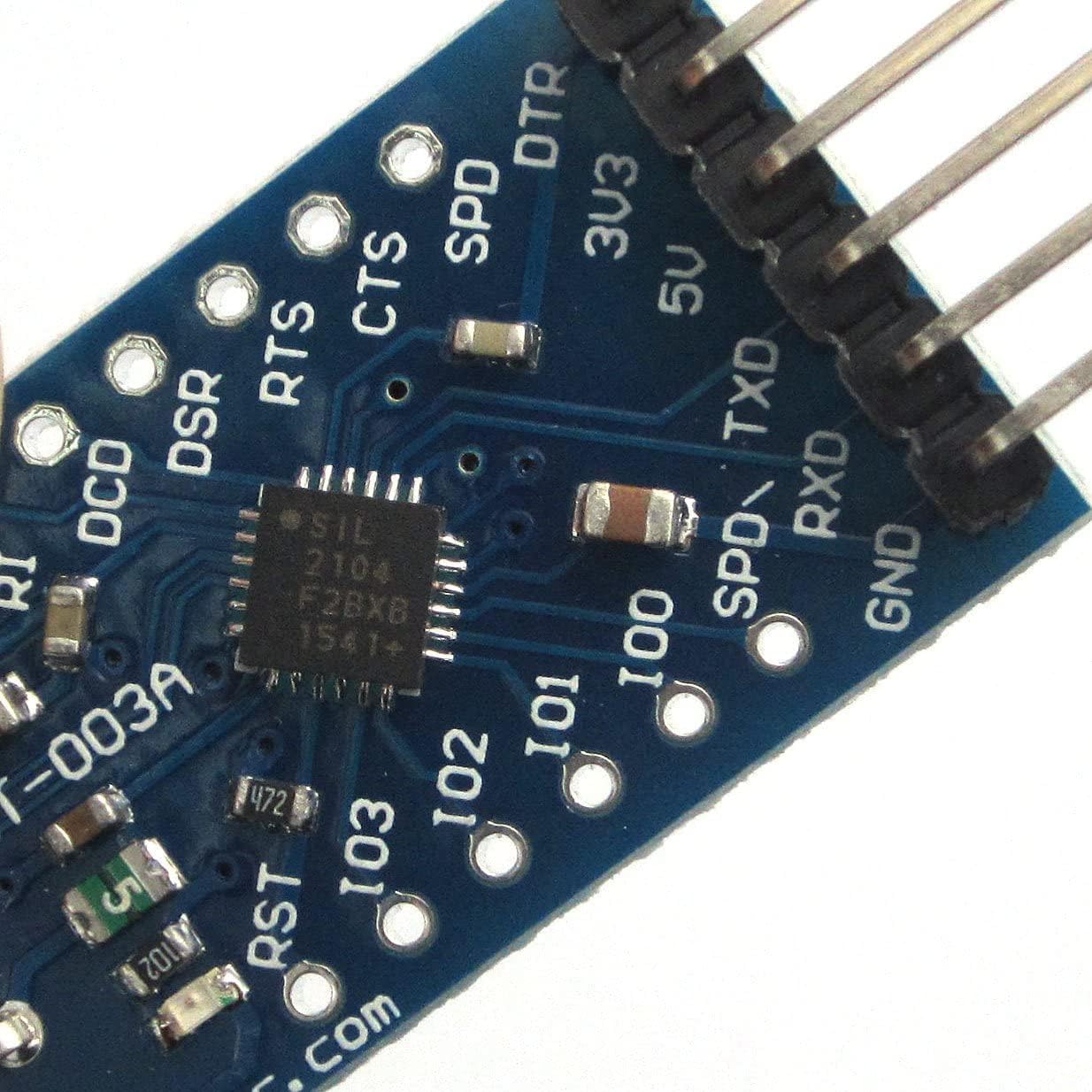
Figure 5.1: Close-up view of the CP2104 module's 6-pin header.
- DTR: Data Terminal Ready. Used for automatic reset in some microcontroller programming scenarios (e.g., Arduino).
- 3.3V: 3.3 Volt power output. Provides power to the target device if it operates at 3.3V.
- 5V: 5 Volt power output. Provides power to the target device if it operates at 5V.
- TXD: Transmit Data. Connect this pin to the RXD (Receive Data) pin of your target device.
- RXD: Receive Data. Connect this pin to the TXD (Transmit Data) pin of your target device.
- GND: Ground. Connect this pin to the GND (Ground) pin of your target device.
Important: Ensure that the TXD pin of the CP2104 module is connected to the RXD pin of your target device, and the RXD pin of the CP2104 module is connected to the TXD pin of your target device. Also, select the appropriate voltage (3.3V or 5V) for your target device. Do not connect both 3.3V and 5V outputs simultaneously to the same device.

Figure 5.2: Example connection of the CP2104 module with jumper wires.
6. Operating Instructions
Once the drivers are installed and the module is correctly wired to your target device, you can begin serial communication.
- Connect to PC: Plug the CP2104 module into an available USB port on your computer.
- Open Serial Terminal Software: Use a serial terminal program (e.g., PuTTY, Tera Term, Arduino IDE Serial Monitor, CoolTerm) on your computer.
- Configure Serial Port: In the terminal software, select the COM port identified during driver installation (e.g., COM3 on Windows, /dev/ttyUSB0 on Linux). Set the baud rate, data bits, parity, and stop bits to match the settings of your target device.
- Initiate Communication: You should now be able to send and receive data between your computer and the target device. For microcontroller programming, follow the specific instructions for your development environment (e.g., Arduino IDE, STC-ISP).
6.1. System Diagram
The following diagram illustrates the internal block structure and typical connections of the CP2104 chipset.
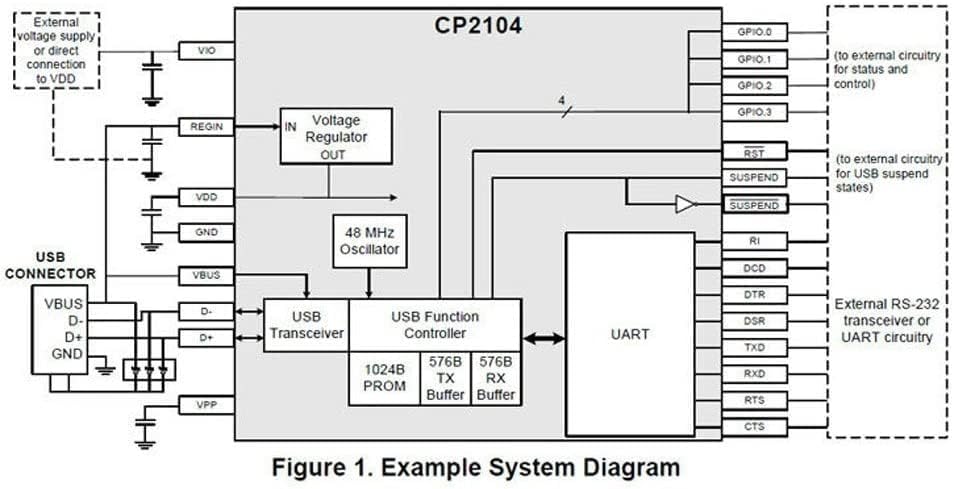
Figure 6.1: CP2104 Example System Diagram.
7. Maintenance
The WINGONEER CP2104 module is a robust electronic component, but proper care ensures its longevity.
- Storage: Store the module in a dry, anti-static environment when not in use.
- Handling: Handle the module by its edges to avoid touching the electronic components directly. Static electricity can damage sensitive components.
- Cleaning: If necessary, gently clean the module with a soft, dry cloth. Avoid using liquids or abrasive cleaners.
- Physical Protection: As the module does not come with a protective casing, exercise caution to prevent physical damage to the circuit board or pins.
8. Troubleshooting
If you encounter issues with your CP2104 module, consider the following troubleshooting steps:
- Module Not Recognized:
- Ensure drivers are correctly installed (refer to Section 5.2).
- Try a different USB port on your computer.
- Restart your computer after driver installation.
- No Data Transmission/Reception:
- Verify that TXD and RXD connections are crossed (CP2104 TXD to device RXD, CP2104 RXD to device TXD).
- Check that the GND pins of both the module and the target device are connected.
- Confirm that the baud rate, data bits, parity, and stop bits in your serial terminal software match the target device's settings.
- Ensure the target device is powered correctly (either by its own supply or via the 3.3V/5V pin from the CP2104 module).
- Intermittent Connection:
- Check for loose connections or damaged jumper wires.
- Ensure the USB cable is securely connected.
- Avoid using excessively long or poor-quality USB cables.
- Voltage Issues:
- Confirm that you are using the correct voltage (3.3V or 5V) for your target device.
- Do not connect both 3.3V and 5V outputs to the same device simultaneously.
9. Warranty and Support
Specific warranty details for the WINGONEER CP2104 module are not provided in the product information. For any issues or technical support, please refer to the retailer or the manufacturer's official website for assistance. Keep your purchase receipt as proof of purchase.