
1. Introduction
This manual provides detailed instructions for the setup, operation, and maintenance of your AOC E2475PWJ 23.6-inch Full HD monitor. This versatile TN panel display offers excellent image quality and performance, featuring Full HD resolution, a high contrast ratio, and optimized brightness for brilliant and vivid images. The ergonomic stand and anti-flicker technology are designed to enhance your viewing comfort. Please read this manual thoroughly before using the monitor to ensure proper installation and functionality.
2. Safety Information
Always observe the following safety precautions to prevent damage to the monitor and ensure your safety:
- Do not expose the monitor to rain or moisture to avoid fire or shock hazards.
- Do not open the monitor casing. There are no user-serviceable parts inside. Refer all servicing to qualified service personnel.
- Place the monitor on a stable, flat surface to prevent it from falling.
- Ensure proper ventilation. Do not block ventilation openings.
- Use only the power cord and adapter supplied with the monitor.
- Unplug the monitor from the power outlet before cleaning.
- Keep the monitor away from direct sunlight, heat sources, and extreme temperatures.
3. Package Contents
Please check the package contents carefully. If any items are missing or damaged, contact your retailer.
- AOC E2475PWJ 23.6-inch Monitor
- Power Cable
- VGA Cable
- DVI Cable
- Audio Cable
- Installation CD
- Warranty Card
4. Setup
4.1 Assembling the Stand
Follow these steps to attach the stand to your monitor. Ensure the monitor is placed face down on a soft, clean surface to prevent scratches.

Figure 4.1: Side view of the AOC E2475PWJ monitor with its stand assembled. This image illustrates the monitor's profile and the attached base, showing its ergonomic design.
- Carefully remove the monitor from its packaging.
- Attach the stand base to the stand neck. Secure it with the provided screw.
- Align the stand assembly with the mounting slot on the back of the monitor.
- Gently push the stand into the slot until it clicks into place. Ensure it is securely fastened.
4.2 Connecting to Your Computer
The AOC E2475PWJ monitor supports VGA, DVI, and HDMI connections. Choose the appropriate cable for your computer.

Figure 4.2: Rear view of the AOC E2475PWJ monitor's input panel. This image displays the various connection ports, including VGA, DVI, HDMI, and audio input/output, along with the power input.
- Power Connection: Connect the power cable to the monitor's power input and then to a power outlet.
- Video Connection:
- VGA: Connect one end of the VGA cable to the monitor's VGA port and the other end to your computer's VGA port.
- DVI: Connect one end of the DVI cable to the monitor's DVI port and the other end to your computer's DVI port.
- HDMI: Connect one end of the HDMI cable to the monitor's HDMI port and the other end to your computer's HDMI port.
- Audio Connection: If you wish to use the monitor's integrated speakers, connect the audio cable from your computer's audio output to the monitor's audio input.
After making all connections, turn on your computer and then the monitor. The monitor should automatically detect the input signal.
5. Operating the Monitor
5.1 Power On/Off
Locate the power button on the bottom right side of the monitor. Press it to turn the monitor on or off. The power indicator light will illuminate when the monitor is on.

Figure 5.1: Close-up view of the control buttons situated on the bottom bezel of the AOC E2475PWJ monitor. These buttons are used for power control and navigating the On-Screen Display (OSD) menu.
5.2 On-Screen Display (OSD) Menu
The OSD menu allows you to adjust various monitor settings such as brightness, contrast, color, input source, and more. Use the physical buttons located on the bottom bezel of the monitor to navigate and select options within the OSD menu.
- Press the Menu button to open the OSD.
- Use the Up/Down or Left/Right arrow buttons to navigate through menu options.
- Press the Select or Enter button to confirm a selection.
- Press the Exit button to close the OSD or go back to the previous menu.
5.3 Ergonomic Adjustments
Your AOC E2475PWJ monitor features an ergonomic stand that allows for height adjustment and pivot functionality to optimize your viewing experience.
- Height Adjustment: Gently push or pull the monitor up or down to adjust its height. The stand allows for up to 130mm of height adjustment.
- Pivot Function: The monitor can be rotated 90 degrees to a portrait orientation. Before pivoting, ensure the monitor is at its maximum height and tilted slightly backward to avoid hitting the desk.
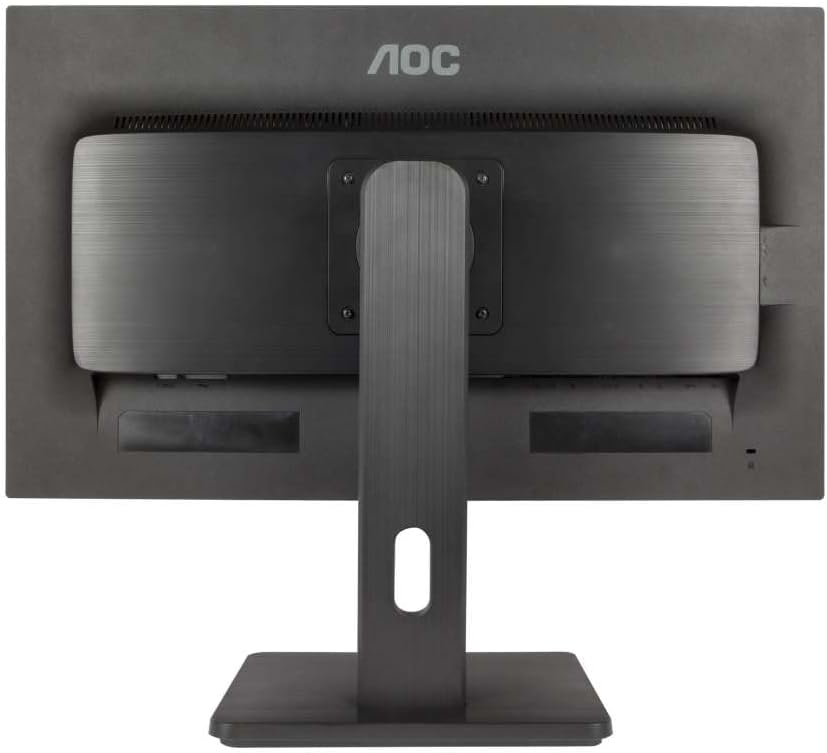
Figure 5.2: The AOC E2475PWJ monitor shown in a pivoted, portrait orientation. This demonstrates the monitor's ability to rotate for vertical viewing, useful for document editing or coding.
6. Maintenance
6.1 Cleaning the Monitor
To ensure a long lifespan and optimal performance, regular cleaning is recommended.
- Always unplug the monitor from the power outlet before cleaning.
- Use a soft, lint-free cloth slightly dampened with water or a mild, non-abrasive screen cleaner.
- Do not spray cleaner directly onto the screen. Apply it to the cloth first.
- Avoid using benzene, thinner, ammonia-based cleaners, or abrasive cleaning agents, as these can damage the monitor's surface.
- Wipe the screen and casing gently.
6.2 General Care
- Avoid placing heavy objects on the monitor or its cables.
- Do not expose the monitor to extreme temperatures or humidity.
- If the monitor will not be used for an extended period, unplug it from the power outlet.
7. Troubleshooting
If you encounter issues with your monitor, refer to the following common problems and solutions.
| Problem | Possible Cause | Solution |
|---|---|---|
| No image on screen | Monitor is off; Power cable loose; Video cable loose or incorrect input selected. | Press the power button; Check power cable connection; Check video cable connection and ensure correct input source is selected via OSD. |
| Image is blurry or distorted | Incorrect resolution; Video cable issue. | Set the display resolution to 1920 x 1080; Check video cable for damage or replace it. |
| No sound from speakers | Audio cable not connected; Volume too low; Muted in OSD or computer settings. | Connect the audio cable; Adjust volume in OSD and computer settings; Ensure not muted. |
| Monitor flickers | Refresh rate issue; Interference. | Ensure refresh rate is set to 60Hz; Check for nearby electronic devices causing interference. |
If the problem persists after trying these solutions, please contact customer support.
8. Specifications
| Brand | AOC |
| Model Number | E2475PWJ |
| Screen Size | 23.6 Inches |
| Resolution | 1920 x 1080 Pixels (Full HD 1080p) |
| Aspect Ratio | 16:9 |
| Panel Surface | Matte |
| Contrast Ratio | 1000:1 |
| Response Time | 2 milliseconds |
| Refresh Rate | 60 Hz |
| Connections | VGA (D-Sub), DVI, HDMI |
| Special Features | Integrated Speaker, Anti-Flicker Technology, Height Adjustable (up to 130mm), Pivot Function |
| Color | Black |
9. Warranty and Support
9.1 Manufacturer's Warranty
The AOC E2475PWJ monitor comes with a manufacturer's warranty.
- Warranty Period: 3 years.
- Coverage: This warranty applies when the product is purchased and shipped by Amazon. If purchased and shipped by a third-party seller, the seller's specific warranty information applies. Please refer to your warranty card for full terms and conditions.
9.2 Customer Support
For technical assistance, warranty claims, or further inquiries, please refer to the contact information provided on your warranty card or visit the official AOC support website.
Online Support: Visit the AOC official website for FAQs, driver downloads, and support contact details.


