

Introduction
This manual provides essential information for the A-Tech 1GB DDR NON-ECC PC3200 400MHz RAM Memory module. This high-quality memory upgrade is specifically designed to enhance the performance of compatible Apple Power Mac G5 and iMac models, allowing for faster loading times, improved system responsiveness, and greater multitasking capabilities.

Maximize Performance: Speed up loading times and boost system performance.

Multitask with Ease: Take on more and handle greater workloads.
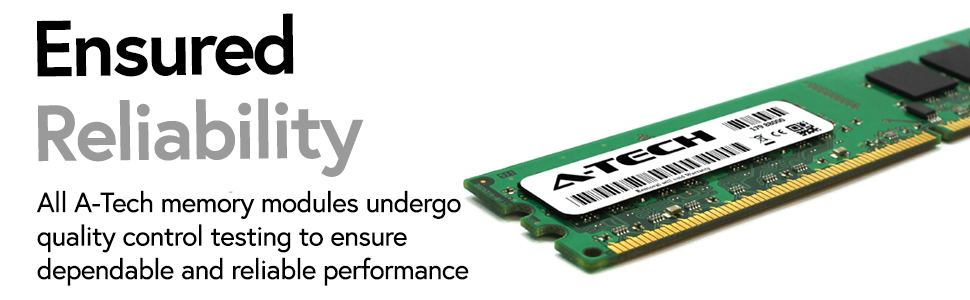
Ensured Reliability: All A-Tech memory modules undergo quality control testing.
Specifications
| Feature | Detail |
|---|---|
| Module Type | 1GB Module (1 x 1GB) DIMM |
| Memory Technology | DDR NON-ECC |
| Speed | PC3200 (400MHz) |
| Product Dimensions | 6.7 x 2.3 x 0.4 inches |
| Item Weight | 0.9 ounces |
| Model Number | AMZUS4-0000046 |
| Manufacturer | A-Tech Components |
| Country of Origin | USA |
Compatible Systems
This A-Tech memory module is specifically designed for various Apple iMac and Power Mac G5 models. Please refer to the compatibility table below to ensure your system is supported. Using incompatible memory can lead to system instability or failure.

Image: Detailed compatibility chart for A-Tech memory modules with various Apple iMac and Power Mac G5 models, including model names, Apple IDs, order numbers, model numbers, model years, and memory specifications.
Key Compatible Models:
- iMac G5 (Early 2005, Late 2004, Mid 2004) models: M9248LL/A, M9249LL/A, M9250LL/A, M9843LL/A, M9844LL/A, M9845LL/A (A1058, A1076)
- Power Mac G5 (Early 2005, Late 2004, Mid 2004) models: M9454LL/A, M9555LL/A, M9747LL/A, M9843LL/A, M9844LL/A, M9845LL/A (A1047, A1093)
Note: If your device is not listed, please verify the capabilities of your system before purchase.
Setup and Installation
Installing RAM modules requires careful handling to prevent damage to the components or your computer. It is recommended to consult Apple's official service manuals or seek professional assistance if you are unsure about the installation process for your specific iMac or Power Mac G5 model.

Image: The A-Tech 1GB DDR RAM module, packaged securely in a clear plastic blister pack, ready for installation.
General Installation Guidelines:
- Safety First: Always power off your computer and disconnect it from the power outlet before opening the case.
- Static Discharge: Ground yourself to prevent electrostatic discharge (ESD), which can damage sensitive electronic components. Use an anti-static wrist strap or touch a grounded metal object.
- Locate Memory Slots: Refer to your computer's manual to locate the memory slots. These are typically found near the processor.
- Remove Old Modules (if applicable): If replacing existing modules, gently push the clips on both sides of the DIMM slot outwards to release the module.
- Insert New Module: Align the notch(es) on the A-Tech memory module with the key(s) in the DIMM slot. Press down firmly and evenly on both ends of the module until the clips snap into place, securing the module.
- Close and Power On: Carefully close your computer's case, reconnect the power, and power on the system. The new memory should be automatically detected.

Image: A close-up view of the A-Tech DDR RAM module, highlighting its precise gold contacts and the green printed circuit board, ready for insertion into a memory slot.
Operation
Once installed, the A-Tech memory module operates seamlessly with your compatible Apple system. RAM (Random Access Memory) is a crucial component that your computer uses to temporarily store data that is actively being used. By upgrading your system's memory, you provide it with more space to work, leading to noticeable improvements in overall performance.
- Faster Application Loading: Programs and applications will launch more quickly.
- Smoother Multitasking: You can run more applications simultaneously without experiencing slowdowns.
- Enhanced Responsiveness: The operating system and applications will feel more fluid and responsive.
- Improved Data Handling: Your system can process larger files and more complex tasks with greater efficiency.

Image: Visual representation of benefits: Accelerate System Speeds, Take on Greater Workloads, and Designed for High Quality Performance.
Maintenance
Memory modules are generally maintenance-free once installed. However, proper care of your computer system can contribute to the longevity and stable operation of all internal components, including RAM.
- Keep System Clean: Ensure your computer's internal components are free from dust buildup, which can impede airflow and lead to overheating.
- Proper Ventilation: Operate your computer in a well-ventilated area to prevent excessive heat, which can degrade electronic components over time.
- Avoid Physical Shock: Protect your computer from drops or impacts, as physical shock can dislodge or damage internal components.
- Software Updates: Keep your operating system and drivers updated to ensure optimal compatibility and performance with your hardware.
Troubleshooting
If you encounter issues after installing your A-Tech memory module, consider the following common troubleshooting steps:
- System Not Booting or Beeping:
- Ensure the memory modules are fully seated in their slots. Re-seat them firmly.
- Verify that the modules are compatible with your specific Mac model (refer to the compatibility section).
- Try installing one module at a time to identify a potentially faulty module or slot.
- Incorrect Memory Detected:
- Check your system's "About This Mac" or system information to confirm the detected RAM.
- Ensure you have installed the correct type and speed of RAM for your model.
- Some older systems may require a firmware update to recognize larger memory capacities. Consult Apple's support resources.
- System Instability or Crashes:
- Run a memory diagnostic tool if available (e.g., Apple Hardware Test).
- Ensure proper ventilation and cooling within your computer to prevent overheating.
For further assistance, please refer to Apple's official support documentation for your specific computer model or contact A-Tech Components support.
Warranty and Support
A-Tech Components stands behind the quality of its products. This A-Tech memory module comes with a Lifetime Warranty, ensuring peace of mind regarding its performance and durability.
For warranty claims, technical support, or any inquiries regarding your A-Tech memory, please contact A-Tech Components directly. You can find more information and contact details on the official A-Tech store:
Legal Disclaimer: Item may not be compatible with devices other than those listed. Please verify system capabilities.